Troubleshooting The Protuno Plugin
Every message the Protuno screen can show, what it means, and the shortest way past it.
On this page
- This site cannot issue a password
- The site is served over http
- A security plugin turns them off
- They are off for your account
- WordPress is too old
- The connector won’t install
- The download failed
- The site does not allow installs
- The site is below the connector’s requirements
- Universal Abilities didn’t install
- Stuck on Waiting
- Only one server is exposed
- Disconnecting and revoking
- Known plugin conflicts
- Permission messages
- Still stuck
When the plugin cannot do something, it says why in plain words. This page lists those messages, grouped by where you meet them, with the fix for each.
Find the words on your screen, then read the lines under them. Most fixes take a minute and a setting.
This site cannot issue a password
This screen appears instead of the setup steps when WordPress will not create an application password on your site. The line under the heading names the reason. Once it is fixed, press Check Again.
The site is served over http
Protuno cannot connect to a site served over http, because WordPress will not issue an application password on one.
WordPress only issues application passwords on a secure connection.
To fix it, add an SSL certificate. Most hosts do it from their control panel in a few minutes, and many at no cost. Then make sure both addresses under Settings, General start with https.
A security plugin turns them off
Wordfence is switching application passwords off on this site. Turn them back on in its settings, then check again.
The screen names the plugin when it is Wordfence, Solid Security, Sucuri Security or All In One WP Security. Wordfence ships with this setting on by default.
To fix it, open that plugin’s login security settings and allow application passwords.
Application passwords are disabled on this site, usually by a security plugin or the wp_is_application_passwords_available filter.
Something is turning them off, but the plugin cannot tell what.
To fix it, check your other security plugins first. If none of them is responsible, look for custom code or a must-use plugin that sets that filter.
They are off for your account
Application passwords are switched off for your account, usually by a security plugin. Another administrator can connect this site, or the policy can be changed for your user.
Application passwords work on the site, but a policy blocks them for your user.
To fix it, ask another administrator to connect the site, or change the policy in the security plugin for your account.
WordPress is too old
This site runs a WordPress version older than 5.6, which has no application passwords.
Application passwords arrived in WordPress 5.6.
To fix it, update WordPress. The plugin itself needs 6.9 or later.
The connector won’t install
These appear on step two, after you press Install & Enable MCP.
The download failed
The connector could not be installed: … Try again, and if it keeps failing the download source may be unreachable from this server.
Your server could not fetch Agent Connector from its release page. The reason from WordPress appears in place of the dots.
To fix it, press the button again. If it keeps failing, ask your host whether outbound HTTPS to github.com is blocked, or install Agent Connector by hand and come back.
Nothing was downloaded. The connector address is not on this plugin’s allowed list. If a filter on this site changed it, that is what to revert.
The plugin only downloads from a short list of known addresses. Something on your site pointed it somewhere else, so it stopped.
To fix it, remove the custom code that changed the connector’s address.
The site does not allow installs
This site does not allow plugins to be installed from the dashboard, so this one has to go in by hand.
File changes are switched off on this site, usually by your host.
To fix it, press Get The Connector, upload it through your host or SFTP, then come back. Switching it on from this screen still works.
Your account cannot activate plugins here. An administrator can switch on Agent Connector from the Plugins screen, and this page will carry on.
Your user can see the screen but is not allowed to activate plugins.
To fix it, ask an administrator to activate Agent Connector for WP under Plugins.
The site is below the connector’s requirements
It needs WordPress 7.0 or later. This site runs 6.9.
Agent Connector for WP needs WordPress 7.0 and PHP 8.1. The screen shows the version it needs and the one your site runs, for WordPress or PHP.
To fix it, update WordPress, or ask your host to move the site to a newer PHP. Read The Requirements has the full list.
Universal Abilities didn’t install
Agent Connector went in, but its companion pack did not. Your agents can read the site but not change it until the pack is added.
Agent Connector is installed and switched on, but Universal Abilities could not be added: … Press the button again to retry just that part.
The first half of the install worked. Only the pack failed.
To fix it, press the button again. It retries the pack alone.
WordPress will not install plugins on this site. Either your account lacks the permission, or file changes are switched off. Ask whoever hosts the site to add Universal Abilities.
The same limit as above, met on the pack.
To fix it, ask your host or an administrator to install Universal Abilities for Agent Connector.
Stuck on Waiting
The connection screen says Waiting when Protuno has not read the site in the last seven days, or has not read it yet. Right after you connect, work through these in order:
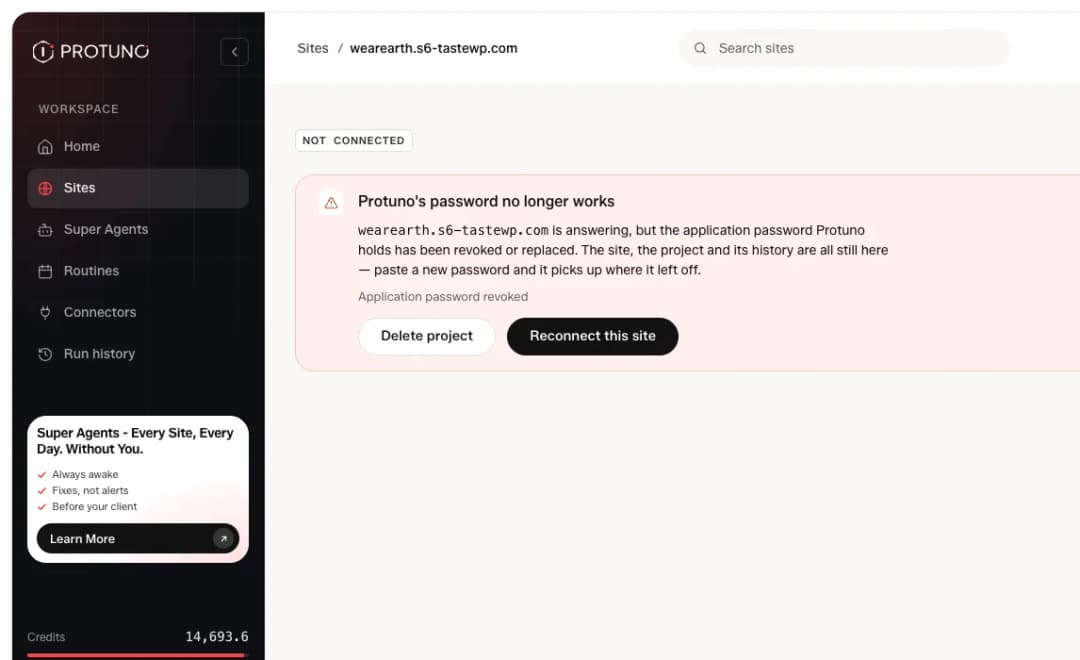
- Both values went in. Check the username and the application password are pasted into your Protuno dashboard exactly as shown.
- It is the newest password. If you pressed Regenerate Password, the old one stopped working. Paste the new one.
- The password still exists. Look under Users, Profile, Application Passwords for
Protuno - AI Super Agent. - A connector is running. MCP abilities enabled should name a connector, not say Not running. If it says Not running, go back to step two.
- Nothing is blocking the REST API. A firewall or security plugin that blocks
/wp-json/stops Protuno before it reaches the site.
Only one server is exposed
This site is set to expose only Agent Connector for WP to Protuno. Change it on the Protuno screen in wp-admin.
Protuno tried to use an MCP server other than the one you chose. Its password only opens that one.
To fix it, open the Protuno screen, go to step two, and enable the server you want Protuno to use.
Disconnecting and revoking
Another change to this connection is already running, possibly in a second tab or by another administrator. Wait a moment and try again.
Two changes cannot happen at once, so the second one waits.
To fix it, wait a few seconds and press the button again.
There was no Protuno password on this site to revoke.
The password was already gone, usually revoked from a user’s profile.
To fix it, there is nothing to do. The site is already disconnected.
1 Protuno password could not be revoked and still works: … Remove it from that user’s profile screen, under Application Passwords.
One password could not be removed from here and is still active.
To fix it, open that user’s profile and revoke it under Application Passwords.
1 Protuno credential belongs to a user your account cannot edit, so it was left alone. A network administrator can remove it.
On multisite, you can only remove passwords of users you can edit.
To fix it, ask a network administrator to revoke it.
Known plugin conflicts
- Wordfence, Solid Security, Sucuri Security, All In One WP Security. These can switch application passwords off. The screen names them when they do. See a security plugin turns them off above.
- UiChemy. Older UiChemy builds could remove the Protuno plugin while cleaning up a retired tool that shared its file name. The current Protuno plugin tells UiChemy to leave it alone. If Protuno disappeared after you installed or updated UiChemy, install the latest Protuno again.
- Tutor LMS. It could leave the Protuno screen showing with no styling. The current version fixes this, so update the Protuno plugin.
Permission messages
You do not have permission to view this page.
The Protuno screen is for administrators only.
To fix it, sign in as an administrator, or ask one to connect the site.
Still stuck
Note the exact words the screen shows and which step you were on. That is usually everything we need to tell you what is wrong.
Comments