Manage And Secure The Connection
Read what the connection screen tells you, change the password, end the connection, and see exactly what Protuno can reach.
On this page
Once a site is connected, the Protuno screen in wp-admin stops being a setup screen. It becomes the one place to see whether Protuno is reading your site, and to change or end that.
The password behind it is yours. It lives in your site, and you can end the connection from either end without asking us.
The connection screen
The heading reads Protuno Is Connected, with your site’s domain beside a status word.
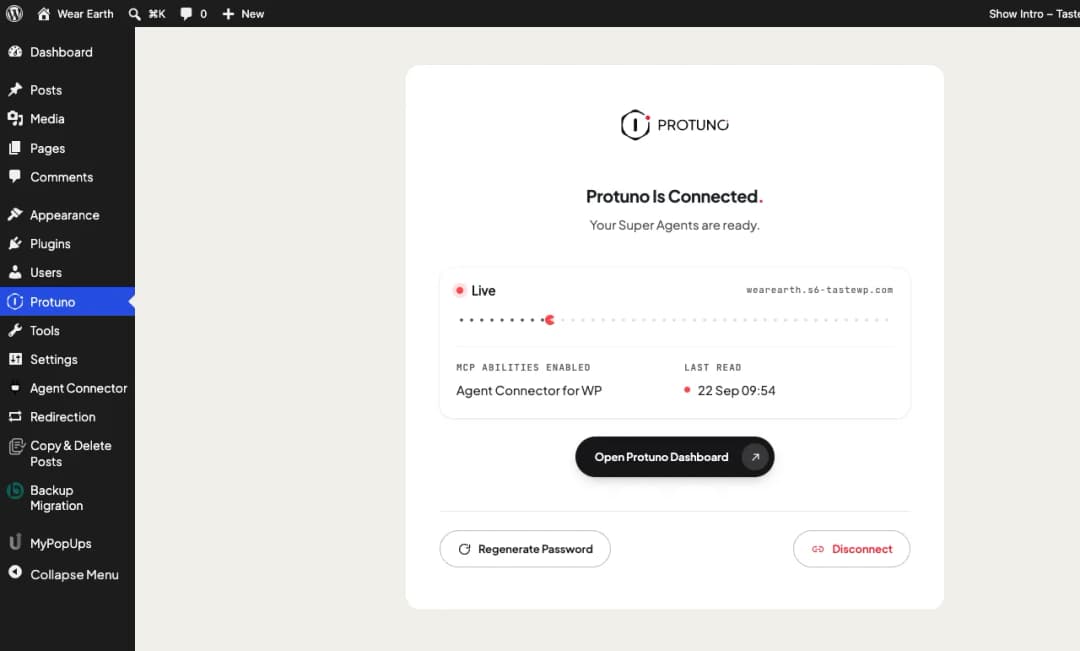
| Status | What it means |
|---|---|
| Live | Protuno has read the site in the last seven days. Live here is the connection status, not a sign that this is your live site rather than staging. |
| Waiting | The password has been handed over, but Protuno has not read the site in the last seven days, or at all yet. |
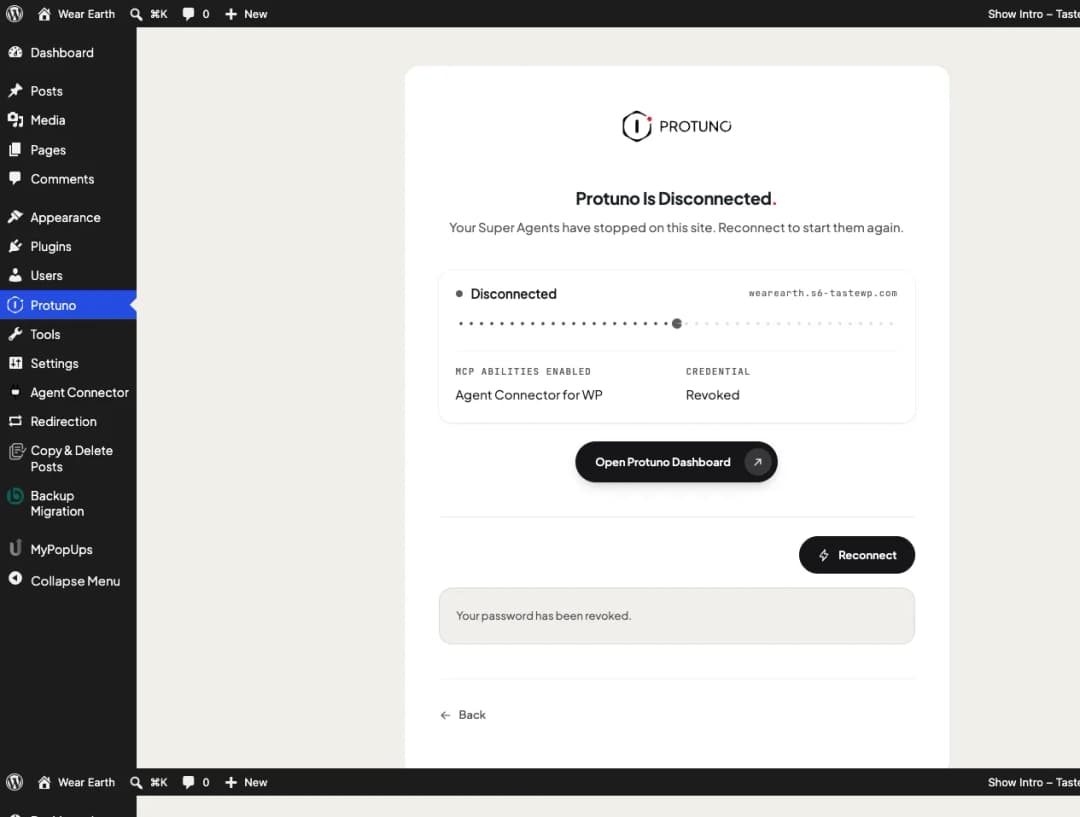
| Disconnected | The password has been revoked. Protuno cannot reach the site. |
Underneath are two facts:
- MCP abilities enabled names the connector that is serving, or says Not running if none is.
- Last read gives the time Protuno last read the site. Before the first read it shows Credential: Not used yet, and after a disconnect, Revoked.
The screen updates itself. While the tab is open and visible, it checks every few seconds for up to fifteen minutes and reloads when the connection changes. It never reloads while a new password is on screen, so you will not lose one you have not copied.
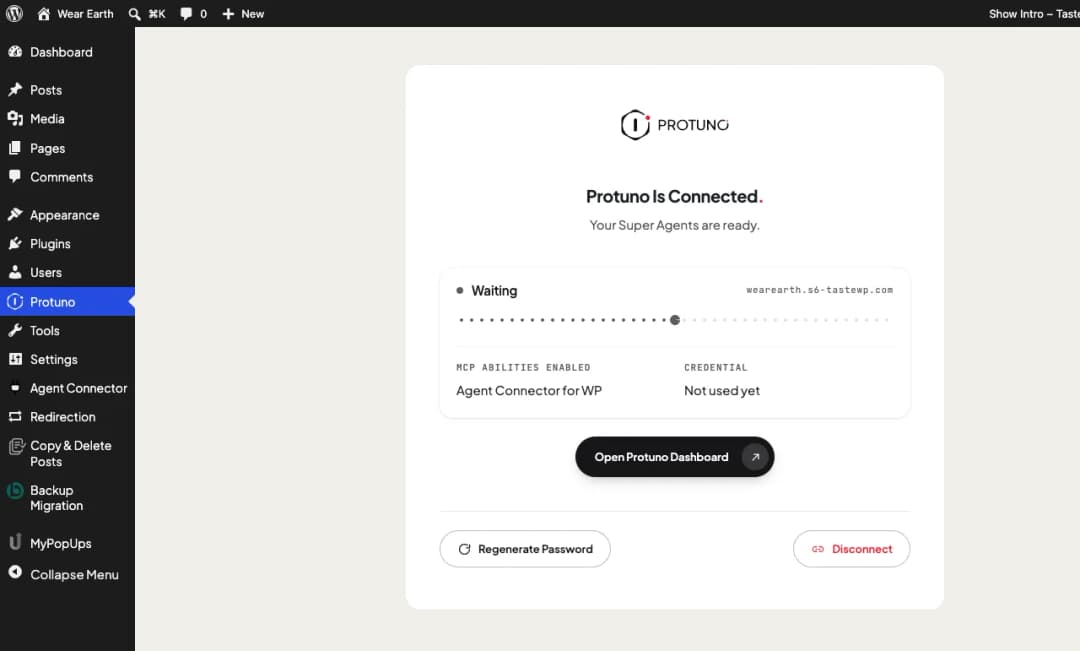
Open Protuno Dashboard takes you to your dashboard on protuno.com.
Regenerate the password
WordPress shows an application password once. If you lost it, or want to rotate it, make a new one.
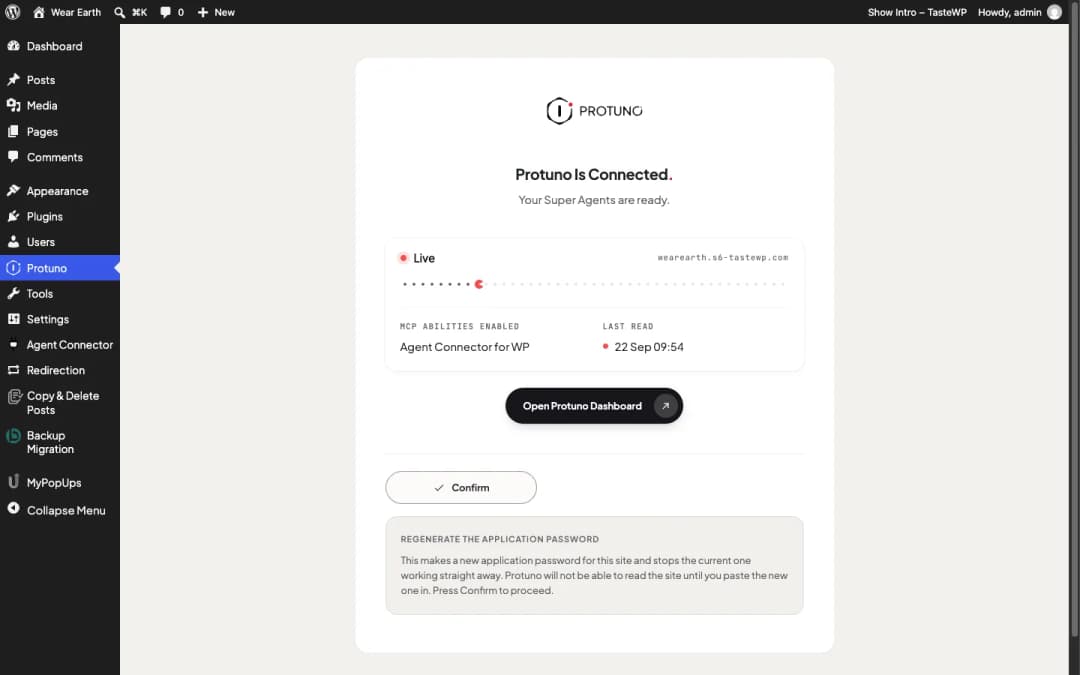
- Press Regenerate Password.
- Read the note and press Confirm. The current password stops working straight away, and Protuno cannot read the site until you paste the new one in.
- Copy the new username and password. They are shown under Your new application password.
- Press Update in Protuno and paste the new password into your dashboard.
Only an administrator signed in to wp-admin can regenerate. A request made with the Protuno password itself is refused, so Protuno cannot issue itself a new key.
Disconnect and reconnect
Press Disconnect, then Confirm. This revokes the password and disconnects your site from Protuno completely. The connector stays installed.
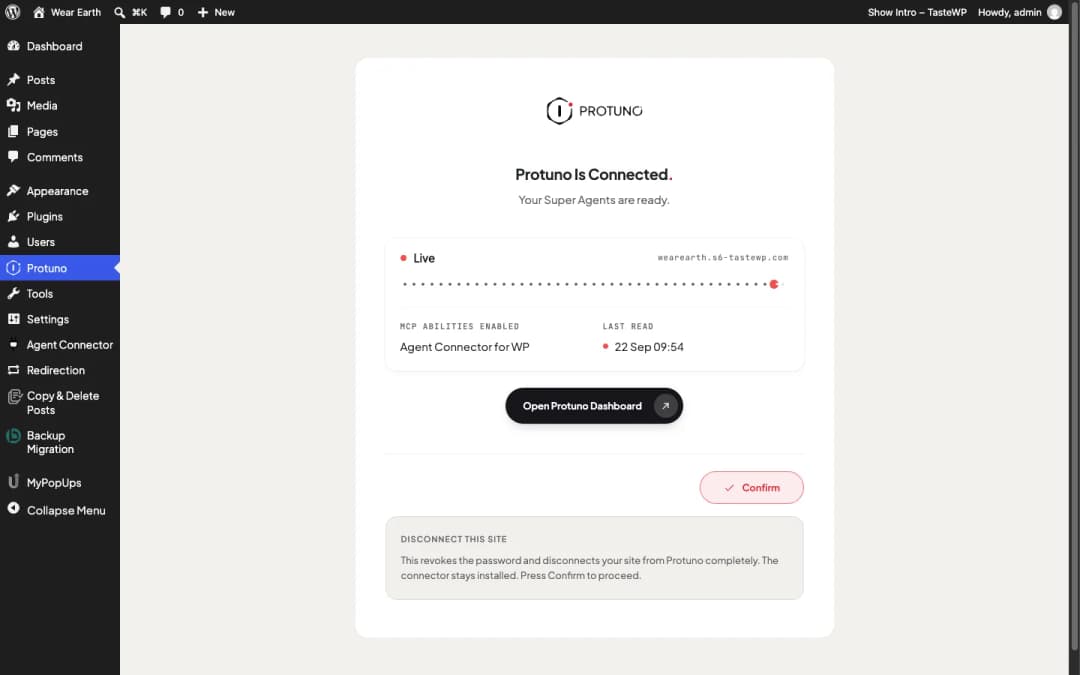
The screen then reads Protuno Is Disconnected and confirms your password has been revoked. Your Super Agents stop on this site.
To start again, press Reconnect. If your connector is still set up, the plugin creates a new password straight away. If not, it takes you back to step two first.
Disconnecting from your Protuno dashboard does the same thing from the other end.
Revoke from your WordPress profile
You do not need the Protuno screen, or us, to cut access.
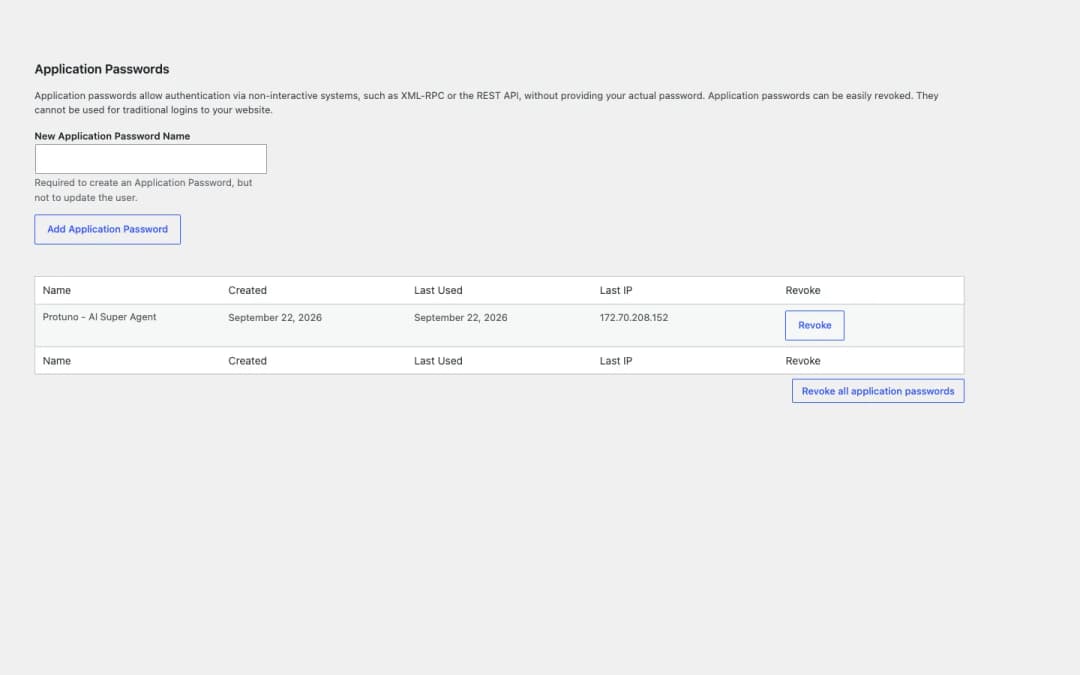
- In wp-admin, open Users, Profile.
- Scroll to Application Passwords.
- Find
Protuno - AI Super Agentand press Revoke. Sites connected with an older version may show it asProtuno.
The connection stops at once.
How the password works
The credential is a standard WordPress application password. It belongs to the administrator who pressed Continue, and WordPress stores only a hash of it. The plugin keeps no copy.
It only opens the server you chose. Protuno uses the password to call your site’s REST API and the one MCP server you picked on step two. On any other MCP server on the site, the request is refused with a message saying the site is set to expose only that one connector to Protuno.
That limit applies to the Protuno password alone. Your own sign-in and other application passwords work as before.
Regenerate and Disconnect remove every Protuno password on the site, whichever user it belongs to. Application passwords made by other integrations are left alone. On multisite, a Protuno password belonging to a user you cannot edit is skipped, and the screen tells you so.
What the plugin stores
No tables, no logs and no user meta. Five small options, each doing one job:
| Option | What it is for |
|---|---|
protuno_do_redirect |
Opens the Protuno screen once, after activation. |
protuno_last_identified |
When Protuno last read the site. Written at most once a minute. |
protuno_disconnected |
Tells a disconnected site apart from one that was never connected. |
protuno_mcp_choice |
Which MCP server you chose. |
protuno_write_lock |
A short lock so two changes cannot happen at once. |
Deactivating the plugin keeps these. Deleting it removes them all.
Deleting the plugin does not revoke the password. The connection keeps working until the password is revoked. Disconnect first if you want both gone.
Where to go next
- Troubleshooting, if the screen says something you did not expect.
- MCP Connectors and Abilities: what an agent can do through the server you chose.
Comments