Fix A Finding In Your AI App
Protuno finds what is wrong. Your own AI app fixes it, on your plan, and asks you before it changes anything.
On this page
Protuno finds what is wrong. Your own AI app fixes it, on your plan, and asks you before it changes anything.
Two buttons on every finding
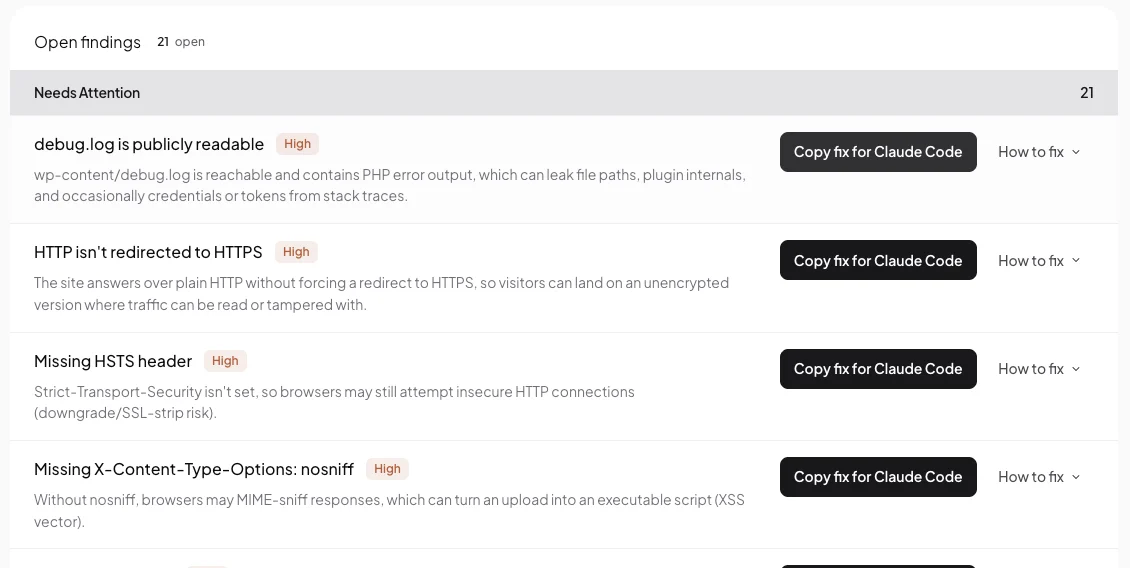
- How to fix shows the change to make, in plain words.
- Fix this hands the fix to your AI app.
What Fix this does
It depends on what is set up.
- The site has no plugin yet. It asks you to connect the plugin first, because no AI app can fix anything inside a site without it.
- No AI app is connected. It asks you to connect one. See Connect your AI app.
- Claude on the web is connected. The button reads Fix in Claude and opens Claude with the request already typed in.
- An app on your computer is connected, such as Claude Code, Codex or Cursor. The button reads Copy fix for and the app’s name. It copies the request and tells you to paste it in the app and press Enter.
The request it hands over
“Use Protuno to fix this issue on (your site): “(the finding)”. Check it first, tell me your plan in plain words, and ask me before you change anything.”
Press Enter, read the plan, and approve it in Protuno. Protuno takes a backup before it changes anything, and the fix can be undone from the run report.
Read only and staging
On a site in Read only, your AI app can plan the fix but cannot apply it. Do the fix on your staging site, check it there, then move it to your live site in your own way.
A fix does not close a finding by itself. The next scan checks again and decides.
Comments