Connect Your AI App
Protuno works inside the AI app you already use. Connect Claude, Claude Code, Codex or Cursor once, with no API key to copy.
On this page
Protuno works inside the AI app you already use. Your AI app does the thinking, on your plan there. Protuno does the work on your sites and keeps the guardrails. You sign in to Protuno once, and there is no API key to copy.
The fastest way: copy one prompt
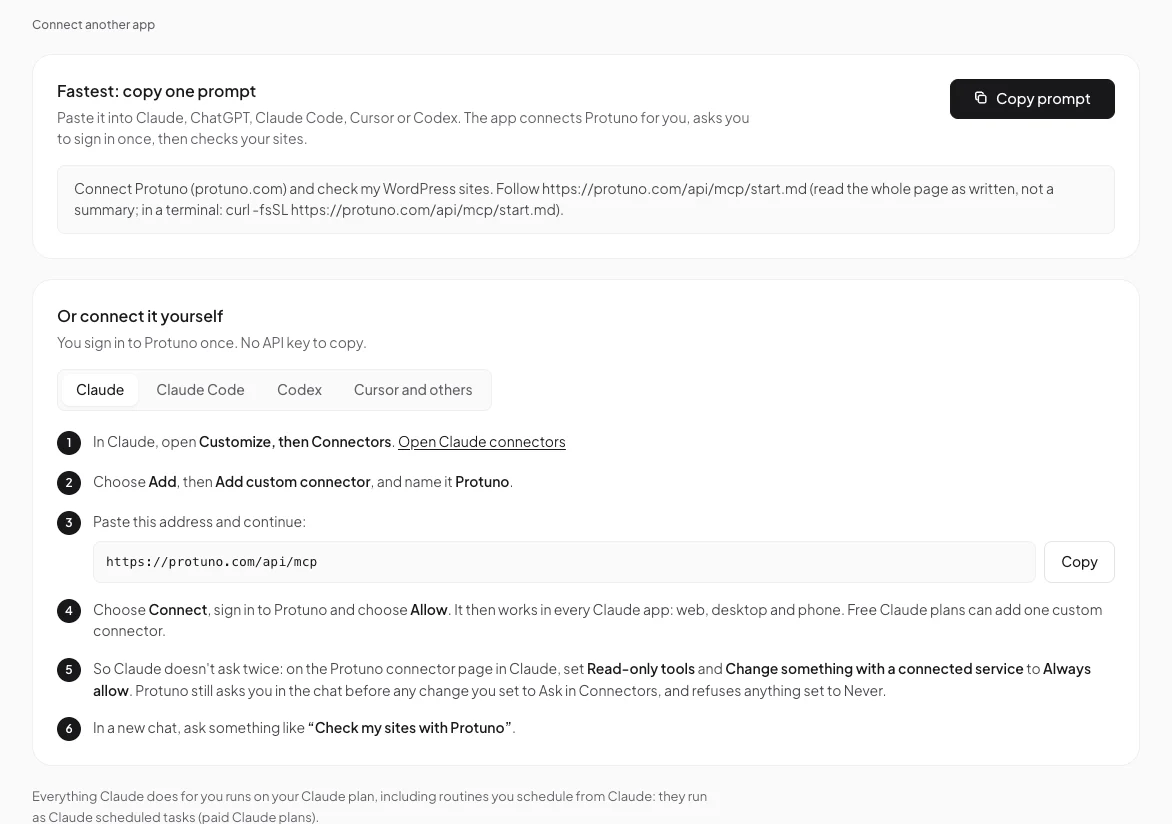
In Protuno, open AI apps (in the sidebar, under Setup) and press Copy prompt. Paste it into your AI app. The app connects Protuno for you, asks you to sign in once, then checks your sites.
One command: Claude Code, Codex and Cursor
If your AI app can run commands, it connects Protuno with one command. It runs the command itself; you only sign in.
- Mac, Linux or Git Bash:
curl -fsSL https://protuno.com/api/mcp/connect.sh | sh -s claude-code(orcodex, orcursor) - Windows PowerShell:
$env:PROTUNO_APP='claude-code'; irm https://protuno.com/api/mcp/connect.ps1 | iex
Your browser opens Protuno. Sign in and press Allow. The command adds Protuno to your app as a custom connector. Then restart the app so Protuno’s tools load; Cursor loads them without a restart. The key is never shown to you or printed.
Claude: web, desktop and phone
- In Claude, open Customize, then Connectors.
- Choose Add, then Add custom connector, and name it Protuno.
- Paste
https://protuno.com/api/mcpand continue. - Choose Connect, sign in to Protuno and choose Allow. It then works in every Claude app. Free Claude plans can add one custom connector.
- So Claude does not ask twice, set Read-only tools and Change something with a connected service to Always allow on the Protuno connector page in Claude. Protuno still asks you before any change you set to Ask in Connectors, and refuses anything set to Never.
- In a new chat, ask something like “Check my sites with Protuno”.
Claude Code, Codex and Cursor by hand
- Claude Code: run
claude mcp add --scope user --transport http protuno https://protuno.com/api/mcp, then type/mcp, pick protuno and sign in. A browser window opens once. - Codex: run
codex mcp add protuno --url https://protuno.com/api/mcp, thencodex mcp login protuno. - Cursor and others: add a remote MCP server (Streamable HTTP) at
https://protuno.com/api/mcp. In Cursor that is Settings, then MCP, then Add a new MCP server. Sign in to Protuno when the app asks. If your app cannot sign in to a remote server, run it through the bridge instead:npx -y mcp-remote https://protuno.com/api/mcp.
What your AI app can and cannot do
The Allow screen lists it before you agree. Running code on your sites is a separate box, “Also let it run code on my sites”, off unless you tick it. Code only runs on sites set to Execute, and it asks before each run.
Only you approve plans and changes, in Protuno. Your AI app can set a site to Read only, never to Execute.
Everything your AI app does for you runs on your plan there, including routines, which run as scheduled tasks in the app. Claude needs a paid plan for those.
See and disconnect your apps
AI apps lists every app you signed in from, with when it was connected and last used. Disconnect cuts one off right away. Reconnecting the same app replaces the old connection rather than adding a second one.
Comments