WordPress .htaccess File: Safe Edits And 500 Error Fixes.
You edit one line in your WordPress .htaccess file, reload the site, and the browser answers with “500 Internal Server Error”. Or you change your permalink settings and every post except the home page returns a 404. Both come from the same small file, and both are fixable once you know what the file is […]

You edit one line in your WordPress .htaccess file, reload the site, and the browser answers with “500 Internal Server Error”. Or you change your permalink settings and every post except the home page returns a 404. Both come from the same small file, and both are fixable once you know what the file is meant to contain.
This guide covers the WordPress .htaccess file as it is: where it lives, what the default version says, which edits are routine, which ones break sites, and how to get back to a working copy. It is written for site owners and agencies who have been told to “just add this to .htaccess” and want to know what that means before they do it.
What The .htaccess File Does
.htaccess is a plain text file that Apache reads on every request to the folder it sits in. Apache is a web server. Instead of changing the server’s main configuration, which most hosting plans do not let you touch, you drop rules into this file and the server follows them for that folder and everything under it. LiteSpeed, another common host server, reads the same format. The Apache documentation describes it as a way to make configuration changes on a per-directory basis, and it also says to avoid it when you have access to the main server configuration, because reading the file on every request costs a little speed.
Nginx does not read .htaccess at all. If your host runs Nginx, any rule you add to the file is ignored without an error, which is a common reason an edit seems to do nothing. Check which server you are on before you spend an hour on a rule that cannot work.
Where To Find It And Why You Cannot See It
The file sits in the folder where WordPress is installed, next to wp-config.php and the wp-content folder. Its name starts with a dot, so Unix-style systems treat it as hidden. In an FTP client you usually have to switch on “show hidden files”. In a hosting file manager there is normally a “show dotfiles” or “show hidden files” option in the settings.
If you cannot find it after showing hidden files, it may not exist. WordPress creates it when permalinks are saved on an Apache site, and it can only do that if it is allowed to write to the folder. Our guide to WordPress file permissions explains why that write permission is both needed and a risk if it is set too loosely.
The Default WordPress Block
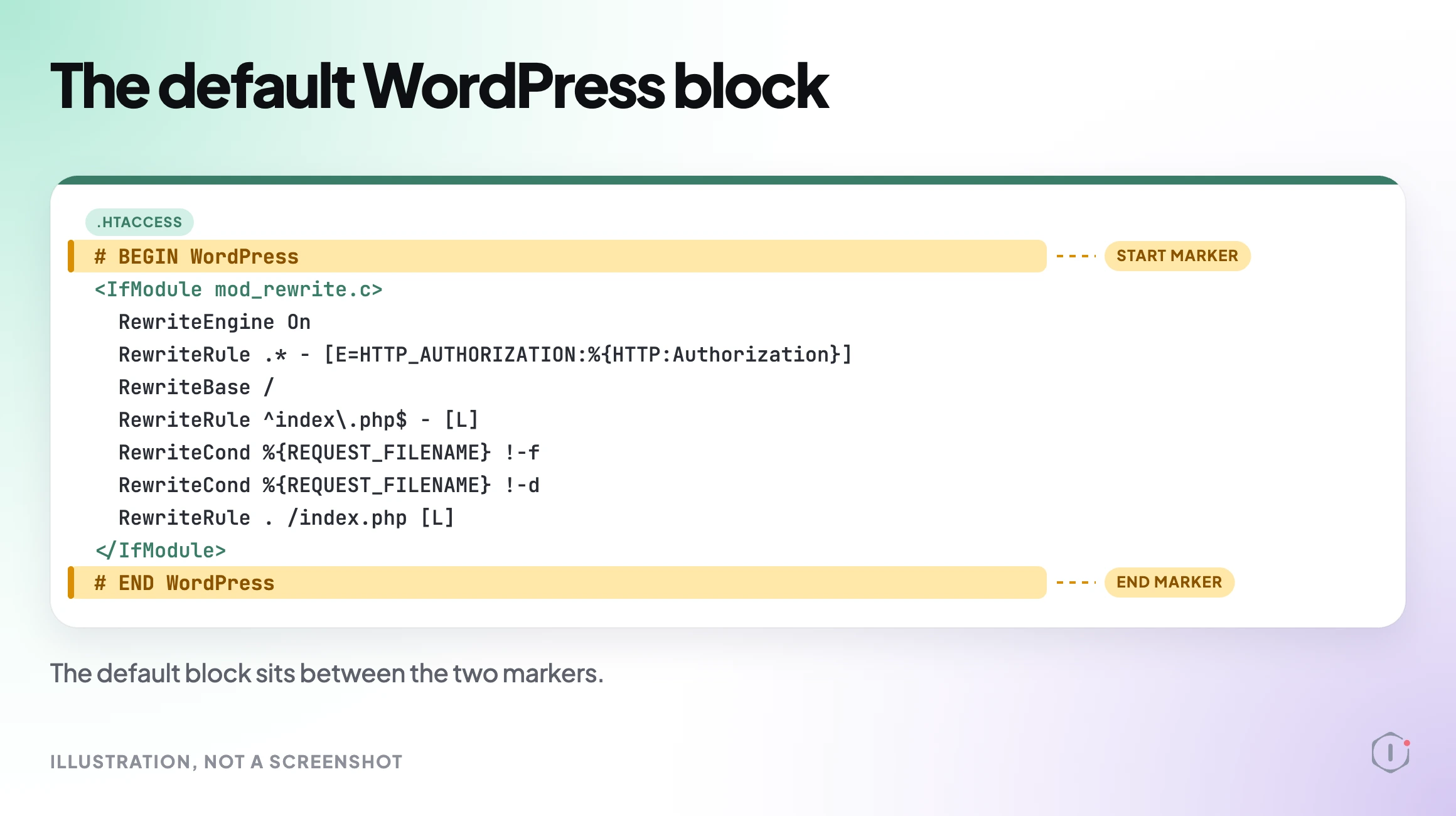
A fresh WordPress install on Apache with pretty permalinks produces this block:
# BEGIN WordPress
<IfModule mod_rewrite.c>
RewriteEngine On
RewriteRule .* - [E=HTTP_AUTHORIZATION:%{HTTP:Authorization}]
RewriteBase /
RewriteRule ^index\.php$ - [L]
RewriteCond %{REQUEST_FILENAME} !-f
RewriteCond %{REQUEST_FILENAME} !-d
RewriteRule . /index.php [L]
</IfModule>
# END WordPress
Read it in plain words. If the request is for a file that exists, serve the file. If it is for a folder that exists, serve the folder. Otherwise hand the request to index.php and let WordPress work out which post or page was asked for. That last step is the whole reason pretty permalinks work.
The two comment lines matter. WordPress rewrites everything between “# BEGIN WordPress” and “# END WordPress” whenever permalinks are saved. Anything you type inside those markers will be overwritten. Put your own rules above or below the block.
Why Permalinks Break When It Goes Missing
Without the rewrite block, Apache looks for a real file called /my-post/, finds nothing, and returns its own 404. The home page still loads because it maps to index.php directly. That is the exact pattern people describe: the home page works, every inner page is a 404.
The usual repair is to open Settings, then Permalinks, and press Save Changes without changing anything. WordPress then tries to write the default block again. If it cannot write to the file, it shows the lines on screen for you to paste in by hand. Before you assume this is the cause, rule out the other source of mass 404s with the steps in monitoring WordPress 404 errors, since a deleted page and a missing rewrite block look similar in a log.
Rules That Plugins Add For You
Caching plugins, security plugins and redirect plugins commonly write their own marked blocks into the file. You can usually recognise them by their own BEGIN and END comments. They do useful work, such as telling the server to serve a cached copy or to compress responses, but they pile up. A site that has run three caching plugins over the years can carry three blocks, two of them from plugins that were deleted. Leftover blocks are a frequent reason a site misbehaves after a plugin removal. Our notes on GZIP and Brotli compression and static asset caching show what correct versions of those rules look like, so you can tell a live block from an orphan.
Edits People Make On Purpose
Four edits cover most of what site owners are asked to do.
- Redirect HTTP to HTTPS. One RewriteCond and one RewriteRule above the WordPress block.
- Redirect one old URL to a new one. A single Redirect 301 line works for simple cases. Long chains of these are how redirect loops and chains start.
- Block access to a sensitive file, such as wp-config.php, with a Files block. Our post on checking whether wp-config.php is exposed shows how to test that the block works.
- Add security headers. These can go in .htaccess on Apache, as covered in WordPress security headers.
Each of these is short. The risk is not the length. It is that the file is read top to bottom and a single misplaced character stops the whole file from being parsed.
Plugin-written blocks deserve the same care as your own rules. Before you delete one, find out which plugin wrote it by reading its BEGIN comment, and check that the plugin is really gone. If the plugin is still active, it will write the block again the next time its settings are saved. If it is gone, remove the whole block from BEGIN to END, not half of it, because a stray opening tag is itself a cause of 500 errors. Take the dated copy first, every time. The habit costs a minute and turns most mistakes into a short restore instead of an outage.
Why One Wrong Line Causes A 500 Error
When Apache hits a directive it does not understand, it does not skip it. It refuses to serve anything from that folder and returns 500 Internal Server Error. The typical causes are a typo in a directive name, a missing closing tag such as </IfModule>, a rule that needs a module the host has not enabled, and a smart quote pasted in from a web page in place of a straight one.
The server’s error log gives the exact line and reason. A message such as “Invalid command” followed by a directive name means the module is missing or the name is mistyped. If you cannot reach the log, the host’s support team can read it for you.
Work in halves. Rename the file to .htaccess-old through FTP or the file manager. If the site loads, the file was the cause. Then create a fresh .htaccess containing only the default block above, confirm the site works, and add your old rules back a few at a time, loading the site after each batch. The batch that brings the error back holds the bad line.
If renaming the file does not clear the error, the file was not the cause. The next suspects are a plugin conflict, covered in how to isolate a plugin conflict, or a PHP problem, covered in our white screen of death guide. A site that fails only on heavy pages may also be hitting a PHP limit rather than a server rule, which is the subject of raising the WordPress memory limit.
Treat the error log as the first stop and guessing as the last. A 500 page tells you nothing, but the log records the file, the line number and the reason in one entry. Most hosts expose it in the control panel under a name like Error Logs or Logs. If yours does not, ask support for the last few entries from the time of the failure. With the line number in hand, the repair is usually a single deletion or a corrected spelling.
What This Guide Does Not Cover
It does not cover Nginx configuration, which has its own syntax and lives in server files that shared hosts rarely expose. It does not cover multisite, where the rewrite rules differ for subdirectory and subdomain networks. It does not tell you which security or caching rules to adopt, because the right set depends on the host and the plugins in use. And it does not replace a backup. Whatever you change, you should be able to put back.
A Careful Version You Can Do By Hand
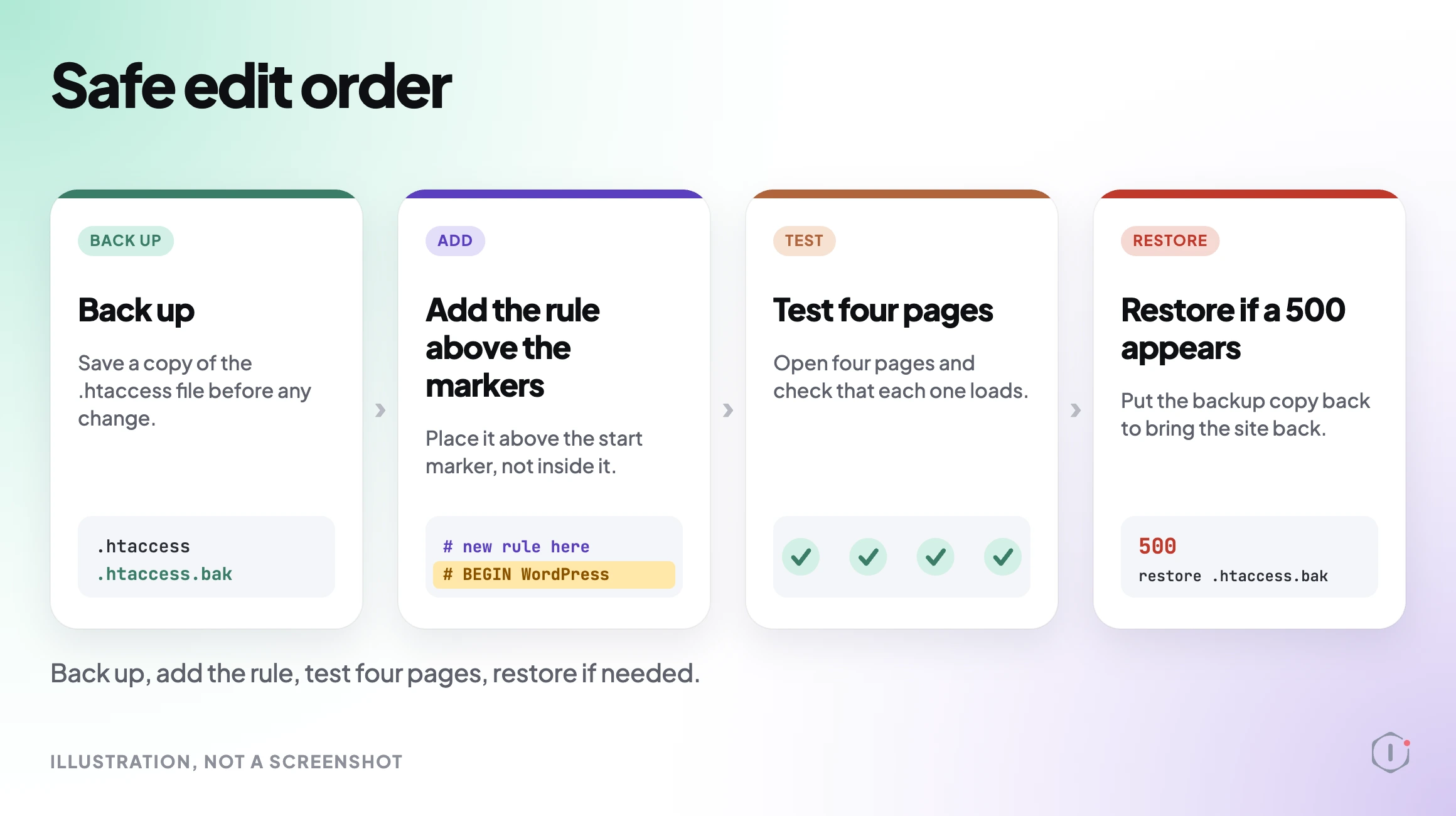
- Download the current .htaccess to your computer and keep it with a date in the name.
- Confirm the host runs Apache or LiteSpeed. Ask support if it is not obvious.
- Write down the one outcome you want, such as “http requests redirect to https”.
- Add your rule above the “# BEGIN WordPress” line, never inside the markers.
- Use a plain text editor. Word processors and some web pages turn straight quotes into curly ones.
- Upload the file and load the home page, an inner page, wp-admin and a page you know uses a form.
- If anything returns 500, upload the saved copy straight away and read the error log before trying again.
- Open Settings, Permalinks, and save once to check WordPress can still write its block.
Two Outside Views
The first comes from a StudioHawk video on editing the file. The speaker is direct about the risk:
“but the caveat here is that accessing the HD access file is one thing editing it is a bit risky so if you don’t have a lot of experience with this get an SEO Specialist or a web developer to help you out”
StudioHawk, How to Edit Your .htaccess File in WordPress (YouTube)
The captions spell the file name as “HD access”, which is an auto-caption error. The advice stands. The second is a Reddit post from 2025 that shows what a recurring fault looks like in practice:
“Bluehost support gave the solution of renaming the file to update it but this solution is only temporary and works for about 24h.”
r/Wordpress, 2025
That poster said they had not edited the file, so this is not an edit gone wrong. It is a useful reminder that renaming .htaccess clears the symptom and finds nothing. If the error returns, something is rewriting the file or adding a rule to it, and that something needs to be found: a plugin, a host tool or a scheduled task.
The Point
The WordPress .htaccess file is short, strict and read on every request. Keep the default block intact, put your own rules outside the markers, change one thing at a time, test four pages after each change, and keep a dated copy you can restore in a minute. A 500 error after an edit is almost always one line, and the error log names it.
Comments