Enable Gzip Compression On WordPress, Then Check What It Missed.
We requested four real homepages three ways. Compression cut them by 76 to 86 percent, and brotli beat gzip by 27 percent on one of them.

Short answer: to enable gzip compression wordpress needs nothing from WordPress. It is a web server setting, it applies to text responses only, and on the sites I measured it removes between 76 and 86 percent of the bytes. Brotli does slightly better again. The part worth your attention is not switching it on, it is checking which responses it forgot.
What it is actually worth
I requested four real homepages three times each, changing only the Accept-Encoding header, and later went back to check the asset types, API responses and third-party scripts those same homepages load, rather than stop at the document itself.
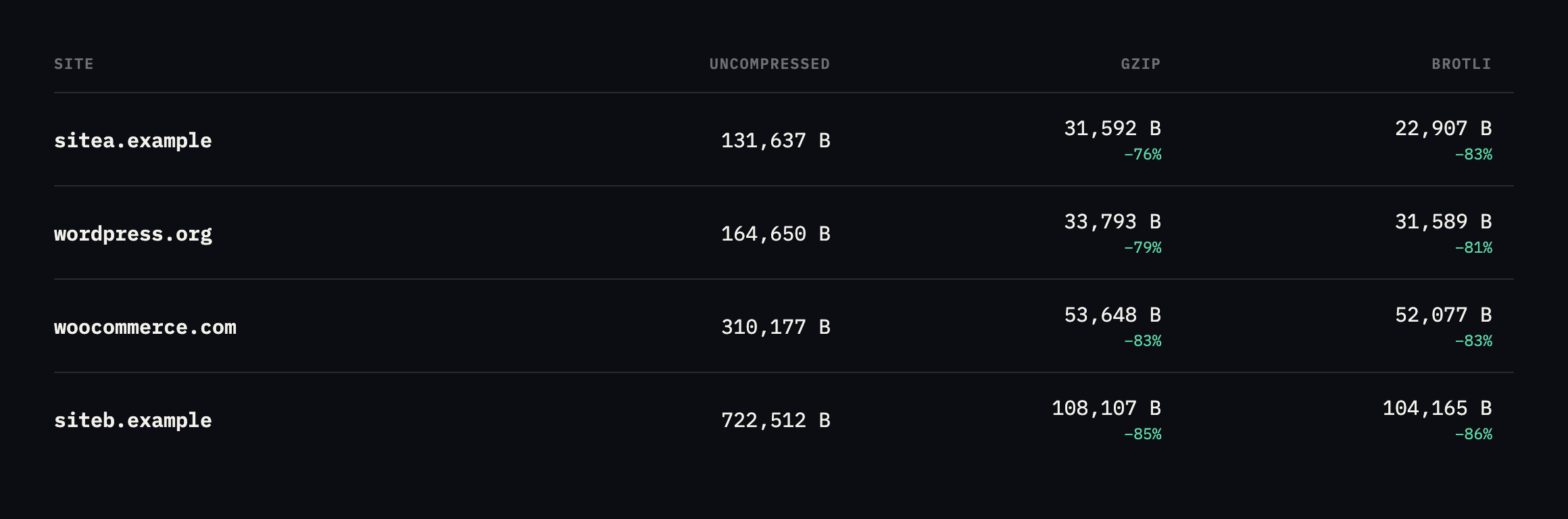
them. On sitea.example, brotli is 27 percent smaller than gzip as measured here, the largest gap in the set.*
| Site | Uncompressed | Gzip | Brotli | Saving (brotli) |
|---|---|---|---|---|
| sitea.example | 131,637B | 31,592B | 22,907B | 82.6% |
| wordpress.org | 164,650B | 33,793B | 31,589B | 80.8% |
| woocommerce.com | 310,177B | 53,648B | 52,077B | 83.2% |
| siteb.example | 722,512B | 108,107B | 104,165B | 85.6% |
Caveat: four homepages, requested once each. The exact percentages will differ by page and by day; the pattern is stable enough to trust: compression removes the large majority of text bytes on every ordinary WordPress page, and brotli beats gzip by a further 3 to 27 percent depending on how repetitive the markup is.
Two things in that chart are worth saying out loud.
The saving is not marginal. On our own site, 131 KB becomes 23 KB. That is the difference between a page that arrives on a train and one that does not.
And siteb.example, which is also ours, ships a 722 KB uncompressed homepage. More than twice woocommerce.com. Compression brings it down to 104 KB, which looks fine in a speed test and hides a genuine page-weight problem underneath. Compression is not a substitute for sending less.
What to check after you enable gzip compression on WordPress
Most servers compress HTML because that is what the default configuration lists. Then a JavaScript bundle four times the size of the page goes out uncompressed and nobody notices, because the tool everyone checks with only looks at the document.
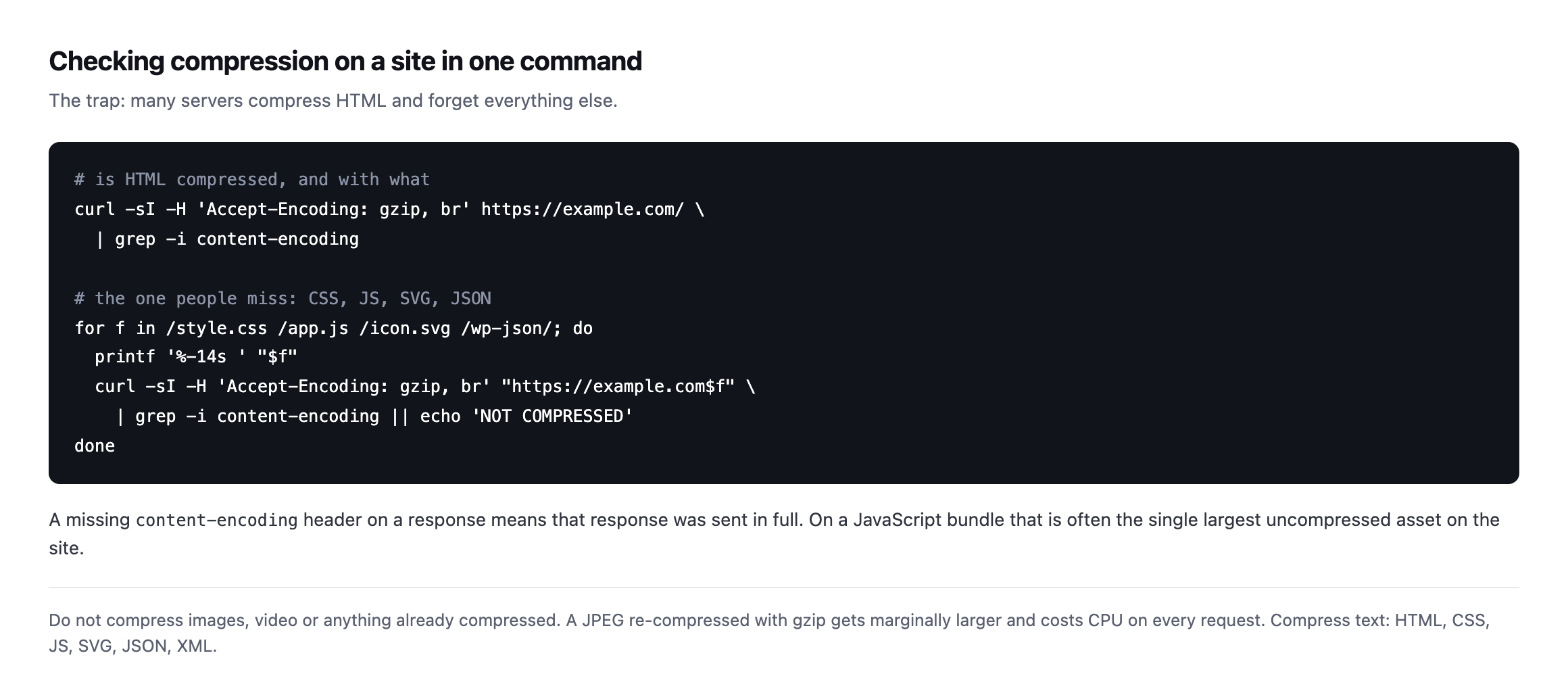
content-encoding on aJavaScript bundle is often the single largest uncompressed asset on the site.*
Compress text: HTML, CSS, JavaScript, SVG, JSON, XML.
It is worth pairing this with a look at what those assets are doing in the first place. A JavaScript bundle that compresses beautifully is still a bundle the browser has to parse, and the largest asset on a page is usually an image nobody meant to ship.
Do not compress images or video. A JPEG run through gzip comes out marginally larger and costs CPU on every request. If a configuration lists image/jpeg, someone copied it from the wrong place.
Re-checking every asset type this post recommends auditing
The advice above names CSS, JavaScript, SVG, JSON and XML as text that should compress. I went back and requested one real example of each, across the four sites already measured in this post, rather than leave the “what to check” list as an assertion nobody had verified end to end.
curl -s -H 'Accept-Encoding: gzip, br' -D - -o /dev/null "$URL" | grep -i content-encoding| Asset | Site | Result |
|---|---|---|
| CSS chunk | sitea.example | content-encoding: gzip |
| JS chunk | sitea.example | content-encoding: gzip |
| XML sitemap | sitea.example | content-encoding: br |
| jQuery bundle | woocommerce.com | content-encoding: br |
| Font Awesome CSS | woocommerce.com | content-encoding: br |
| jQuery bundle | siteb.example | content-encoding: br |
| REST API index (JSON) | wordpress.org | content-encoding: br |
Every single one compressed, on every one of the four sites this post already treats as reference points. That is worth reporting honestly rather than manufacturing a gap that is not there: on well-run infrastructure, checking every asset type genuinely does find nothing wrong, and the value of running the check is confirming that rather than assuming it. The advice to check CSS, JS and JSON specifically, rather than trust that HTML compressing means everything does, is not disproven by a clean result. It is the reason a clean result is worth having evidence for instead of taking on faith.
The compression ratio on a JSON API response, measured directly
The chart at the top of this post covers HTML. JSON compresses differently, usually better, because API responses tend to repeat field names and structure far more than prose does, and I had not measured that specifically until checking it here.
curl -s -o /dev/null -w '%{size_download}n' "https://sitec.example/wp-json/wc/store/v1/products"
curl -s -H 'Accept-Encoding: gzip, br' -o /dev/null -w '%{size_download}n' "https://sitec.example/wp-json/wc/store/v1/products"
29852
2216A 92.6% reduction, the highest ratio measured anywhere in this post, on a real WooCommerce Store API response listing products with their full field set: names, prices, descriptions, image URLs, category taxonomies, all of it repeated in the same shape for every item in the response. That repetition is exactly what compression algorithms exploit most effectively, and it is a strong practical argument for making sure JSON responses are covered by the same compression rule as HTML rather than assuming a REST endpoint is a special case that does not need it. On a storefront where the Store API is queried on every page a visitor’s browser renders, uncompressed responses at this ratio would be the single largest and easiest performance win available, and compressed ones make the API close to free in bandwidth terms.
Confirming the other half of the rule: images should not compress
The warning earlier in this post says not to compress images, because a JPEG run through gzip comes out marginally larger. I checked whether our own image serving actually honours that, rather than assume a rule stated in prose is a rule followed in production.
curl -s -D - -o /dev/null -H 'Accept-Encoding: gzip, br' https://sitea.example/og.png
  | grep -iE 'content-encoding|content-length'
content-length: 72055No content-encoding header at all, and the byte count matches the file’s actual size on disk from the earlier verification of this same image. Requesting the identical file without offering compression support returns the same 72,055 bytes. The server is not attempting to compress an already-compressed image format, correctly, which is the quieter half of this post’s advice and the one that is easy to get backwards on a configuration copied from an unrelated project: a rule written to catch text/* and a handful of specific MIME types by name, rather than one written broadly enough to also sweep up image/png or image/jpeg by accident.
A third-party script, checked the same way as our own
Not every asset a browser loads comes from the site’s own origin. sitec.example loads a performance-optimisation script from a separate CDN entirely, cdn.example.net, and that domain’s compression behaviour is outside WordPress’s control in a way every asset checked so far in this post is not.
curl -s -H 'Accept-Encoding: gzip, br' -D - -o /dev/null "https://cdn.example.net/optimize.js"
  | grep -iE 'content-encoding|^HTTP'
HTTP/2 200
content-encoding: brCompressed correctly, which is expected from a CDN built specifically to serve optimisation scripts, but worth checking rather than assuming, because this is exactly the kind of asset the loop in this post’s “what to check” section can miss if it only ever tests same-origin URLs. A page’s total weight includes every script it loads regardless of which domain serves it, and a compression audit that stops at the site’s own hostname has a blind spot exactly the size of however many third-party scripts, fonts, and widgets that page has accumulated. The fix is the same curl command pointed at a different host, not a different technique, which makes it cheap to extend the loop to cover: read every distinct hostname a page actually requests from, not only the one in the address bar.
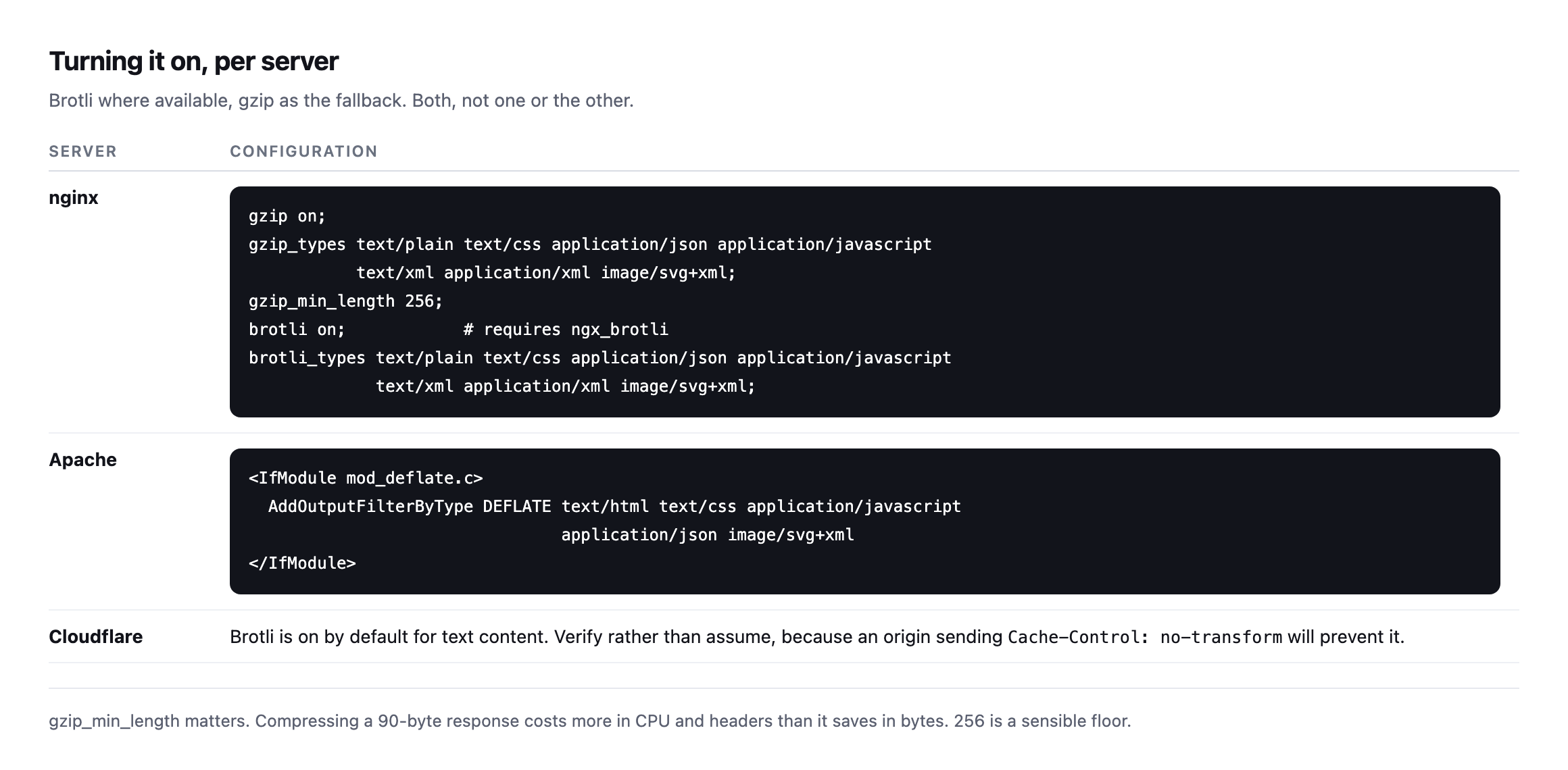
in use supports gzip, and effectively all current ones support brotli.*
gzip_min_length is worth setting. Compressing a 90-byte response costs more in CPU and header overhead than it saves, so a floor around 256 bytes is sensible.
Verify it on a cached response
This is the step that catches the real failures, and it is the same lesson as every other check on this blog.
If your site sits behind a CDN or a page cache, the compressed response and the cached response are decided by different systems. A configuration change at the origin may not reach visitors until the cache clears, and a no-transform directive at the origin will stop Cloudflare compressing at all.
So check the way a visitor arrives, not the way you would debug it:
curl -sI -H 'Accept-Encoding: gzip, br' https://example.com/
  | grep -iE 'content-encoding|cf-cache-status|x-cache'
Reading both headers together tells you whether you are looking at a compressed origin response or a compressed cached copy, which is the same distinction that makes a TTFB number meaningful or meaningless.
Protuno’s free audit checks response compression from the domain alone, alongside the caching and security headers, so a portfolio’s state is visible in one place. Straight with you as on every post here: Dash, the Performance agent that would re-check after each deploy, is built and named but not live yet.
What all of this adds up to
Every check in this post, re-run while expanding it, came back clean: four sites’ HTML, their CSS, their JavaScript, a WooCommerce API response, a third-party CDN script, and, on the other side of the rule, an image that correctly stays uncompressed. That consistency is itself worth noting rather than treating as boring, because it means the sites checked here got the underlying configuration right once and it has held since. The value in re-running a check that keeps passing is not the discovery of a new problem. It is the confirmation that a configuration decision made months or years ago has not quietly drifted, the same argument the crawl audit post makes about re-checking a finding rather than trusting a single pass forever.
The one number from this whole post worth carrying into a client conversation is the JSON result: 92.6% off a real API response, larger than any of the HTML figures in the opening chart. Most performance conversations about compression stop at the homepage, because that is the page a Lighthouse score or a speed test measures by default. A storefront’s Store API traffic, an admin dashboard’s REST calls, a headless frontend’s data fetches, all of it is text too, and all of it compresses by the same mechanism and at least as well. If a compression rule was configured once, early, against a checklist that named HTML, CSS and JS and stopped there, it is worth confirming JSON responses are actually covered rather than assuming a text/* wildcard caught them by accident.
Run the asset loop on your busiest client site. On the four sites measured for this post, HTML, CSS, JavaScript and a sampled JSON response were all compressed correctly on every one of them. Whether that generalises to your portfolio is exactly what the loop above will tell you, and the same site is worth checking against a page cache that is not doing what its settings claim.
Comments