Increase WordPress Memory Limit: 4 Safe Ways That Work.
You open your site and see a white screen or a line like this: “Fatal error: Allowed memory size of 268435456 bytes exhausted (tried to allocate 20480 bytes)”. That is PHP telling you a request used more memory than it was allowed to. This guide shows how to increase the WordPress memory limit, how to […]

You open your site and see a white screen or a line like this: “Fatal error: Allowed memory size of 268435456 bytes exhausted (tried to allocate 20480 bytes)”. That is PHP telling you a request used more memory than it was allowed to. This guide shows how to increase the WordPress memory limit, how to check that the change took effect, and what to do when raising it does not help.
The number in the error is the limit in bytes. 268435456 bytes is 256 MB, 134217728 is 128 MB and 67108864 is 64 MB. Knowing which limit you hit tells you where to look first.
What the Memory Limit Error Actually Means
Every PHP request gets a fixed budget of memory. When WordPress, your theme and your plugins together need more than that budget, PHP stops the request and logs the fatal error. Visitors see a blank page or a critical error message. You may also see it only in the admin, only when saving a large page, or only during an import.
The wording of the message matters. “Allowed memory size of X bytes exhausted” means the limit was reached. “tried to allocate Y bytes” is just the last small request that tipped it over, so it is rarely the real cause. The plugin or function named in the file path after the message is a better hint.
The limit is set by your host first, and WordPress can only work inside it.
WordPress Memory Limit vs PHP Memory Limit
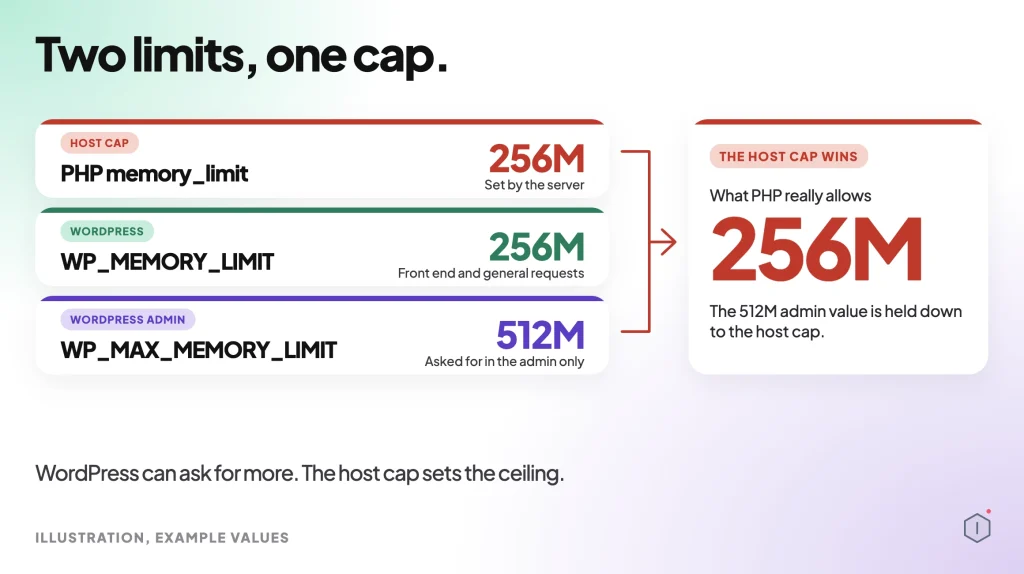
There are two settings, and people mix them up. The PHP memory_limit is a server setting in php.ini that caps every PHP script. The WordPress memory limit, WP_MEMORY_LIMIT, is a constant that asks PHP for a specific amount just for WordPress.
The official wp-config.php documentation says WP_MEMORY_LIMIT lets you set the maximum memory PHP can use, and that it may be needed when you see the “Allowed memory size of xxxxxx bytes exhausted” message. It also says that by default WordPress tries to raise memory to 40 MB for a single site and 64 MB for multisite. Those are small numbers for a modern site with a page builder and WooCommerce.
There is a second constant, WP_MAX_MEMORY_LIMIT, used in the admin area. Its default is 256 MB. Admin tasks such as image processing and updates can need more than front end pages, so WordPress allows a higher ceiling there.
The key point is that WP_MEMORY_LIMIT cannot go above what the server allows. If the host caps PHP at 128 MB, setting WordPress to 512 MB changes nothing. That is why the first job is to find your real current limit.
Check Your Current Memory Limit First
Do not guess. Open Tools, then Site Health, then the Info tab, and expand the Server section. You will see the PHP memory limit and the WordPress memory limit side by side. If the two differ, the lower one usually wins in practice.
You can also create a small file that prints the value with phpinfo(), then delete it straight away so it does not stay public. Your host dashboard often shows the same number under PHP settings.
Look at the numbers with the error in mind. If the error says 134217728 bytes and Site Health shows 128M, the two agree and the fix is to raise the limit. If the error shows a smaller figure than Site Health, another layer, such as a host rule or a plugin, is lowering it for that request.
Write down the number. After each change in the next sections, check it again. A change that does not move the number did not work, whatever the file says.
Method 1: Raise WP_MEMORY_LIMIT in wp-config.php
This is the method most guides start with because it needs no server access beyond your files. Connect with SFTP or your host file manager and open wp-config.php in the site root. Back it up first.
Add this line above the comment that says “That’s all, stop editing”:
define( 'WP_MEMORY_LIMIT', '256M' );Save, then reload Site Health to see the new value. For admin only tasks you can also raise the admin ceiling:
define( 'WP_MAX_MEMORY_LIMIT', '512M' );The WordPress documentation notes this line has to be placed before wp-settings.php is loaded. If you add it below, it is ignored. Keep a copy of the file and read our guide on checking that wp-config.php is not exposed so you do not leave a backup copy readable on the web.
Method 2: Change memory_limit in php.ini or .user.ini
If wp-config.php does not move the value, the server limit is the cap. The PHP manual describes memory_limit as the maximum amount of memory a script may allocate, which stops badly written scripts from using all server memory. You can change it in php.ini when you have access to it.
On shared hosting you often cannot edit the main php.ini, but you can add a .user.ini file in the site root with one line:
memory_limit = 256MPHP re-reads .user.ini on a timer, commonly every five minutes, so the change may not show at once. On a VPS, edit php.ini for your PHP version, then restart PHP-FPM or the web server. Always confirm the PHP version in use first, since each version has its own file. If you are on an old release, the PHP end of life guide explains why upgrading also helps.
Method 3: Use .htaccess on Apache
On Apache with mod_php you can set the value in .htaccess:
php_value memory_limit 256MThis works only in that setup. On PHP-FPM or CGI it can cause a 500 error because the directive is not allowed there. If the site breaks after the edit, remove the line and use Method 2 instead. Always keep the old .htaccess so you can restore it in seconds.
Method 4: Ask Your Host to Raise It
Many managed hosts lock the setting. If every method above leaves the number unchanged, open a ticket with the exact error text and the limit you need. Ask for the PHP memory limit for the account, not just for WordPress. Most hosts agree to 256 MB or 512 MB within minutes, and some offer it as a toggle in the control panel.
Be specific in the ticket. Say which site, which PHP version, the exact fatal error line and the date and time it happened. Support can then match it to their server logs and often finds a stricter per-process cap you cannot see from inside WordPress.
If the host refuses to go beyond 128 MB while your plugins need more, that is a signal about the plan, not about WordPress.
When a Higher Limit Does Not Fix It
Sometimes you raise the limit twice and the error comes back with a new, larger number. That points to a leak or a runaway loop, not a budget problem. The documentation says it plainly: if you see out of memory issues even with an elevated limit, you should debug your installation, because heavy functions tied to one action may belong in a cron job.
Turn on logging by setting WP_DEBUG and WP_DEBUG_LOG in wp-config.php, reproduce the error, then read wp-content/debug.log. The file path after the fatal error names the plugin or theme. Deactivate it and test again.
Common causes are a plugin that loads every post into memory, a runaway scheduled task, a bloated database and missing caching. If scheduled jobs are involved, our WP-Cron guide shows how to inspect them. A large autoload table or leftover data also costs memory on every request, which the database cleanup guide covers. A persistent cache reduces repeated work, as the object cache article explains.
How Much Memory Do You Actually Need
Bigger is not always better. A brochure site runs well on 128 MB. A site with a page builder, a store and a few dozen plugins is comfortable at 256 MB. Large imports, backups and image regeneration can ask for 512 MB for a short time.
Page builders, store plugins and security scanners are the usual heavy users. A single product import with thousands of rows can spike memory far above normal traffic, which is why a limit that works all week can still fail during one scheduled job.
Setting a very high limit on a small server can hurt. Each PHP worker may reserve that much, so a busy site can run the whole machine out of memory and fall over for everyone. Raise it in steps, test, and stop when the error goes away.
Safe Order of Operations
Follow the same order every time so you can undo any step.
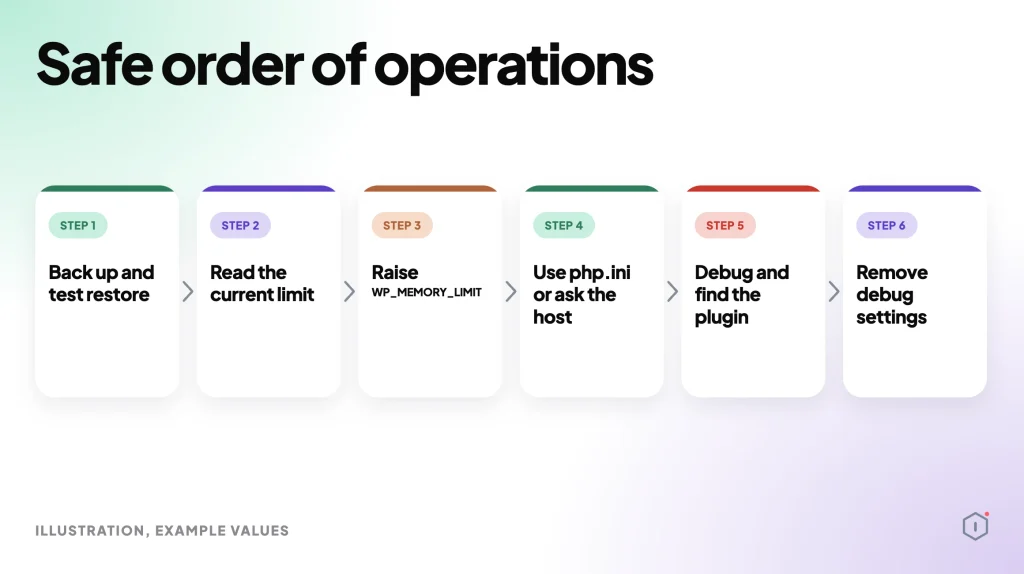
- Back up and test restore. Take a full backup and test that it restores, as described in the backup verification guide.
- Read the current limit. Check Site Health and note the error text.
- Raise WP_MEMORY_LIMIT. Set it to 256M in wp-config.php and re-check.
- Use php.ini or ask the host. If the number did not change, use .user.ini or php.ini, then ask your host.
- Debug and find the plugin. Enable debug logging, find the plugin behind the error and fix or replace it.
- Remove debug settings. Switch them off when you are done and keep the limit as low as works.
If the white screen already blocks the dashboard, the critical error playbook walks through recovery step by step. For a wider performance view, see autonomous performance optimization.
Two Outside Views
Two public sources say the same thing in plain words. The first is the spoken line from the WP Workshop video 4 Ways to Increase WordPress Memory Limit:
“What this error means is quite simply that WordPress tried to use more memory than what the web host allows.”
WP Workshop, YouTube
The second is a 2024 thread on r/Wordpress. The poster hit the 256 MB error on a simple Elementor site, and a reply gave the best next step:
“Have you enabled debugging? That will give you a better idea of the cause.”
r/Wordpress, 2024
One view explains the cause, the other says where to look. Together they match the order above: confirm the limit, then read the log.
A Careful Version You Can Do By Hand
You do not need a tool for this. Work on one change at a time and write down what you saw after each one.
Start with a backup you have restored at least once. Open Site Health and copy the memory numbers into a note. Add the WP_MEMORY_LIMIT line to wp-config.php, save, and reload Site Health. If the number moved, test the page that failed. If it did not move, undo the edit and go to .user.ini, then to your host.
Keep the old copy of every file you touch. If the site breaks, put the old copy back before you try anything else. Once the error is gone, turn debug logging off and clear caches. Check the log again the next day for repeats.
Common slips are placing the define line after wp-settings.php is loaded, setting WordPress above the server cap, editing php.ini for the wrong PHP version, and using a huge value such as 2048M to cover a plugin that leaks.
The Point
The memory limit is a budget, and the host sets the ceiling. Raise it in small steps, confirm the number really changed, and stop when the error goes away. If it keeps coming back with a larger figure, the cause is a plugin or task, so read the log.
What is a good WordPress memory limit? 256 MB suits most sites. Start there and only raise it with evidence from the log.
Will raising the limit slow my site? No, memory is only used when needed. The risk is on shared servers where too many workers each hold a large budget.
Why does Site Health still show the old value? The server limit is lower, the file was cached, or the define line sits in the wrong place. Check each in that order.
Sources And Further Reading
- WordPress developer docs: Editing wp-config.php (WP_MEMORY_LIMIT, WP_MAX_MEMORY_LIMIT)
- PHP manual: memory_limit and core php.ini directives
- WordPress documentation: Debugging in WordPress
- YouTube, WP Workshop: 4 Ways to Increase WordPress Memory Limit (Beginner Guide)
- Reddit, r/Wordpress (2024): Allowed memory size of 268435456 bytes exhausted
Comments