Find A WordPress Plugin Conflict Without Downtime.
A WordPress plugin conflict is quickest to find by halving the active plugin list on a copy of the site. Here is the method, and where it stops.

Picture a site with twenty-six active plugins. A page has stopped working. The screen either says “There has been a critical error on this website.” or says nothing at all, and a button simply does nothing.
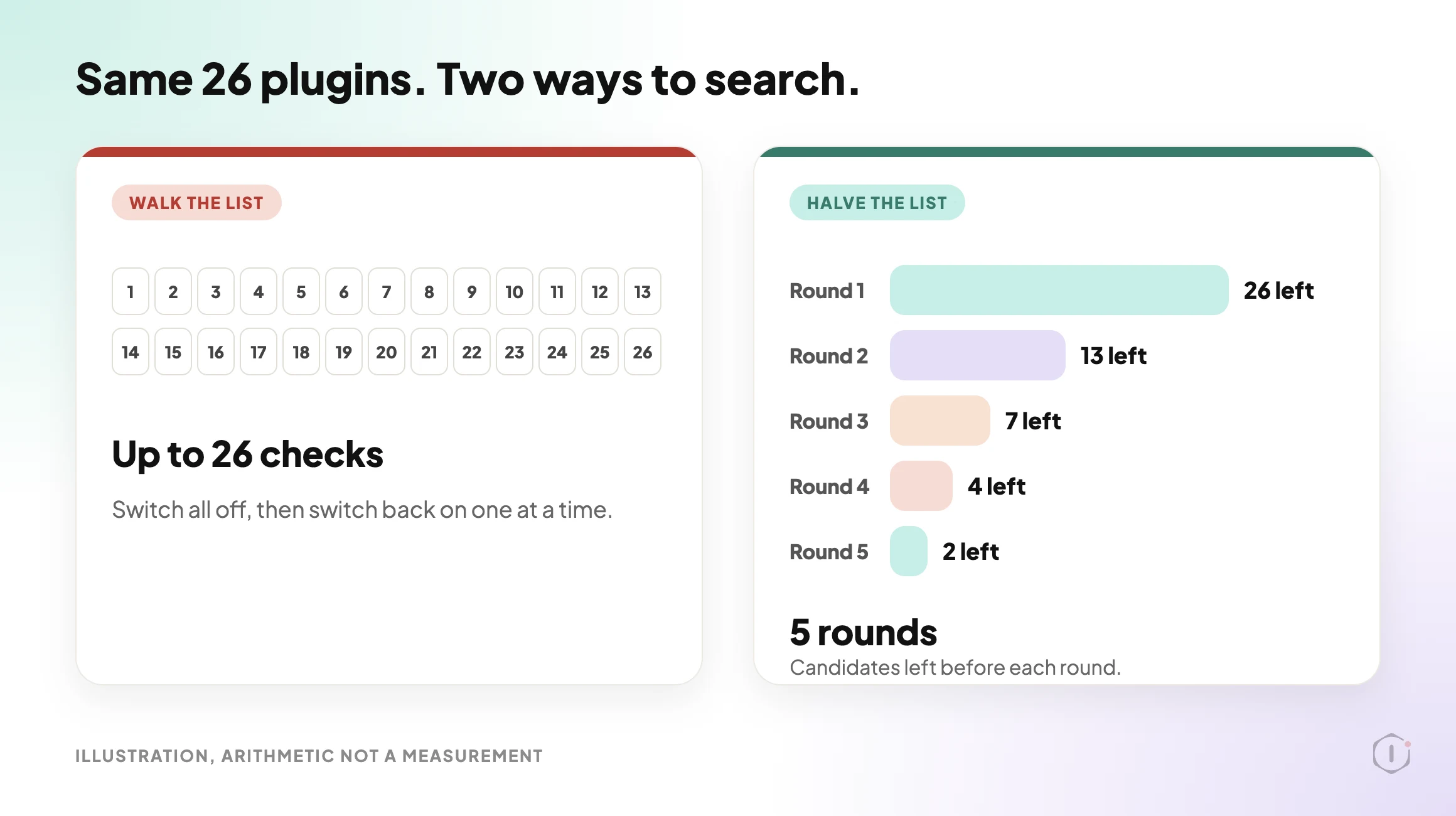
You suspect a plugin. The usual advice is to switch every plugin off, then switch them back on one at a time. That works. It also means up to twenty-six checks, and a site stripped of its features for as long as the walk takes.
Short answer: do the test on a copy of the site, not the live one. If the fault only shows on live, pause the plugins for your own browser session instead. Then halve the list each round rather than walking it. Twenty-six plugins is about five rounds and one confirming check, not twenty-six checks.
What this post is, and is not: this is a method for finding which plugin is involved in a fault you can reproduce. It names a suspect, it does not fix anything. Knowing that two plugins clash does not tell you which one should change, and sometimes the cause is not a plugin at all. It does not cover faults that come and go, which need logs and time rather than toggling.
Why The Usual Advice Needs One Edit
The official guidance already says most of this. The Learn WordPress lesson on plugin and theme conflicts tells you to take a backup, make a staging site, read the error log, try a default theme, then deactivate all plugins and reactivate them one at a time while checking the site after each one. WordPress.com’s own video on the same problem says you can do it on the normal site, “but I suggest using a staging site.”
So the advice is sound. Two things get lost when it is repeated in one line: where you do it, and how many steps it takes.
On a personal blog neither matters. On a site that takes orders, switching every plugin off is a visible change for every visitor. WordPress also lets plugins run their own code when they are activated or deactivated, which is one more reason to do the toggling somewhere nobody is watching.
This method assumes you can still reach the dashboard. If you cannot, start with WordPress White Screen Of Death: The Playbook, Step By Step and come back. And if you are asking which plugins overlap rather than which one is broken, that is a different question, covered in WordPress Plugin Conflicts: The Playbook, Step By Step.
Decide Where To Test First
The right place depends on who can see the fault.
| Where the fault shows | Test here | Why |
|---|---|---|
| For every visitor | A staging copy | You can break it freely |
| Only when logged in | A staging copy, or a session pause | It depends on your session or role |
| Only for anonymous visitors | A staging copy | A paused session is yours, not the visitor’s |
| Only on live, never on the copy | A session pause on live, and treat the copy as the bug | The copy differs from live in some way |
The last row matters most. A fault that lives on production but not on a fresh copy is often environmental rather than a plugin pairing.
Method One: Reproduce It On A Copy
Take a staging copy, and before you touch a single plugin, confirm that the copy shows the same fault. If it does not, you have learned something useful instead of wasting an hour.
The usual reasons a copy behaves differently:
- A different PHP version.
- A different object cache, or none.
- A licence key that is only valid on the live domain.
- A CDN or firewall in front of live that the copy does not have.
- Data that exists only in the production database.
WordPress Staging Site: What Drifts From Live is about exactly these differences. Before you change anything, take a backup you could restore. Verify A WordPress Backup, Or You Only Have A File With A Hopeful Name is about what “could restore” has to mean.
One current reason to have a working copy: WordPress 7.1.3 (6 October 2026, 7 security fixes and 4 bug fixes) is the current stable release, and its notice does not mention plugin changes. WordPress 7.2 Beta 1 came out on 20 October, with the final release scheduled for 8 December 2026. The beta notice says not to run it on production and to use a test environment instead. A copy that can run a beta is also a copy you can bisect on.
Method Two: Pause Plugins For Your Session Only
Sometimes the fault only exists on live, and you have to work there. WordPress has a supported way to do that without changing what visitors see.
The Health Check & Troubleshooting plugin describes a troubleshooting mode like this:
Troubleshooting allows you to have a clean WordPress session, where all plugins are disabled, and a default theme is used, but only for your user until you disable it or log out.
Health Check & Troubleshooting, WordPress.org plugin directory, page read 23 October 2026
There is a catch, and the page states it. When I read it on 23 October 2026 it showed version 1.7.1, 200,000+ active installations, “tested up to” 6.6.10 and “last updated 2 years ago”, under a banner saying the plugin has not been tested with the latest three major releases of WordPress and may no longer be maintained. I have not tested it on 7.1. It may work fine, so try it on a staging copy before you rely on it on a client’s live site.
Two limits apply to any session-scoped pause.
First, it only helps with faults you can see while logged in as yourself. A fault that only affects anonymous visitors will not show inside your own paused session, because you would be testing a setup no visitor is using.
Second, some plugins cannot be paused from the plugin list. Must-use plugins are enabled automatically on every site, do not appear in the default plugin list, and cannot be disabled from wp-admin. To disable one you remove its file from wp-content/mu-plugins. Hosts commonly use them for their own features. I have not tested whether a session pause leaves them running, so check the Must-Use section of your own Plugins screen before you trust a “clean” session.
Method Three: Halve The List, Do Not Walk It
Whichever place you test in, stop switching plugins one at a time.
- Write down every active plugin and its version.
- Switch off half of them, and test the broken page.
- If the fault is gone, the suspect is in the half you switched off. If it is still there, the suspect is in the half you left on.
- Take the suspect half, split it, and repeat.
- When one plugin is left, switch it off and on once more and check that the fault goes and comes back.
| Active plugins | Walking the list, worst case | Halving, rounds |
|---|---|---|
| 8 | 8 | 3 |
| 16 | 16 | 4 |
| 26 | 26 | 5 |
| 50 | 50 | 6 |
That table is arithmetic: each round removes half the candidates. In practice each round is a page load, probably a cache clear, and a person checking carefully. The saving grows with the list.
Keep related plugins in the same half. WordPress 6.5 added a “Requires Plugins” header: a plugin that declares it cannot be activated until the plugins it needs are active, and a plugin that others need cannot be deactivated while they are active. That only covers plugins that declare it. For shop add-ons and builder add-ons that do not, check by hand which one needs which parent, and put them together.
A genuine conflict involves two plugins, and switching off either one can make the fault vanish. Halving finds one of them. Once you have a suspect, put it back on, then switch off plugins that do a related job and see whether the fault goes that way too. Two different plugins that each cure it when switched off alone are your pair.
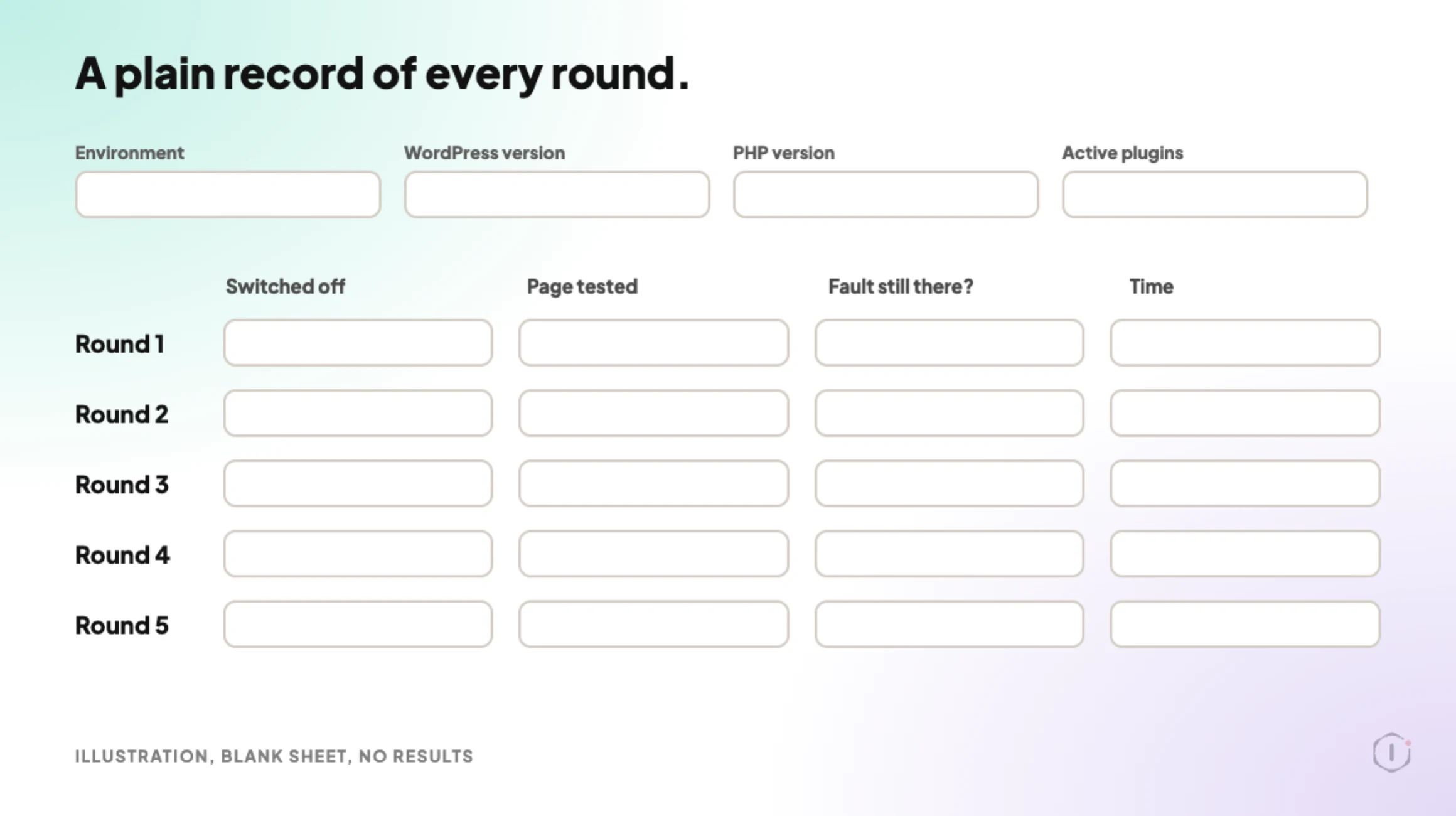
Write each round down as you go: which plugins were off, which page you tested, whether the fault was still there, and the time. By round four you will not remember round one, and a wrong note sends you down a branch that cannot hold the answer.
Read The Log Once First
Before any toggling, turn on logging and reproduce the fault once. The WordPress handbook’s example sets WP_DEBUG and WP_DEBUG_LOG to true and WP_DEBUG_DISPLAY to false, which writes errors to wp-content/debug.log and keeps them off the page.
A fatal error line names a file, and a path under wp-content/plugins/ names the plugin. That can end the search in one step. Afterwards, check that the log is not publicly readable: Is Your WordPress Debug Log Exposed Right Now? is about that.
An empty log does not clear the plugins. A conflict that produces wrong output rather than an error can leave nothing in the PHP log, and the browser console is the next place to look. Some failures leave no log at all, as the thread below shows.
Two Outside Views
A video from the platform side. WordPress.com’s own video, “What to Do When a WordPress Plugin or Theme Isn’t Working“, published 28 July 2026, follows the standard route. It deactivates the plugin WordPress names, uses recovery mode if the dashboard is unreachable, and for an unknown conflict deactivates all plugins, switches to a default theme and reactivates them one by one. On where to do it, the English captions say:
You can do this on your normal site, but I suggest using a staging site.
WordPress.com, What to Do When a WordPress Plugin or Theme Isn’t Working, English captions, 28 July 2026
It is a hosting company’s tutorial for its own platform, so the screens are theirs. The method is the general one.
A thread from people living with it. In an r/Wordpress thread titled “This error occurs when I activate certain plugins”, the poster gets a 500 error after activating plugins and says they have already tried deactivating all other plugins and themes. One reply starts where this post does:
Enable your debug.log – in the majority of cases, it’s a PHP error happening and this will show up in your debug.log.
u/jedidave, r/Wordpress, 30 July 2026
Another reply, from someone who says they are a developer at SeedProd, one of the plugins in the thread, points out that there may be no log to find, because a hosting resource limit can end the PHP process before it writes an error:
That pattern points at a resource ceiling rather than a bug in either plugin.
u/nick_kimuli, r/Wordpress, 30 July 2026
That is one person’s diagnosis, and it comes from a plugin vendor, so treat it as a lead to check with the host, not a verdict. It does show a useful outcome of isolation: the answer can be “not a plugin”.
What This Does Not Solve
Isolation names a suspect. It does not do any of the following.
It does not say which plugin is at fault. In most real conflicts both plugins behave to their own specification and the combination fails.
It does not help with intermittent faults. If the problem appears for one visitor in fifty, a round that passes proves nothing, because you may simply not have hit it.
It does not explain a fault that started with an update. Then the question is what changed, not which plugins clash. The WordPress Update Process, Written Out Before It Runs is about recording the before state, and WordPress Rollback After An Update: What It Can Undo, And What It Destroys is about what a rollback does and does not restore.
It does not help when the plugin no longer gets fixes. You can isolate it perfectly and have nowhere to go. When A WordPress Plugin Is Removed From The Repository, Nobody Tells The Site covers that case.
It does not cover causes outside plugins, such as the PHP version or a host limit, which the Reddit thread above is about.
And it does not reduce the number of plugins. A site with fifty active plugins will have another conflict.
The Point
Finding the plugin is a skill. Doing it somewhere nobody is watching is a habit.
So for the site in your care list with the most active plugins: if a page broke this afternoon, could you reproduce it on a copy, or would you start switching plugins off on the live site?
And if the answer is the copy: when did you last check that it still behaves like live?
Sources And Further Reading
- WordPress 7.1.3 Maintenance and Security Release, WordPress.org News, 6 October 2026.
- WordPress 7.2 Beta 1 is Ready for Download and Testing, WordPress.org News, 20 October 2026.
- Health Check & Troubleshooting, WordPress.org plugin directory, page read 23 October 2026 (version 1.7.1).
- Troubleshooting your site: Plugin and theme conflicts, Learn WordPress.
- Debugging in WordPress, Advanced Administration Handbook, WordPress Developer Resources.
- Must-Use Plugins, Advanced Administration Handbook, WordPress Developer Resources.
- Introducing Plugin Dependencies in WordPress 6.5, Make WordPress Core, 5 March 2024.
- Activation / Deactivation Hooks, Plugin Handbook, WordPress Developer Resources.
- What to Do When a WordPress Plugin or Theme Isn’t Working, WordPress.com, YouTube, 28 July 2026.
- This error occurs when I activate certain plugins, r/Wordpress, 30 July 2026.
Comments