WordPress Featured Images: The Playbook, Step By Step.
A WordPress featured image missing on old posts is slow to fix by hand. See how a two-step playbook matches library images by name and sets only clear ones.

Open a published post in the editor and look at the sidebar.
Where a thumbnail should be, there is a link that says Set featured image.
On one post that is a small gap. On a site with a few hundred posts, it is a list nobody has ever written down.
Short answer: A WordPress featured image is the single picture that represents a post, page or custom post type. Posts published without one show a gap wherever a theme or block expects it. The Bulk Featured Images playbook finds published posts that have none, matches each to an image already in your media library by name, and sets the image only when the match is clear: one image, not used on another post, from a title of at least two key words. It never uploads, generates or replaces an image.
What this post is, and is not: A method write-up of one playbook that can change the site, based on its two step files as shown in the Protuno dashboard and on its public page on 23 October 2026. It is not a result from a real run: no playbook was run for this post, and every post title, image name and count in it is an illustration with example values.
What A WordPress Featured Image Is
The WordPress theme handbook defines featured images, also called post thumbnails, as images that represent an individual post, page or custom post type. A theme can show one on an archive page, in a header or above a post.
Two details from the handbook matter here:
- A theme must declare support for featured images before the Featured Image interface appears on the Edit screen. The handbook shows this as a line of code in the theme’s functions file.
- Once support is declared, the Featured Image meta box shows in the sidebar of the Edit Post and Edit Page screens. If a user cannot see it, they can turn it on in their screen options.
Under the hood, the REST API describes the field as featured_media, “The ID of the featured media for the post”, an integer. The playbook’s step files use that same field. A post with featured_media of 0 has no featured image, which is how step 1 finds its candidates. For writing, WordPress has a core function, set_post_thumbnail(), that “sets the post thumbnail (featured image) for the given post.”
In block themes, the Post Featured Image block displays the image. The block documentation says it is primarily nested inside a query loop block.
Latest changes checked on 23 October 2026: WordPress 7.1.3 (6 October) is the current stable release, and 7.2 Beta 1 came out on 20 October. Neither announcement mentions featured images. So everything above comes from the theme handbook, the REST API reference and the block documentation, not from release notes.
Why Posts End Up With None
There is no single cause, and this post did not measure any of them. Three ordinary routes are enough to explain a long list:
- The post was written before the theme declared featured image support, so the box was never on the screen.
- The post was imported or created in bulk, and nobody opened it afterwards.
- The author left the Set featured image link alone, because the post looked fine without it.
None of those throws an error. The only sign is a missing picture where a layout expects one.
Why It Matters Beyond The Thumbnail
A missing featured image can show up in a theme’s archive page, in a Post Featured Image block, and in links shared elsewhere.
A post on WordPress Open Graph tags covers six ways share previews break silently. A forum thread covered below shows the same problem from a site owner’s side: links to a blog showing a random uploaded image as the thumbnail. One reply there says the cleanest fix is to set a featured image on each post you actually share. That thread is about a WordPress.com free plan, so the options on a self-hosted site differ.
A featured image also needs its own alt text. A post on an image alt text audit shows how a crawl reported 17,261 images missing alt text when the real count on those pages was zero. Counting images is harder than it looks.
The Playbook, Step By Step
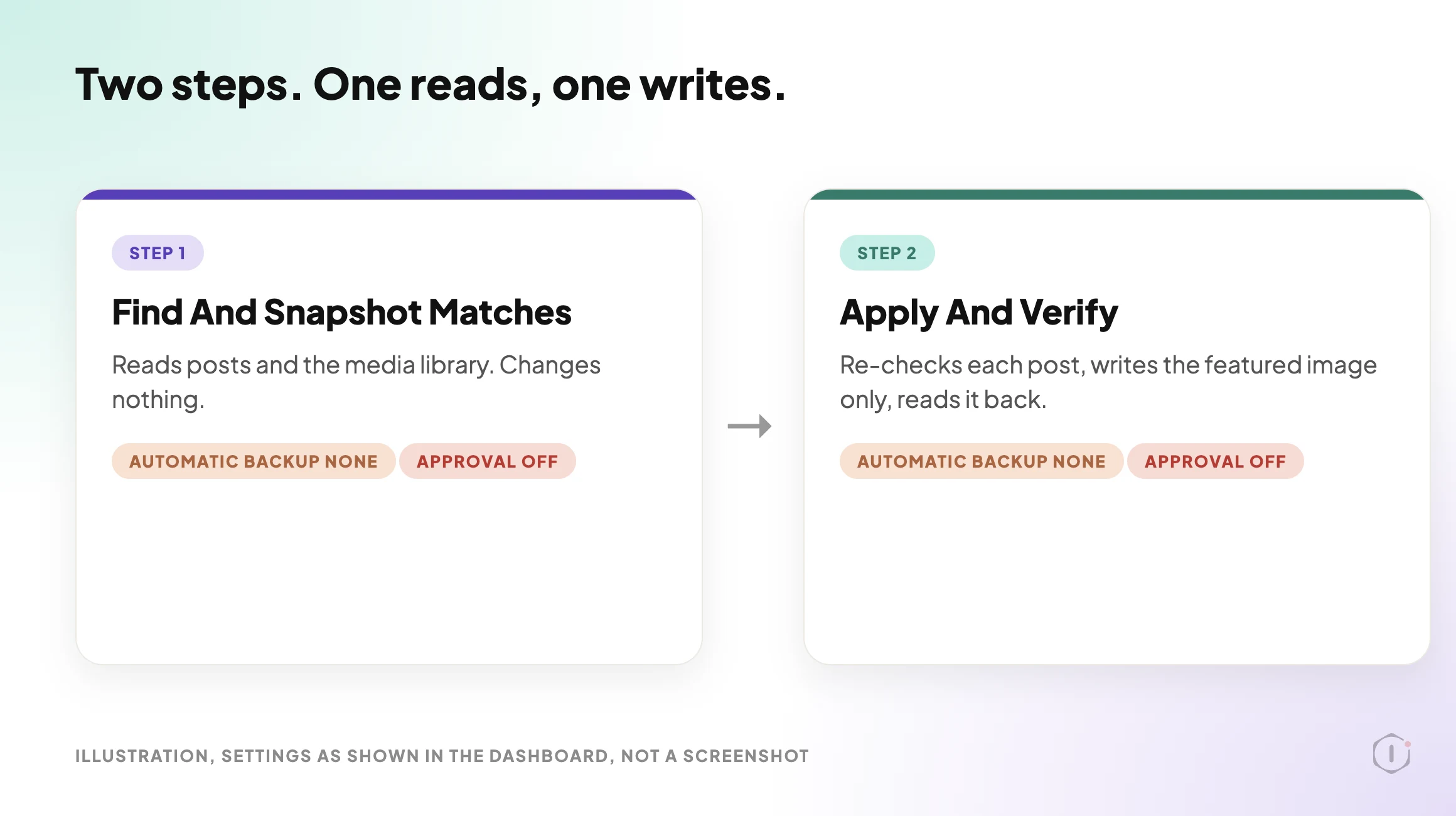
The Bulk Featured Images playbook has two steps, in a fixed order. In the dashboard it carries a Beta label and can change the site. The public page files it under SEO and says it needs no connector, while the dashboard lists it under Content. This post uses the public page’s category. It runs when you start it, and no schedule is set.
Step 1: Find And Snapshot Matches
Step 1 is read-only. The step file says it writes nothing, and that step 2 makes the change straight after it.
It works in a fixed order:
- It lists published posts, newest first, 50 at a time, asking only for the id, the title and
featured_media. It pages through at most 6 pages, which is 300 posts. - It keeps the posts whose
featured_mediais 0. These are the candidates, newest first. It checks at most 25 and counts the rest as “remaining”. It also notes every image id that is already some post’s featured image. - For each candidate, it takes the post title in lower case, removes punctuation, and removes a list of filler words. What is left are the title’s key words.
- For each candidate, it searches the media library for images, with those key words as the search. The step file says WordPress returns only images whose name contains every word. It sends up to six of these searches at a time.
If a reply is cut off, the step asks again with half the page size. It never matches against a cut list.
The step file calls the key words “dish words”, and its filler list includes words such as recipe, homemade, creamy and crispy. It reads as written with recipe-style titles in mind. Other titles are matched the same way, so the result depends on image names resembling titles.
The Three Outcomes
Step 1 sorts each candidate by the number of results, with no judgement involved:
- HIGH: exactly one image matches, that image is not already used as another post’s featured image, and the title has at least two key words. Only HIGH is ever applied.
- MEDIUM: two or more images match, or the one match is already used on another post, or the title has only one key word. MEDIUM is never applied. It is listed for a person.
- NONE: no image matches.
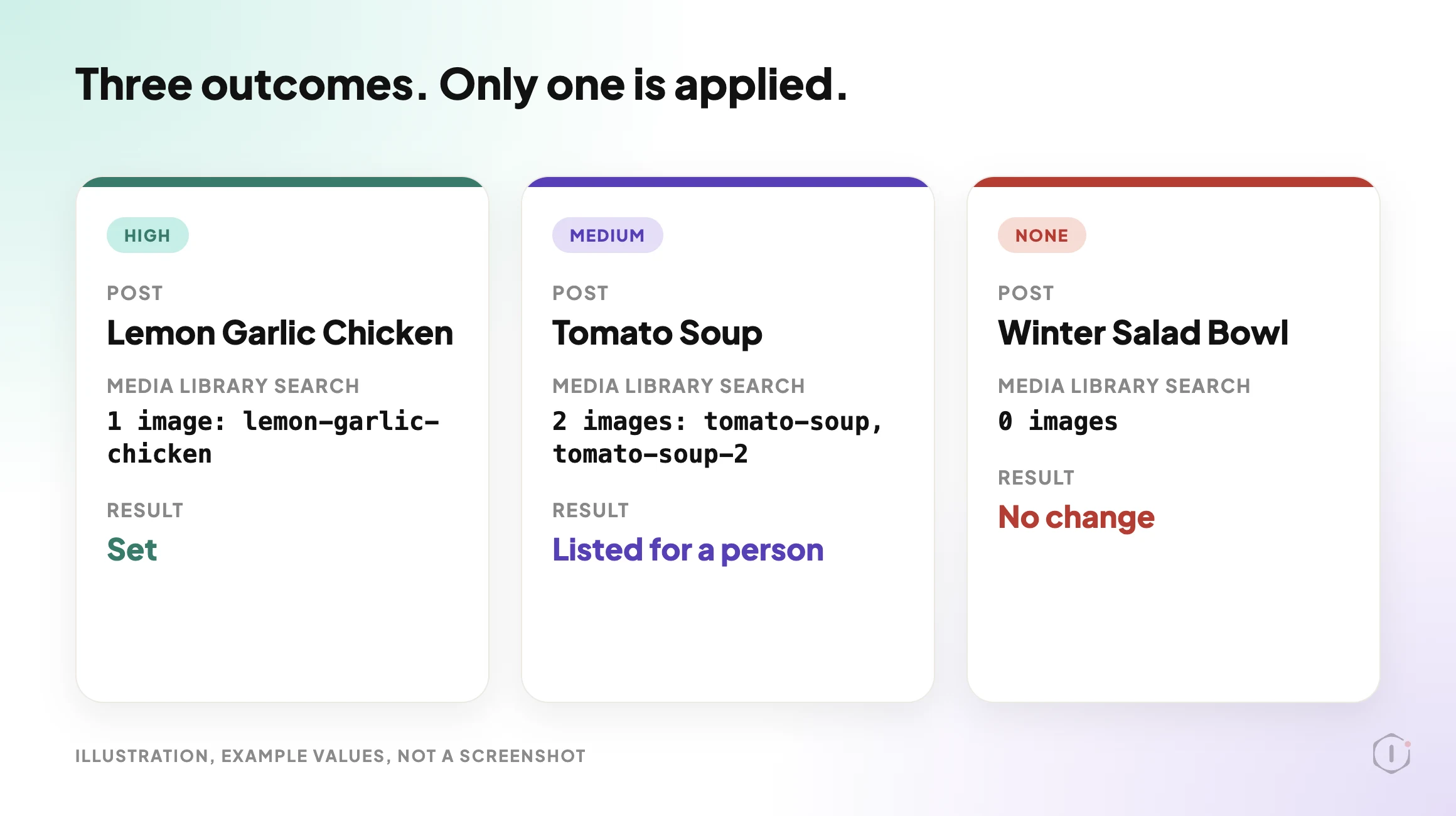
Step 1 ends by handing step 2 a fixed block. It holds the scanned count, one line for every post it checked, the list to apply, and the number remaining. The step file requires one line for every candidate searched, so the block can be checked against the count.
Step 2: Apply And Verify
Step 2 reads that block and does three things.
First, it re-checks the posts on the apply list in one call. A post whose featured_media is no longer 0, or that is missing, is skipped as “changed since the scan”. It is never written.
Second, for each remaining post it makes one write with the post id and the image id, and nothing else. The step file says the write records the post’s previous value, which is what the run’s Rollback restores. A write that errors is marked failed, and the step keeps going.
Third, it reads the posts back. A post counts as set only when its featured_media now equals the image id.
The step stops without writing in three cases. If the block from step 1 is missing or step 1 failed, it reports a broken chain. If step 1 produced more than one apply list, it reports a broken chain, because the list cannot be trusted. If the apply list says none, it reports “Nothing to apply”.
The report has a fixed layout. A summary line gives the counts for set, skipped, failed, to review, no match and left for the next run. Then come tables for the images set, the posts skipped or failed, the posts to review and the posts with no match, and a closing note on how to undo.
What The Settings And The Public Page Say
This is the one place where the sources disagree, so read it closely.
The public page says a run you start pauses before step 2 and waits for your approval. It also says a scheduled run skips step 2, so a scheduled run never makes the change.
I opened the settings panel for both steps in the dashboard. Both show Automatic backup None and Approval checkpoint Off. The dashboard’s card text also says the playbook waits for your approval.
This post does not decide which is right. Before a first run on a live site, check the Approval checkpoint setting on your own copy of step 2. The undo that step 2’s file describes works from the recorded before-value for each post, which for these posts is “no featured image”, not from a backup.
What The Playbook Does Not Do
The step files and the public page set clear limits:
- It never uploads or generates an image, and it never replaces an existing featured image.
- It changes one field only, the featured image. It sends no title, content, excerpt, status or meta.
- It scans at most 300 of the newest published posts and checks at most 25 per run, so a large backlog takes several runs.
- It never sets an image on a MEDIUM or NONE post. Those are listed for you.
- It does not judge the picture. A name match is a hint about a file name, not proof that the image fits the post.
- It does not look at image size, format or alt text.
That last limit is worth planning for. A post on an image weight audit found a page carrying 2,590 KB of images, with a single 794 KB file still being served. A matched image can still be a heavy one.
A Careful Version You Can Do By Hand
You can do a rough version of this without any playbook. It follows the same order.
- Request your published posts from the REST API, asking only for
id,titleandfeatured_media, for example/wp-json/wp/v2/posts?per_page=50&_fields=id,title,featured_media. Posts with afeatured_mediaof 0 have no featured image. - For each of those, take the key words from the title and search the media library by those words.
- If exactly one image comes back, check it is not already the featured image of another post, and look at the picture before you use it.
- If two or more come back, or the title is one word long, decide by eye and write down why.
- Open the post, choose Set featured image, pick the image and save.
- Write down the before-value for every post you change, which is “none”, so you can undo it.
- Share one updated link and look at its preview. Platforms cache old previews, so a link shared before the change can keep showing the old one.
Seven steps for 25 posts is why such a list tends not to get written. That is the part a playbook takes over.
If your bigger worry is unused files in the library, the Unused & Duplicate Media playbook post covers the other side of the library. If you want to see how other playbooks handle changes in small batches, the Disable Comments post and the Find And Replace post each describe a two-step playbook that plans changes and waits for you.
Two Outside Views
A short tutorial and a forum thread. Neither is an endorsement, and neither describes the Protuno playbook.
In a September 2026 video, the Quick Tutorials Vault channel shows how to add a featured image in WordPress. The presenter goes to Posts, picks a post, clicks Edit, and points to the Set featured image option on a post that has none. The presenter then selects the image, saves, and uses View post to confirm the image appears. It is a one-post, by-hand method, which is the baseline this playbook is compared against. The video does not cover finding posts that have no featured image.
On Reddit, an r/Wordpress thread titled “How to set the image that shows up in my link thumbnails?” starts with a blog owner whose shared links showed “no title” and a random uploaded image as the thumbnail. A reply says:
“the cleanest option without wrecking your homepage is to set a featured image on each post/page you actually share, not on the home page.”
Reply in the thread, r/Wordpress, 8 October 2026
The same reply adds that the poster is on a WordPress.com free plan, where control over the social image is limited, and that Facebook and iMessage can keep showing an old preview until you refresh it in their debugger. The thread is about that plan, so treat it as one site owner’s problem, not a rule for every WordPress site.
Where Protuno Fits
The Bulk Featured Images playbook is the repeatable, bounded part of this job. It finds published posts with no featured image, matches them to library images by name, and sets only clear one-image matches, at most 25 per run, then reads each change back and records the before-value so it can be rolled back. It needs no connector, runs when you start it, and has no schedule set.
Protuno publishes its playbooks as written-out steps you can read first. The playbooks page lists them, and this one has its own page at Bulk Featured Images. If the undo model is your main concern, a post on rollback after an update explains why restoring files and restoring a database are not the same decision.
The Point
A featured image is one field on a post. Nobody notices it is empty until a layout, an archive or a shared link shows the gap.
Find the empty ones, match only what is clear, change nothing else, and keep the before-value so any change can be undone. The matches that need a human eye should go to a human.
How many of your published posts would show a gap if you asked for the ones with no featured image today?
Sources And Further Reading
- Featured Images & Post Thumbnails, Theme Handbook, developer.wordpress.org
- Posts, REST API Handbook, developer.wordpress.org
- set_post_thumbnail(), WordPress Developer Resources
- Post Featured Image block, WordPress Documentation
- WordPress 7.1.3 Maintenance and Security Release, WordPress.org News, 6 October 2026
- WordPress 7.2 Beta 1 is Ready for Download and Testing, WordPress.org News, 20 October 2026
- HOW TO ADD A FEATURED IMAGE IN WORDPRESS, Quick Tutorials Vault, YouTube, 9 September 2026
- How to set the image that shows up in my link thumbnails?, r/Wordpress, 8 October 2026
- Bulk Featured Images, Protuno playbook page
Comments