WordPress File Permissions: Check The Owner First.
A plugin install stops with “Installation failed: Could not create directory.” An upload in the media library says “Unable to create directory wp-content/uploads/2026/10. Is its parent directory writable by the server?” Or an update stops on a screen that says “To perform the requested action, WordPress needs to access your web server. Please enter your […]

A plugin install stops with “Installation failed: Could not create directory.” An upload in the media library says “Unable to create directory wp-content/uploads/2026/10. Is its parent directory writable by the server?” Or an update stops on a screen that says “To perform the requested action, WordPress needs to access your web server. Please enter your FTP or SSH credentials to proceed.”
The advice for all three is usually a number: set the folder to 777. The WordPress handbook warns against it, and a hosting company’s video about the first error says you never need it. These messages are not asking for a bigger number. They say WordPress tried to write something and the server refused, and the refusal has more than one possible cause.
Short answer: find out who owns the files and which account PHP writes as, then read the mode. WordPress itself decides whether it can write by comparing owners, not by reading digits. For servers where PHP runs as the file owner, the handbook’s baseline is 755 for directories and 644 for files, with wp-config.php at 440 or 400, and it treats 777 as a number to question. The number is the last thing to change.
What this post is, and is not: a walk-through built from the WordPress handbook, the WordPress 7.1.3 source on GitHub, two videos and one forum thread. I did not test anything on a site, and the commands near the end are read-only ones I have not run. The right values depend on your host, so the post says where to measure instead of giving one number to copy. Latest checked: WordPress 7.1.3 (6 October 2026) is the current stable release and 7.2 Beta 1 came out on 20 October. Neither announcement mentions file permissions or the filesystem.
Three Digits, Three Audiences
A mode is three digits: the owner, the group, and everyone else. Read is 4, write is 2 and execute is 1, and each digit is the sum. So 7 is read, write and execute, 5 is read and execute, and 4 is read only. That is the scheme the handbook’s file permissions page describes.
| Mode | Owner | Group | Everyone else |
|---|---|---|---|
| 755 | read, write, execute | read, execute | read, execute |
| 644 | read, write | read | read |
| 777 | read, write, execute | read, write, execute | read, write, execute |
“Everyone else” means every other account and process on that server. The handbook’s warning about 777 is about those accounts and processes, not about visitors reading files.
How WordPress Decides It Can Write
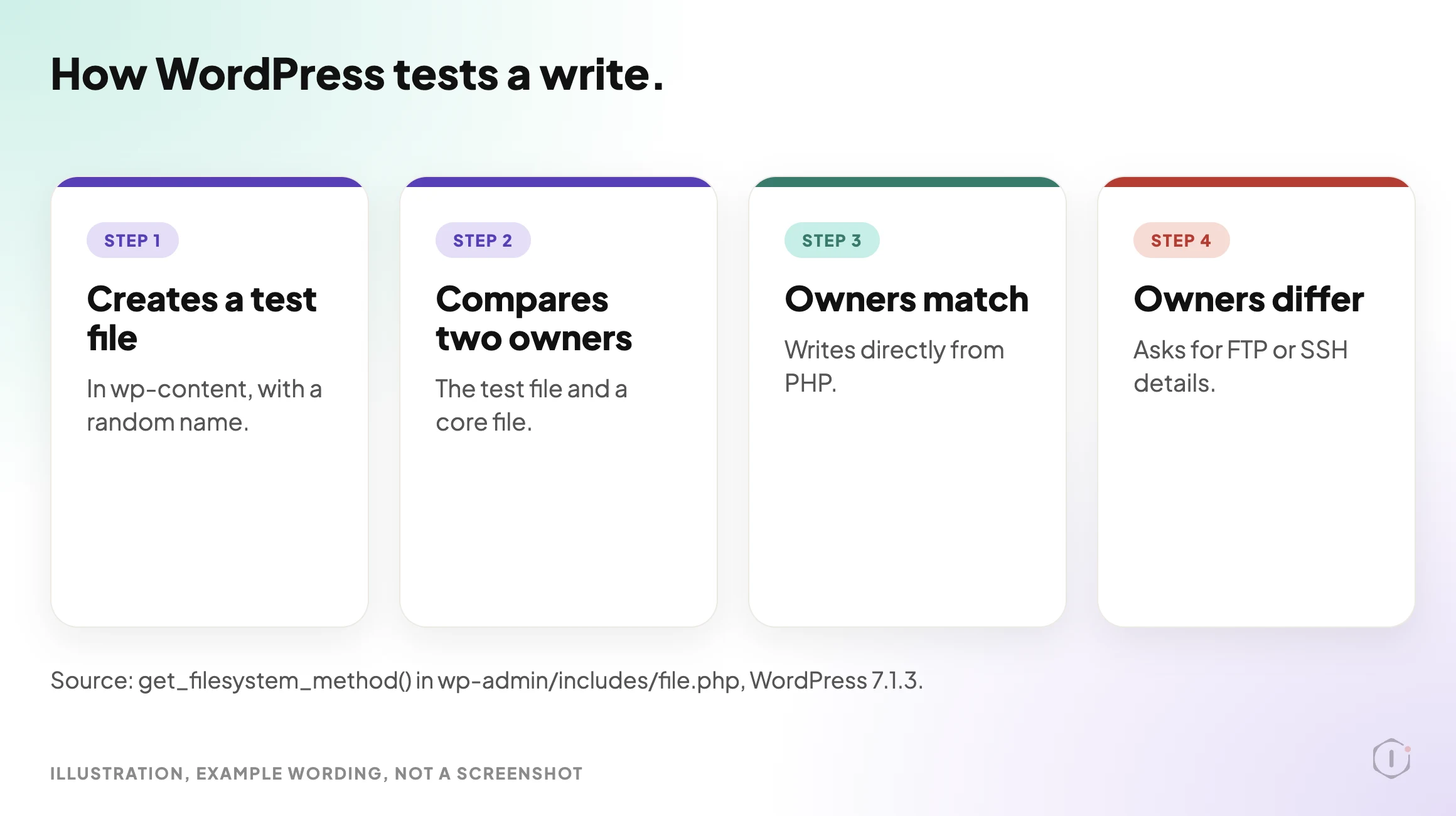
Before it writes during an install or update, WordPress runs a small test. In the 7.1.3 source it is the function get_filesystem_method() in wp-admin/includes/file.php. Unless the FS_METHOD constant is defined, it works like this:
- It tries to create an empty file named
temp-write-test-plus a random string inside the wp-content directory. - If that works, it compares the owner of the new file with the owner of a WordPress core file.
- If the two owners match, it writes directly from PHP.
- If they differ, or the test file could not be created at all, it falls back to SSH or FTP and shows the credentials screen quoted at the top.
There is one more branch. A caller can allow “relaxed” ownership, and then a writable directory is enough to alter existing files, though that mode never creates new ones. The code comment says so.
Two consequences follow from reading the code. I have not run either. First, a folder at 755 that is owned by the account PHP runs as passes the test, so no 777 is needed. Second, loosening a folder to 777 does not fix an owner mismatch. PHP can create the test file, but if PHP runs as a different account from the one that owns the core files, the new file has a different owner and WordPress still asks for FTP details. The same prompt also appears when the test file cannot be created at all, which is why it can mean two different problems.
The handbook describes the working case for servers it calls “suexec”, where PHP runs as the owner of the files. There, it says, WordPress “will not ask for FTP credentials when upgrading or installing plugins”.
FS_METHOD is the documented override. The handbook’s wp-config page says it forces the filesystem method and that you should generally change it only if you have update problems. It also says “direct” is chosen automatically when appropriate, and that forcing it is “fraught with opening up security issues on poorly configured hosts”. In the code, defining it skips the test above. It does not change who owns anything.
What The Handbook Recommends
The handbook’s file permissions page gives a scheme for servers where PHP runs as the file owner, and its hardening page repeats the key values.
| What | Handbook value | Where it says so |
|---|---|---|
| Directories | 755 or 750 | File permissions page, the suexec scheme |
| Files | 644 or 640 | Same scheme |
| wp-config.php | 440 or 400 | Same scheme. The hardening page says only you and the web server should be able to read it, which “generally” means 400 or 440 |
| Upload directories | Not 777: “No directories should ever be given 777, even upload directories” | Same scheme |
| wp-content | Writable by your user account and the web server process | Hardening page |
| Plugin files | Writable only by your user account | Hardening page |
The page also notes that wp-config.php is “initially created with 644 permissions, and it’s a hazard to leave it like that”.
Three cautions on that table. First, the handbook says permissions differ from host to host, and that its guide covers general principles. Second, the page is not consistent about 777. Its general section says to start restrictive and raise permissions until it works, lists modes to try in order, and ends with “Only use 777 if necessary, and hopefully only for a temporary amount of time.” It also says “when you see 777 ask why it’s necessary”. Third, the hardening page says automatic updates run as the file owner and set files to 0644 and directories to 0755, so a mode you set by hand on core files is not guaranteed to survive. Check after an update, and read the auto updates post for what updates run on your site.
777 In Plain Terms
The handbook says 777 makes a file or directory readable, writable and executable by all users, groups and processes. Its worst case is that if an attacker can upload or modify a file to execute code, “they will have complete control over your blog, including having your database information and password.”
The description of that same video, from Ahosting INC, is blunter. It says the usual advice is to make wp-content 777, and “You never need it.”
The better fix is the one the handbook points to: any file that needs write access from WordPress should be owned, or group-owned, by the account WordPress runs as. That means changing the owner, then keeping the mode at 755 or 644. It does not mean raising the mode until the error goes away.
Four Causes, One Message
The same sentence can come from causes that have nothing to do with a mode.
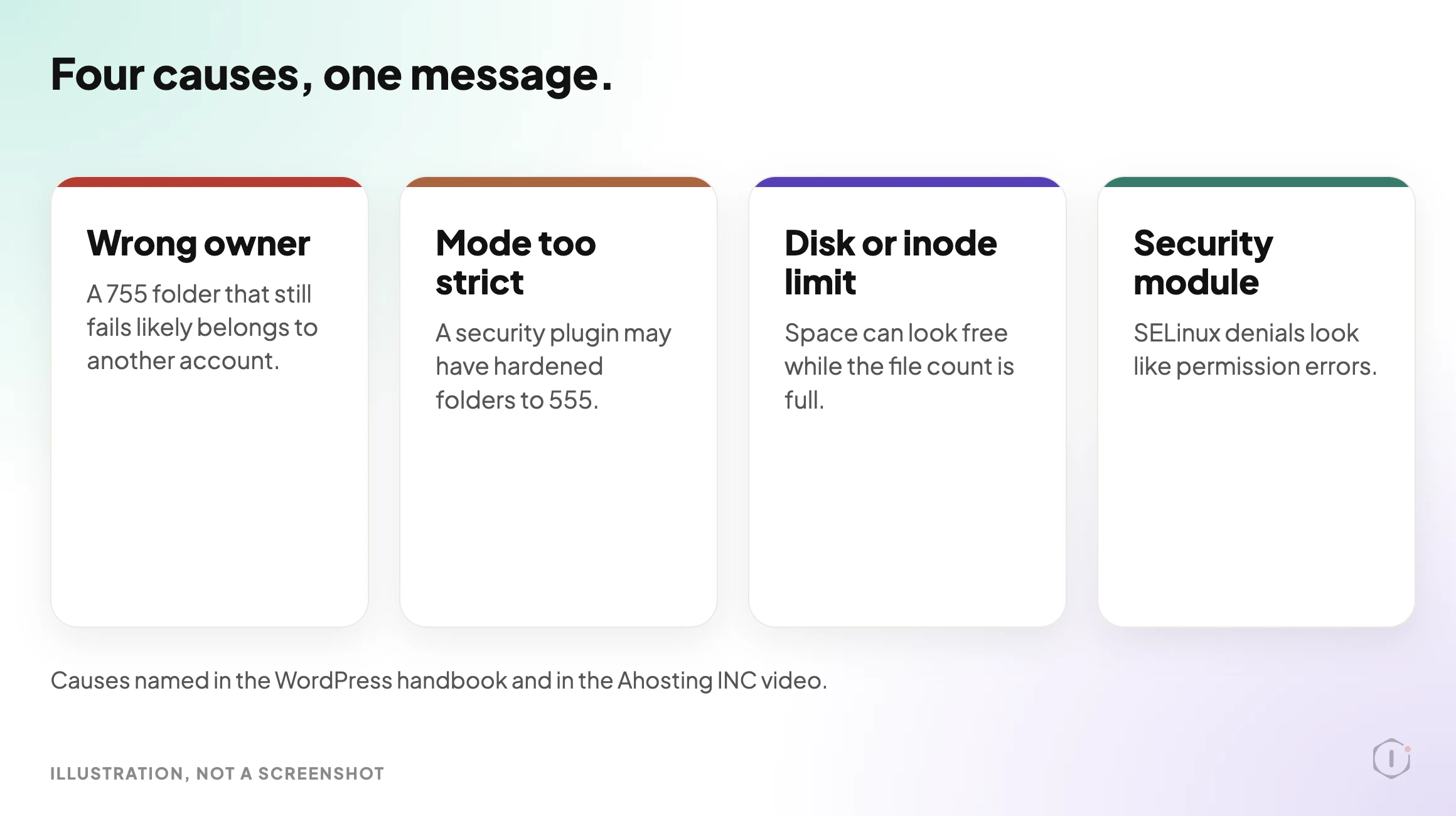
- Wrong owner. The Ahosting video says that if a 755 mode fails to let you write to a directory, the folder likely belongs to a different user account.
- Mode too strict. The Ahosting video says a security plugin may have hardened folders to 555. The handbook’s .htaccess example says a mode set too low stops the server reading the file, which causes an error.
- Disk or inode limit. The Ahosting video says WordPress creates every empty folder before it writes a file, that each folder needs an inode, and that an account near its inode limit can fail on folders while the storage gauge still shows room. It also says the server needs slightly more than twice the unpacked plugin size to hold the zip and the extracted copy.
- A security module. The handbook says SELinux denials are often hard to tell from regular permission errors. It is typically installed on Red Hat family systems, and it can block writing the
.htaccessfile.
I confirmed that the sentence “Could not create directory.” appears in the 7.1.3 file wp-admin/includes/file.php, and that the upload message above appears in wp-includes/functions.php. I did not count the places the Ahosting video says the sentence comes from.
Find The Cause In Order
The Ahosting video’s order is a good one: find the path, check space and inodes, then look at modes and ownership, and only then change anything. Adapted, with two extra steps:
- Read the full message. The Ahosting video says the Install Now button drops the folder path from its output, and shows two ways to retrieve it, which its written guide also covers. The path tells you which folder failed.
- Ask WordPress what it can write. Go to Tools, then Site Health, then the Info tab, and open Filesystem Permissions. In 7.1.3 it lists the main WordPress directory, wp-content, uploads, plugins, themes and fonts, plus the must-use plugins directory if it exists, each as Writable or Not writable. It asks PHP, so it reports what the web process can do, not what your own login can do.
- Check space and inodes. Look at both gauges in your hosting panel, or run the commands below on a server where you have a shell.
- Compare owner and mode. List the owner, group and mode of wp-config.php, wp-content, uploads and plugins, and compare the owner with the account PHP runs as. Your host can tell you which account that is. A command-line
phprun reports the command-line user, which may not be the one that serves pages. - Check for a security module. On Red Hat family systems, ask whether SELinux is enforcing.
df -h
df -i
stat -c '%U %G %a %n' wp-config.php wp-content wp-content/uploads wp-content/plugins
getenforce
These are read-only commands, and I have not run them on a site. stat -c is the GNU form and differs on macOS. getenforce exists only where SELinux is installed. On shared hosting without a shell, the same information is usually in the file manager and the hosting panel.
Write down the result before you change anything. If the owner is the account PHP runs as and the modes match the handbook’s table, the mode was never the problem, and the next suspect is space, inodes or a security module.
The Outside View Is A Different Check
Nothing about a mode is visible over HTTP. An outside check can only show a file being served that should not be, and two earlier posts already cover that: the exposed twin of wp-config.php and the debug log that is readable from outside. Run those alongside this one. This post is the inside view.
For a wider look at a whole install, the hardening measurements test advice on live sites before repeating it, which is the right habit for any permission change too.
What Correct Permissions Do Not Solve
Permissions say who on the server may touch a file. They are a small part of the picture.
- A write made through WordPress. WordPress writes as whichever account PHP runs as. A plugin weakness, or a stolen administrator login, can make it write something unwanted even when the modes are correct.
- An administrator. Anyone who can install plugins or edit files from the dashboard works around the filesystem question. Who really has the keys is the check for that.
- File contents. A mode says nothing about whether a file changed. If something looks wrong, a malware scan and the first hour after a hack are the next steps.
- A tightened mode that gets reset. The handbook says automatic updates set files to 0644 and directories to 0755.
- A full account. As above, the error can come from space or inodes, and chasing a mode will not fix it.
A permission pass belongs inside a bigger one. The security audit walk-through puts the order of work in one place.
Two Outside Views
Both picks below are about spam accounts, which is a neighbour of this topic rather than the same one. They are here for the point in the previous section: a correct mode does not say anything about who is allowed to create an account or what a form lets through.
A video. WP Ultimate Security’s “Stop Fake and Spam Email Signups in WordPress“, published 3 August 2026, walks through two features of its own plugin, an email blocklist and email verification. It blocks addresses and whole domains, and it checks sign-ups, comments and WooCommerce checkout for badly formed, disposable or no-MX-record addresses. It tests each one on screen.
It’s a simple way to keep spam accounts out and block problem users without having to delete anyone’s account manually.
WP Ultimate Security, Stop Fake and Spam Email Signups in WordPress, auto-generated English captions, 3 August 2026
It is a vendor’s tutorial for its own plugin, and the description says the features need both the free plugin and its Pro version. I did not test the plugin, and the captions are automatic. Nothing in the video touches file modes.
A thread. In an r/Wordpress thread, a poster running a course site on Tutor LMS, with registration set to need manual administrator approval, describes accounts with crypto, casino and pharma names appearing as approved with no approval step and no notification email.
Lately though, my site has been flooded with user registrations that are somehow automatically approved, no admin input required.
u/realcryptogd, r/Wordpress, 18 September 2026
The replies disagree. One says this is a backdoor symptom and suggests checking for hidden administrators, webshells in uploads and files in mu-plugins. Another asks why a backdoor would need registration open, and suspects a second registration endpoint that skips the approval step. The poster tried hiding the default login page and says it did not help, and the thread does not report a cause. My reading, not theirs, is that this is the kind of problem where a folder’s mode cannot tell you anything, because the accounts are created by the application, not by a file write. It is one poster’s account that I could not verify, and the replies are guesses.
The Point
Pick one site you manage. Without changing any mode, can you say which account owns wp-content and which account PHP writes as?
If not, the number on the folder is not the thing to look at yet. The question is what WordPress sees when it tests a write, and what you would do if the answer were different on the next site.
Sources And Further Reading
- Changing File Permissions, Advanced Administration Handbook, WordPress Developer Resources, page read 27 October 2026.
- Hardening WordPress, Advanced Administration Handbook, page read 27 October 2026.
- Editing wp-config.php, WordPress upgrade constants, Advanced Administration Handbook, page read 27 October 2026.
- wp-admin/includes/file.php at the 7.1.3 tag, WordPress source on GitHub, read 27 October 2026.
- wp-admin/includes/class-wp-debug-data.php at the 7.1.3 tag, WordPress source on GitHub, read 27 October 2026.
- get_filesystem_method(), Code Reference, WordPress Developer Resources.
- Site Health screen, WordPress.org Documentation.
- WordPress.org News: WordPress 7.1.3 Maintenance and Security Release, 6 October 2026; WordPress 7.2 Beta 1 is Ready for Download and Testing, 20 October 2026.
- Could Not Create Directory in WordPress: Find the Folder First (2026), Ahosting INC, YouTube, 5 October 2026, and its written guide. Used for the causes and the diagnosis order.
- Stop Fake and Spam Email Signups in WordPress, WP Ultimate Security, YouTube, 3 August 2026.
- Spam user registration automatically approved even though the registration process requires MANUAL admin approval, r/Wordpress, 18 September 2026. Title shortened.
Comments