WordPress Broken Images: Find Them Before Visitors Do.
How to find broken images and missing alt text on a WordPress site, check each image address, and read the results without false alarms.

Open a post on your own site, press F12, and look at the Console. On a site that has been migrated, restyled or cleaned up a few times, you will often see a line like this: “Failed to load resource: the server responded with a status of 404 (Not Found)”, followed by a path such as /wp-content/uploads/2023/05/hero.jpg. On the page itself that line is a small broken image icon, or an empty rectangle where a picture should be, or nothing at all if the theme hides the gap.
That 404 is the real error. The post still loads, the server still answers, and nothing in your dashboard turns red. A visitor sees a hole in the page, and a crawler sees a reference to a file that does not exist. This post explains how to find those images, what counts as broken and what does not, and how the Broken Image Finder playbook does the same check without changing anything on your site.
The Broken Image Behind The Empty Rectangle
A broken image is an image element whose address no longer returns an image. The page HTML is fine. The browser asks for the file, the server says no, and the browser shows its fallback. If the image has alt text, the browser shows that text in the gap, which is why alt text is the only part of a broken image a reader can still use.
Search engines meet the same wall. Google’s image guidance says Google can find images in the src attribute of an img element, and that it does not index CSS images. A src that points at a dead file gives Google nothing to index, on a page that otherwise claims to be about that picture.
Broken images rarely come alone. A theme change, a domain move or a media clean-up tends to break dozens at once, and nobody notices because each page still renders. If you already audit links, this is the same job for a different tag: our broken link audit covers anchors, and this covers images.
What Counts As Broken, And What Does Not
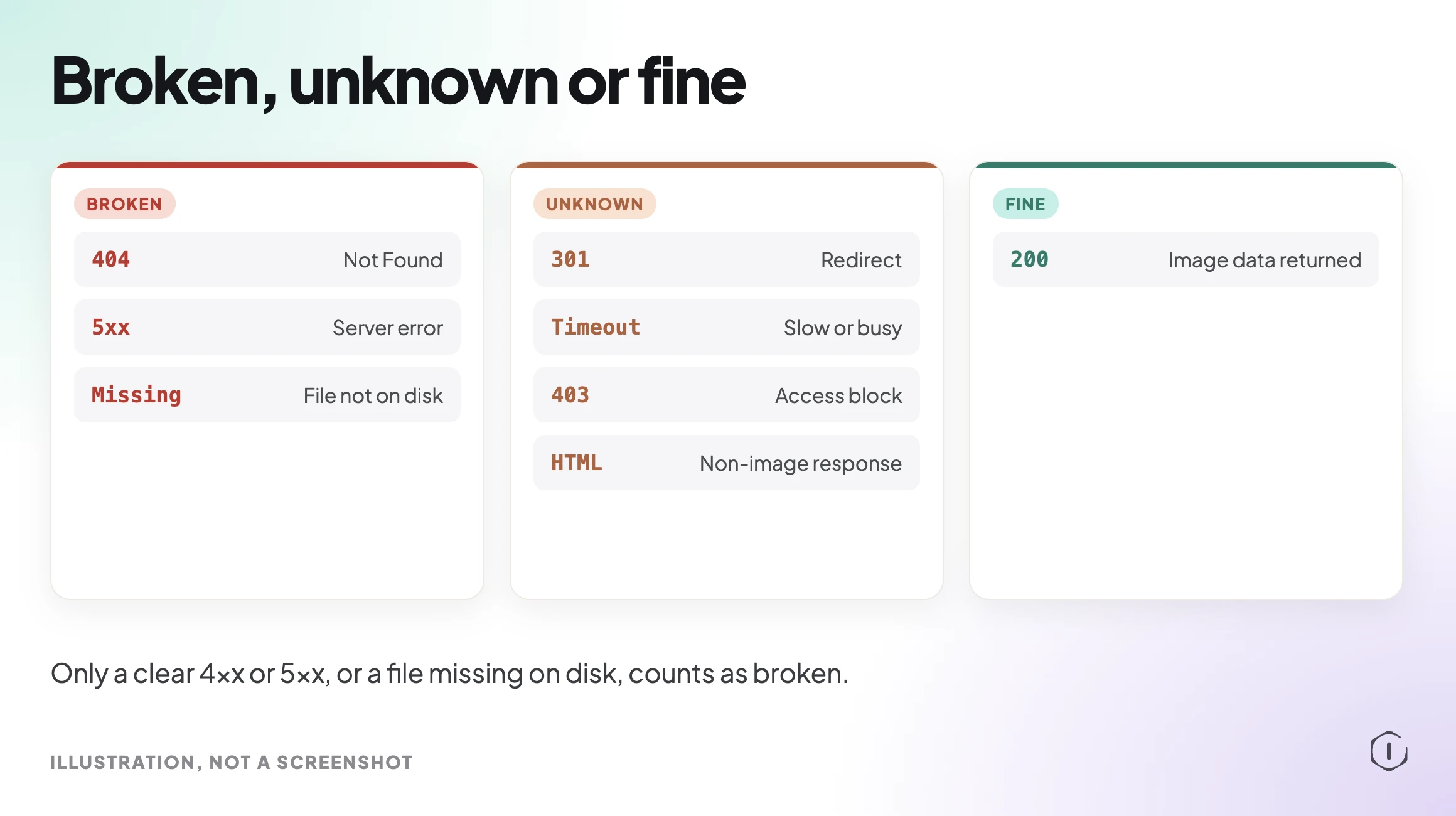
The simplest rule is the one a careful checker uses: only a clear failure counts. A request that returns a 4xx or 5xx status for an image address is broken. A file that WordPress lists in the media library but that is missing from the uploads folder on disk is also broken, because the address cannot load however the server is asked.
Plenty of results sit in between, and they are not proof of anything:
- A redirect. The address moved, and the image may load fine at the end of the chain.
- A timeout. The server was slow or busy at that moment.
- An access block. A firewall or hotlink rule refused an automated request that a browser would pass.
- A non-image response. The address answered, but with a page or an error body instead of image data.
Treating those as broken produces a long list of false alarms, and a list people stop reading is worse than no list. The honest label for them is unknown: worth a look, not worth a panic.
Where Broken Images Come From
Most broken images trace back to a small set of changes made for good reasons:
- Files deleted from the uploads folder while the posts that use them stayed.
- A site move where the domain, the protocol or the folder path changed and old addresses stayed inside post content.
- An image host or CDN that was switched off, renamed or reconfigured, as covered in our WebP and AVIF post for format changes.
- Hotlinked images on someone else’s site that were removed.
- A clean-up that removed files WordPress seemed not to use, which is the risk behind any unused image sweep.
Each of these leaves the post text untouched and the image reference dead. The same causes show up elsewhere too: a removed image often leaves a path that also appears in your 404 error log.
Alt Text: Missing, Empty, And Decorative
The Broken Image Finder reports two things, and alt text is the second. They are separate problems and need different fixes.
Missing alt text means the img element has no alt attribute at all. Screen readers may fall back to reading the file name, and search engines get less context. Empty alt text, written as alt=”” on purpose, is the correct markup for a purely decorative image, because it tells assistive technology to skip it. The playbook lists empty alt text separately, as something to review as decorative, not as an error. The judgement stays with you: only a person can say whether a picture is decoration or content.
For the alt side in depth, our image alt audit goes through how to write it. This post stays with the broken half.
What The Broken Image Finder Playbook Does
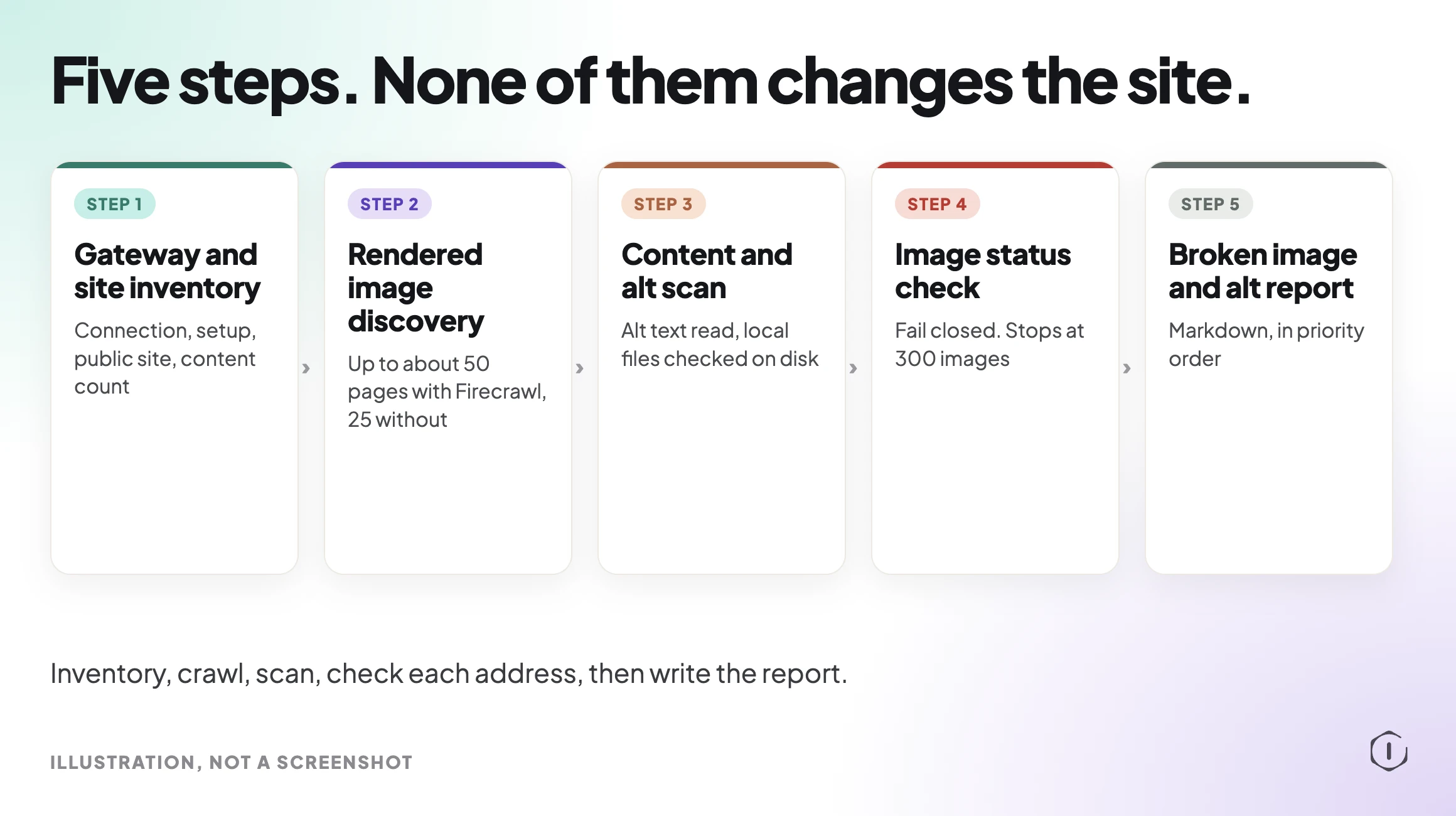
The playbook is read only. You start it by asking in your AI app: “Iris, run Broken Image Finder on my site.” It belongs to Iris, the SEO Super Agent, and runs five steps in order.
- Gateway and site inventory. It confirms the connection works, records the setup, checks that the site is public and counts published content.
- Firecrawl rendered image discovery. It crawls up to about 50 pages with Firecrawl, or the site’s own pages if Firecrawl is not connected, to find lazy-loaded and background images that stored content misses. Images added only by JavaScript can be missed.
- Onsite content and alt scan. It reads the images in your posts and pages, checks each alt text and confirms that local files exist on disk.
- Image status check, fail closed. It checks each image address. Only a clear 4xx or 5xx counts as broken. Redirects, timeouts, access blocks and non-image responses are listed as unknown. A file confirmed missing on disk is broken. Checks stop at 300 images.
- Broken image and alt report. It writes a prioritised report of broken images and missing alt text.
What you get is a written Markdown report in priority order. If Firecrawl is not connected, the crawl starts at 25 pages and reads server HTML only, so content added by JavaScript can be missed. On Pro and Agency, the playbook can also run on a routine.
The phrase “fail closed” matters here. If the playbook cannot verify an image, it does not report it as broken. The report is shorter than a naive scan would produce, and every item on it has a reason.
Reading The Report In Priority Order
The report arrives as Markdown, in priority order, so the first lines are the ones to act on. Read it in three passes.
First, the broken images. Each one has a reason: a clear 4xx or 5xx answer, or a file confirmed missing on disk. For each, ask which page uses it and whether the image still matters. A dead image in a post nobody reads is a low priority. A dead image in a top landing page is not.
Second, the missing alt text. Decide per image whether it carries meaning. If it does, write a short description of what the picture shows. If it is decoration, an empty alt attribute is the right answer and nothing needs fixing.
Third, the unknowns. These are the redirects, timeouts, access blocks and non-image responses the playbook refused to call broken. Open a handful in a browser. Most will be fine, and the ones that are not become broken images you have now verified yourself.
Keep the report. Run it again after a migration, a theme change or a media clean-up, and compare the two. A list that shrinks is the clearest sign the fixes held.
What The Playbook Does Not Do
It does not fix anything. The playbook only reads: it does not edit your site, replace a file, re-upload an image or rewrite an address in a post. Fixing is a separate decision, and for a media library it is the right place for a person to decide.
It also does not check everything. The crawl is capped at about 50 pages with Firecrawl, 25 without, and image checks stop at 300. On a large site that is a sample, so a clean report does not prove the whole site is clean. Images that only JavaScript adds can be missed, especially without Firecrawl. And an image that could not be verified stays out of the broken list by design, so unknowns still need a human look.
Finally, it does not judge quality. A sharp, loading, 6 MB hero image passes this check. Weight is a different audit, which our large image audit covers.
A Careful Version You Can Do By Hand
You can run the same logic yourself on a small site:
- Open the browser Console and the Network tab on your five most visited posts. Filter by Img and look for red 404 rows.
- In the media library, open any image the Console flags and check whether the file exists in the uploads folder.
- Search post content for an old domain or an http:// address. Old addresses are the most common cause after a move. Take a backup first.
- For anything that redirected, load it in a browser and see whether an image actually appears.
- Write down each result as broken, unknown or fine. Do not mark a redirect or a timeout as broken until you have seen it fail twice.
- Check alt text on the same pages, and treat alt=”” on decorative images as correct.
That takes an afternoon for a handful of pages and does not scale to hundreds, which is the honest argument for a crawler. A broader crawl view lives in our crawl audit and technical SEO audit.
Two Outside Views
“It sounds obvious, but one typo can completely break the image. Make sure the entire link is correct from the domain name to the file path.”
CourseVector, 5 Quick Fixes for Missing or Broken Images in WordPress, YouTube, 2025, first fix in the video
A typo is the simplest version of the problem: the address is wrong, so the file never loads. The harder version is the one where every address was right once.
“If I right click on any of the broken images (from within the WordPress post editor), and open them in a new tab. They’re still using the old domain name in the URL.”
u/ElectricRains, How can I fix my broken images after migrating website?, r/Wordpress, 2024
They said about half their images broke after cloning the site to another domain and back. The replies pointed to a search-and-replace plugin, which is the fix. Finding which images were affected, and on which pages, is the part a broken image check does first.
Where Protuno Fits
Protuno gives the check a name and a boundary. The Broken Image Finder is one of its read-only playbooks: you read the five steps before anything runs, it only reads, and what you get back is a written report, not a changed site. Asking “Iris, run Broken Image Finder on my site” in your AI app starts it. The fix stays with you.
The Point
A broken image is a quiet failure. The page loads, the layout holds and the only evidence is a 404 in a console nobody opens. The useful part of a check is not finding the most items, it is being right about each one: broken means a clear failure, and everything else is unknown until someone looks.
Comments