WordPress Unused Images: The Playbook, Step By Step.
WordPress unused images are hard to prove from the Media Library. See how a read-only playbook finds duplicates and possibly unused files.

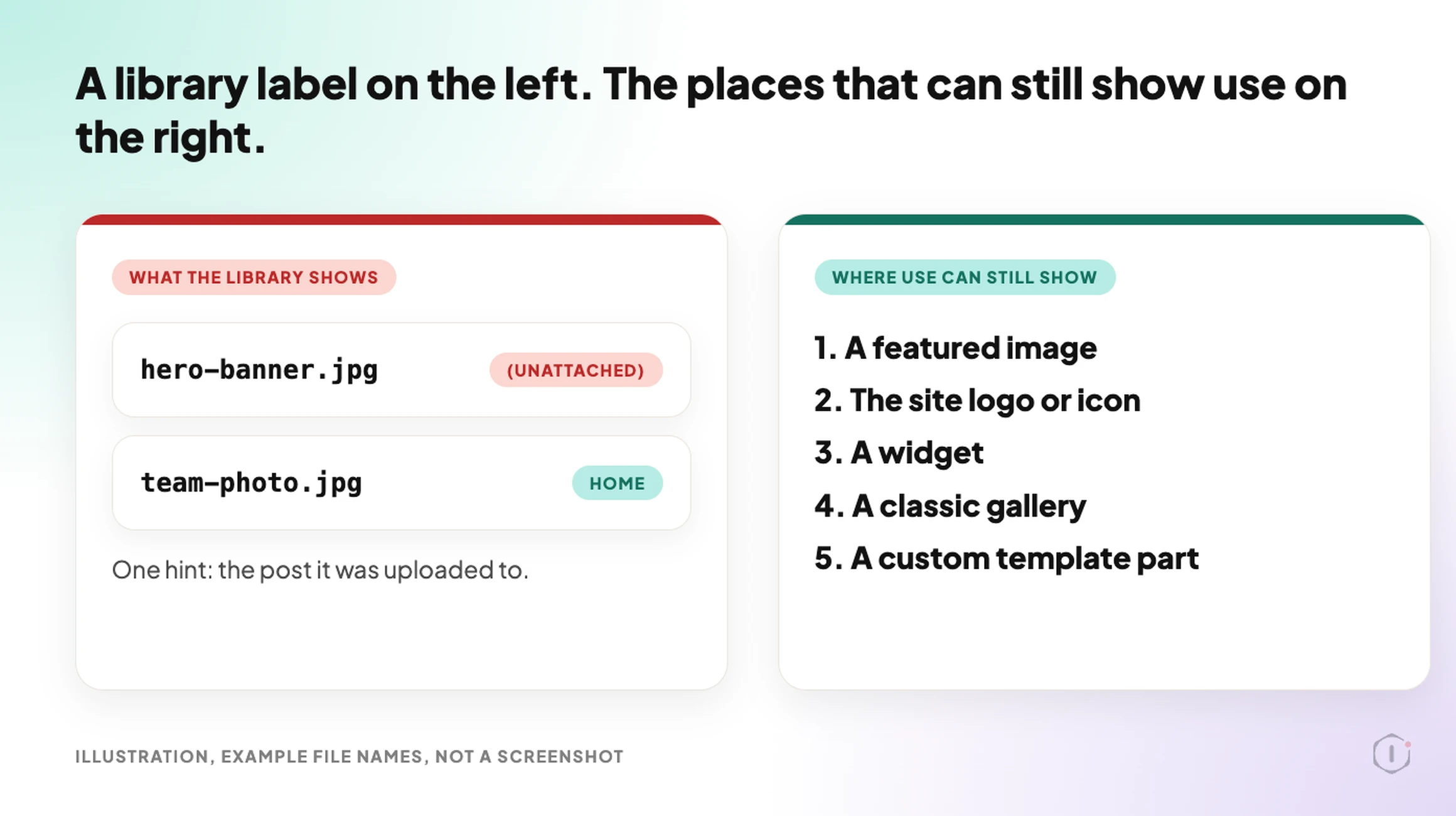
Your Media Library has grown large. In list view, the “Uploaded to” column says “(Unattached)” next to a lot of them, and the toolbar has an “Unattached” filter.
It is tempting to read that filter as a list of files nobody uses.
Short answer: For WordPress unused images, “Unattached” is not the same as unused. WordPress records which post an image was uploaded to. It does not record every place that image is shown. A logo, a widget, a gallery or a template part can use a file the library calls unattached. The Unused & Duplicate Media Report playbook reads the library, checks the places WordPress can show use of each image, and writes a list of duplicate files and files that are “possibly unused”. It deletes nothing.
What this post is, and is not: A method write-up of one read-only playbook, based on its four step files as shown in the Protuno dashboard and on its public page on 21 October 2026. It is not a result from a real run: no playbook was run for this post, and every file name and picture in it is an illustration with example values.
What The Media Library Does Not Tell You About WordPress Unused Images
The “Uploaded to” column shows one thing: the post or page the file was uploaded from.
A file can be uploaded from one post and shown on ten others. A file can be uploaded from no post at all and still be the site logo. In both cases the library gives you a weak hint, not an answer.
A WordPress tutorial from August 2026 says it plainly. Its author points out that WordPress only reports attachments, and that an image can be used in a theme template, a header, a footer, a widget or a reusable block without showing up in the library. His rule is to never treat an empty attachment area as a green light.
That is the whole problem this playbook is built around: telling WordPress unused images from files that only look unused. The risky mistake is calling a used image unused. The playbook’s second step says so in its own safety rule, and everything after it follows from that.
Unattached Is A Label, Unused Is A Claim
A label is something WordPress stores. A claim is something you have to check.
To call an image possibly unused, you need to look in every place it could be shown. Some of those places are cheap to read in bulk, such as featured images and the site logo. Some need a search for the file name. Some cannot be read from outside at all.
The Playbook, Step By Step
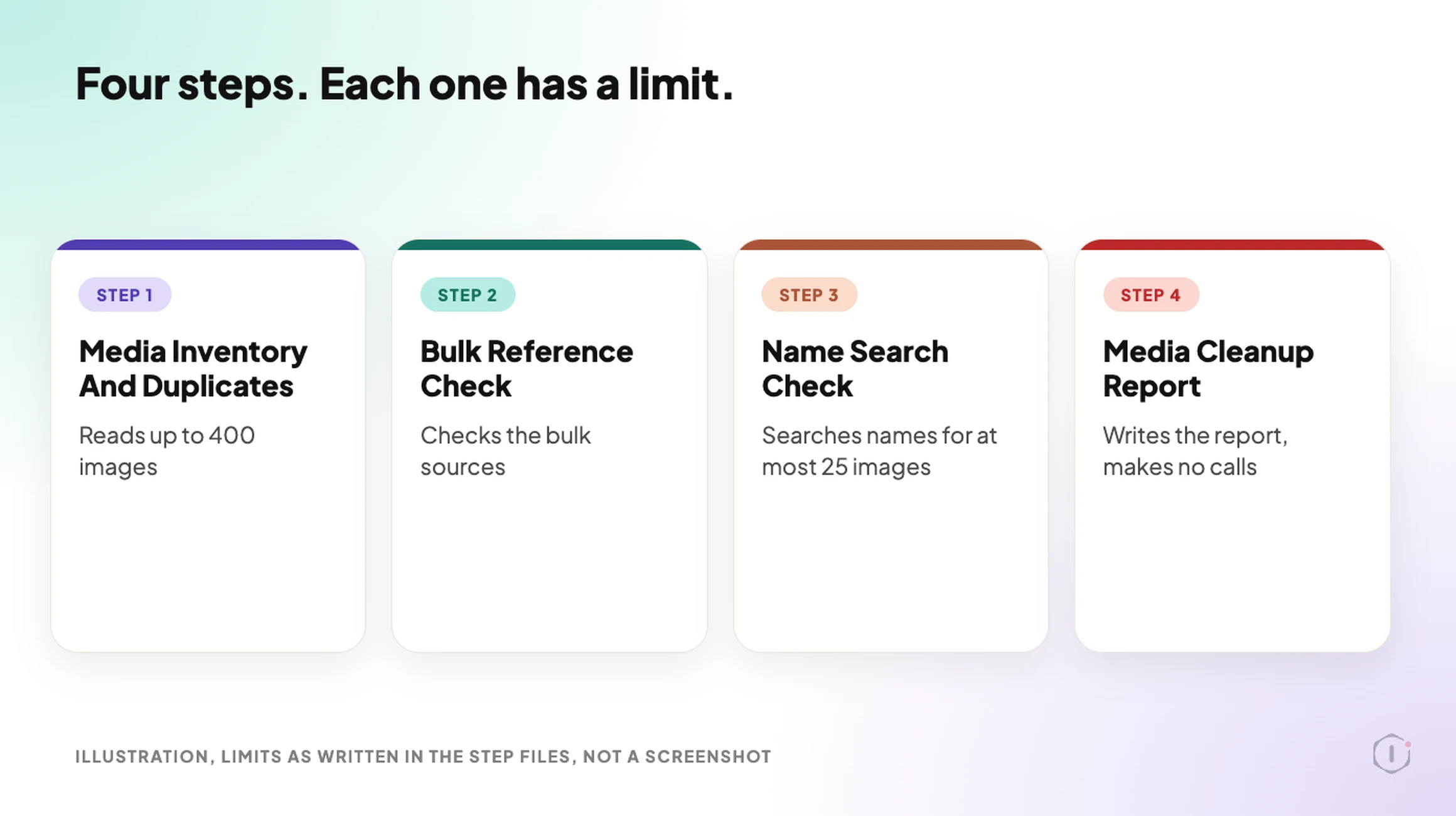
The playbook for WordPress unused images has four steps, in a fixed order. Every call in it is a read. In the dashboard it carries a Beta label, and the public page files it under Performance.
Step 1: Media Inventory And Duplicates
The first step reads a few facts about the site. It lists the post types, notes which page builders are active and whether WooCommerce is running, checks whether the theme is a block theme, and reads the site logo and site icon.
Then it lists the images. It pages through the library 30 at a time, oldest upload first, and stops at 400. If the library is bigger, the report says “first 400 by upload order; the rest were not read”. Counts come from paging, because the answers carry no totals. A reply that arrives cut off is never used as if it were complete.
Step 1 also shows its own settings: Automatic backup None and Approval checkpoint Off. That fits a step that only reads.
How A Duplicate Is Decided
Duplicates are found by name, not by size. Each file name is lowercased and trimmed back to a group name, and files that share a group name are candidates for being copies.
WordPress adds some endings on its own. The step strips a trailing -scaled, -rotated, an edited-copy ending (-e followed by ten or more digits) and a size ending such as -300x200. A trailing -1 or -2 is stripped only if the name without it belongs to another image in the library. Hand-added copy words, such as -copy or a leading copy-of-, follow the same rule.
| Example names | Grouped? | Why |
|---|---|---|
| beach, beach-scaled, beach-1 | Yes | The scaled ending goes, and -1 goes because beach exists |
| team-photo, team-photo-copy | Yes | The copy word goes because team-photo exists |
| old-upload-1, old-upload-2 | No | There is no plain old-upload, so the numbers stay |
| IMG-0001, IMG-0002 | No | Camera numbers are different pictures |
For groups only, the step then reads file sizes. It checks at most 10 groups and 40 images. Inside a group, files with the same file size, width and height are an exact copy set. Files with the same name and a different size are versions. The oldest upload is marked as the one to keep. Same size alone never makes a group, because different names are never treated as copies.
Step 2: Bulk Reference Check
Step 2 marks an image as used when a cheap bulk source shows it in use. It does no name searches. The rest of the images become candidates for step 3.
| Where use is checked | What counts as used |
|---|---|
| Featured images | Every featured image on every post type. Drafts, pending and private items count too |
| Logo and icon | The site logo and the site icon, plus the WooCommerce placeholder image when a store is present |
| Classic widgets | A media widget’s image, and any file name found in a widget’s content, on sites that do not use a block theme |
| Classic galleries | The image ids inside gallery shortcodes, found by search, for up to 10 hits |
| Block theme parts | Custom templates and template parts, up to 20, where the image’s name or id appears |
The safety rule sits at the top of this step: anything unclear counts as used, or as not checked, never as unused. The step also never asks for post content in a list call, because a long list gets cut off and an image named in the cut part would look unused. If a widget or gallery reply is cut and cannot be recovered, the step says so and no image can be listed as unused from that run.
Step 3: Name Search Check
Step 3 makes one call to a Protuno tool with every candidate id. The search runs on the Protuno server. It looks for each image’s own file name in posts and pages, drafts and private included, in reusable blocks and in other published content. It checks at most 25 images per run, lowest id first.
The step does not search, sort, size or judge anything itself. It copies the lines the tool returns. If a page builder is active, each possibly unused image carries the note “check in” and the builder’s name, followed by “first”. Page builder data is on the not scanned list further down.
Step 4: Media Cleanup Report
Step 4 makes no calls. It writes one report in a fixed layout, with these sections in this order:
- Duplicate files, one row per group, with every id written out.
- Possibly unused, one row per image, never a range.
- Not checked this run, one line per id.
- What was checked.
- Not scanned on this site.
- Next step.
The summary counts duplicate groups, possibly unused images and images not checked. Space is always “at least” a number of megabytes, because only the original files are counted and not the thumbnails WordPress makes from them. Oversized files are not this report’s job, so it points to the dashboard’s Image Weight card. A report that finds nothing is still a pass.
The Words It Is Not Allowed To Use
The playbook is strict about wording. It must never write “remove”, “delete”, “deletion”, “safe to”, “cleanup would” or “redundant”. It must never write “unused” without “possibly” in front of it.
The strongest phrase it may use is “possibly unused: WordPress shows no use of it in the places checked”. The duplicate column is called “Other copies”, never “Remove”.
That is not decoration. A report that says “safe to delete” invites a click. A report that says “WordPress shows no use of it in the places checked” invites a look.
A Careful Version You Can Do By Hand
You can look for WordPress unused images without any plugin. This follows the same order, and the habits in it come from the August tutorial.
- Take a copy of the uploads folder first. A full backup is better, and a post on verifying a backup covers how to know the file you saved is any good.
- Switch the library to list view and sort by date, oldest first.
- For each file you doubt, search its file name on the live site and in the editor. The tutorial’s author does this for any file whose name looks important.
- Check the places the library cannot see: the Customizer’s header and background, a post’s featured image panel, a widget.
- Work in batches of 10 or 20. Act on one batch, open the key pages, then move on.
- If you are not sure about a file, leave it.
If you can, rehearse on a copy first. A post on staging drift explains why a staging site is not an exact copy of live, which matters if you plan to trust it.
What The Report Does Not Cover
Some places cannot be read by a search for a file name. The step files list them as not scanned:
- Page builder data and custom fields.
- Theme files and CSS.
- The Customizer’s header and background images.
- WooCommerce product galleries.
- Menus.
- Links to the file from other sites.
- Images beyond the first 400, and thumbnails, which are not counted in the space total.
This is why a “possibly unused” row in a list of WordPress unused images is a prompt to look, not a verdict.
The report is also not about file weight, file format or alt text. Those are different questions, covered by a post on finding the oversized image, one on WebP and AVIF and one on an image alt text audit.
Two Outside Views
A tutorial and a forum thread. Neither is an endorsement, and neither describes the Protuno playbook.
In an August 2026 video, Entrepreneurs Skool shows a no-plugin, no-code cleanup of a media library. He takes a copy of the uploads folder first and calls it his undo button. He then uses list view, the date filter and a search for words such as “logo” to find old files and duplicates. His main caution matches the one in this post: WordPress only reports attachments, so for an unattached file whose name looks important he opens the live site and searches for the name before touching it. He also says he works in small batches and checks the key pages after each one. The video is a delete tutorial and ends with a request to like and subscribe.
On Reddit, an r/Wordpress thread titled “How to Delete 20,000 old post and images?” starts with a site owner who took over a site and wants to clear out old content. Further down, the poster says where the hard part is:
“It will just be unattached images thats the problem.”
Original poster, r/Wordpress, 1 July 2026
One reply suggests trashing the posts with a bulk tool and then using a media cleaner plugin to find orphaned images, with this caution:
“backup first obviously, and do it in batches if the host has execution time limits.”
Reply in the same thread, r/Wordpress, 1 July 2026
The thread is about deleting content rather than about proving an image is unused, so it only lines up with this post on the point that unattached files are the awkward part. Posts you delete leave images behind, and the library cannot say which of them are still shown somewhere else.
Where Protuno Fits
The Unused & Duplicate Media Report playbook is the repeatable, read-only part of finding WordPress unused images. It reads the media library, groups copies by name, checks the bulk places where WordPress shows use, runs one name search for the rest, and writes the list. It needs no connector, it runs when you start it, and no schedule is set.
It sits beside other image posts rather than replacing them. The large image audit is about weight, and the playbook’s own report points to the dashboard’s Image Weight card for that. The playbooks page lists the playbooks as Protuno publishes them, and this one has its own page at Unused & Duplicate Media Report.
The Point
“Unattached” is a label WordPress stores. “Unused” is a claim you have to check.
Treat every possibly unused row as a place to look first, check the places the report says it did not scan, and keep a backup before you act on any file. A report that deletes nothing is the safest way to find out how big the question really is.
Which images on the site you manage would you trust the “Unattached” filter on today?
Sources And Further Reading
- Media Library Screen, WordPress documentation
- Media, REST API Handbook, developer.wordpress.org
- Backups, WordPress developer documentation
- WordPress 7.1.3 Maintenance and Security Release, WordPress.org News, 6 October 2026
- How To Clean Up WordPress Media Library [Easy Hack], Entrepreneurs Skool, YouTube, 30 August 2026
- How to Delete 20,000 old post and images?, r/Wordpress, 1 July 2026
- Unused & Duplicate Media Report, Protuno playbook page
Comments