How To Clear Your WordPress Cache, One Layer At A Time.
How to clear WordPress cache layer by layer: browser, page cache plugin, host, CDN and object cache, in an order that shows which layer holds the old page.

You change a headline, press Update, open the page, and the old headline is still there. You press Update again. Same page. The edit saved fine, and the site is serving a stored copy from somewhere that has not heard about it yet.
That is what a cache does, and WordPress sits behind several of them at once. If you want to clear WordPress cache and see your change, the useful question is not which button to press. It is which layer is holding the old copy. This post names the layers, shows how to clear each one in a sensible order, and says what clearing does not fix.
Why Your Change Does Not Show Up
A cache keeps a copy of something expensive so the next request can be answered faster. The MDN documentation describes the HTTP cache as storing a response and reusing the stored response for later requests. That is helpful for speed and unhelpful the moment the original changes.
The edit you made is in the database. The page a visitor sees may have been built before the edit, then stored, then stored again closer to the visitor. Each copy has its own clock and its own clear button. Clearing one and not the others is a common reason the old page keeps appearing.
The Five Layers, In Request Order
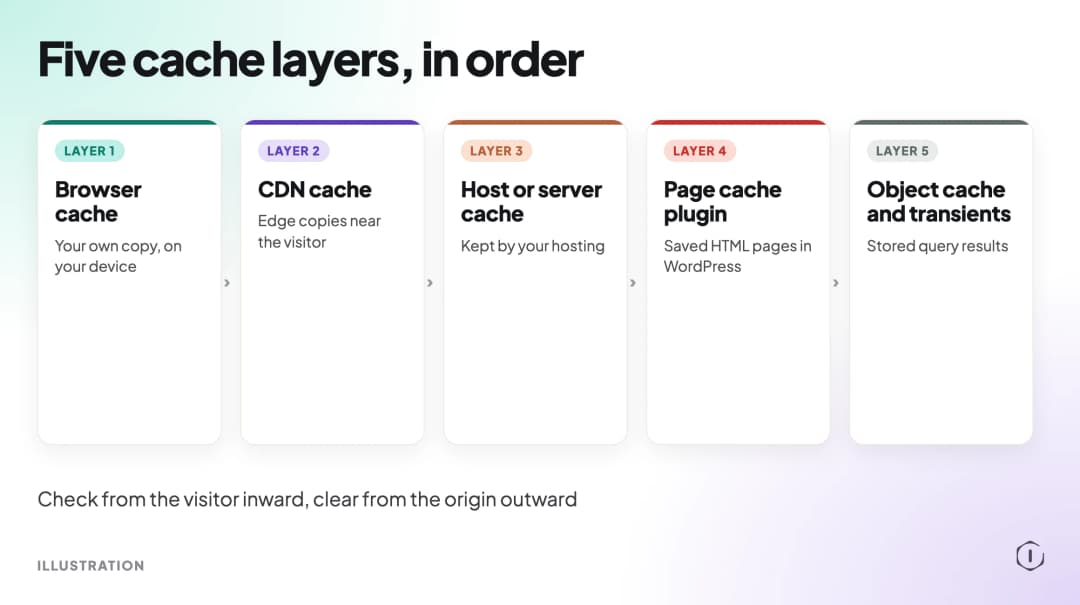
Follow one request from the visitor back to the database, and the layers appear in this order:
- Browser cache. A copy stored on the visitor’s own device.
- CDN cache. Copies held at edge locations near visitors, if the site uses a CDN. Our CDN post shows how to prove what an edge is serving.
- Host or server cache. A copy stored by the hosting platform before WordPress runs.
- Page cache plugin. Finished HTML pages stored by a plugin. WordPress loads a plugin’s
advanced-cache.phpdrop-in early when theWP_CACHEconstant is true. The WordPress documentation notes thatWP_CACHEdoes not enable caching by itself. - Object cache and transients. Stored query results and short-lived values inside WordPress.
Not every site has all five. A site with no CDN skips the second. A site on a host with no server cache skips the third. The work is finding out which ones yours has, and the quickest way is to ask one question at a time: does the change show in a private window, does it show after the plugin is cleared, does it show after the CDN is purged. Each answer removes a layer from the list.
Order matters because the layers feed each other. A CDN that fetches a page from an origin which still holds an old stored copy will simply cache the old copy again. Clearing from the origin outward, not from the visitor inward, is the safer order when you are the site owner, and checking from the visitor inward is the safer order when you are working out where the copy is. The steps later in this post do both: find the layer from the visitor inward, then clear it and the ones behind it.
Browser Cache
The MDN documentation calls a browser cache a private cache, one tied to a specific client. Only that browser holds the stale copy, which makes it the easiest layer to rule in or out.
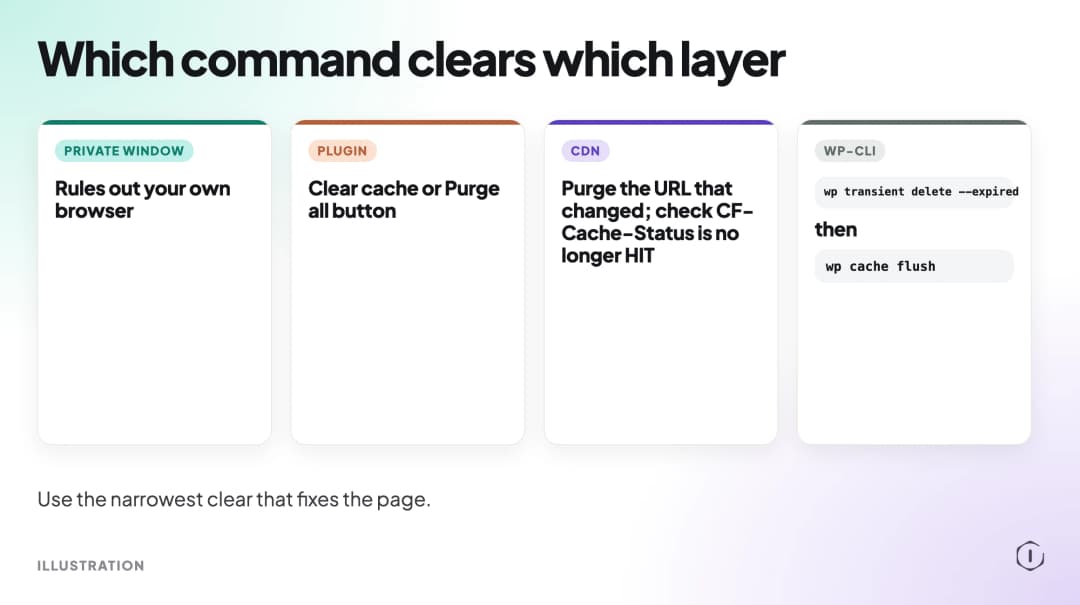
Open the page in a private or incognito window. If the new version shows there, the site is serving the change and your own browser is holding the old one. A hard reload, or clearing the browser’s cached files, will fix it for you. It will not fix it for anyone else, because their browsers have their own copies. If the private window still shows the old page, the problem is further along, and clearing your own browser will not help.
Page Cache Plugin
If a caching plugin is installed, it holds finished pages. Most have a Clear cache or Purge all button in the admin bar or in their settings screen. Use it, then reload in a private window.
Two cautions. First, some plugins clear automatically when you publish or update a post, but not always for related pages such as archives, the home page or a page that lists the post. If the post is right and the list is wrong, purge the list page too. Second, a settings change in the plugin itself, such as a new minification option, usually needs a purge before it shows.
To check whether a page cache is working at all, our page cache header post describes a test that compares a normal request against one with a random query string.
Host Or Server Cache
Some hosts run their own cache in front of WordPress, and it has its own purge control in the host’s dashboard. A caching plugin’s Clear cache button often does not reach it, unless the plugin is built for that host.
If the plugin cache is clear, the browser is ruled out, and the page is still old, look for a cache control in your hosting panel. The name varies by host, so this post does not name one. If you cannot find it, ask the host which caches sit in front of your site and how to purge each.
CDN Cache
A CDN holds copies at the edge. The Cloudflare documentation says purging by single URL is the recommended method, with other options for everything, a hostname, a tag or a URL prefix. Purge everything is also available, but when only one page changed, a single URL is the narrower choice. The documentation also describes invalidating cached content, which marks it stale instead of removing it: Cloudflare revalidates invalidated content on the next request and reuses content that has not changed.
The same documentation carries a useful warning. A successful purge request returns HTTP 200, which means Cloudflare received the request. It does not confirm that Cloudflare cached or evicted anything. To verify a purge, request the asset after purging and confirm that the CF-Cache-Status header is no longer HIT.
That is the habit to copy for any layer: do not trust the button. Request the page again and read what comes back.
Object Cache And Transients
This layer is inside WordPress. The wp_cache_flush() function removes all cache items, and wp cache flush is the WP-CLI command that flushes the object cache. The WP-CLI documentation adds two cautions: on a multisite using a persistent object cache, flushing typically flushes the cache for all sites, and the performance impact in production is worth bearing in mind.
Transients are the short-lived values plugins store. wp transient delete --expired deletes expired transients, and wp transient delete --all deletes all of them. The expired option is the gentler one. The WordPress documentation also notes that delete_expired_transients() does nothing when an external object cache is in use, so on a site with Redis or Memcached the database may not hold them at all. Our object cache post explains when that layer is worth having.
Reach for this layer last. If the page is wrong in a private window, after the plugin, host and CDN were cleared, then a stored value inside WordPress is a reasonable suspect. For a stale page, it is rarely the first one.
What Clearing The Cache Does Not Do
It does not fix a change that was never saved. If the editor shows the old text after a reload, nothing was stored.
It does not fix a page that is wrong because of a plugin conflict or a bad setting. Clearing a cache only removes stored copies. Our conflict isolation post covers finding a conflict without downtime.
It does not make the next visitor fast. After a purge, the first requests have to rebuild the stored copies, so the site can feel slower for a short while. On a busy store, purge a single page rather than everything.
It does not fix cart or checkout caching. If you cache a store, our cart caching post covers the pages that must never be cached.
It does not clear other people’s browsers. Visitors may keep a stored copy until it expires, which is why files that change need a new URL. Our static asset caching post covers that.
A Careful Version You Can Do By Hand
Start with the browser, then clear from the origin outward, and check after each step:
- Open the page in a private window. If it is correct, clear your own browser’s cache and stop.
- Clear the page cache plugin, using its Clear cache or Purge all button. Reload in a private window.
- If the page is still old, find the cache control in your hosting panel and purge it. Reload.
- If you use a CDN, purge the URL that changed, not everything. Request the file again and check the cache status header.
- If it is still wrong, run
wp transient delete --expired, thenwp cache flushif the site uses a persistent object cache. Read the flag first and avoid doing this on a busy production site without a reason. - Write down which layer was holding the old copy, so the next time starts there.
Before you change any setting while debugging, take a backup you have checked; our backup verification post explains why. If you clear a cache and the site breaks, that is a different problem, and the first thing to read is the error log; our debug mode post covers it.
Two Outside Views
“Once you’ve done this, it’s a great idea to visit your site in a private window or clear your browser cache just to confirm your updates are visible.”
Easytorial, How to Clear Cache in WordPress (Updated 2026 Guide), YouTube, 2026, from the video transcript
The speaker is describing what to do after clearing the plugin cache: check the browser layer before deciding the change failed. The private window check takes seconds and tells you whether to keep digging.
“Depends on the caching. If using a caching plugin in WP such as Cloudflare / Lightspeed / WP Rocket it’ll be server side cached which would require you to purge it inside WP.”
u/ReleaseThePressure, Remember to clear your cache while making website, r/Wordpress, 2022
The commenter draws the line between a cache held by the visitor’s browser and one held on the server side, and says the second must be purged from inside WordPress. The wording is the commenter’s own, including the spelling “Lightspeed”. The distinction is the useful part: which layer holds the copy decides which button works.
The Point
A stale page is a question about location. The browser, the CDN, the host, the plugin and WordPress itself can each hold their own copy, and each has its own way to clear it. Rule out the browser first, clear from the origin outward, change one thing at a time, and request the page again after each step. Once you have found the layer, you will know where to look the next time, and you will stop pressing Update on a page that was never the problem.
Comments