Optimize WordPress Database: The Safe Cleanup Guide.
Optimize WordPress database safely: back up first, count the clutter, sweep one type at a time, then check the site, using the Database Optimisation playbook.

A WordPress site that has run for three years carries more than its content. It carries every saved revision of every post, every expired transient a plugin forgot to remove, a pile of spam comments waiting in a queue, and metadata rows that belong to posts deleted long ago. None of it shows on the front end. All of it sits in the same database the site reads on every request.
Clearing it out sounds like housekeeping, and it is the one kind of housekeeping you cannot undo. A deleted row is gone. This post walks through what builds up, why the order of the steps matters more than the tool, and how the Database Optimisation playbook handles it, step by step, so you can judge the process before anything runs. If you only want the manual route, skip to the careful version near the end. Both routes depend on a backup that you have checked.
What Builds Up In A WordPress Database
The Database Optimisation playbook looks at a fixed list of clutter types:
- Revisions, auto drafts and trashed items. WordPress saves a revision each time a post is saved. The wp-config.php documentation shows how to cap them with
WP_POST_REVISIONS, for example a maximum of 3 or 12, or to turn them off withfalse. Our post on limiting revisions covers that setting. - Pending and spam comments. Comments that were never approved and never cleared. Our spam comments post covers the other side of that queue.
- Transients. Cached values stored in the options table. The WordPress documentation describes
delete_expired_transients()as deleting all expired transients, and notes that it does nothing when an external object cache is in use. - Orphaned and duplicated metadata. Rows that no longer point to anything, or that repeat.
- Unused terms and oEmbed cache. Categories and tags with nothing in them, and cached embed results.
- Tables with reclaimable space. After many deletions a table can hold free space inside its file.
Most of these are harmless in small amounts. The point of a cleanup is not to reach zero. It is to remove what is clearly dead and to leave what is doing a job.
Why Deleting Rows Is A One Way Door
A plugin update can be rolled back. A setting can be changed back. A deleted comment cannot come back unless you saved it somewhere first.
That is the design constraint for any database cleanup. The playbook states it plainly on its page: deletions are permanent, and the database backup taken first is the only way to get the data back. There is no Roll back button for this playbook. Restoring means using the backup file.
So the useful question is never “what can be removed?” It is “what is the backup, and have I read it back?” Our backup verification post makes the same point for any file you call a backup, and our automatic rollback post explains what a rollback can and cannot undo.
What The Database Optimisation Playbook Is
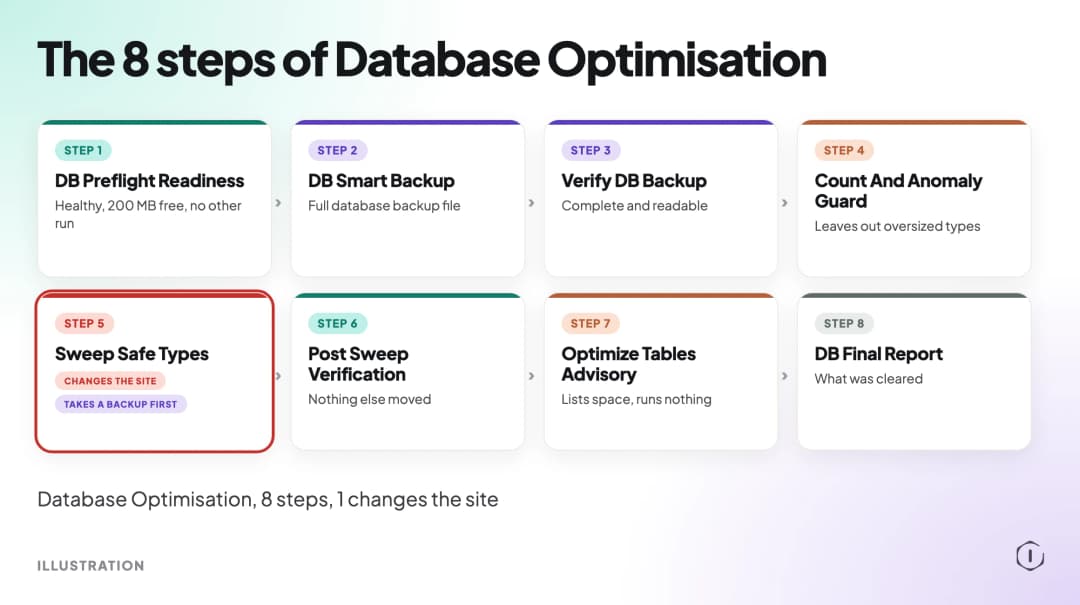
Database Optimisation is a Protuno playbook run by Dash, the Performance Super Agent. It clears database clutter in stages and reports the result. It has 8 steps and needs no connector. One step changes the site, and that step takes a backup first.
What you get at the end is a written Markdown report of what was counted, cleared and rechecked, plus advice on reclaiming table space.
The playbook runs when you ask for it in your AI app, and before any step that changes the site you approve it in Protuno, at the default Ask level. The eight steps, in order:
- DB Preflight Readiness
- DB Smart Backup
- Verify DB Backup
- Count And Anomaly Guard
- Sweep Safe Types (changes the site, takes a backup first)
- Post Sweep Verification
- Optimize Tables Advisory
- DB Final Report
Step 5 is the only step the page marks as changing the site.
Preflight, Backup And Verification
The first three steps are about making sure the one risky step can be undone.
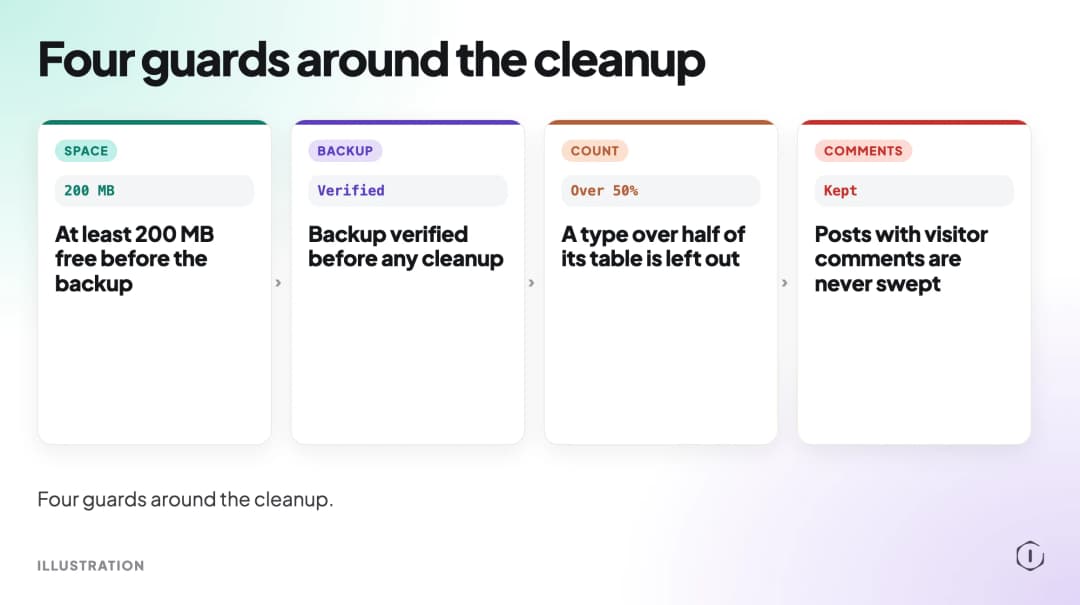
Step 1, DB Preflight Readiness. It checks that the site is healthy, that at least 200 MB is free for the backup, that no other run is in progress, and that the last run did not end in a critical state. A site that is already unhealthy is a poor candidate for deleting data, and a run that ended in a critical state needs attention first.
Step 2, DB Smart Backup. It saves a full database backup file in your uploads folder before anything is removed. The page is direct about the limit: it is not a copy kept off your server. If the server is lost, the backup goes with it. That is why a copy kept elsewhere is still worth having.
Step 3, Verify DB Backup. It checks that the backup is complete and readable before any cleanup starts. This step is easy to skip by hand. A backup that was written but never opened is a hope, not a backup.
The Count Guard And The Sweep
Step 4, Count And Anomaly Guard. It counts each type of clutter and leaves out any type that is over half of its table. Posts with visitor comments are never swept.
The half-of-the-table rule works as a sanity check. A type that makes up most of its table is a poor fit for the word clutter, so the guard leaves it out and does not try to guess what your plugins need.
Step 5, Sweep Safe Types. This is the only step that changes the site, and it takes a backup first. It deletes the remaining clutter types one at a time with WordPress’s own delete functions, after confirming the backup.
Three details from the page are worth reading twice:
- Pending, spam and trashed comments are deleted permanently.
- Deleting a trashed or draft post also deletes its comments.
- Removing auto-drafts and trashed posts needs a force delete, which Protuno’s safety guard refuses, so those are left in place.
Deleting one type at a time means a problem shows up against one type, not against a whole sweep, and using WordPress’s own delete functions keeps the deletes inside WordPress rather than in hand-written queries.
After The Sweep: Verification And Table Space
Step 6, Post Sweep Verification. It rechecks four things: each cleared type dropped, a few untouched types did not change, no published post or approved comment was lost, and the site is still healthy. Checking untouched types is the useful part. If a type you did not sweep changed, something deleted more than it should have.
If this check fails, the run is marked critical and the next run is blocked until that is cleared.
Step 7, Optimize Tables Advisory. It lists tables with space to reclaim and recommends how to reclaim it, without running any optimisation. The MySQL documentation explains why that is a separate decision: for an InnoDB table, OPTIMIZE TABLE is mapped to ALTER TABLE ... FORCE, which rebuilds the table to free unused space. The same page says that after substantial deletes, the table is reorganised and disk space can be reclaimed. That is a heavier operation than a delete, so it earns its own decision.
Step 8, DB Final Report. It writes the final report of what was cleared and how the run ended.
Here is how a report might read. These numbers are an illustration, not a real run: 1,240 revisions, 310 expired transients, 86 spam comments and 54 orphaned metadata rows counted; one type found at 62% of its table and left out by the guard; the other types cleared and rechecked; the site still healthy. The shape is the point. Every number is a count, and every count has a before and an after.
What The Playbook Does Not Do
It does not keep a copy of your data off the server. The backup file lives in your uploads folder.
It does not run a table optimise. It only advises, so the decision to rebuild a table stays with you.
It does not remove auto-drafts or trashed posts. Those need a force delete, which the safety guard refuses, so they stay.
It does not offer a Roll back button. Restoring means using the backup file.
It does not run on its own unless you set that up. It runs when you ask for it in your AI app.
It does not decide what your plugins need. A table that a plugin treats as its own data is not clutter just because it is large, which is the reason for the half-of-the-table guard.
A Careful Version You Can Do By Hand
You can follow the same order yourself in about an hour:
- Check the site works and that the disk has room. The playbook asks for at least 200 MB free before it takes its backup; use the same figure as a floor.
- Export the database with your host’s backup tool or phpMyAdmin. Save it somewhere other than the site.
- Open the export, or restore it to a test site, and confirm it is complete.
- Count before you delete: how many revisions, spam and pending comments, and expired transients. Write the numbers down.
- Skip anything that is most of its table, and skip any post that has visitor comments.
- Delete one type at a time. For expired transients,
wp transient delete --expiredremoves only expired ones;wp transient delete --allremoves all of them, so read the flag before you run it. - After each type, load the home page, a post, and the admin screen. Recount.
- Check that your published posts and approved comments still number what they did at the start.
- Only then think about table space. Treat a table rebuild as its own change, with its own backup.
If the site depends on an external object cache, remember that delete_expired_transients() does nothing in that case, and read our object cache post before assuming a transient is in the database at all. For the autoloaded options check, which is a different question from this one, see our database cleanup post.
Two Outside Views
“Best practice is anytime you’re going to touch your database, definitely back it up. You will not be sorry the time that you need that backup.”
TeamUpdraft, How to clean up your WordPress database with WP-Optimize, YouTube, 2026, from the video transcript
That is steps 2 and 3 in a sentence. The playbook makes the backup a step of its own and then checks it, which is the part people tend to skip.
“Rename the suspect tables. Then turn on WP_DEBUG and WP_DEBUG_LOG and test the site.”
u/Aggressive_Ad_5454, Database hygiene: removing junk data, r/Wordpress, 2025
This is a way to test whether something is dead before you delete it. It fits the same habit as the half-of-the-table guard: do the reversible thing first. Our debug mode post covers turning WP_DEBUG and WP_DEBUG_LOG on safely.
Where Protuno Fits
Database Optimisation does the staged sweep above in one run: a preflight, a backup, a check of that backup, counts with a guard, one change step, a recheck and an advisory on table space. It writes a report of what was counted, cleared and rechecked, and it asks for your approval before the step that changes the site.
Two playbooks sit next to it. Unused & Duplicate Media Report finds duplicate images and images WordPress shows no use of, and only reads. Plugin Safe Update applies plugin updates one at a time, then checks the site, which is the sibling process for a different kind of change. Each playbook has its steps written out on the playbooks page before anything runs, and this one has its own page at Database Optimisation.
The Point
A database cleanup is a small job with a permanent edge. The delete is quick. The preparation is what protects you: a backup that you have read, counts you wrote down, a guard against sweeping something a plugin needs, and a check afterwards that nothing you wanted went with it. Do it in that order, one type at a time, and treat the table rebuild as a separate decision.
Sources And Further Reading
- WP-CLI, wp transient delete
- WordPress Developer Resources, delete_expired_transients()
- WordPress, Editing wp-config.php (revisions and trash settings)
- MySQL Reference Manual, OPTIMIZE TABLE statement
- TeamUpdraft, How to clean up your WordPress database with WP-Optimize (YouTube, 2026)
- r/Wordpress, Database hygiene: removing junk data (2025)
Comments