WordPress Debug Mode: How To Turn It On And Off Safely.
How to turn on WordPress debug mode with WP_DEBUG, log errors to a file instead of the page, read what it says, and turn it off before the log becomes a risk.

The page says “There has been a critical error on this website.” Or it shows nothing at all, just white. Or one button in the admin area quietly stops working. In every case WordPress knows exactly what went wrong, down to the file and line number. It just is not telling you.
WordPress debug mode is how you make it tell you. It is a few lines in wp-config.php, and it turns a vague failure into a specific message. It is also one of the easiest settings to leave on by accident, and a debug log left behind on a live site is a problem of its own. This post covers how to turn it on, how to keep errors off the page and in a log, how to read what it says, and how to turn it off again.
What WordPress Debug Mode Is
Debug mode is controlled by a PHP constant called WP_DEBUG. The WordPress developer documentation describes it as a constant that triggers the “debug” mode throughout WordPress. It is false by default and is usually set to true only on development copies of a site.
When WP_DEBUG is on, WordPress stops hiding problems. PHP errors, warnings and notices are reported, not only the fatal errors that cause a white screen or the critical error message. WordPress also reports deprecated functions: code that still works today but is due to be removed, which is often the reason a plugin breaks after a WordPress update.
The documentation is direct about where it belongs: it is not recommended on live sites, and is meant for local testing and staging installs. That advice matters, and the rest of this post works around it honestly. Sometimes the error only happens on the live site, and you need to see it there for a few minutes.
The Three Constants That Matter
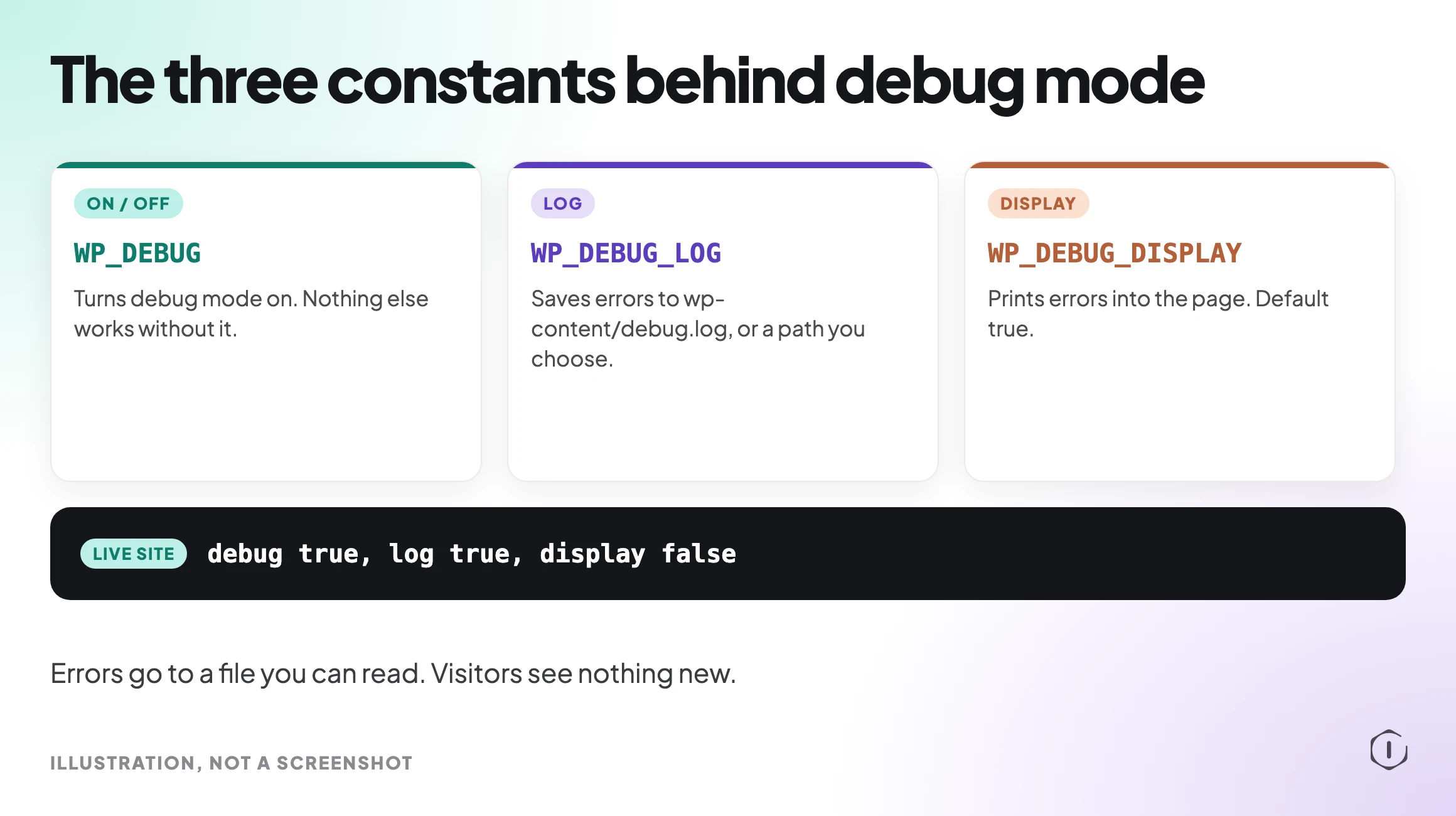
Debug mode is really three settings that work together:
- WP_DEBUG turns debug mode on or off. Nothing else works without it.
- WP_DEBUG_LOG saves every error to a file. Set to true, the file is wp-content/debug.log. You can also give it a file path, so the log is written somewhere else.
- WP_DEBUG_DISPLAY controls whether errors are printed into the page. It defaults to true, which means visitors see them.
The combination you want on almost any site that real people visit is: debug on, logging on, display off. Errors go to a file you can read. Visitors see nothing new.
There is one trap in the syntax. The values are true and false without quotes. The documentation points out that if you write ‘false’ in quotes, PHP reads it as a string, and a non-empty string counts as true. A site can have debug mode on while wp-config.php appears to say the opposite.
How To Turn On Debug Mode
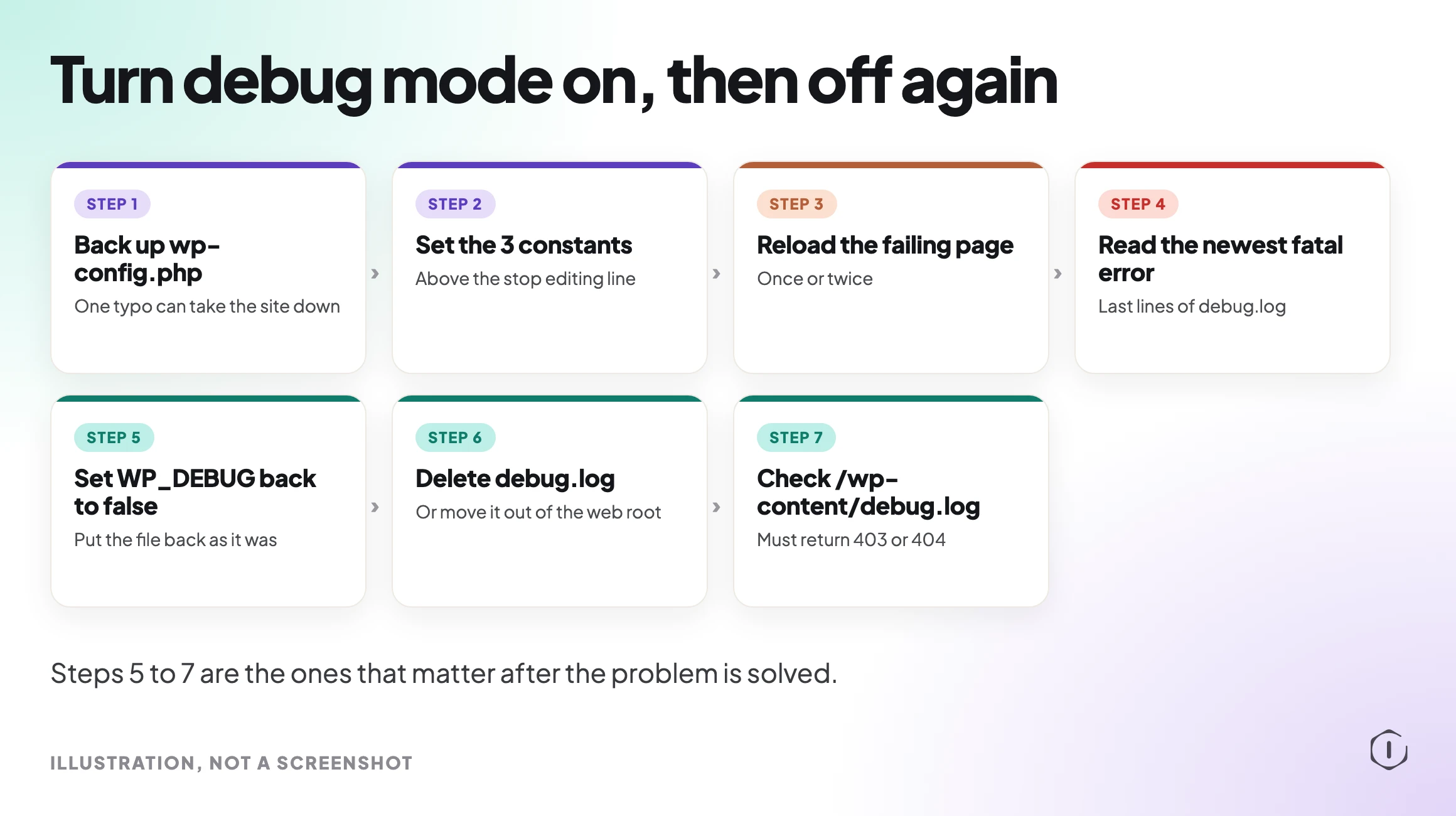
You need access to the site’s files, through your host’s file manager, SFTP or SSH. Before you edit anything, take a backup of wp-config.php; one typo in this file can take the whole site down. Our .htaccess post has the same advice for the other file people edit by hand.
- Open wp-config.php in the WordPress root folder.
- Find the line that says WP_DEBUG. Most installs already have define( ‘WP_DEBUG’, false ); in the file.
- Replace that one line with the lines below. Do not add a second WP_DEBUG line; defining the same constant twice causes a warning.
- Make sure everything sits above the line that says “That’s all, stop editing!” WordPress reads settings above that line only.
- Save the file and load the page that was failing.
define( 'WP_DEBUG', true );
define( 'WP_DEBUG_LOG', true );
define( 'WP_DEBUG_DISPLAY', false );
@ini_set( 'display_errors', 0 );
The last line tells PHP itself not to print errors, as a backstop for display settings that come from the server.
Log Errors To A File, Not The Page
Printing errors into the page feels faster, because you see them straight away. On a site anyone can visit, it is the wrong choice.
An error message often contains the full server path of the site, the names of plugins and themes, and sometimes database details. Printed into the page, all of that is shown to every visitor and every crawler. It also breaks layouts and can break things that expect clean output, such as AJAX responses in the admin area.
Logging has a second advantage. The documentation notes that the log captures errors that happen off-screen, such as during an AJAX request or a wp-cron run. A problem that only appears when a scheduled task runs at 3 a.m. will never show on a page you are looking at, but it will be in the log.
How To Read debug.log
Open wp-content/debug.log. Each line is one message, with a date and time, a type, the message and usually a file path and line number.
Read it like this:
- Start at the bottom. The newest entries are at the end. Reload the failing page, then look at the last few lines.
- Fatal errors first. A line that starts with PHP Fatal error is the one that stopped the page. Warnings and notices are worth fixing, but they rarely cause the crash.
- Read the path. The path tells you who owns the code. A path inside wp-content/plugins/ names the plugin folder. A path inside wp-content/themes/ names the theme.
- Look for a memory message. “Allowed memory size exhausted” means PHP ran out of memory, which our memory limit post covers.
One Line, Read Slowly
Here is an illustration, with example values:
[05-Nov-2026 09:42:17 UTC] PHP Fatal error: Uncaught Error: Call to undefined function example_helper() in /home/site/public_html/wp-content/plugins/example-plugin/includes/loader.php:58
The time tells you whether it matches the moment the page failed. “PHP Fatal error” tells you this is the line that stopped the page. “Call to undefined function” usually means one piece of code expects another that is missing or was renamed, which is common after one plugin updates and another does not. The path names the folder, example-plugin, and the number at the end, 58, is the line in that file.
Once you know which plugin is involved, our plugin conflict post shows how to confirm it by isolating it, rather than guessing. If the site shows the critical error message, our WP Doctor playbook post walks through how that message is matched to a cause.
When The Log Stays Empty
Sometimes you turn everything on, reload the page and debug.log never appears. The usual causes:
- The constants are below the “stop editing” line, so WordPress never reads them.
- WP_DEBUG is defined twice, and the earlier line, still set to false, wins.
- WordPress cannot write to wp-content. The log file cannot be created if the folder’s permissions do not allow it. Our file permissions post covers what the folder needs.
- The page you are loading is cached. A cached page never runs PHP, so no error happens. Load the page logged in, or purge the cache first.
If the error happens before WordPress loads, for example a broken wp-config.php, debug mode cannot catch it. Your host’s PHP error log is the place to look then.
The Risk Of Leaving It On
This is the step people skip. The incident ends, the site works again, and wp-config.php still says true.
From then on, every warning from every plugin is written to wp-content/debug.log. The file grows for months. And because it sits inside the web root, on many servers anyone who requests /wp-content/debug.log can download it. Our debug log exposed post shows what such a file gives away and how to check a site in ten seconds.
If you must leave logging on for a while, point WP_DEBUG_LOG at a file path outside the web root, so the log is never served. Our wp-config exposed post covers the related check for the configuration file itself.
What Debug Mode Does Not Do
It does not fix anything. It tells you where the problem is. The fix is still yours: update or replace the plugin, roll back a change, raise a limit.
It does not catch errors that happen before WordPress loads its settings, or problems that are not PHP errors, such as a JavaScript error in the browser or a slow database query. For scripts, the browser console is the place to look. WordPress has related constants, SCRIPT_DEBUG for core CSS and JavaScript and SAVEQUERIES for database queries, but they are for developers and carry a performance cost.
It does not make a live site the right place to debug. A staging copy is still better, as long as it matches live; our staging drift post covers how to check that it does.
A Careful Version You Can Do By Hand
- Try to reproduce the problem on a staging copy first. If it happens there, debug there.
- If it only happens on live, take a backup of wp-config.php.
- Replace the WP_DEBUG line with the four lines above: debug on, log on, display off.
- Reload the failing page once or twice, then open wp-content/debug.log and read the last lines.
- Note the fatal error, the file path and the line number.
- Put wp-config.php back the way it was: WP_DEBUG false, and no logging.
- Delete wp-content/debug.log, or move it out of the web root if you need to keep it.
- Request /wp-content/debug.log in a private window and confirm it returns 403 or 404, not the file.
- Fix the cause you found, then check the page again.
Steps 6 to 8 are the ones that matter after the problem is solved. Set a reminder if you need one.
Two Outside Views
“in this video I’ll show you how to turn on your WordPress error log using the wp config file in just a few simple steps”
Woocommerce Tutorials by AovUp, How to Enable WordPress Debug Mode, YouTube, 2023, from the video transcript
It is a few simple steps, which is exactly why it gets left on: turning it on takes a minute, and nothing reminds you to turn it off.
“Sure, if you don’t care about potentially exposing sensitive information on the front end. Be my guest.”
u/thewallacio, Critical error on site?, r/Wordpress, 2026
That reply answers someone who suggested switching debugging on in a live site’s config file. Both sides have a point: you do need the error, and you should not show it to visitors. Logging with display off gives you the first without the second.
The Point
WordPress debug mode turns a blank page or a vague error into a file name and a line number. Turn it on with logging on and display off, read the newest fatal error in debug.log, then turn it off and delete the log. The minute it takes to switch it on is not the risk. Forgetting to switch it off is.
Comments