WordPress Post Revisions: Limit Them Without Data Loss.
Learn how WordPress post revisions pile up in the database, how to limit them with WP_POST_REVISIONS, and how to clean up old ones safely.

Open phpMyAdmin on a site that has been edited for a few years and sort the posts table by post type. You will usually find a long run of rows marked revision, many more than there are published posts. Nothing is broken. WordPress did exactly what it was built to do: every time you pressed Update, it kept the previous version of the post as a row in the database.
There is no error message for this, which is the problem. The site loads, the editor works, and the only sign is a database that grows faster than the content does. This post explains what a revision is, how it differs from an autosave, how the WP_POST_REVISIONS setting behaves, and how to limit revisions without losing the ability to undo a bad edit.
The Database Row You Never Asked For
WordPress saves revisions so you can go back. Edit a paragraph, regret it, open the revision screen and restore the older version. That is a real safety net, and for a team editing the same page it can settle an argument about who changed what.
The cost is storage. A YouTube tutorial from Ahosting INC puts the mechanism plainly: each meaningful edit followed by Update saves the previous version as a distinct row in the database. A long article edited forty times leaves a long trail of near-copies of itself.
On a small blog that is trivial. On a site with thousands of posts, a WooCommerce catalogue or a team that edits daily, it adds up. It also adds up quietly, which is why it belongs on a maintenance checklist next to database cleanup.
What A Revision Actually Is
A revision is a stored copy of a post as it stood at one moment. It holds the title, the content and the excerpt. It is not a backup of your site, and it does not cover plugin settings, media files or the theme.
That last point matters. Revisions answer one question: what did this post say before I changed it? They do not answer: what did my site look like last Tuesday? For that you need a restore point you have tested, which our backup verification post covers.
Revisions Versus Autosaves
People mix these up, and the official WordPress documentation keeps them apart.
An autosave happens while you type. The developer documentation says that when editing a post, WordPress uses Ajax to auto-save revisions as you edit, and that the default interval is 60 seconds. You can change it with the AUTOSAVE_INTERVAL constant in wp-config.php.
The revisions article adds the detail that stops the panic. It states that there is only ever a maximum of one autosave per user for any given post, and that new autosaves overwrite old ones. In its words, your tables do not grow by one row every 60 seconds.
So the growth you are worried about comes from saved updates, not from the timer. Changing the autosave interval will not shrink your revision count.
Where Revisions Pile Up
Revisions collect fastest where editing is constant:
- Long articles that are tuned for months after publishing.
- Pages built or tweaked in a page builder, where each small change is an update.
- Sites with several editors working on the same posts.
- Imported or bulk-edited content, where one script can save the same post many times.
Each of these is normal use. None of them is a fault. The question is only how many old versions you actually want to keep, which is where the setting comes in.
How WP_POST_REVISIONS Works
The WordPress revisions documentation lists what the constant accepts:
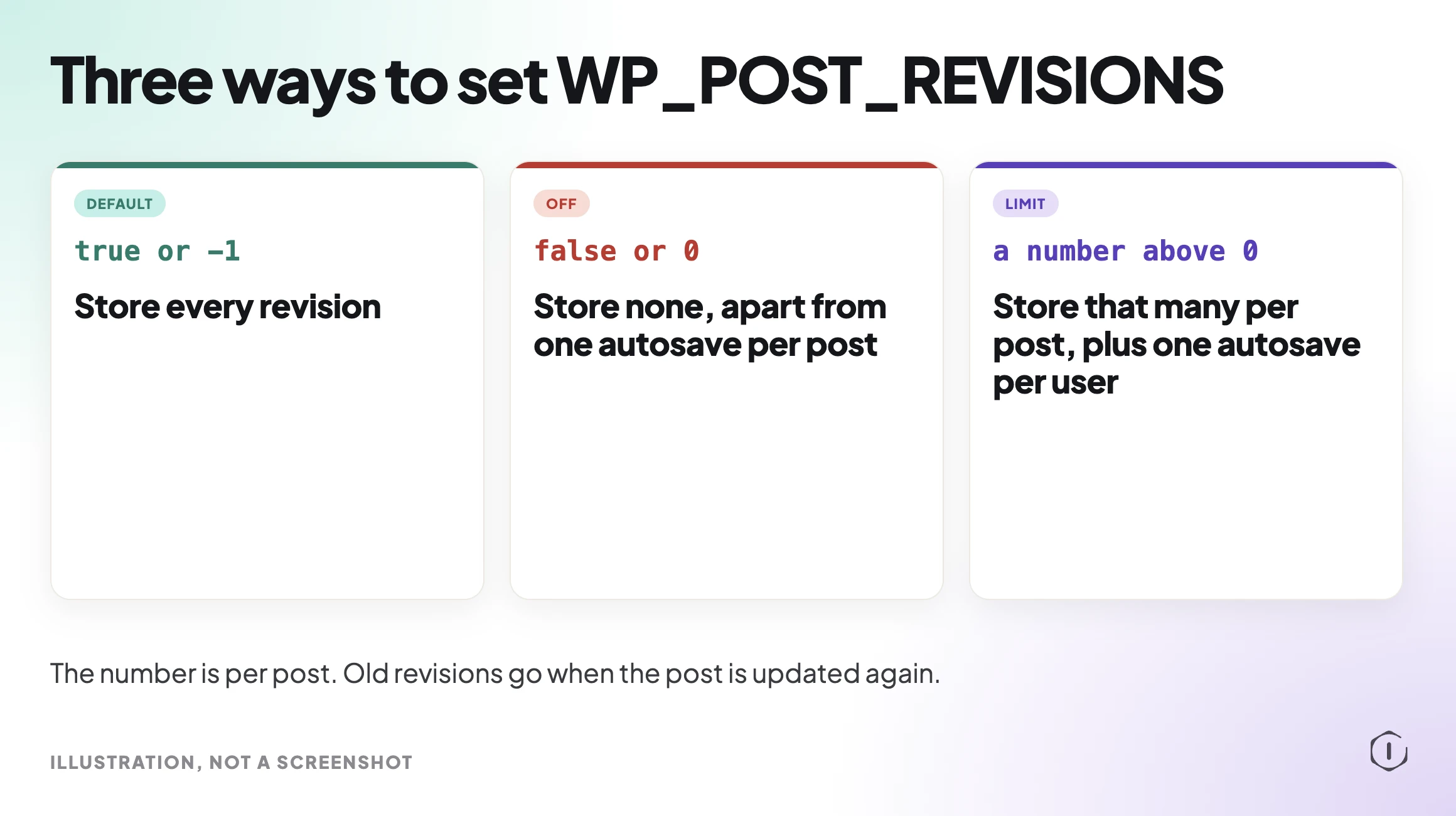
- true (the default) or -1: store every revision.
- false or 0: do not store any revisions, apart from the one autosave per post.
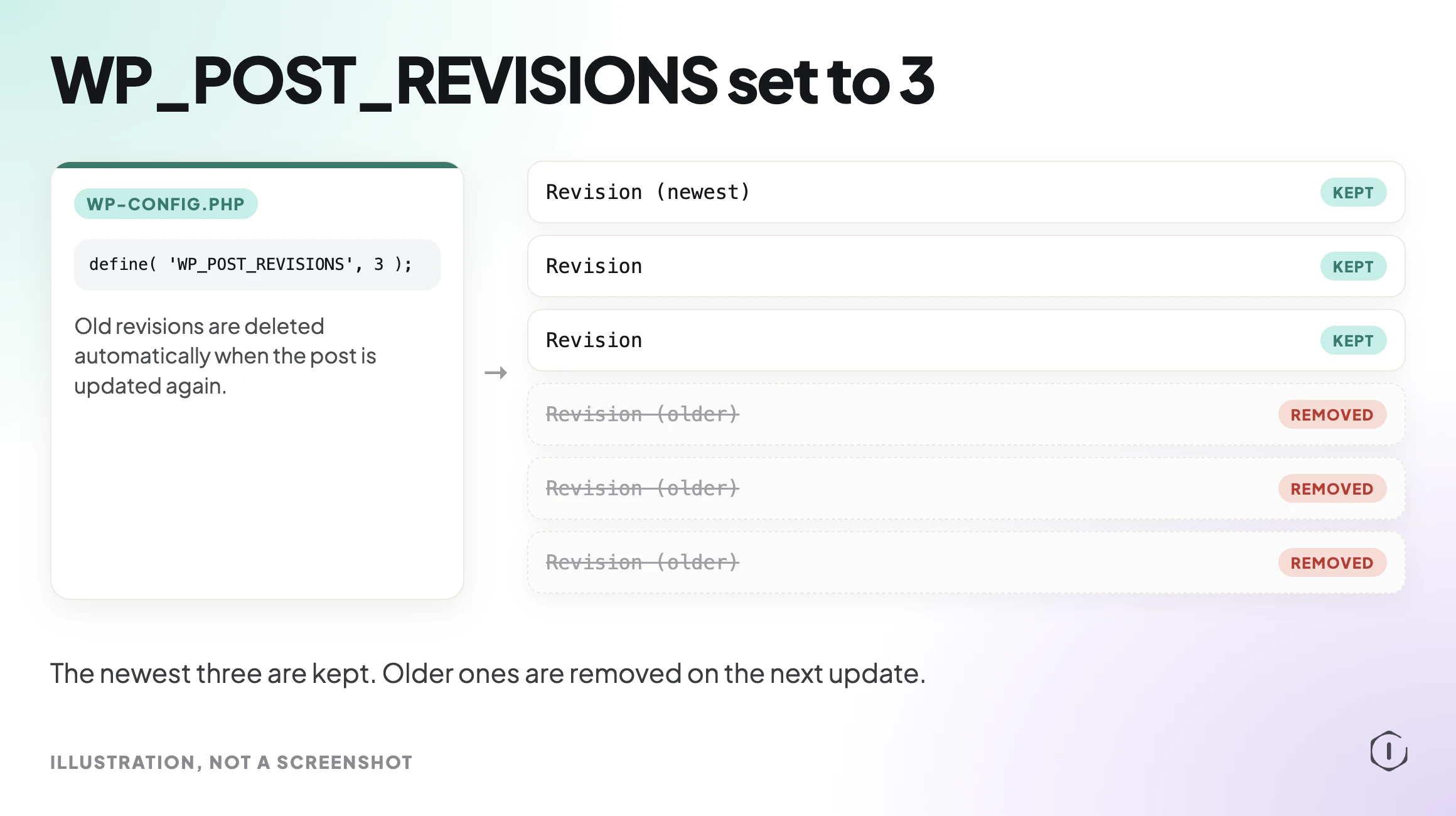
- A whole number above 0: store that many revisions per post, plus one autosave per user. Old revisions are deleted automatically when the post is updated again.
The developer documentation agrees on the default: if you do not set the value, WordPress treats it as true and keeps post revisions on.
Two details from those pages are worth keeping in mind. First, the number is per post, not for the whole site. Second, the automatic deletion happens when a post is updated again, not at the moment you save the setting.
Limiting Revisions In wp-config.php
The setting goes in wp-config.php, the file at the root of your WordPress install. The developer documentation gives the integer form:
define( ‘WP_POST_REVISIONS’, 3 );
Replace 3 with the number you want. The same page shows false as the way to switch revisions off, which this post does not recommend for a site where more than one person edits.
A practical starting point is a small number such as 5. It keeps enough history to undo a mistake from the last few edits, and it stops the unbounded growth. The right number depends on how you work: a solo blogger can go lower, and a team editing shared pages may want more.
The documentation also carries a warning that is easy to miss. Some users could not get the command to work until they moved it to the first line under the initial block comment in wp-config.php. If your limit seems ignored, check where the line sits. Placement matters as well because it has to come before the line that loads the rest of WordPress. If you also change memory settings in the same file, our memory limit post shows the same careful placement.
A developer who would rather not edit the file can use the wp_revisions_to_keep filter instead. The documentation says it lets developers alter how many revisions are kept for a given post, which makes it the better tool when you want different limits for different post types.
Cleaning Up Revisions Already Stored
Setting a limit does not clear what is already there. The documentation says old revisions are deleted when the post is updated again, so a post you never touch keeps its whole history. The Ahosting title makes the same point from the other side: the constant on its own deletes nothing.
To clear the backlog you have three options:
- Edit and update the posts that matter. Each update trims that post to your new limit.
- Use a database cleanup plugin that removes old revisions in one pass.
- Run a delete query on the revision rows yourself. This is the fastest route and the easiest one to get wrong.
Whichever you choose, take a backup first and confirm you can restore it. Deleted revisions do not come back. If a plugin or a custom query touches post content, the same care we describe for find and replace applies: test on a copy, then the live site.
What Limiting Revisions Does Not Do
It does not make the site fast on its own. Revision rows sit in the database, and a trimmed table helps queries and backups, but a slow site usually has other causes. Our TTFB post is the place to look first.
It does not delete existing history, as covered above. It does not touch media files, so the uploads folder stays the same size. It does not replace a backup, because a revision holds only post text.
It is also not a security control. Old revisions can still contain text you later removed from a post, such as a draft price or a private note. Deleting the revisions is the only way to remove that text from the database.
A Careful Version You Can Do By Hand
If you want to do this once, with nothing installed, this is a safe order:
- Take a full backup and check that it restores. Do this before anything else.
- Count the revision rows. In phpMyAdmin, open the posts table and filter by post type revision. Write the number down.
- Add the WP_POST_REVISIONS line to wp-config.php with a modest number. Keep a copy of the original file.
- Reload the site and open the editor. If the page white-screens, restore the file; our white screen post walks through recovery.
- Update one low-risk post and confirm its revision count drops to your limit.
- Decide on the backlog. Use a cleanup tool or a query on a copy of the database first, then on the live one.
- Count the rows again and compare with step 2.
If a step surprises you, stop and restore. A smaller table is nice to have and is never worth a broken site.
Two Outside Views
“Every time you make a meaningful edit to a post and hit update, WordPress permanently saves the previous version as a distinct row in your database.”
Ahosting INC, Limit WordPress Post Revisions in 2026, YouTube, 2026, from the video transcript
That is the whole mechanism in one sentence, and it explains why the table grows with editing and not with traffic.
“I typically keep them, but only the newest 2-5 revisions.”
u/MajorRedbeard, Do you keep WP post revisions?, r/Wordpress, 2015
This is a 2015 thread, so treat it as a view and not as a test result. The range it names matches the cautious middle path: enough history to undo a mistake, not enough to fill a table.
The Point
Revisions are a useful habit that becomes a quiet cost. The fix is small: pick a number, set it once, and clean up the backlog with a backup behind you. Keep what lets you undo a bad edit and drop the rest.
Comments