Error Establishing a Database Connection in WordPress: How to Fix It.
What “Error establishing a database connection” means in WordPress, how to tell the cause apart in a minute, and how to fix each: wp-config, server, tables.

“Error establishing a database connection” means WordPress could not talk to its database, so it cannot build any page. Your content is usually safe. The cause is almost always one of three things: wrong database details in wp-config.php, a database server that is down or overloaded, or damaged tables.
The short version
- Just moved the site or changed a password? Check the four database values in wp-config.php first.
- Came out of nowhere? Check your host’s status page or ask support. The database server may be down or over its limits.
- wp-admin says tables are unavailable? Repair the tables, then remove the repair line from wp-config.php.
- No plugin can fix this from inside WordPress, because no plugin runs while the database is unreachable.
How we built this guide
We did not fake this error on a test site for a screenshot. The guide follows WordPress’s own documentation on common errors and wp-config.php, read on 24 November 2026, and turns it into a diagnosis you can do in a minute before you change anything.
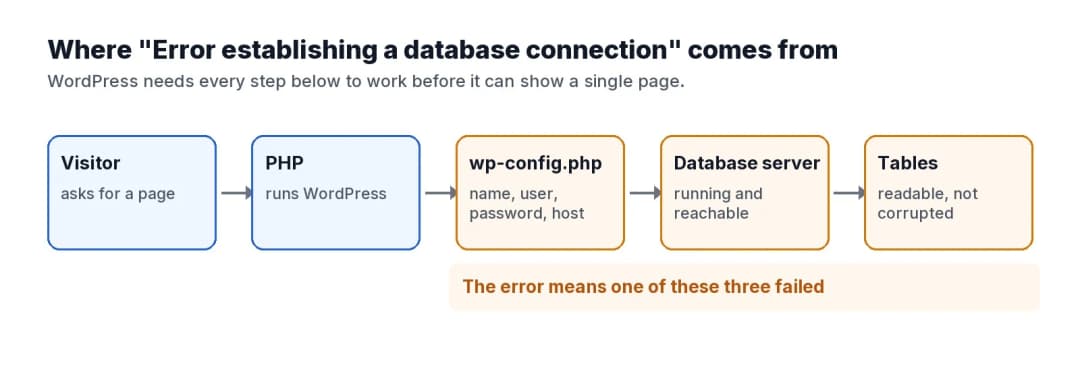
What Does “Error Establishing A Database Connection” Mean?
Every WordPress page is built from the database: posts, settings, users, menus. On each visit, WordPress reads four values from wp-config.php and uses them to connect to the database server. If that connection fails, WordPress stops and shows this one line instead of your site.
It is not a plugin error and not a theme error, so turning those off will not help. It is also rarely data loss. The database is usually still there. WordPress just cannot reach it.
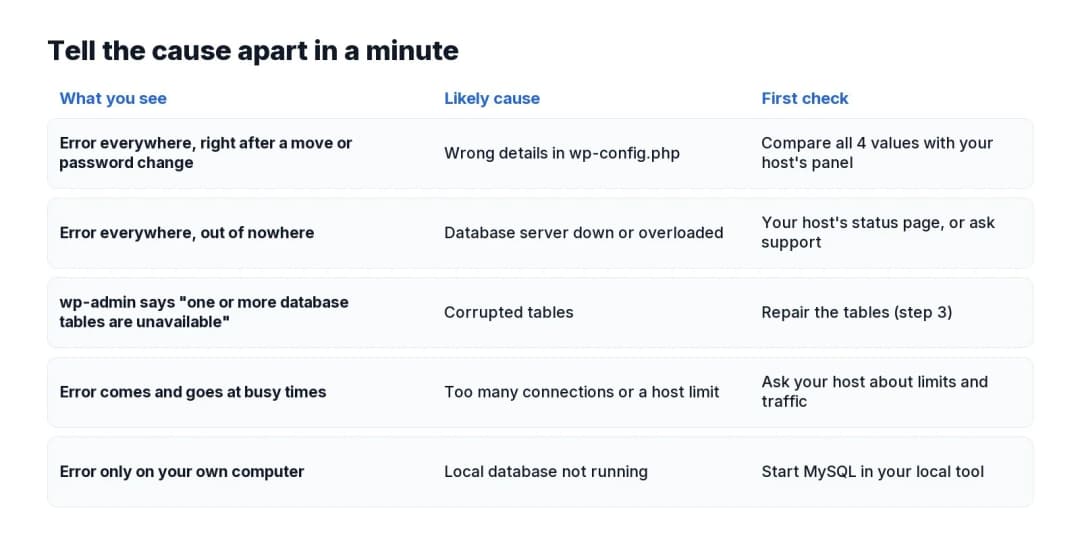
Tell The Cause Apart In A Minute
Before you edit anything, match what you see to the most likely cause:
How To Fix Error Establishing A Database Connection
1. Check The Database Details In wp-config.php
WordPress’s own troubleshooting page says this error is usually caused by a mistake in wp-config.php. Open the file in your host’s file manager or over SFTP, and find these four lines:
define( 'DB_NAME', 'database_name' );
define( 'DB_USER', 'database_user' );
define( 'DB_PASSWORD', 'database_password' );
define( 'DB_HOST', 'localhost' );- Open your hosting panel’s database section and compare each value exactly: the database name, the user, and the host.
- If you are not sure of the password, set a new one for the database user in the hosting panel and paste the same one into
DB_PASSWORD. - Check
DB_HOST. It is oftenlocalhost, but many hosts use a separate database server name. Use exactly what your host’s panel shows. - Check the user is assigned to the database with full permissions. In many panels this is a separate step after creating the user.
- Save the file and reload the site.
This is by far the most common cause after a site move or clone, because the new host has a different database name, user or host.
2. Test The Connection Outside WordPress
If the values look right but the error stays, test them directly. Create a file called testconnection.php next to wp-config.php, with your own values:
<?php
$link = mysqli_connect( 'localhost', 'database_user', 'database_password', 'database_name' );
if ( ! $link ) {
	die( 'Could not connect: ' . mysqli_connect_error() );
}
echo 'Connected successfully';
Open yourdomain.com/testconnection.php in your browser. “Connected successfully” means the details work and the problem is inside the database. An “Access denied” message means the user or password is wrong. “Unknown database” means the name is wrong. A message about the server means the host or the server is the problem. Delete the file straight after, because it contains your database password.
3. Repair Corrupted Tables
If the front end shows the error but /wp-admin/ says one or more database tables are unavailable and may need repair, the connection works and some tables are damaged. Take a backup of the database first if you can, then:
Add this line to wp-config.php, just above the line that says “That’s all, stop editing”:
define( 'WP_ALLOW_REPAIR', true );- Open
yourdomain.com/wp-admin/maint/repair.phpand choose Repair Database. - When it finishes, remove the line from wp-config.php.
Removing it matters. WordPress’s documentation explains that while this setting is on, a user does not need to be logged in to use the repair page, because people often cannot log in when the database is damaged. Left on, anyone can reach it.
4. Check The Database Server With Your Host
If the details are right and the test file cannot reach the server, the database server itself may be down, restarting, or out of resources. WordPress’s documentation names two host problems in particular: the database has hit its quota and been shut down, or the server is down. Check your host’s status page, then contact support with the exact error from the test file. On shared hosting this is common during traffic spikes or when another site on the same server is misbehaving.
5. Fix It On A Local Install
On your own computer, the usual cause is simply that the database service is not running. Start MySQL or MariaDB in your local development tool, and check the port it uses. If your tool runs the database on a port other than the default, add it to DB_HOST, as in localhost:3307.
When It Is Not The Database Connection
- You see a blank white page or “There has been a critical error on this website”. That is a PHP error, usually a plugin or theme. See the white screen guide or our site-down guide.
- The error appeared together with strange files, redirects or new admins. WordPress’s documentation also lists a compromised site as a possible cause. Read how to tell if your site is hacked before changing passwords on a server you no longer trust.
- Only one page is broken and the rest of the site loads. Then the database connection is fine. Look at that page’s content or the plugin that renders it.
How To Stop It Happening Again
- Keep the database lean. Old revisions, expired transients and spam slow the database and use more of your host’s limits. Our database guide covers the safe order.
- Know when the site goes down. An uptime check tells you before your visitors do.
- Keep tested backups, so a damaged database is a restore, not a disaster. Here is how to check them.
- Write down your database details in a password manager, so a move or password change does not become guesswork.
Where A Super Agent Fits, And Where It Does Not
Protuno is Super Agents for WordPress: six AI agents you use from Claude, Claude Code, Codex or Cursor, each working from written playbooks and a Brain for each site. To be plain: while this error is showing, no WordPress plugin can run, Protuno’s included. The fixes above happen in wp-config.php and your hosting panel. Where Protuno helps is before and after:
- Before: Wren’s Uptime Checker checks your site from an outside uptime monitor and from your own server, and only reports a real incident when the failure is confirmed. It only reads.
- After the site is back: Dash’s Database Optimisation backs up the database, checks the backup, then clears expired transients and other clutter. On our test site it removed 34 rows after a verified 727 KB backup of 15 tables. It changes the site, so it follows the agent’s mode.
Read only: no changes run. Approval mode: a run starts only when you press Approve in Protuno. Auto mode: runs start on their own, with no approval. More about Dash and all six Super Agents.
Common Questions
What does “Error establishing a database connection” mean?
WordPress could not connect to its database, so it cannot build any page. The usual causes are wrong details in wp-config.php, a database server that is down or overloaded, or corrupted tables.
Can a plugin cause this error?
Not directly. The connection happens before plugins load. A plugin can add heavy database load that pushes a small host over its limits, but the fix is still on the database side.
Will I lose my content?
Usually not. Your posts and pages are still in the database. You are fixing the connection to it. Only badly corrupted tables put data at risk, which is why a tested backup matters.
Why does only wp-admin show a different error?
If wp-admin says one or more database tables are unavailable, WordPress can connect but some tables are damaged. Repair them with WP_ALLOW_REPAIR, then remove that line from wp-config.php.
How do I stop it happening again?
Keep your database details recorded safely, keep the database lean, use hosting with enough resources for your traffic, monitor uptime and keep tested backups.
Related Reading
- WordPress site down after a plugin update
- The WordPress white screen of death
- A WordPress critical error, diagnosed
- Optimize the WordPress database safely
Comments