WordPress Critical Error: A WP Doctor Playbook Guide.
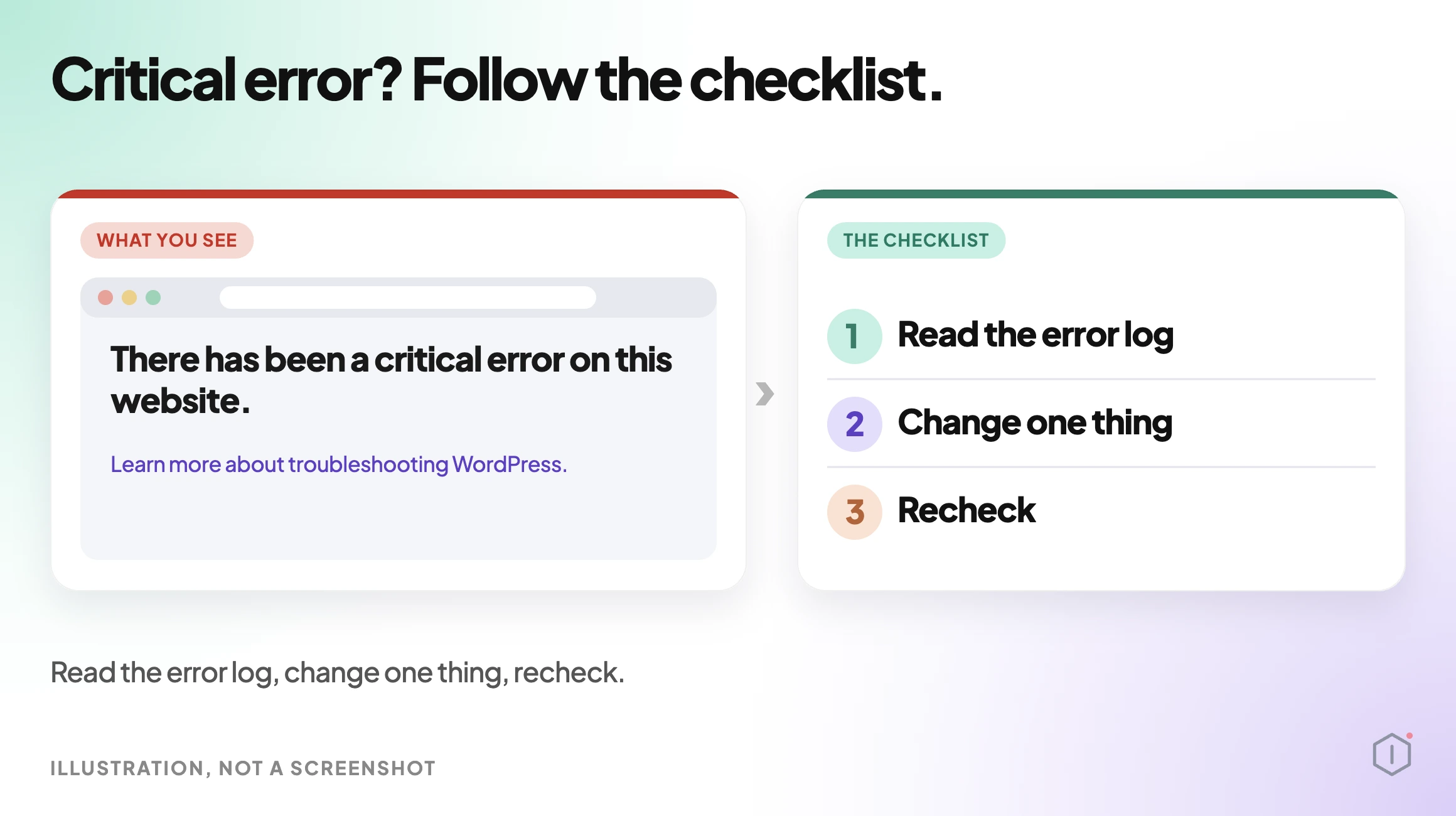
The message is short and unhelpful: “There has been a critical error on this website.” WordPress shows it when PHP stops on a fatal error, and it tells you nothing about which plugin, theme or setting caused it. Most site owners respond by changing several things at once, which makes the next failure harder to […]

The message is short and unhelpful: “There has been a critical error on this website.” WordPress shows it when PHP stops on a fatal error, and it tells you nothing about which plugin, theme or setting caused it. Most site owners respond by changing several things at once, which makes the next failure harder to read than the first.
This guide walks through how the WP Doctor playbook approaches that situation, step by step, and then shows the careful way to do the same work by hand. WP Doctor is run by the Super Agent Wren in the Care group. It diagnoses a problem you report and matches it to a known cause. It applies a fix only for safe WordPress-level causes and hands everything else back with exact steps.
A fatal error has one visible symptom and many possible causes. A plugin update that needs a newer PHP version, a theme function that no longer exists, a memory limit that is too low, and a half-finished core update can all produce the same screen. The page gives no hint which one you are looking at.
The usual panic response makes it worse. Deactivating every plugin, switching themes, raising limits and clearing caches in one sitting can make the site load again, but it leaves you without an explanation, and the cause is still there for the next update. Good diagnosis is mostly about changing one thing at a time and writing down the state before and after.
This matters most if you look after sites for other people. A client who sends a screenshot of the error expects an answer, not a list of things you tried. A repeatable order of work, with a written record at the end, is what lets you give that answer calmly.
What The WP Doctor Playbook Is
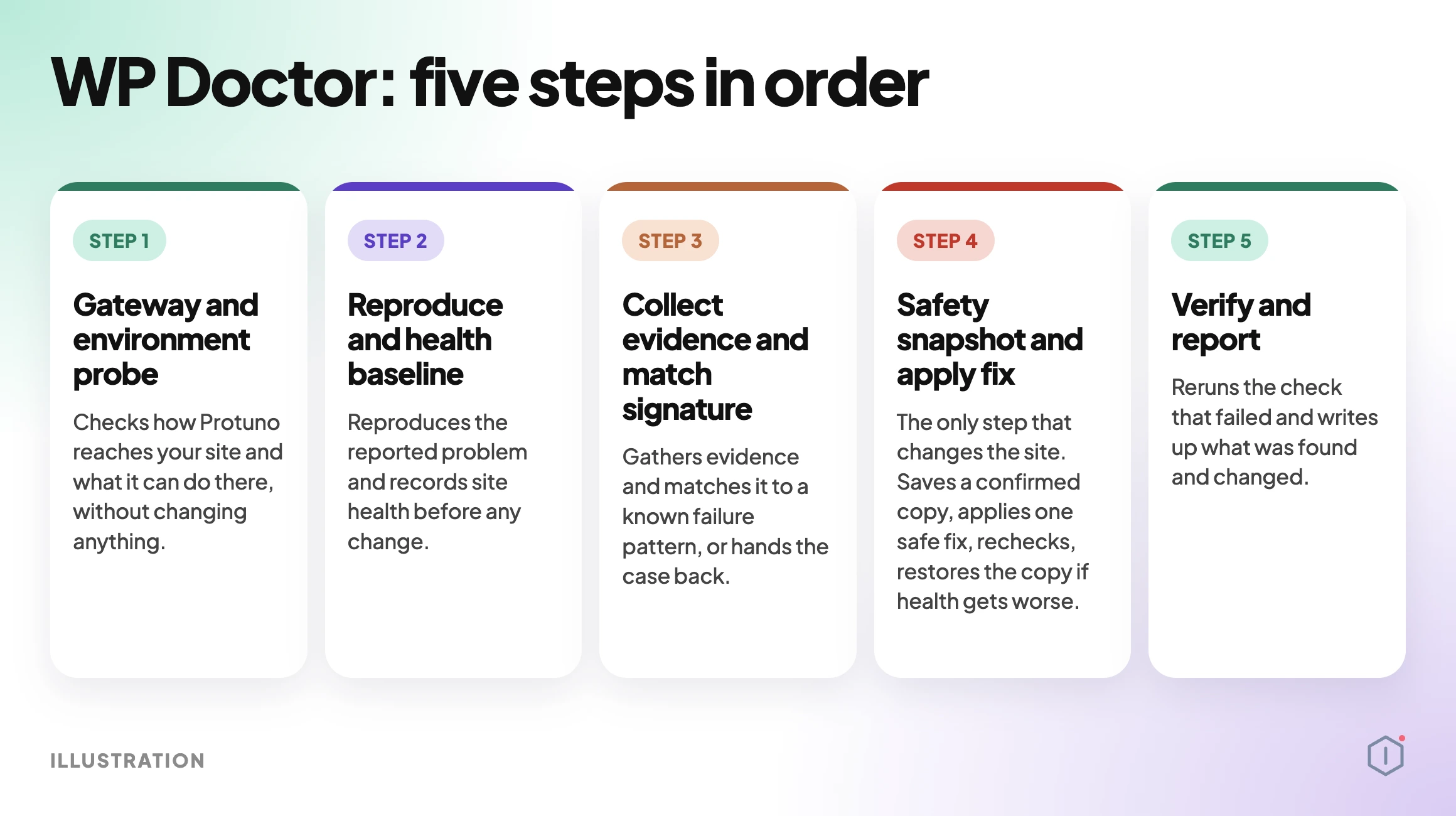
WP Doctor is a Care playbook with five steps. You start it by asking in your AI app, for example “Wren, run WP Doctor on my site.” It needs no connector, and it produces a Markdown report covering findings, evidence, changes made and the recheck result.
It changes the site in step 4 only, and your AI app asks you before any step that changes the site. The playbook page also recommends connecting a staging copy before a live site.
Step 1: Gateway And Environment Probe
The first step checks how Protuno reaches your site and what it can do there, without changing anything. This is the part people skip by hand. Before you chase a plugin, confirm what you can actually see: can you reach wp-admin, can you read logs, do you have file access, and is there a staging copy.
By hand, write down your PHP version, WordPress version, the list of active plugins and the active theme before you touch anything. If you also keep an eye on core update readiness, you will already have most of that list.
Step 2: Reproduce And Health Baseline
The second step reproduces the reported problem and records site health before any change. A baseline matters because it is the only way to tell later whether a fix helped or just moved the failure somewhere else.
By hand, load the failing URL, note the exact message and the time, then load two or three pages that still work. Record which pages fail and which do not. A failure on one template points somewhere different from a failure on every page, including wp-admin.
Step 3: Collect Evidence And Match Signature
Step three gathers evidence and matches it to a known failure pattern, or hands the case back. The handing back is deliberate. If nothing matches, WP Doctor applies nothing and gives you the case with what it found.
The evidence that matters most by hand is the PHP error itself. WordPress can write it to a log file when debugging is enabled. The official debugging documentation describes WP_DEBUG and WP_DEBUG_LOG for this. The log line names a file path, and the path usually names the plugin or theme folder responsible. Turn debugging back off when you are finished, and keep the log out of public reach, because paths and warnings help an attacker.
Step 4: Safety Snapshot And Apply Fix
Step four is the only step that changes the site. It saves a confirmed copy of what it will touch, applies one matching safe fix, rechecks, and restores the copy if health gets worse. Two details matter here: it applies one fix, not a batch, and it can undo its own change.
The playbook page says it applies a fix only for “safe WordPress-level” causes but does not list which specific causes qualify. To find a plugin or theme conflict, it may switch plugins off and on with the site in maintenance mode. If you want to practise that technique on a staging copy first, see how to isolate a plugin conflict.
Step 5: Verify And Report
The last step reruns the check that failed and writes up what was found and changed. The report is the part that outlives the incident. Six months later, when the same error returns after an update, a written record of what the cause was and what fixed it saves the whole diagnosis.
By hand, keep a plain text note per incident: date, message, log line, the one change you made, and the result. If a broken page also shows up as a spike of missing URLs, 404 monitoring will show the damage that visitors saw.
Read the report in the order it is written. Findings tell you what was seen. Evidence tells you why the finding is believed. Changes made lists anything that was altered, which should be empty if the case was handed back. The recheck result tells you whether the failing check now passes. If the recheck still fails, treat the case as open, whatever the findings say.
When a case is handed back, the exact steps are the useful part. They are written for you to carry out or pass to your host, so read them before you decide the playbook failed. A clear hand-off for a server problem is a correct result, because a server problem cannot be fixed from inside WordPress.
What The Playbook Does Not Do
WP Doctor is narrow on purpose. Server and CDN problems, uncertain causes, and suspected malware are diagnosed and handed off, never fixed. If no known failure pattern matches, it applies nothing and hands off. It fixes only what matches a known pattern, so unmatched problems get no automatic fix.
That boundary is a feature. A fatal error that is really a compromised file should not be “fixed” by an automated tool that restores the site to look healthy. If you suspect that, start with a malware scan and treat it as a security incident.
A Careful Version You Can Do By Hand
You can follow the same discipline without any tool. Work in this order and stop as soon as the site recovers:
- Take a backup you have verified first. Files and database, stored off the server.
- Record the baseline. Versions, active plugins, the exact message, which pages fail.
- Read the error. Check the email WordPress sends to the admin address when it detects a fatal error, and the debug log. Both name the file involved.
- Change one thing. Deactivate only the plugin the log names, or rename its folder over FTP if wp-admin is unreachable.
- Recheck. Reload the failing page and the working pages from your baseline.
- Write it down. Cause, change, result.
The limit of the manual route is time and recall. It works well for one site you know. It gets slow across many sites, and it depends on you remembering what you changed. If updates keep triggering these errors, a clear auto-updates policy reduces how often you meet them.
A few habits make the manual route safer:
- Use a staging copy when you have one. The WP Doctor page makes the same recommendation, and it applies to manual work too.
- Do not edit files on the live site without a copy. A typing slip in a PHP file can turn one error into a different one.
- Do not leave debugging on. Log files can expose paths and warnings you do not want public.
- Do not stack changes. If two changes fix it, you will not know which one mattered.
WordPress also sends the site admin an email when it detects a fatal error, and that email can include a link to recovery mode. If you have not received one, check the spam folder and confirm the admin address in settings is one you still read.
Two Outside Views
A 2024 thread in r/Wordpress titled “There has been a critical error on this website” has a commenter giving the common advice:
“Easiest way to fix this is to find the plugin causing the error.”
That matches the approach in this guide: find the cause first, then change one thing at a time.
In the video “How to Debug Critical Errors on your WordPress Website?” the presenter, speaking for the Techril channel, describes the screen and the first thing to check:
“Now, you’re just met with this error. There has been a critical error on your website. Please check your site admin email inbox for instructions.”
He then asks whether you can still reach the admin area, which is the same first question the careful version above starts with.
Where Protuno Fits
Protuno gives you WP Doctor as one of its playbooks. You ask for it in your AI app, it works through the five steps above, and the changes happen only after your AI app asks you. The output is the Markdown report, so the incident record is written for you. Because it hands back anything it cannot match, you still make the decisions that matter.
The Point
A critical error is not a mystery, it is a missing log line. Record the state, read the error, change one thing, check the result and write it down. A tool can run that loop for you, and the loop is worth keeping even when you run it yourself.
Comments