Is My WordPress Site Hacked? 10 Signs and How to Check Each One.
The 10 signs of a hacked WordPress site, and exactly how to check each: spam redirects, strange pages in Google, unknown admins, changed files and more.

Most hacked WordPress sites show at least one of a few signs: visitors redirected to spam, strange pages in Google, unknown administrator accounts, or files you did not add. The 10 checks below tell you, in about half an hour, whether your site shows any of them.
The short version
- Check how visitors see the site, not how you see it when logged in. Many hacks hide from logged-in admins.
- Search Google for
site:yourdomain.comand read Search Console’s Security issues report.- Look for administrators, plugins and files you did not add, and verify WordPress core files with one command.
- If you find a sign, follow a first-hour plan before you change anything else.
We ran a real security check
We asked Rook, Protuno’s security agent, to run a full security audit on our test site, which was not hacked. It scanned 571 PHP files, found 0 known vulnerabilities in the 5 items it could check and 0 confirmed code flaws, graded the site B (80.9) and ranked 8 fixes, most of them about login and access settings. That is what a clean site looks like to a security check, and it shows the weak spots attackers look for first. Tested on WordPress 7.1.4, 16 November 2026.

10 Signs Your WordPress Site Has Been Hacked
1. Visitors Are Redirected To A Spam Or Scam Site
What you see: people tell you your site sent them to a pharmacy, casino or “you won a prize” page. You open it and everything looks normal.
How to check: open the site in a private window while logged out. Then search for your site on Google and click through from the results, and try it on a phone using mobile data. Many redirect hacks only fire for visitors who arrive from a search engine, or only on mobile, and skip logged-in admins. Google’s spam policies describe exactly this kind of sneaky redirect.
2. Google Shows Strange Pages Or Titles For Your Site
How to check: search Google for site:yourdomain.com. Look for pages you never made, titles in another language, or product spam. A common hack creates thousands of spam pages that only search engines see, so you will not find them by browsing your own site.
3. Search Console Or The Browser Warns About Your Site
How to check: in Google Search Console, open Security and Manual actions, Security issues. Google lists hacked content, malware or deceptive pages it found. A red full-page “Deceptive site ahead” or “This site may harm your computer” warning in the browser means the same thing, seen by every visitor.
4. There Are Administrator Accounts You Did Not Create
How to check: go to Users and filter by Administrator. Check every name, and the date each was registered. Then open each admin’s profile and look at Application Passwords. An attacker who adds an application password can get back in even after you change the password.
Be aware that malware can hide users from the Users screen. If anything else on this list looks wrong, check the users table in the database too, or ask your host.
5. Plugins, Themes Or Files Appeared That You Did Not Add
How to check: look through Plugins and Appearance, Themes for anything you do not recognise, including inactive ones. Over SFTP or in your host’s file manager, look for PHP files in wp-content/uploads/. That folder should hold images and documents, not code.
6. WordPress Core Files Have Been Changed
How to check: if you have WP-CLI, run:
wp core verify-checksums
wp plugin verify-checksums --all
The first command compares every WordPress core file with the official copy and lists any that differ or should not be there. The second does the same for plugins from wordpress.org. Many hosts offer a file integrity check in their panel if you do not use WP-CLI.
7. Spam Links Or Hidden Text In Your Pages
How to check: open a few pages, right-click and choose View page source. Search for words like “casino”, “viagra”, “loan”, or for links you did not add, especially near the footer. Hidden spam is often styled so visitors cannot see it, which is why you check the source and not the page.
8. Your Host Suspended The Site Or Warned You
How to check: read your hosting account emails and panel notices. Hosts scan for malware and outgoing spam, and may suspend a site or cap its resources. A sudden spike in CPU use or outgoing email with no rise in visitors is another warning sign.
9. Your Site Email Is Suddenly Marked As Spam
How to check: if order or contact form emails start landing in spam, or bounce with a “blocked” message, check your domain on a few public email blacklists. A hacked site that sends spam can get your server or domain listed. Our email deliverability guide covers the checks.
10. Security Settings Changed Without You
How to check: look for settings you turned off coming back on. The theme and plugin file editor (under Appearance and Plugins) reappearing after you disabled it, new scheduled tasks you did not add, or the site’s admin email changed in Settings, General. Any of these is worth a closer look.
Run A Full Security Check
The 10 checks above are things you can see. A full check reads what you cannot: plugin and theme code, known vulnerabilities and exposed files. Protuno is Super Agents for WordPress: six AI agents you use from Claude, Claude Code, Codex or Cursor, each working from written playbooks and a Brain for each site. Rook, the security agent, runs three playbooks that match this post, and all three only read:
- WP Security Audit grades the site A to F, checks for known vulnerabilities and reviews plugin and theme code, including inactive ones.
- New Admin Watch lists every administrator and application password and flags recent ones. Run it twice with a baseline and it shows what changed.
- WP Malware Scan sweeps files and the database for planted code and checks whether search engines see different pages from visitors. The malware scan finds and reports malware. It doesn’t remove it. It writes a clean-up plan for a person to follow.
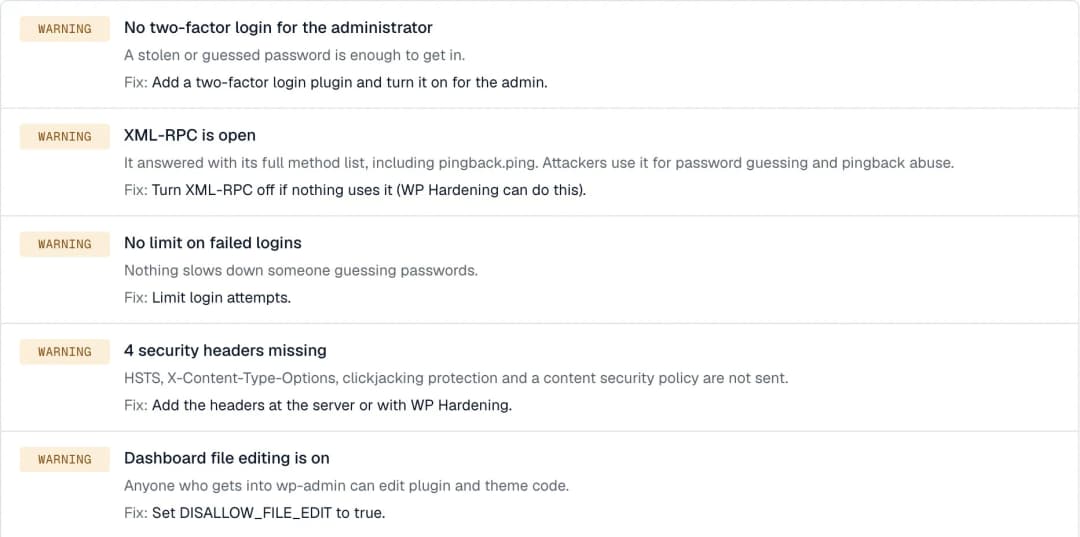
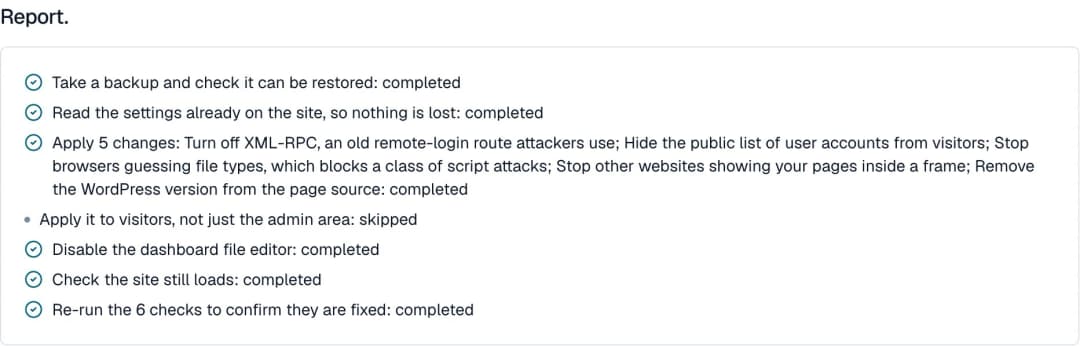
On our test site we then fixed 6 of those findings in one run, in 26.9 seconds: XML-RPC turned off, the public user list hidden, two security headers added, the WordPress version removed from the page source, and the file editor disabled. We checked each change from outside the site afterwards.
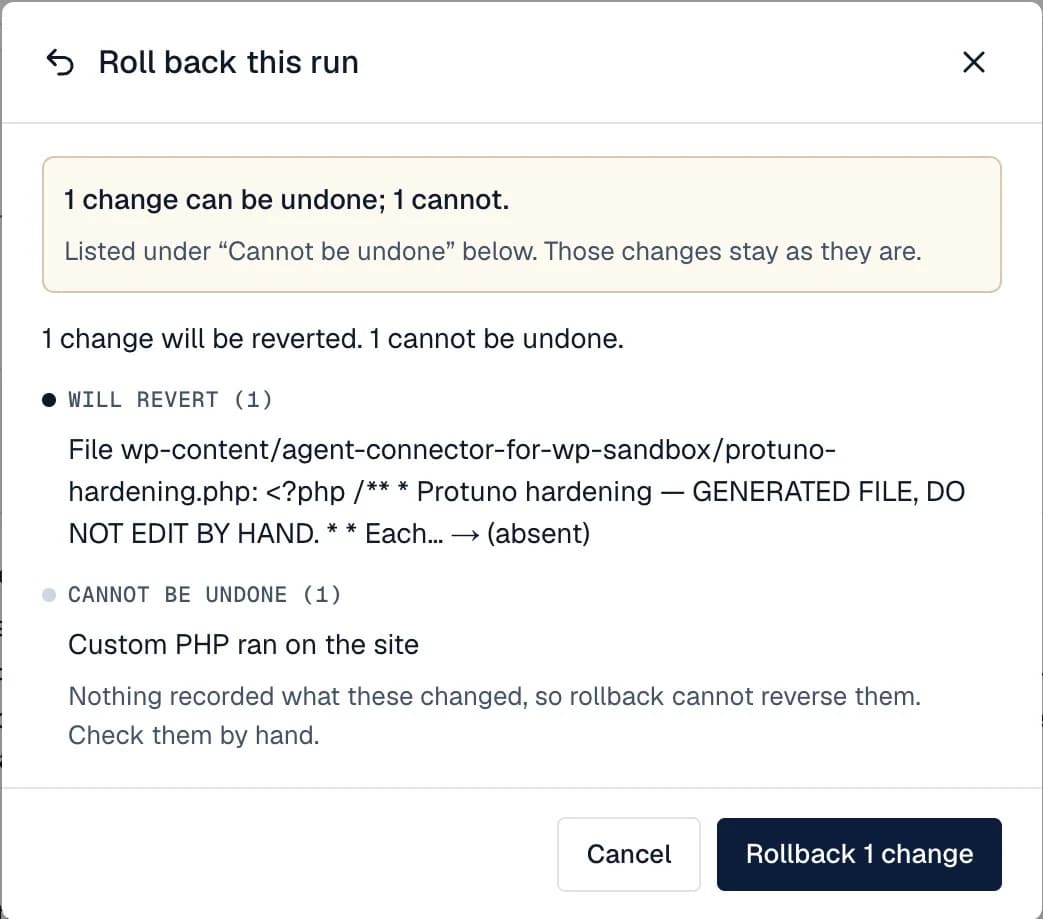
Then we pressed Roll back, to see how honest the undo is. Protuno said up front that 1 change could be undone and 1 could not, and that is exactly what happened: the public user list, XML-RPC and the missing headers came back, while the file editor stayed disabled.
What a job may change depends on the agent’s mode on that site. Read only: no changes run. Approval mode: a run starts only when you press Approve in Protuno. Auto mode: runs start on their own, with no approval. More about Rook and all six Super Agents.
If You Find A Sign
Do not start deleting files at random. That can destroy the evidence of how the attacker got in, and leave the back door open. Follow a plan: take the site offline or into maintenance if it is harming visitors, change every password and application password, take a copy for investigation, then clean or restore from a backup taken before the hack. Our first-hour guide walks through it step by step, and WordPress’s own “My site was hacked” FAQ lists the same first moves.
When It Is Not A Hack
- A redirect after a settings change. A wrong Site Address in Settings, General, an HTTPS redirect rule or a caching plugin can send visitors somewhere unexpected. These redirect to your own pages, not to spam.
- Spam only on one visitor’s screen. Adware or a browser extension on their computer can inject ads into every site. Ask them to try another browser or device.
- An admin you forgot. Hosts, developers and some plugins create accounts. Check with them before you delete one.
Common Questions
How do I know if my WordPress site was hacked?
Look for spam redirects in a private window, strange pages in a site: search on Google, Search Console security warnings, unknown administrators, and files or plugins you did not add. Run wp core verify-checksums to find changed core files.
Can a hacked site look normal to me?
Yes. Many hacks hide from logged-in administrators and only show spam or redirects to visitors, search engines or mobile users. Always check while logged out, in a private window, and from a Google search result.
Why do only mobile users see the redirect?
Some malware checks the device or the referring site and only redirects visitors from phones or from search engines, so the owner rarely sees it. Test on a phone using mobile data and by clicking through from Google.
Does Google tell me if my site is hacked?
Often, through Search Console’s Security issues report and an email to verified owners, and browsers may show a red warning page. Do not rely on it alone. Google may not find every hack, or may find it late.
How do I stop my WordPress site getting hacked?
Keep WordPress, plugins and themes updated, remove what you do not use, use strong unique passwords with two-factor login for admins, limit login attempts, disable the file editor, and keep tested backups. Run a security check regularly.
Related Reading
- A hacked WordPress site: the first hour
- WordPress malware scan
- “Not Secure” warning on WordPress
- WordPress site not showing on Google
Comments