WordPress Site Down After a Plugin Update? Get It Back, Then Update Safely.
A plugin update took your site down or showed “There has been a critical error”. Get back in, find the plugin, roll it back, then update one at a time.

You updated a plugin and now the site is down, or every page says “There has been a critical error on this website.” Here is what to do in the first fifteen minutes, in order: get back in, find the plugin, roll it back. Then how to update so it does not happen again.
Step 1: Get Back Into wp-admin
Since WordPress 5.2, a fatal PHP error during a normal page load starts Recovery Mode. Visitors see the critical error message, and WordPress emails the site’s admin address a link that logs you in with the failing plugin or theme paused. The email also names the plugin or theme and the error. WordPress sends at most one of these emails an hour by default, so look for the first one, and check spam.
If the email never arrives, the most common reason is that the server cannot send mail. It happens more often than you would think: on our own test site, Echo found the site could not send any email at all. Then do it by hand:
- Open the site’s files with SFTP or your host’s file manager.
- Go to
wp-content/pluginsand rename the folder of the plugin you just updated, for example by adding-offto its name. - Load the site. WordPress can no longer find the plugin, deactivates it, and the site comes back without it.
If you updated several plugins at once and do not know which one it was, rename the whole plugins folder, log in, rename it back, then reactivate plugins one at a time until the error returns.
If the site instead says “Briefly unavailable for scheduled maintenance”, an update stopped halfway. Delete the .maintenance file in the site’s root folder. Our maintenance mode post covers that case.
Step 2: Find Which Plugin Did It
The recovery email usually names it. If you came in through the file manager instead, turn on the debug log. In wp-config.php, set:
define( 'WP_DEBUG', true );
define( 'WP_DEBUG_LOG', true );
define( 'WP_DEBUG_DISPLAY', false );
Errors now go to wp-content/debug.log. Look for a line that starts with “PHP Fatal error”. The file path in it names the folder, for example wp-content/plugins/plugin-name/. Turn the log off when you are done. A debug.log that anyone can download leaks file paths, and Protuno’s health scan treats a readable debug.log as a high-severity finding.
Step 3: Roll The Plugin Back
You have two ways back.
- Install the previous version. On the plugin’s wordpress.org page, open Advanced View, pick the version you had from the previous versions list and download it. In wp-admin, go to Plugins, Add New, Upload Plugin and upload it. WordPress asks whether to replace the current version with the uploaded one. For a premium plugin, get the previous version from your account with the seller.
- Restore the backup you took before the update. This works for any cause, but a full restore also rolls back everything since the backup: orders, comments and form entries. What a restore cannot undo covers what to check first.
WordPress has two safety nets of its own. Since 6.3, a manual plugin update that causes a fatal error when the plugin is reactivated leaves the plugin switched off. Since 6.6, a plugin auto-update that causes a fatal error is rolled back to the previous version, and the admin gets an email. Both only catch errors that stop PHP. A plugin that loads fine but breaks your checkout or your contact form passes them.
Critical Error After A PHP Update Instead
The cause is the same kind of fatal error, but the trigger is the server, not the plugin. Read the error to see which plugin or theme failed, then check that plugin’s “Requires PHP” line and its changelog. The quickest way back is to switch the PHP version back in your host’s control panel, update the plugin that failed, and try the new PHP version again.
Update Plugins Or Core First?
No single order suits every site. What matters more is one change at a time, with a check after each, so that when something breaks you know what did it. Before a major WordPress release, check each active plugin’s “Tested up to” against the new version. The Major Update Readiness playbook does this check and changes nothing.
How To Update Plugins Without Breaking The Site Next Time
- Back up, then check the backup. Open the archive and confirm the database copy is complete. A backup you have not opened is a hope.
- Hold back the risky updates. Major version jumps, releases only a few days old, plugins from outside wordpress.org, and page builder or shop plugins. Test those on staging first.
- Update one plugin at a time. Not “Update all”.
- Check the site after each one. The home page, the login page, a recent post, and the checkout or contact form if you have one.
- Keep the previous version to hand, so Step 3 takes a minute rather than a search.
Let A Super Agent Do It: Real Run On A Test Site
Protuno is Super Agents for WordPress: six AI agents you use from Claude, Claude Code, Codex or Cursor, each working from written playbooks and reading a Brain for each site. Wren, the Care agent, does the steps above with its Plugin Safe Update playbook. Its 8 steps check that at least 200 MB is free and the site is healthy, back up wp-content and the database, verify the backup, hold back risky updates (releases under 7 days old, major version jumps, plugins not on wordpress.org, page builder and shop plugins), then update one plugin at a time and check the site after each. If an update breaks the site, it puts that plugin back and stops, and leaves the rest untouched.
Here is a real run on our test site on 16 November 2026. Wren was in Approval mode there, so the plan waited in Protuno until it was approved there.
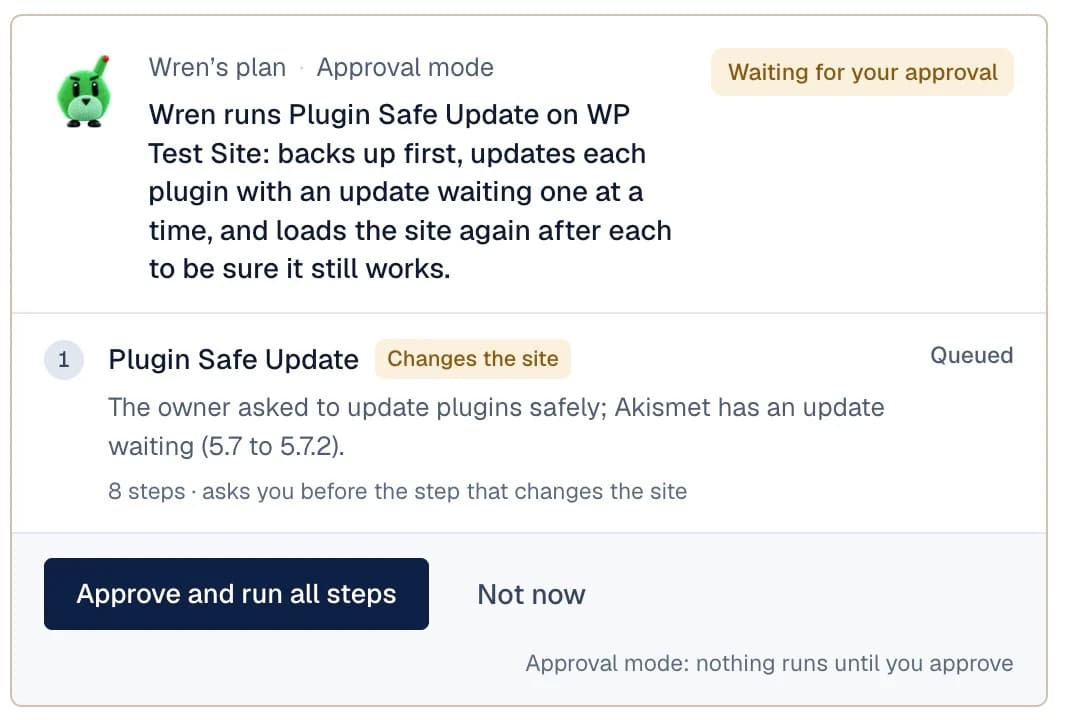
- Preflight: one plugin had an update waiting, 5.7 to 5.7.2.
- Backup: 1026 files (15.9 MB) and the database (15 tables, 730 KB), verified before anything else ran.
- A note it raised: the vulnerability feed it checks did not answer, so Wren could not check the old version against it. It said so in the report and went on under its normal safety rules, since this was a fix release.
- Update: 5.7 to 5.7.2, in 4 seconds.
- Check after: home page 200, admin 302 to the login page, latest post 200. No errors. The whole run took 5 minutes 39 seconds.

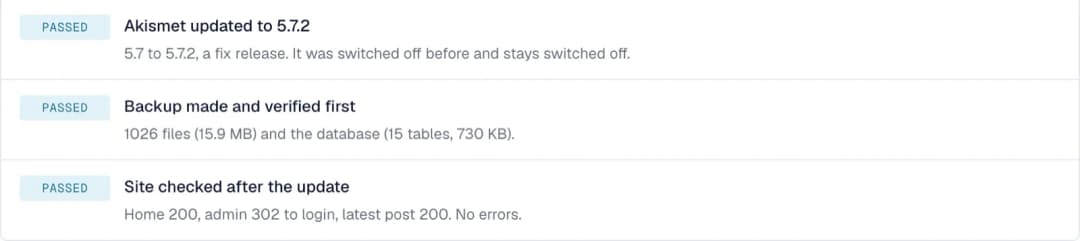
To be straight about what this run shows: the plugin was switched off on this test site, so it shows the method, not a rescue.
The mode decides when a run starts. In Approval mode, a run starts only when you press Approve in Protuno. In Auto mode, runs start on their own, with no approval. A yes in a Slack thread never authorizes a run.
If the site is already broken, ask Wren for WP Doctor instead: “Wren, run WP Doctor: the site shows a critical error after a plugin update.” WP Doctor reproduces the problem, matches it to a known cause, and applies a fix only when it is a safe WordPress-level one, after saving a copy of what it will touch. If site health gets worse, it restores that copy. Protuno reaches the site through its plugin, so if the fatal error stops every request, get back in with Step 1 first.
Run this as a playbook. Ask Wren in your AI app: “Wren, run Plugin Safe Update on my site.” Plugin Safe Update · WP Doctor · Wren, the Care agent
Common Questions
How do I undo a plugin update in WordPress?
Install the previous version of the plugin over the current one (Plugins, Add New, Upload Plugin, then Replace current with uploaded), or restore the backup you took before the update.
What does “There has been a critical error on this website” mean?
A PHP fatal error stopped the page. WordPress emails the admin address a Recovery Mode link that names the plugin or theme, and logs you in with it paused.
Should I turn on auto-updates for plugins?
It is a trade-off between getting security fixes fast and controlling when things change. Our auto-updates post walks through it.
Why did my plugin update fail?
Usually a download error, file permissions or a full disk. Check those, and delete a leftover .maintenance file if the site is stuck in maintenance mode, before you try again.
Related Reading
- The WP Doctor playbook for critical errors
- What a restore cannot undo
- Plugin Safe Update, step by step
- The safe update playbook
- The white screen of death
Comments