Which PHP Version Should Your WordPress Site Run in 2026? (And How to Check).
Run PHP 8.3 or newer: WordPress recommends it, and versions before 8.2 get no security fixes. How to check your version and switch safely, with live data.

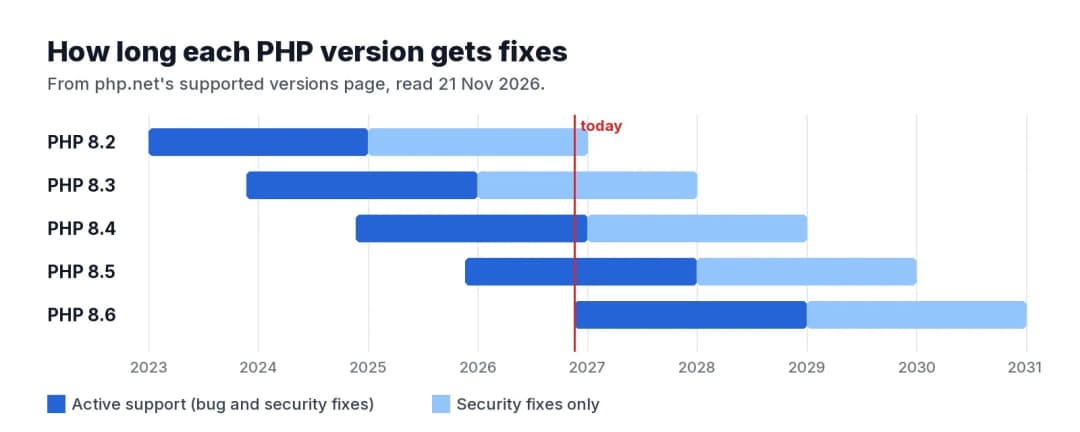
Run PHP 8.3 or newer. WordPress recommends PHP 8.3 or greater, and PHP versions before 8.2 no longer get security fixes. PHP 8.4 and 8.5 are good choices today if your plugins and theme support them, and PHP 8.2 stops getting security fixes on 31 December 2026.
The short version
- Check yours: Tools, Site Health, Info, Server shows the PHP version.
- Pick: 8.3 is the safe default. 8.4 or 8.5 if your plugins are up to date. Leave anything older than 8.2.
- Switch safely: back up, update plugins and theme first, test on staging, then change it in your hosting panel.
- If something breaks, switch back in the same panel. It takes a minute.
What WordPress sites actually run (live data)
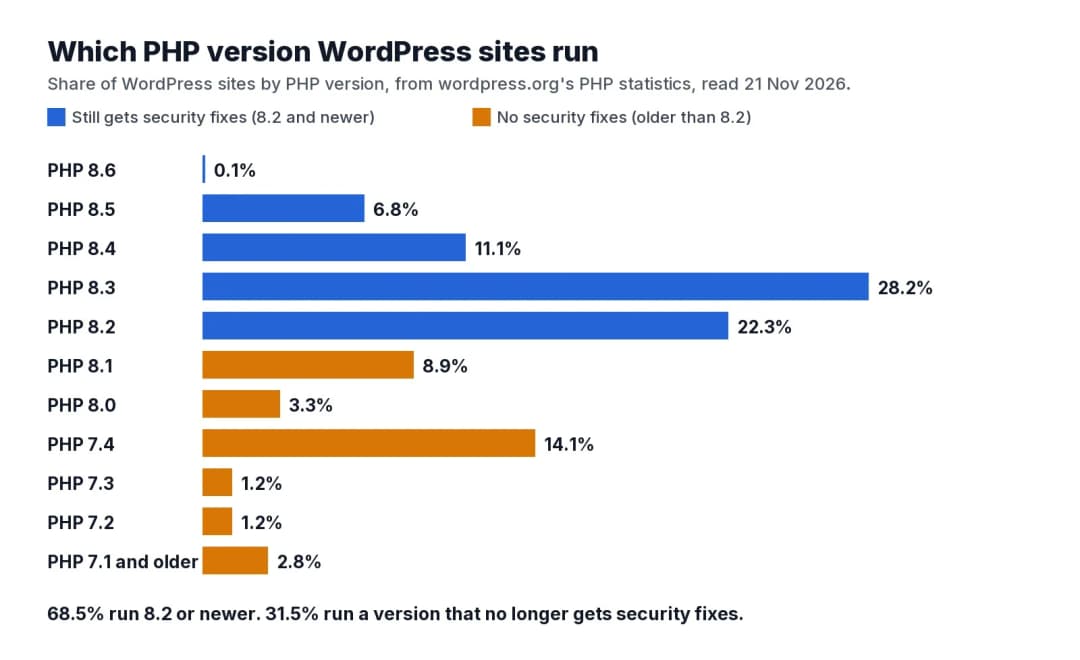
On 21 November 2026 we read wordpress.org’s PHP version statistics. 68.5% of WordPress sites run PHP 8.2 or newer. 31.5% run a version that no longer gets security fixes: 12.2% on 8.0 or 8.1, 17.4% on PHP 7, and 1.9% on something older still. The single most common version is 8.3, at 28.2%.
What PHP Version Does WordPress Need?
WordPress’s requirements page recommends PHP 8.3 or greater, together with MariaDB 10.11 or MySQL 8.4 and HTTPS. It also says WordPress still works with PHP 7.4 in legacy environments, but that those versions have reached their end of life and may expose your site to security vulnerabilities.
“Works” and “safe” are different things. WordPress will run on PHP 7.4, but PHP itself no longer fixes security problems in it. In October 2026 wordpress.org published a critical PHP security release notice that said it plainly: versions of PHP before 8.2 no longer receive security updates.
How To Check Your PHP Version
- In your dashboard, go to Tools, Site Health.
- Open the Info tab.
- Expand Server. The PHP version is listed there, with the memory limit and other server details.
Site Health also shows a recommendation on its Status tab when your PHP version is out of date. Your hosting panel shows the same number, usually under a “PHP version” or “PHP settings” page, and that is where you change it.
One trap: the PHP version you see when you run commands over SSH can be different from the one serving your website. Trust Site Health, because it reports the PHP that actually runs WordPress.

Which PHP Version Should You Pick?
| PHP version | Security fixes until | Our advice |
|---|---|---|
| 8.6 | 31 Dec 2030 | Released 19 Nov 2026. Wait until your plugins and host support it |
| 8.5 | 31 Dec 2029 | Good choice on an up-to-date site |
| 8.4 | 31 Dec 2028 | Good choice on an up-to-date site |
| 8.3 | 31 Dec 2027 | The safe default, and what WordPress recommends at minimum |
| 8.2 | 31 Dec 2026 | Plan your move now. Fixes end in weeks |
| 8.1 and older | Ended | Move off it. No security fixes |
Newer is not automatically better on the day it ships. A brand new PHP version can break plugins that have not caught up yet, and some hosts take weeks to offer it. The sweet spot is the newest version your plugins, theme and host all support.
How To Switch PHP Versions Safely
1. Take A Backup And Check It
Take a full backup of files and database, and check it is complete. Switching PHP does not change your files, but if a plugin breaks badly you want a clean way back. Here is how to check a backup.
2. Update Plugins And Your Theme First
Old plugin versions are the most common reason a site breaks after a PHP upgrade. Update everything first, one at a time, and check the site after each. Our safe plugin update guide covers the order. Remove plugins you no longer use rather than leaving them installed.
3. Check Plugins That Have Not Been Updated In A Long Time
On each plugin’s wordpress.org page, check when it was last updated. A plugin with no update in years is the one most likely to fail on a newer PHP. Look for a maintained replacement before you switch.
4. Test On Staging
Switch PHP on a staging copy first. Load the home page, a post, your forms, the checkout if you have one, and the admin screens you use daily. Turn on WP_DEBUG_LOG on staging and read wp-content/debug.log for warnings and deprecation notices. Keep staging close to live or the test tells you little.
5. Switch On The Live Site
In your hosting panel, pick the new PHP version for the site and save. Then open Site Health to confirm the new version, and click through the same pages you tested on staging.
6. Roll Back If Something Breaks
If you see a blank page or a “critical error”, switch back to the previous PHP version in the same panel. The site should return at once. Then find the plugin that failed on staging before you try again. Our site-down guide covers recovery mode and finding the culprit.
When PHP Is Not The Problem
- The site is slow, not broken. A newer PHP is usually faster, but a slow admin is more often one plugin. See our slow admin guide.
- Nothing changed after switching. A page cache or OPcache may still serve the old result. Clear caches, then check Site Health again.
- Your host will not offer a newer PHP. That is a hosting limit, not something to fix inside WordPress. It is a good reason to ask about a plan change or a move.
Where A Super Agent Helps
Protuno is Super Agents for WordPress: six AI agents you use from Claude, Claude Code, Codex or Cursor, each working from written playbooks and a Brain for each site. For a PHP change they help in three places, and one thing they do not do:
- Before: Wren’s Plugin Safe Update updates plugins one at a time after a backup and checks the site after each.
- After, if something breaks: WP Doctor reproduces the problem, matches it to a known cause and fixes only safe WordPress-level causes. Server causes, such as the PHP version itself, it hands back to you with exact steps.
- Over time: the Brain keeps each site’s PHP version as a measured fact, so you can see which of your sites still need moving.
- Not covered: Wren’s Major Update Readiness checks plugins against a WordPress version, not a PHP version. Test PHP compatibility on staging.
What a job may change depends on the agent’s mode on that site. Read only: no changes run. Approval mode: a run starts only when you press Approve in Protuno. Auto mode: runs start on their own, with no approval. More about Wren and all six Super Agents.
Common Questions
What PHP version does WordPress require?
WordPress recommends PHP 8.3 or greater. It still runs on PHP 7.4 in legacy environments, but PHP versions before 8.2 no longer get security fixes, so they are not a safe long-term choice.
How do I check my PHP version in WordPress?
Go to Tools, Site Health, open the Info tab and expand Server. The PHP version is listed there. Your hosting panel shows the same number and is where you change it.
Is it safe to update PHP on WordPress?
Yes, if you prepare. Back up, update plugins and your theme first, test on a staging copy, then switch in your hosting panel. If something breaks, switching back in the same panel restores the site.
What happens if I update PHP and a plugin breaks?
You may see a blank page, a “critical error” or a broken feature. Switch PHP back in your hosting panel, then update or replace the plugin that failed before you try again. WordPress recovery mode can also help you log in.
Should I use PHP 8.4 or 8.5 with WordPress?
Either is a good choice if your plugins, theme and host support it. Both get security fixes until 2028 and 2029. If you are unsure, 8.3 is the safe default and gets security fixes until the end of 2027.
Related Reading
- PHP end of life and your WordPress site
- WordPress 7.2: what is new and how to test
- Update WordPress plugins safely
- WordPress site down after a plugin update
Comments