Find And Replace In WordPress: The Playbook, Step By Step.
Changing a phrase across a WordPress site sounds simple until a link breaks. Here is the two-step Protuno playbook that plans every change and waits for you.

Your company changed its name. Your site did not hear about it.
The old name is in a hundred places: titles, excerpts, old announcements, a footer line you wrote years ago. Finding them is easy. Changing them safely is where the trouble starts.
Short answer: a find and replace is safe when it only touches plain text, shows you every change as before and after, and refuses to touch anything it cannot read in full. A phrase can also sit inside a link, a block setting or a shortcode, and changing it there can break the thing it belongs to. Protuno’s Find & Replace Text playbook works in two steps: one read-only step that plans, then one write step that waits for your approval and reads every change back.
What this post is, and is not: it is a practical walkthrough of how a Protuno playbook works and how to do the same job by hand. It is not a measured result from a real site, and it does not promise that every occurrence of a phrase on your site will be found. It explains what the playbook reads, what it changes, and what it deliberately leaves for a person.
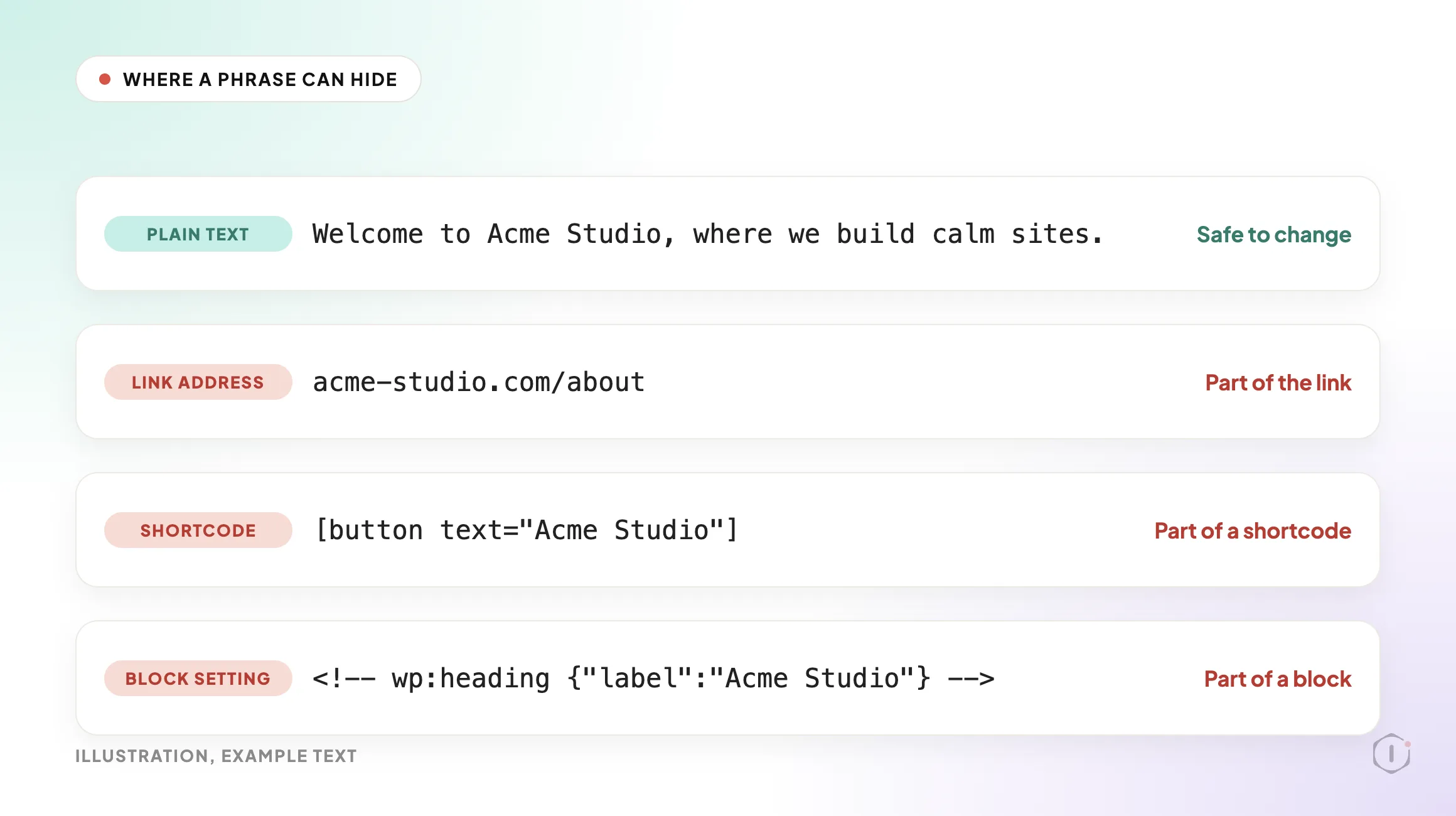
A phrase in a paragraph is text. A phrase in a link is part of the link.
Why Search And Replace Goes Wrong
The usual tool for this job is a search and replace plugin or a command. They are powerful, and that is the problem. A database-wide replace sees one big pile of text. It does not know that one match is a sentence and another match is the address of a page.
Think about a rename from “Acme Studio” to “Acme Labs”. In a paragraph, the swap is exactly what you want. In a link address such as a URL that contains the old name, the same swap points the link at a page that does not exist. In a block comment that stores a setting, it can change a value the block expects to read back unchanged.
Nothing warns you. The page still loads. The damage shows up later as a dead link or a block that quietly resets itself.
A bulk replace is exactly the moment you want a verified backup. And scope matters too: a replace that runs everywhere also runs on menus, options and page builder data you never meant to touch.
Four Ways To Change Text Across A Site
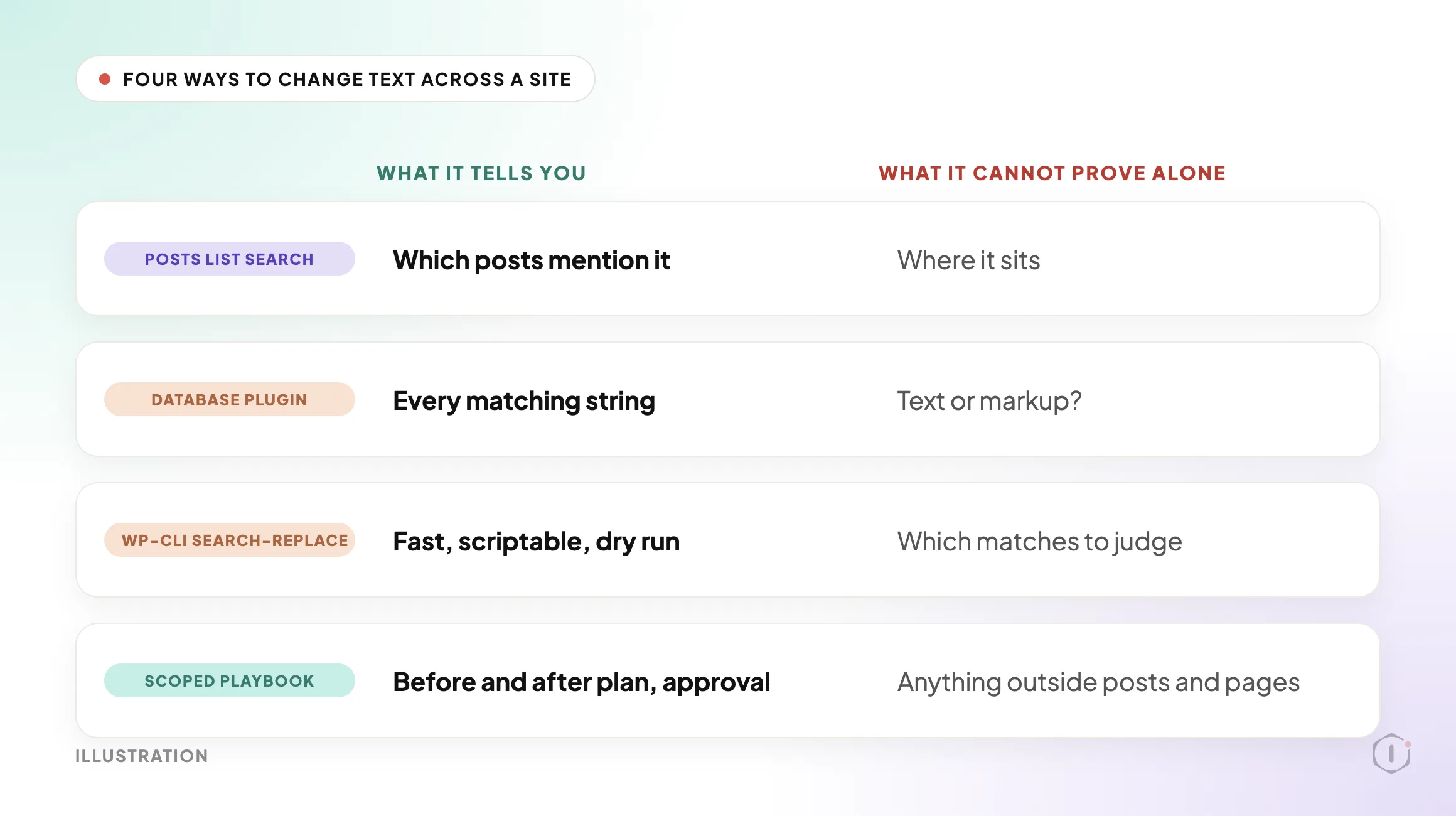
There are four common ways to change a phrase everywhere. Each one answers a different question.
| View | What it tells you | What it cannot prove alone |
|---|---|---|
| The WordPress search box in the Posts list | Which posts mention the phrase | Where in the post it sits, or whether it is inside a link |
| A database search and replace plugin | Every matching string in the tables you pick | Whether a match was text, markup or a stored setting |
WP-CLI search-replace | A fast, scriptable replace, with a dry run you can ask for | Which matches a person should have judged first |
| A scoped, approval-gated playbook | A before and after plan for plain text in posts and pages | Anything outside posts and pages, which it leaves alone by design |
None of these is wrong. The WP-CLI search-replace command is well documented, and a plugin such as Better Search Replace is popular for a reason. The mistake is treating a tool that can change everything as if it were a tool that should.
What The Playbook Looks At
Find & Replace Text is a Protuno playbook on the Care side of the public Playbooks page. In the dashboard’s Every Playbook list it sits in the Content group. It is marked Beta, it can change the site, and it has 2 steps. It needs no connector. It reads through the Protuno plugin.
It works on one phrase that you choose, and it works as plain text. The scope is narrow on purpose:
- Titles, excerpts and content of posts and pages.
- Every exact match of your phrase.
- Whether a match also sits inside block markup, an HTML tag or attribute, a shortcode or a link address.
It never changes post meta, options, menus, widgets or page builder data. It changes at most 10 items per run, and a post that is too long to read in full is not changed at all.
You set the phrase in the playbook’s Instructions, one option per line:
Find: Acme Studio
Replace with: Acme Labs
Post types: post, page
Fields: title, excerpt, content
Only Find: and Replace with: are required. The phrase must be at least 4 characters. Replace with: may be empty, which removes the phrase. Post types and fields are optional, and by default the playbook uses both post types and all three fields. Matching is case sensitive and exact, so “acme studio” is a different string from “Acme Studio”. If either required line is missing, the playbook makes no changes and tells you which line to add.
The Playbook, Step By Step
Find & Replace Text is a Protuno playbook with a fixed sequence of two steps. The first step only reads the site. The second changes it, and only after you approve.
| # | Step | What it does |
|---|---|---|
| 1 | Scan And Snapshot Matches | Finds your phrase in posts and pages, plans each change as before and after, and records when each item was last modified. It writes nothing. |
| 2 | Apply And Verify | After you approve, replaces the phrase in each approved item, skips any item that changed since the scan, and reads each one back to confirm. |
Step 1 is read-only. The dashboard shows its Approval checkpoint as Off and its Automatic backup as None, which fits a step that writes nothing. Step 2 has the Approval checkpoint On: the run waits for your approval. Its Automatic backup also shows None, so the safety net here is the approval, the item-level before and after plan, and the recorded before-values, not a site snapshot.
Order matters here. The plan comes before the change, and the approval sits between them. If the order were reversed, you would be approving a result after the fact.
Step 1 does three things worth knowing:
- It searches posts and pages, including drafts, pending, private and scheduled items, and keeps the first 10 matches in ID order. Anything beyond that is reported as over this run’s limit.
- It reads each item in full. If the reply is cut short, or the content is longer than 6,000 characters, the item is reported as not checked because it is too long to read in full. A change is never planned from a partial read.
- It sorts every item into change, review by hand, or no change.
An item goes into review by hand when the phrase also appears inside block markup, a tag or attribute, a shortcode or a link address. Even one such occurrence in any field is enough. Protuno lists it for you to fix yourself rather than guess.
Step 2 is careful in a different way. It records when each item was last modified during the scan. Before it writes, it re-reads the item and compares. If the item was edited in the meantime, it skips it with the reason “changed since the scan”. If the phrase now sits inside markup or a link, or has gone, it skips that too.
Then it writes only the fields that held the phrase, through Protuno’s content update route, which records each changed field’s before-value. After the write it reads the item back. An item counts as changed only when each written field no longer contains the phrase and contains the replacement as many times as the phrase appeared before.
Watch The Walkthrough
The video below follows the two steps in order, from the instruction lines to the plan, the approval and the read-back. It is an illustration built from the playbook’s step names and described behaviour. It shows no real site and no measured result.
What Find And Replace Does Not Solve
A scoped replace is safe because it is narrow. That also means it leaves things alone.
- It does not change post meta, options, menus, widgets or page builder data. If your old name lives in a menu label or a builder template, you fix it there.
- It does not change an item where the phrase also sits in a link, block settings or a shortcode. Those go on the review by hand list.
- It does not handle more than 10 items per run. A site with hundreds of matches needs several runs.
- It does not read posts that are too long to read in full, and it says so.
- In a scheduled run, step 2 is skipped, so a scheduled run never makes the change. A person starts the run and approves it.
A tool that says what it did not cover is more useful than one that reports a clean sweep. The same thinking sits behind the permission model for agents: the smaller the reach, the easier it is to trust.
Questions To Ask Your Current Tooling
Whatever you use for bulk text changes, ask it these:
- Does it show me every change as before and after, before anything is written?
- Does it tell me when a match sits inside a link or a setting, or does it replace it anyway?
- Can it limit itself to titles, excerpts and content, or does it search the whole database?
- What happens if someone edits a post between the preview and the write?
- Is the before-value of every changed field recorded, so I can undo it?
- Does it read the result back, or does it assume the write worked?
If the answer to most of these is “I am not sure”, you are relying on luck, and a rollback plan is worth having before the next bulk change.
Which Check Are You Actually Running?
| If you need to know | Evidence to look at | Next action |
|---|---|---|
| Which posts mention the phrase | Search results from the Posts list | Open the posts that matter and read them |
| Whether a match is plain text | The post in the code editor, or the plan from step 1 | Change plain text, review the rest by hand |
| Whether the change landed | A read-back of each written field | Confirm the count of replacements matches the count of matches |
| Whether you can undo it | Recorded before-values for each changed field | Use Rollback on the run in the app |
Rollback is part of the design. Every change the playbook makes is recorded with its before-value, field by field, and Roll back in the app undoes the changes it made.
Fixing Findings In The Right Order
When the plan comes back, do not treat every line the same way.
| Priority | What to do |
|---|---|
| First | Read the review by hand list. These are the matches the playbook refused to change, and they are where a blind replace would have caused damage. |
| Second | Read the before and after snippets for the items marked to change. Look for a replacement that reads oddly in context. |
| Third | Check the not checked list. Long posts need a manual pass. |
| Last | Approve the run once the plan reads the way you want. |
Two rules help:
- Have a restore point first. Step 2 shows no automatic backup, so take your own before approving anything on a site you care about.
- Re-check after the change. Open two or three changed pages and a page from the review by hand list. Read them as a visitor would.
A Five-Site Audit You Can Do This Week
You do not need the playbook to test your own process. Pick five sites you look after and, for each one, write down:
- The phrase that changed most recently, such as a brand name, a product name or a price label.
- How many posts and pages mention it, from the Posts list search.
- How many of those mentions are inside a link or a shortcode.
- Whether the site has a restore point you could use today.
- Who would approve a bulk change, and where that approval is written down.
Then decide, for each site, one of these:
- Fix now: the matches are plain text and a restore point exists.
- Test first: copy the site to staging and try the replace there. See staging drift for why staging and live can disagree.
- Replace by hand: the matches sit inside links or settings.
- Leave it: the old phrase is harmless, and you note who decided and when.
- Investigate: matches show up in places you did not expect, such as old drafts.
Why Old Text Quietly Comes Back
A bulk replace is a one-time event, but old wording finds ways back in: a teammate pastes from an old document, or a reusable block still holds the old name. That is why the playbook reports what it left alone. If you want to keep content tidy in other ways, the Disable Comments playbook and the image alt text audit follow the same read first, change second pattern, and the broken link audit is a useful follow-up after any large text change.
Two Outside Views
A tutorial and a forum thread. Neither is an endorsement.
Extreme How To’s video walks through a plugin route: install Better Search Replace, type the text or URL to find and the replacement, pick the wp_posts table, run a test, then run the replace. The test step is the part worth copying. It is also where the plugin route stops: the plugin counts matches in a table, and it does not say which ones are plain text and which sit inside a link or a block.
A short tutorial on finding and replacing a URL or text in WordPress with a search and replace plugin, including a dry run before the real change.
Extreme How To’s, “How to find and replace URL or text WordPress [2026 Full Guide]” on YouTube, 14 Aug 2026
On Reddit, an r/Wordpress thread is titled as a migration that still cannot update every reference to a local address. I could not read the replies, so this post does not summarise them. The title alone shows the shape of the problem: after a move, old addresses survive in places a simple text search does not reach, which is why a replace needs a plan before it needs a button.
“Migrating from Studio still can’t update all references to local”
r/Wordpress, “Migrating from Studio still can’t update all references to local”
Where Protuno Fits
Protuno’s Super Agents page describes the Care agent, Wren, as the one that runs updates behind a restore point and watches the jobs that quietly stop. This playbook is one of the Care playbooks that can change a site, so it asks first.
The pattern is the same every time. Protuno plans the change, shows it to you, waits for you, then writes only what you approved and reads it back. You can see every step written out on the Playbooks page and meet the agents on the Agents page.
The fields it works with, title, excerpt and content, are the same ones the WordPress REST API reference for posts documents.
Sources And Further Reading
- wp search-replace: the WP-CLI command reference, including the dry run option.
- Better Search Replace: the plugin on WordPress.org.
- Posts REST API reference: the post fields the playbook works with.
- How to find and replace URL or text WordPress [2026 Full Guide]: Extreme How To’s on YouTube, 14 August 2026.
- Migrating from Studio still can’t update all references to local: an r/Wordpress thread.
The Point
A find and replace should be boring. You pick a phrase, you see what will change, you approve it, and you check that it worked.
The risk was never the swap. It was the swap in the wrong place.
So when you last changed a phrase across a site, did you know which matches were text and which were part of something else?
Comments