WordPress Plugin Conflicts: The Playbook, Step By Step.
A WordPress plugin conflict is hard to prove from a plugin list. See what a read-only overlap check can and cannot tell you, step by step.

Your site shows a white page, or the message “There has been a critical error on this website.”
You updated one plugin an hour ago, and you have a lot of plugins installed.
Short answer: A plugin list cannot prove a WordPress plugin conflict. Only errors, logs and a clean test can. What a plugin list can do is show you which plugins do the same job, which ones are switched off but still installed, and where to test first. That is the whole job of the Plugin Conflict & Redundancy Check playbook, and this post walks through its two steps.
What this post is, and is not: A method write-up of one read-only playbook, based on its two step files as shown in the Protuno dashboard on 16 October 2026. It is not a result from a real run: no playbook was run for this post, and every picture and plugin name in it is an illustration with example values. It is not a conflict detector, and it does not read error logs.
What A Plugin Conflict Looks Like When It Shows Up
A conflict rarely announces itself with the names of the plugins involved.
It shows up as a symptom. A page that stops loading. A checkout button that does nothing. A spinner in the editor that never finishes. In the worst case, the critical error message, or the white screen.
WordPress’s own training material describes where these come from. The Learn WordPress lesson on plugin and theme conflicts lists the most common causes of a white screen or critical error as an exhausted memory limit, PHP errors, database issues, and plugin or theme conflicts or compatibility issues. Within conflicts, it names code incompatibility with the current WordPress version, JavaScript errors that stop a page loading, and deprecated functions.
So a conflict is one of four possible causes, and the symptom does not say which. That matters for everything that follows. If you are staring at a broken page right now, read the white screen of death post first, because it covers the playbook for exactly that moment.
This post is for the quieter situation. The site works. You want to know where trouble is most likely to start.
Overlap Is Not The Same As Conflict
Two words get used as if they meant one thing. They do not.
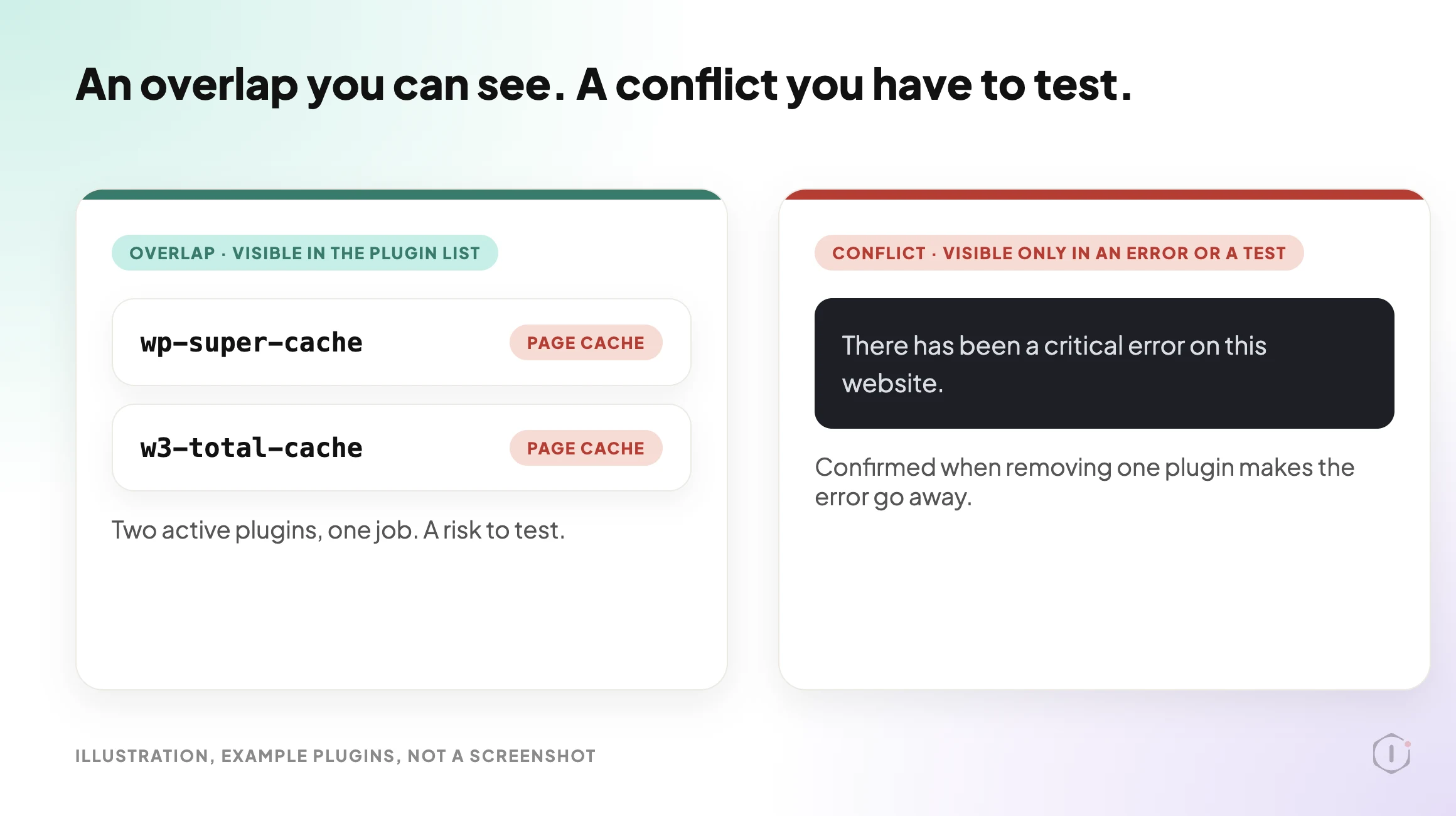
An overlap is two active plugins doing the same job. Two page cache plugins. Two SEO suites. Two backup plugins on separate schedules. You can see an overlap from the plugin list alone.
A conflict is two pieces of code interfering with each other so that something breaks. You can only see a conflict from an error, a log, or a test that fails and then passes when one plugin is removed.
Overlap is a sensible place to look first, because two plugins doing the same job can end up competing for the same files and settings. But it is only a place to look. Plugin A and plugin B can have nothing in common and still collide, and two plugins in the same job can sit side by side for years without a problem.
The playbook is built around that gap. It reports overlaps and does not call them conflicts. The step instructions say so directly: say “overlap” or “risk”, never “broken” or “conflicting” as a fact, because the check reads the plugin list, not errors.
That restraint is what makes the report usable. A report that cried “conflict” about every pair of plugins would train you to ignore it.
The Playbook, Step By Step
In the Protuno dashboard the playbook is called Plugin Conflict & Redundancy Check. It carries the Beta label, it has two steps, and it only reads. The public playbooks page lists it under Care with the same name and the same two steps, and says it needs no connector and sets no schedule: it runs when you start it.
Both steps show Automatic backup as None and Approval checkpoint as Off in the dashboard. No step pauses to ask you anything.
A short silent video walks through the same two steps.
Step 1: Plugin Inventory And Classification
The first step reads the site’s plugin list twice: once for active plugins and once for inactive ones. Every call is a read. No plugin is activated, deactivated, updated, deleted or configured.
Each plugin is then sorted into one job from a fixed table, by exact slug. The slug is the part of the plugin path before the first slash, so wordpress-seo/wp-seo becomes wordpress-seo.
Three rules in this step are worth knowing before you read any report.
- The table is closed. A plugin whose slug is not in the table is marked unclassified. The step is told never to infer a job from a plugin’s name or description.
- Protuno’s own plugins are left out. The three connection plugins are listed as “Protuno connection” and are never classified or flagged.
- The counts must add up. Classified plus unclassified plus Protuno connection must equal active plus inactive, and the step checks the sum before it answers.
There is also a size limit. The reply from the plugin list is cut at 8,000 characters, which the step instructions estimate at about 75 plugins per status. If a list is cut, the step uses the complete items it has and records the inventory as partial. It never guesses the missing ones.
The Fixed Table Of Jobs
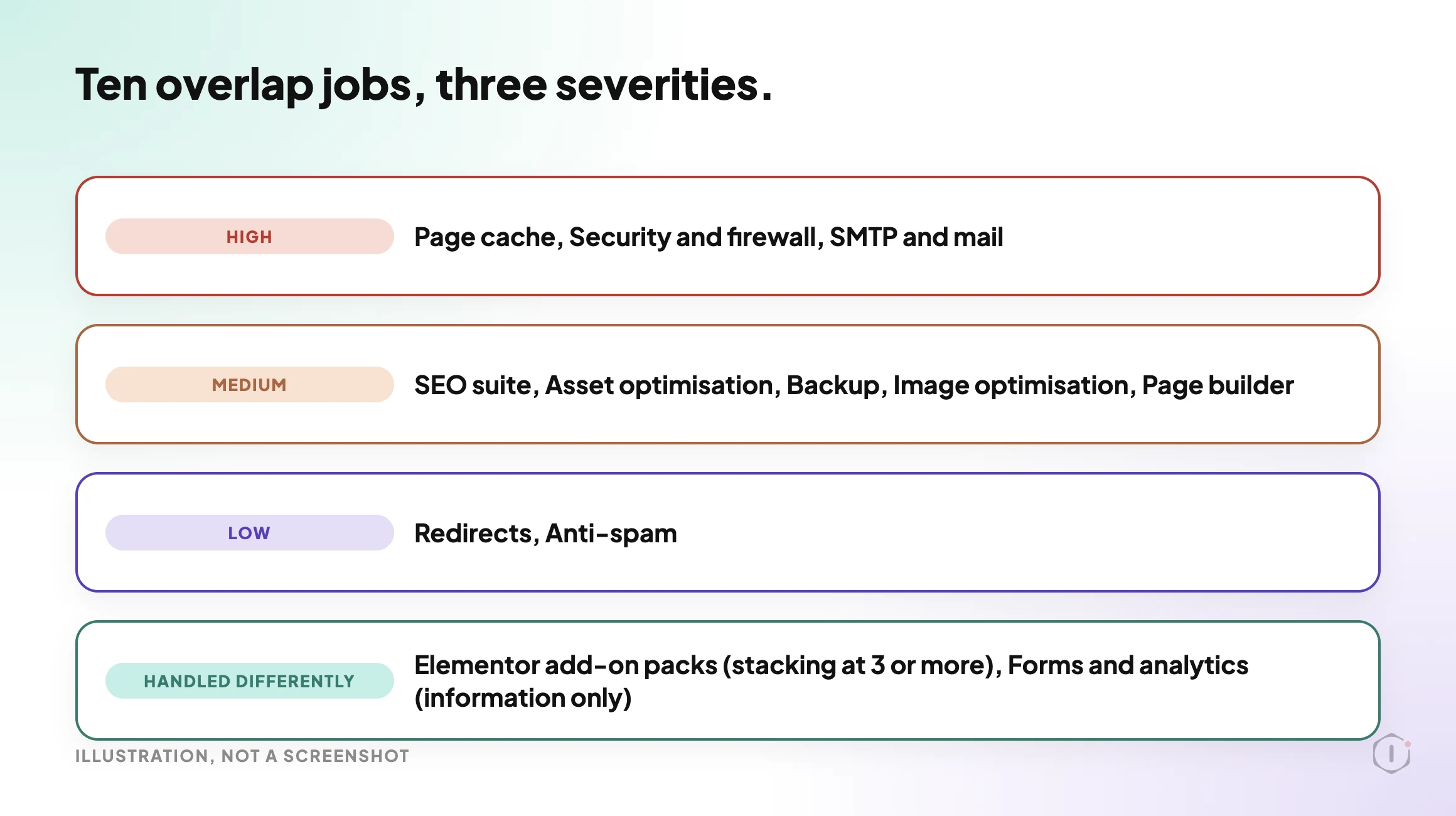
The table has thirteen jobs. Ten of them can produce an overlap finding, and each carries a severity.
| Job | Severity when two or more are active |
|---|---|
| Page cache | High |
| Security and firewall | High |
| SMTP and mail | High |
| SEO suite | Medium |
| Asset optimisation | Medium |
| Backup | Medium |
| Image optimisation | Medium |
| Page builder | Medium |
| Redirects | Low |
| Anti-spam | Low |
Three more jobs are handled differently. Elementor add-on packs count as stacking when three or more are active, and that is rated low. Forms and analytics plugins are listed for information only, because several of each on one site is often normal.
Step 2: Overlap And Conflict Report
The second step makes no calls at all. It composes a report from the inventory, and if the inventory is missing or the first step failed, it stops with a broken-chain message rather than inventing one.
It applies four findings and nothing else.
- Overlap. Two or more active plugins in the same job, rated by that job’s severity.
- Several installed. Two or more active forms or analytics plugins, listed under “For information” and not treated as a risk.
- Add-on stacking. Three or more active Elementor add-on packs, rated low, because of overlapping widgets and extra assets on every page.
- Inactive plugin. Every inactive plugin except Protuno’s own, rated low.
Inactive plugins never count toward an overlap. The reason they still show up is different. Inactive code is still on disk, and the step’s own wording is that it can still be attacked. If a plugin is not needed, delete it from the Plugins screen. The same wording adds that deleting cannot be undone, so keep the zip or a backup.
Why Each Overlap Matters
For every job, the step has a fixed reason, so the report explains itself instead of only listing names.
- Page cache: both try to own the cache and the
advanced-cache.phpfile, so pages can go stale or break after an update. - Security and firewall: double login blocking and lockouts, and rules that can block each other.
- SMTP and mail: both rewrite how mail is sent, and one can silently override the other. A separate post covers email deliverability.
- SEO suite: duplicate titles, meta tags, sitemaps and schema.
- Asset and image optimisation: double processing of the same files.
- Backup: two schedules, double load and storage, and no clear answer on which one restores.
- Page builder: two editors loading their assets.
- Redirects and anti-spam: rules evaluated twice, which makes it harder to tell which one acted.
Each finding names the plugins, gives the reason, and offers one safe next step: on staging, keep one, deactivate the other, then check the front end, forms and checkout.
What The Report Looks Like
The report has a fixed layout, so two reports from two sites can be read the same way.
- Plugins read: the active and inactive counts, and whether the inventory is complete or partial.
- Summary: overlaps by severity, inactive plugins, and unclassified plugins that were not assessed.
- Overlaps: a table of severity, job, active plugins, why it matters, and the first step.
- Add-on stacking, Inactive plugins and For information: each its own short section, or “none”.
- Not checked: real runtime errors and hooks, each plugin’s own settings, must-use plugins, and every unclassified plugin.
- Note: a line confirming it was a read-only check and nothing was changed.
“No overlaps found” counts as a pass.
A Five-Minute Version You Can Do By Hand
You do not need a playbook to get the first half of this value. Open the Plugins screen and do this.
- Sort the installed plugins in your head into jobs: cache, security, SEO, backup, mail, images, redirects, spam, page builder.
- Write down any job that has two active plugins.
- Write down every inactive plugin and ask whether anyone needs it.
- Mark the overlaps by how much damage they could do. A doubled page cache or a doubled firewall is worse than a doubled redirect plugin.
- Pick one overlap. Test it on staging, not on the live site.
If you test on staging, the staging drift post is about what drifts between staging and live, which matters before you trust a test result.
The playbook applies the same table to every site you point it at, which is the real gain on a client portfolio. On a single site you own, the manual version is fine.
What An Overlap Check Does Not Solve
An overlap report is useful because it is narrow. Here is what it will not do.
- It does not find conflicts between unrelated plugins. Plugins in different jobs can still collide, and the check cannot see it.
- It does not read error logs. Logs are where a real error would show. A related post covers the debug log exposed check.
- It does not judge plugins that are not in its table. They are listed as not assessed, and a re-run gives the same result, because the table is fixed.
- It does not read plugin settings. Two caching plugins with caching switched off in one of them would still be reported as an overlap.
- It does not see must-use plugins. The report says so under “Not checked”.
- It does not fix anything. Fixing an overlap is the site owner’s decision, made on staging first.
That last point is also a safety property. A tool that only reads and reports cannot break a site.
If You Already Have A Real Conflict
Then you need a test, not a report.
WordPress has a supported way to run one. The Health Check and Troubleshooting plugin on WordPress.org describes a troubleshooting mode: a clean session where all plugins are disabled and a default theme is used, but only for your own user until you turn it off or log out. Everyone else keeps seeing the normal site. That is a safer way to answer the question “is it a plugin?” on a live site, because it does not change what the public sees.
The Learn WordPress lesson also starts the same way every careful guide does. Make a backup before changing anything, and use a staging site if you have one. If the broken thing is an update you just ran, the update process playbook post is a related read.
When the cause is a plugin that has stopped receiving updates, the story is different: the premium plugin licenses post and the removed plugin risk post cover two ways a plugin can drift out of support without anything visibly breaking.
Two Outside Views
A tutorial and a forum thread. Neither is an endorsement, and neither describes the Protuno playbook.
In a March 2026 video, Ephraim Creations works through a site that kept crashing and shows the manual route most people take. He switches every plugin off at once by renaming the plugins folder in the host’s file manager, confirms the dashboard loads, renames the folder back so the plugins return in a deactivated state, and then turns them on one at a time until the site breaks again. The video ends with a plug for his own WordPress course.
On Reddit, an r/Wordpress thread titled “How do you figure out which plugin is causing a conflict when your site breaks?” starts with someone describing the manual method and what it costs:
u201cThe only way I could figure out to diagnose it was the classic “deactivate all plugins, reactivate one at a time, keep reloading the broken page.”u201d
Original poster, r/Wordpress, 16 April 2026
An early reply pushes back on that approach:
u201cWP_DEBUG, DevTools, server logs. Randomly deactivating plugins and hoping something happens is not how you troubleshoot issues.u201d
Reply in the same thread, r/Wordpress, 16 April 2026
The original poster answers that logs gave only generic JavaScript failures with no stack trace pointing at a plugin, and that bisecting never isolates the case where two plugins only break when both are active. That is exactly the situation where a list of overlaps gives you somewhere to start.
Where Protuno Fits
The Plugin Conflict & Redundancy Check playbook is the narrow, repeatable part of this problem. It sorts the plugin list into jobs, reports the overlaps, the stacked add-ons and the inactive plugins, and says what to test first on staging. It only reads.
It sits beside the other checks. A related post on the vulnerability scanner is about installed plugins and known problems, which is a different question from whether two of them overlap. The playbooks page lists the playbooks as Protuno publishes them, and this one has its own page at Plugin Conflict & Redundancy Check.
The Point
A plugin list cannot prove a conflict. It can tell you where to look first.
Read the overlaps by severity, test one on staging, and treat a quiet report as a good result. The next time a site shows that critical error, you will already know which pairs of plugins were worth suspecting.
Which job has two active plugins on the site you manage right now?
Sources And Further Reading
- Troubleshooting your site: Plugin and theme conflicts, Learn WordPress
- Health Check & Troubleshooting, WordPress.org plugin directory
- Debugging in WordPress, WordPress developer documentation
- WordPress 7.1.3 Maintenance and Security Release, WordPress.org News, 6 October 2026
- Fix WordPress Errors Fast | Plugin Conflict Debugging (2026), Ephraim Creations, YouTube, 17 March 2026
- How do you figure out which plugin is causing a conflict when your site breaks?, r/Wordpress, 16 April 2026
- Plugin Conflict & Redundancy Check, Protuno playbook page
Comments