WordPress Contact Form Health Check: The Playbook, Step By Step.
Contact Form 7 not sending emails? Read the setup first: SMTP plugin, From domain, recipient and spam rules. A read-only check, step by step.

A visitor fills in a contact form and sees “Thank you for your message. It has been sent.”
If the message goes nowhere, nobody finds out until a client asks why enquiries stopped.
Short answer: Contact Form 7 not sending emails is often a setup problem, and the setup behind a form can be checked before a single message is lost. Is an SMTP plugin active? Does the form send from the site’s own domain? Does it have a recipient? A read-only setup check can answer those in minutes, without sending a message. That is the whole job of the Contact Form Health Check playbook, and this post walks through its two steps.
What this post is, and is not: A method write-up of one read-only playbook, based on its two step files as shown in the Protuno dashboard on 19 October 2026. It is not a result from a real run: no playbook was run for this post, and every picture in it is an illustration with example values. It checks the setup only. It never says that mail is delivered, and neither does this post.
What A Setup Check Can See Before A Form Fails
The post on a form that says it sent, while nothing arrives covers what happens after the message is lost. This one covers the part before that, when nothing has gone wrong yet.
Contact Form 7’s own guidance on mail, “Best practice to set up mail”, explains why setup matters. Mail providers have been fighting spam and spoofing for years, and their filters are not flawless. Behaving like a spammer increases the chance of being treated like one. Its bottom line for the From field is plain: use an email address that belongs to the same domain as the site.
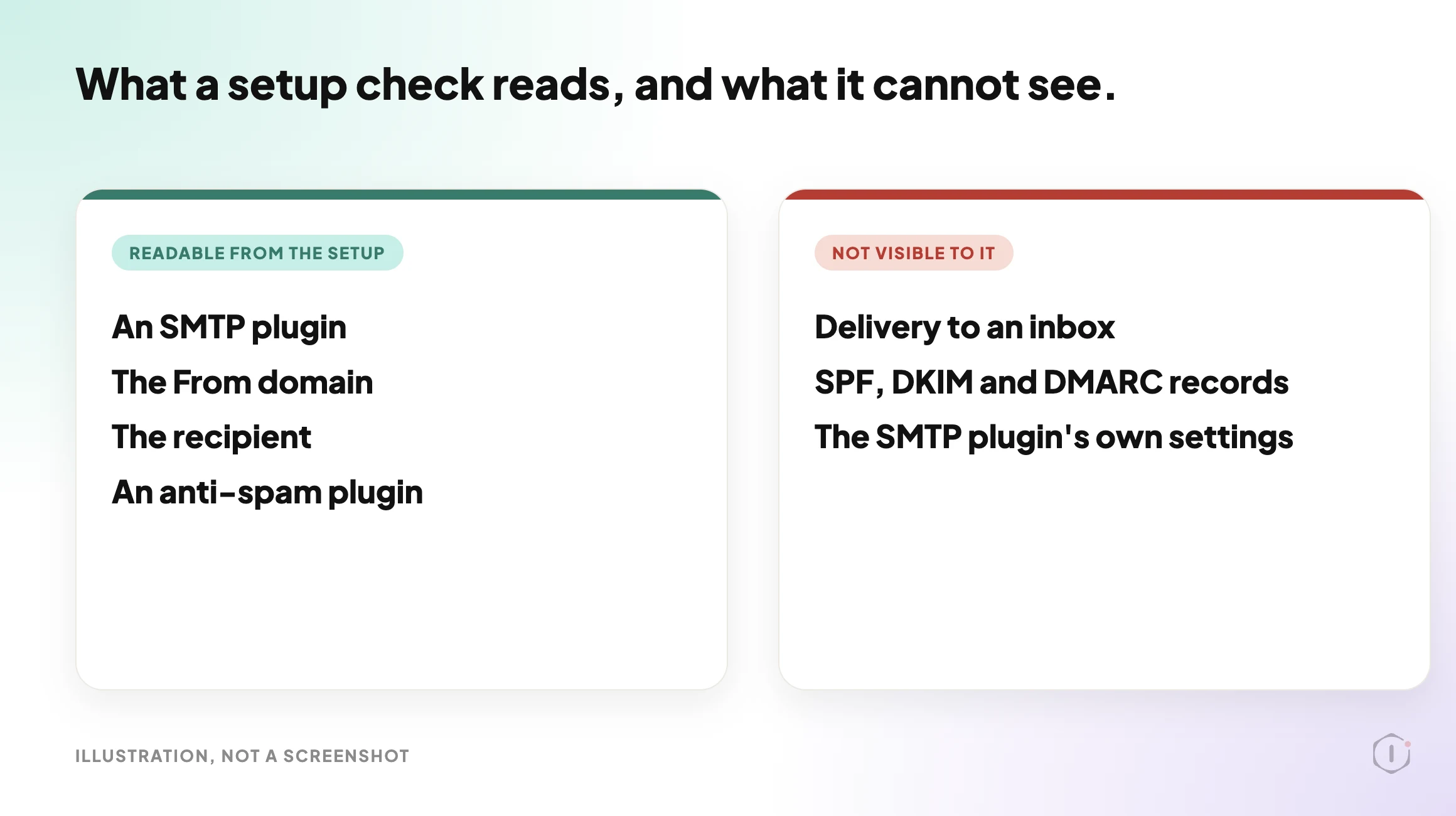
None of that needs a failed message to check. Four facts sit in the site’s settings, and they are the first things anyone asks about when a form stops reaching its owner:
- Is an SMTP plugin active, or does the site send form email with plain PHP mail?
- Does each form send from an address on the site’s own domain?
- Does each form have a recipient at all?
- Is any anti-spam plugin active?
A setup check reads those four. It cannot tell you whether a message arrived, because nothing in the setup says so.
The Playbook, Step By Step
Contact Form Health Check is a Beta playbook with two steps. It only reads: every call it makes is a GET, no form is submitted, no email is sent, and no plugin or setting is changed. The dashboard shows both steps with Automatic backup set to None and the approval checkpoint off, which is consistent with a playbook that changes nothing.
It runs when you start it. No schedule is set by default, and it needs no connector.
A short silent video walks through the same two steps.
Step 1: Detect Forms And Mail Setup
The first step reads the site and writes one block of facts for the second step to use. It makes about 15 calls, in this order:
- The site’s settings, to get the site’s host name and the domain of the administration email.
- The list of active plugins, sorted by exact slug into form plugins, SMTP or mail plugins, and anti-spam plugins.
- For Contact Form 7, the list of forms (up to 20), then the sender and recipient of each form (up to 10).
- For each active form plugin, a search of pages and posts for its shortcode, to find where forms are embedded.
- For Contact Form 7, which form sits on which page, by reading the content of up to 10 pages or posts that matched.
The slug matching is exact. A plugin that is not on the lists is not counted, so a mail plugin under an unlisted name looks like no SMTP plugin at all. The form plugins it knows are Contact Form 7, WPForms Lite, WPForms, Gravity Forms, Fluent Forms, Ninja Forms and Formidable Forms. Elementor Pro is noted, but its forms live inside page layouts and are not checked.
One privacy rule runs through the whole playbook: it never writes a full email address. The report shows the domain only, such as @example.com.
Step 2: Form Health Report
The second step makes no calls. It applies eight rules to what the first step found, and it evaluates every rule every time, so one finding never hides another.
| # | Rule | Where it appears | Severity |
|---|---|---|---|
| 1 | No SMTP plugin while forms are present | Findings table | High |
| 2 | An SMTP plugin is present | Header line | Not a finding |
| 3 | A form sends from a different domain than the site | Findings table | Medium |
| 4 | A form has no recipient | Findings table | Medium |
| 5 | Forms are present and no anti-spam plugin is active | Findings table | Low |
| 6 | Administration email is on another domain | Header line | Not a finding |
| 7 | A form plugin is active but no forms were found | Header line | Not a finding |
| 8 | A form is not on any published page | Findings table | Low |
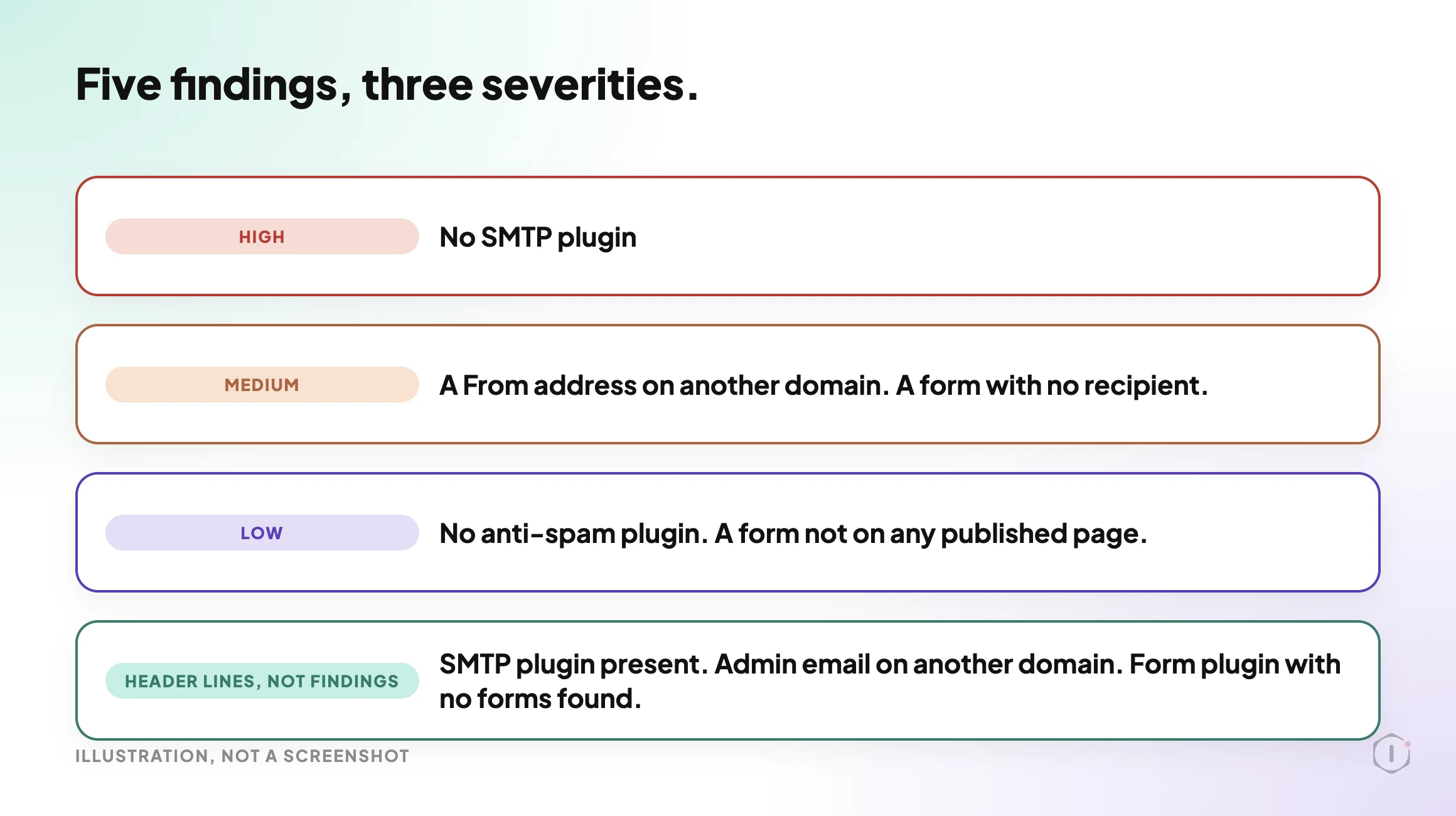
Only rules 1, 3, 4, 5 and 8 become rows in the findings table, ordered High, then Medium, then Low. Rules 2, 6 and 7 are lines at the top of the report, because they describe the setup rather than a problem.
Why Each Finding Matters
The step file gives a reason for each finding, and the reasons are worth reading as they are written.
No SMTP plugin (High). The site most likely sends form emails with plain PHP mail, which many mail providers reject or file as spam. It is the only High finding.
A From address on another domain (Medium). Mail sent from a domain other than the site’s often fails SPF and DMARC checks. A From of the default site admin placeholder counts as the admin email’s domain, so the check compares that instead. This is the same advice as the Contact Form 7 documentation, turned into a rule a machine can apply to every form.
A form with no recipient (Medium). A form whose To field is empty has nowhere to send. It is the simplest finding in the list.
No anti-spam plugin (Low). Forms are present and no anti-spam plugin is active. It is rated Low, below the three findings that concern mail setup and recipients. The spam comments post covers the comment side of the same problem.
A form not on any published page (Low). The form may be unused, or placed somewhere the check cannot see, such as a widget, a page builder layout or a theme template. The suggested next step is to check where the form is used and, if nowhere, leave it or tidy it up.
What The Report Looks Like
The report is plain markdown with a fixed layout. In order, it has:
- A header with the form plugins, the number of forms, the pages that embed them, the mail setup line and the administration email domain.
- A Checks section with one line per rule, showing the values compared and the outcome.
- A Findings table, or the words “No findings”.
- A Forms table with each form, its From and To, and where it appears.
- Lists of where forms appear and of what was not checked.
- Next steps, which always begin with sending a test message through each form.
The mail setup line is worded carefully. When an SMTP plugin is active it reads “<plugin> is active; its settings and delivery were not verified.” The report never says mail works, is delivered, arrives or is fine. That restraint is the point of the playbook, and it is the right instinct for anyone writing a hand-made version of this check.
A Ten-Minute Version By Hand
You do not need the playbook to run the same check once.
- Open Plugins and note any form plugin, any SMTP or mail plugin and any anti-spam plugin that is active.
- Open Settings, then General, and note the domain of the administration email address.
- Open Contact, then Contact Forms. For each form, open the Mail tab and read the From and To fields.
- Compare each From domain with the site’s domain. Anything that differs is worth a second look.
- Find the page that embeds each form. A form you cannot find on a page may be unused.
- Send a real message through each form and confirm it reaches the inbox that should receive it.
Step 6 is the one no setup check can replace. The playbook says so too, and it is the first item in its own next steps.
What A Setup Check Does Not Solve
It does not prove delivery. A site can pass every rule and still lose mail, for the reasons the email deliverability post describes.
It does not read the sending domain’s DNS. SPF, DKIM and DMARC records are listed in the report as not checked. The posts on SPF lookups, DKIM selectors and DMARC for agencies cover those, and the next steps point to the SMTP Deliverability Check playbook for real delivery and DNS tests.
It does not read the SMTP plugin’s own settings. “An SMTP plugin is present” is the strongest positive wording it allows itself.
It lists forms one by one for Contact Form 7 only. Forms from other plugins are found only where they are embedded.
One more limit follows from how the step is written, and it is my reading of the step file rather than something it states. Rule 5 looks at the active plugin list. The first step makes no call that reads a form’s own CAPTCHA or Turnstile settings, so a Contact Form 7 form protected only that way would still be reported as having no anti-spam plugin. Treat a Low finding there as a prompt to check, not as proof.
Two Outside Views
A tutorial and a forum thread. Neither is an endorsement, and neither describes the Protuno playbook.
In a September 2026 video, WP Handy walks through the usual repair for a Contact Form 7 form that is not sending. The video’s own timestamps run from installing the free FluentSMTP plugin, through creating a Google Cloud project and a client ID and secret, to authenticating with Google and sending a test email. Its description lists, among the things it covers:
“How to check and fix your Contact Form 7 Mail tab settings”
WP Handy, How to Fix Contact Form 7 Emails Not Sending (Easy Method), video description, 11 September 2026
That Mail tab check is the part the playbook reads automatically. The SMTP setup that follows is a long, hands-on job, and it is what the “No SMTP plugin” finding is pointing at.
On Reddit, an r/Wordpress thread titled “Automated Email form tester” starts with a developer describing a worry close to the one this playbook is aimed at:
“I’m a WP dev, that continues to have my client’s email forms suddenly stop working (email not delivered).”
Original poster, r/Wordpress, 23 September 2026
The replies split on what to test. One argues for checking the mail path rather than the form:
“test the mail path, not the form”
Reply in the same thread, r/Wordpress, 23 September 2026
Another argues the opposite, that skipping the form loses an important part of the test:
“SMTP can work while the submit button doesn’t.”
Another reply in the same thread, r/Wordpress, 23 September 2026
Both replies are about live testing, which is the step a setup report cannot do. That is the honest limit of any setup check, including the one this post describes.
Where Protuno Fits
The Contact Form Health Check playbook is the narrow, repeatable part of this problem. It reads the form plugins, the forms and the mail setup, applies the eight rules, and writes one report with findings by severity and a next step for each. It only reads, and it makes no promise about delivery.
It sits beside the other checks. The plugin conflict post covers a different plugin-list check. This one has its own page at Contact Form Health Check, and the one that tests real delivery is SMTP Deliverability Check.
The Point
A form that has never failed can still be one weak setting away from failing. The setup is the part you can read today, and reading it costs no message at all.
Run the check, fix the High and Medium findings, then send a real test through each form. The setup report tells you where to look. Only the test tells you whether it arrived.
Which of your forms sends from a domain that is not the site’s?
Sources And Further Reading
- Best practice to set up mail, Contact Form 7 documentation
- Editing messages, Contact Form 7 documentation
- wp_mail(), WordPress developer reference
- Email sender guidelines, Gmail Help
- WordPress 7.1.3 Maintenance and Security Release, WordPress.org News, 6 October 2026
- How to Fix Contact Form 7 Emails Not Sending (Easy Method), WP Handy, YouTube, 11 September 2026
- Automated Email form tester, r/Wordpress, 23 September 2026
- Contact Form Health Check, Protuno playbook page
Comments