WordPress Stuck In Maintenance Mode: Why And How To Fix It.
WordPress stuck in maintenance mode after an update? Learn what the .maintenance file does, why it gets left behind, and how to remove it safely by hand.

You clicked Update, the page spun, and now every visitor sees one plain line: “Briefly unavailable for scheduled maintenance. Check back in a minute.” You check back in a minute. Then in ten. The message is still there, and the admin area shows it too.
This is one of the most common WordPress scares, and one of the easiest to fix once you know what is behind it. The message comes from a single small file that WordPress creates during an update and is meant to delete when the update ends. When the update is cut off, the file stays. This post explains what that file is, why it gets left behind, how WordPress itself treats it, and how to remove it without making things worse.
The Message Everyone Sees
The text is not from your theme or a plugin. It is built into WordPress core. In the current core code, the wp_maintenance function stops the page load and prints exactly that sentence, with the title “Maintenance”.
It also sends an HTTP 503 status and a Retry-After header of 600 seconds. A 503 tells browsers and search engines that the site is down for a short time and will be back. That is the right signal for a two-minute update. It is the wrong signal for a site that stays down all afternoon, because uptime checks fail, customers leave and a long outage can start to affect crawling.
If you run an uptime monitor, this is often how you find out. Our uptime monitoring post explains why a 503 page still counts as down even though the server answered.
What The .maintenance File Is
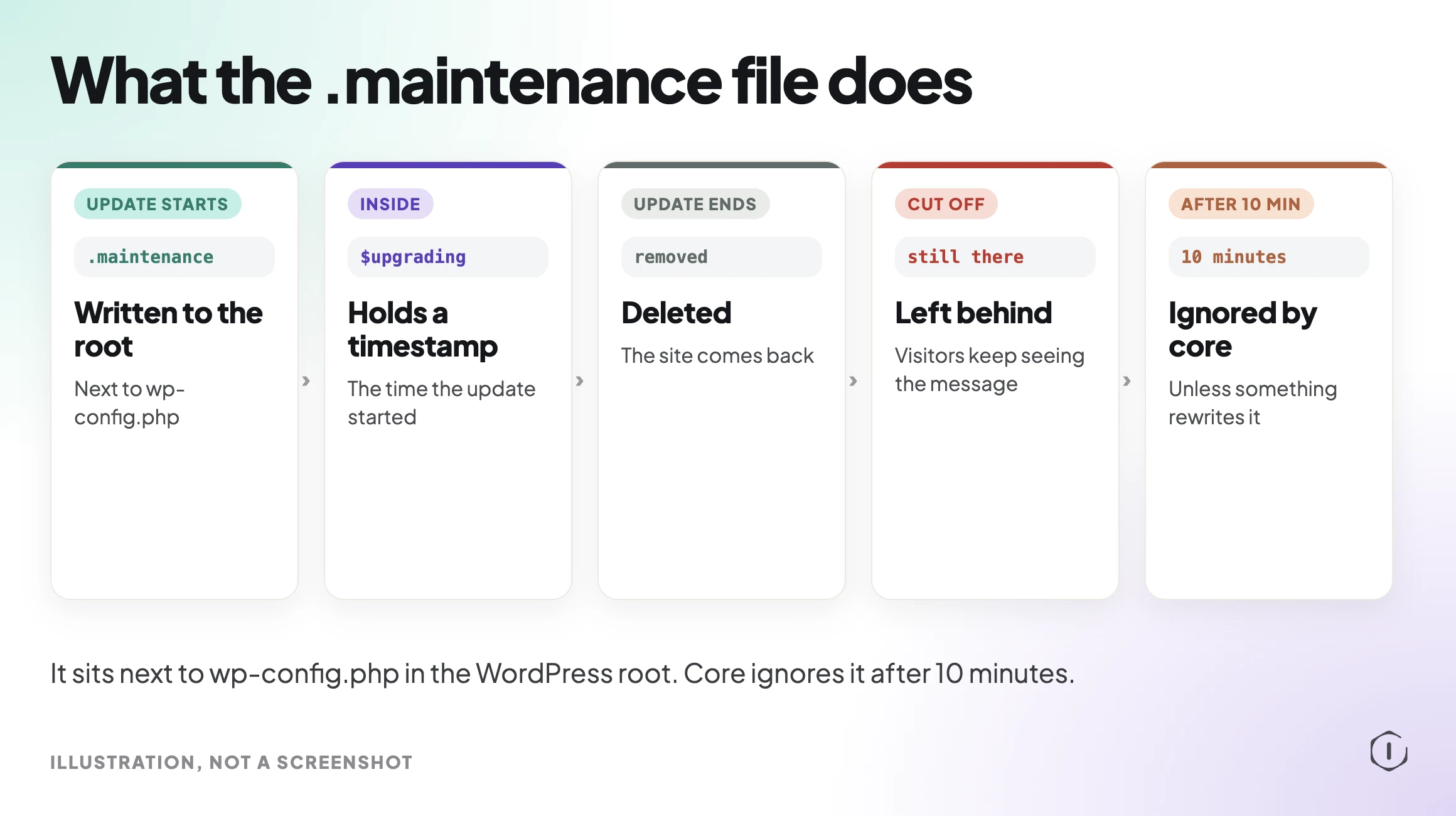
When WordPress updates core, a plugin or a theme, it first writes a file named .maintenance to the root of your install, the same folder that holds wp-config.php. The file contains one PHP variable, $upgrading, set to the time the update started.
On every request, WordPress checks for that file. The core function wp_is_maintenance_mode looks for .maintenance in the root folder and, if it finds it, reads the timestamp. If the file is there and fresh, the visitor gets the maintenance message instead of your site.
When the update finishes, WordPress deletes the file and the site comes back. Most of the time this takes a few seconds and nobody notices.
The leading dot matters. On Linux and macOS a name that starts with a dot is hidden, so the file does not show in many file managers and FTP clients until you turn on hidden files. That is the main reason people cannot find it.
Why WordPress Gets Stuck
The file is left behind when the update stops before WordPress reaches the step that deletes it. Common causes:
- The browser tab was closed or the connection dropped mid-update.
- Many plugins were updated in one bulk run and the server hit a time or memory limit.
- A plugin or theme update threw a fatal error part way through.
- File permissions let WordPress create the file but not remove it. Our file permissions post covers how to check ownership.
- A specific plugin’s update routine hangs. In the Reddit thread quoted below, the poster later traced it to one plugin.
None of these mean the site is hacked or the database is damaged. They mean an update was interrupted, and that is worth knowing, because the files of whatever was updating may now be half replaced.
The Ten Minute Rule In Core
Here is the detail most guides skip. Core has a built-in timeout. In wp_is_maintenance_mode, the comment reads: “If the $upgrading timestamp is older than 10 minutes, consider maintenance over.” The check compares the current time with the timestamp in the file, and after 10 minutes it stops showing the message even if the file is still there.
So if your site is still showing the message long after 10 minutes, something else is going on:
- The .maintenance file is being rewritten, for example by an update that keeps retrying or a stuck cron task.
- A caching layer or CDN is serving a stored copy of the 503 page.
- A maintenance or “coming soon” plugin is showing its own page, which looks similar but is not the core message.
- A custom maintenance.php drop-in in wp-content is in play. Core loads that file instead of the default message when it exists.
Knowing this rule saves time. Waiting 10 minutes is a valid first step. Waiting an hour is not.
How To Fix It By Deleting The File
If the message has lasted more than a few minutes, the fix is to remove the file yourself. As Kinsta says in the video quoted below, you only need to delete the .maintenance file that the update created.
You need access to the site’s files. Any of these work:
- Your host’s file manager in the control panel.
- An SFTP or FTP client, such as FileZilla.
- SSH, if your host offers it.
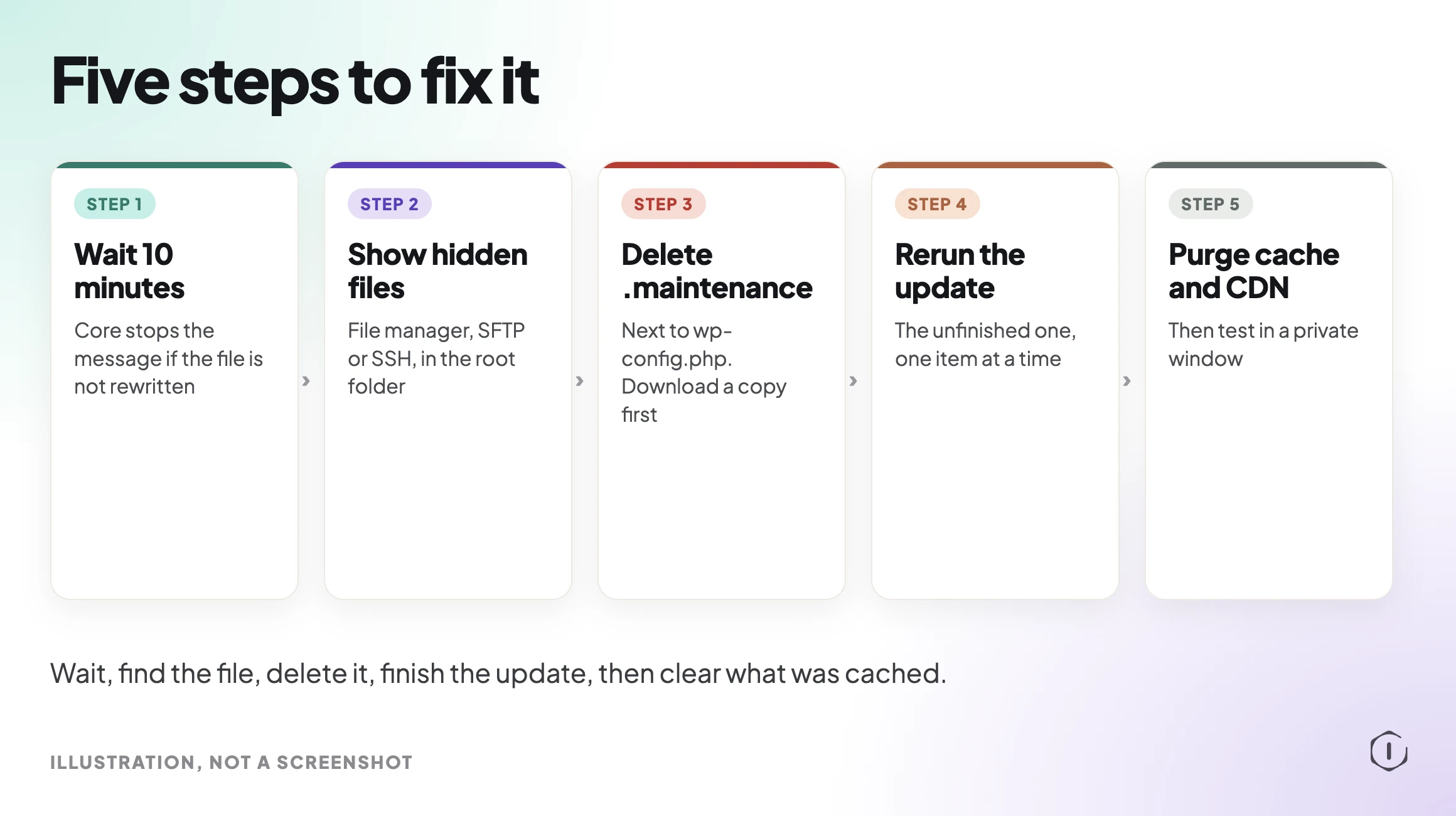
Open the root folder of the WordPress install. Turn on “show hidden files” if your tool has that option. Find .maintenance and delete it. Reload the site in a private window. In most cases the site is back at once.
If you use SSH, the file sits next to wp-config.php, and listing the folder with hidden files shown will confirm it is there before you remove it.
After The File Is Gone, Check The Update
Deleting the file brings the site back. It does not finish the update. This is the step people skip, and it is where the real risk is.
Go to Dashboard and then Updates. Look at what was being updated when it broke:
- If a plugin or theme still shows an update available, run that one update again on its own.
- If a plugin is missing or deactivated, reinstall it from a clean copy.
- If core was updating, check the version shown in the admin footer and on the Updates screen.
Update one item at a time, not in bulk, so that if it happens again you know which item caused it. If the site shows a white screen or a critical error after the file is removed, a half-finished plugin update is the likely cause, and our white screen post walks through recovery. If two plugins seem to clash after an update, our plugin conflict post shows how to isolate one.
Clear The Cache Before You Panic
If you deleted the file and still see the message, check caching before anything else. A page cache plugin, server cache or CDN may have stored the 503 page while the site was down.
Purge the page cache from the plugin or host panel. Purge the CDN if you use one. Then test in a private window, or add a random query string to the URL to skip the cache. If the message is gone there, it was a stale copy.
If it is still there, search the root folder and wp-content again. Look for a second .maintenance file from a staging copy or a nested install, and look for a maintenance.php drop-in in wp-content.
How To Stop It Happening Again
You cannot make updates fail-proof, but you can make a stuck update rare and cheap:
- Update in small groups, not 20 plugins at once.
- Keep the browser tab open until the update screen says it is done.
- Update at quiet times, so a short outage hits fewer people.
- Make sure WordPress can write and delete files in its own folder.
- Have a backup you have actually restored, so a bad update is an annoyance and not a crisis. Our backup verification post explains how to test one.
- Decide which updates run automatically and which wait for a person. Our auto updates policy post sets out a simple split.
For core updates in particular, our core update readiness post lists what to check before you click Update.
What Deleting The File Does Not Do
It does not repair the plugin, theme or core files that were being replaced. Those may be half updated, which is why the check above matters.
It does not undo the update. If the new version is the problem, you need to roll back to the old one. Our automatic rollback post covers what WordPress does on its own and what it does not.
It does not clear caches, fix permissions or stop a plugin that keeps rewriting the file. And it does not tell you why the update failed. If the site gets stuck again on the same update, look at the server error log or ask your host before trying a third time.
A Careful Version You Can Do By Hand
If you want a safe order with nothing installed:
- Wait 10 minutes from when the update started. Core stops showing the message after that if the file is not rewritten.
- Test in a private window to rule out your own browser cache.
- Open the site files through your host’s file manager or SFTP, with hidden files shown.
- In the root folder, next to wp-config.php, find .maintenance. Download a copy first, then delete it from the server.
- Reload the site. If it is back, go to Dashboard and then Updates.
- Rerun any update that did not finish, one at a time.
- Purge page cache and CDN cache, then test again.
- If the message returns, check wp-content for maintenance.php and check whether a maintenance plugin is active.
- If the site shows an error instead, restore the last working backup or roll back the item that was updating.
Stop at any step that surprises you. A site that is down for ten more minutes is better than one that is broken for a day.
Two Outside Views
“You simply need to delete the dot maintenance file that was created.”
Kinsta, How To Fix WordPress Site Stuck in Maintenance Mode, YouTube, 2021, from the video transcript
That is the fix in one line. The caption spells the file as “dot maintenance”; on disk it is .maintenance, a hidden file in the WordPress root.
“Are you using a MM plugin? Does it happen with all plugins/theme updates, or specific updates?”
u/lickthislollipop, WordPress gets stuck in in maintenance mode when installing new plugins or updating existing, r/Wordpress, 2024
This is the right first question when it keeps happening. The poster later marked the thread solved and named one plugin as the cause, which is why updating one item at a time helps you find it.
The Point
A site stuck in maintenance mode is almost always one leftover file from an update that did not finish. Core gives up on that file after 10 minutes, so a longer outage means something is rewriting it or caching the page. Delete the file, check what was updating, clear the cache, and update one thing at a time next time.
Sources And Further Reading
- WordPress Developer Resources, wp_is_maintenance_mode()
- WordPress Developer Resources, wp_maintenance()
- WordPress.org Documentation, Updating WordPress
- Kinsta, How To Fix WordPress Site Stuck in Maintenance Mode (YouTube, 2021)
- r/Wordpress, WordPress gets stuck in in maintenance mode when installing new plugins or updating existing (2024)
Comments