WordPress Plugin Updates: The Safe Update Playbook Guide.
How to update plugins in WordPress without breaking the site: backup first, hold back risky releases, update one at a time and check pages after each one.

Open the WordPress dashboard on a site nobody has touched for a few months and the Plugins menu shows a red number. Eleven updates waiting. There is a checkbox at the top of the list that selects them all, and an Update button under it.
That button is how a lot of sites break. Not because updates are bad, but because eleven changes land at once, and when the front end shows a critical error afterwards nobody knows which of the eleven did it. This post walks through how to update plugins in WordPress so that a bad release costs you one plugin rolled back, not an afternoon of guessing, using the steps of the Plugin Safe Update playbook as the outline.
Why Bulk Updates Break Sites
Every plugin update replaces that plugin’s files. Most of the time the new version works with everything else on the site. Sometimes it does not: it needs a newer PHP version, it clashes with another plugin, or the release itself has a bug that was fixed a few days later.
When you update one plugin and the site breaks, the cause is obvious. When you update eleven and the site breaks, you have eleven suspects and a site that may be down while you work through them. A long bulk run is also more likely to hit a server time or memory limit part way through, which can leave the site stuck behind the maintenance message.
The fix is not to stop updating. Outdated plugins are one of the common ways sites get compromised, which is why our vulnerability monitoring post treats a known vulnerability as a reason to update sooner. The fix is to update in an order and at a pace that makes a failure small.
What The Plugin Safe Update Playbook Is
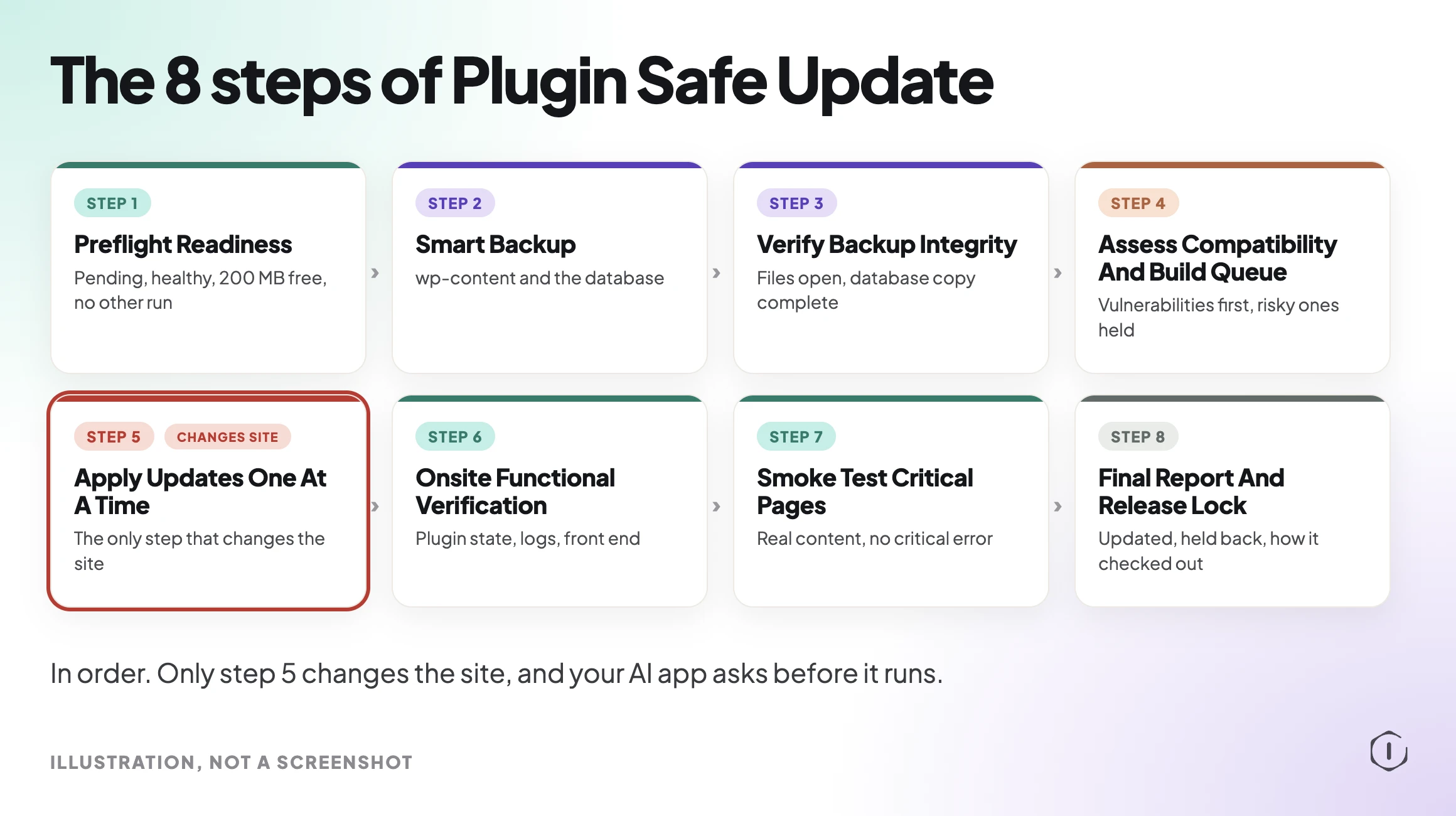
Plugin Safe Update is a Protuno playbook run by Wren, the Care Super Agent. It has 8 steps. It checks the site is ready, takes and checks a backup, decides which updates look safe to apply now, applies them one at a time, checks the site after each, and writes a report of what was updated, what was held back and how the site checked out.
It is one of the playbooks that can change the site. It changes plugins in one step, step 5, and before that step your AI app asks you first. It needs no connector. The rest of this post goes through the steps in order, because the order is the point.
Step 1: Preflight Readiness
Before anything else, the playbook checks four things: that updates are actually pending, that the site is healthy, that at least 200 MB of disk space is free, and that no other run is active. It also records which plugins are active, so the end of the run can compare against the start.
If any check fails, it stops here. That matters more than it sounds. Updating a site that is already throwing errors makes it impossible to tell old problems from new ones, and running out of disk space mid-update is one of the quieter ways to end up with half-replaced files.
Steps 2 And 3: Backup, Then Prove The Backup
Step 2 creates a labelled backup of the wp-content folder and the database before any plugin is touched. Step 3 checks that the backup files open and that the database copy is complete.
No plugin is updated unless the backup was created and verified. If the backup fails, the run stops. The WordPress backup documentation makes the same point in plainer terms: your site has two parts, the files and the database, and a backup needs both.
The second step is the one people skip. A backup that was never opened is a guess. Our backup verification post covers why a restore you have tested is worth more than a schedule that says backups ran.
Step 4: Decide What Not To Update Yet
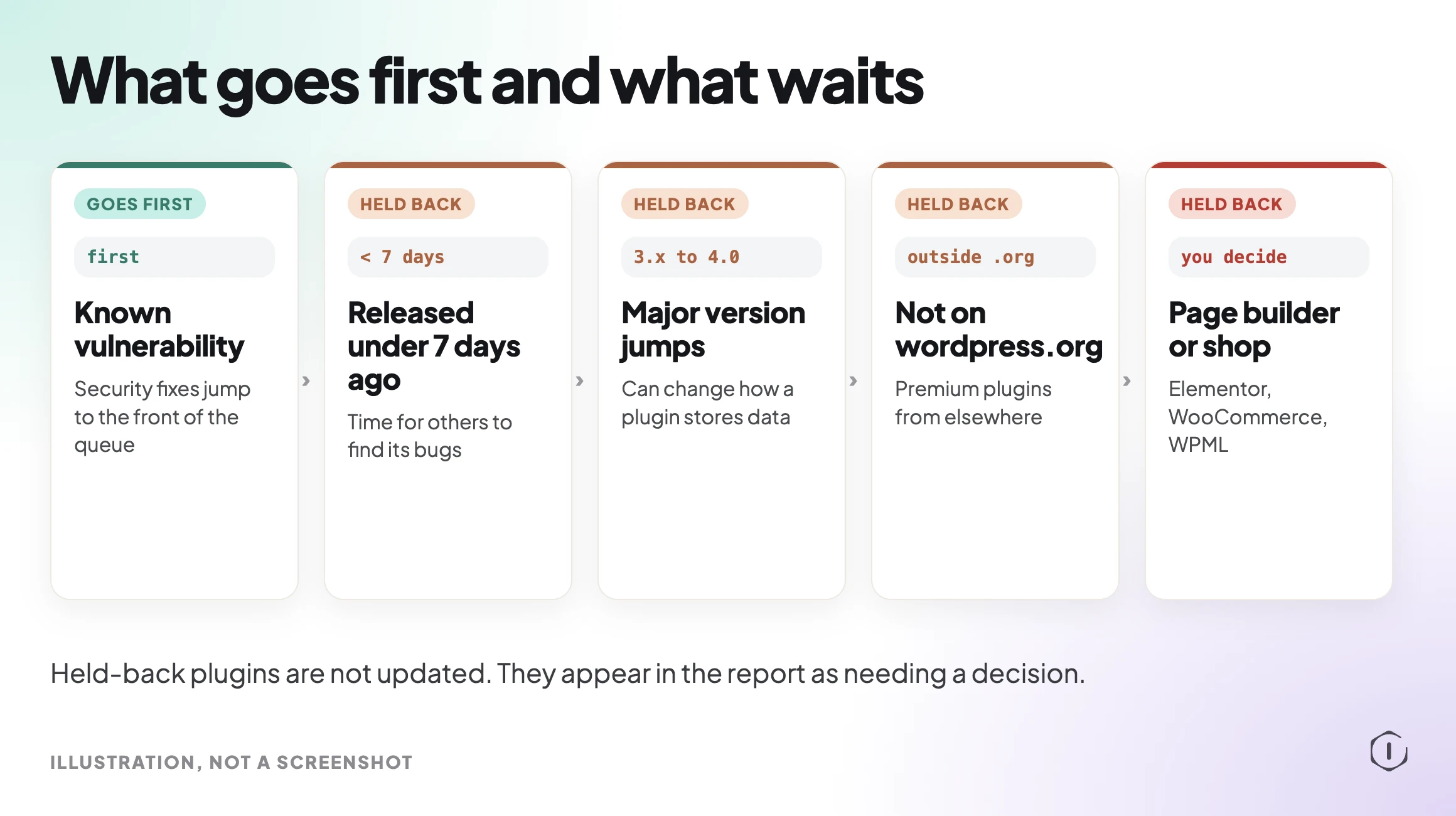
This is the step that separates a careful update from a bulk one. The playbook builds a queue of updates that look safe to apply now. Plugins with a known vulnerability go first.
It holds back:
- Releases less than 7 days old.
- Major version jumps.
- Plugins that are not on wordpress.org.
- Page builder and shop plugins, such as Elementor, WooCommerce and WPML.
Held-back plugins are not updated. They appear in the report as needing a decision. The reasoning is simple: a release that is a week old has had time for others to find its bugs, a major version can change how a plugin stores data, and a page builder or shop plugin touches so much of the site that a person should choose when it moves. Our core update readiness post applies the same thinking to WordPress itself.
Step 5: One Plugin At A Time
Step 5 is the only step that changes plugins. It updates the chosen plugins one at a time and checks the site after each one. If an update breaks the site, it puts that plugin back and stops, leaving the remaining plugins untouched.
That stop is deliberate. Carrying on after a failure would mean stacking more changes on a site that is already in an unknown state. Stopping leaves you with one known cause and a list of updates that were never attempted, which is a much easier afternoon. If you do end up with two plugins fighting after an update, our plugin conflict post shows how to isolate them.
Steps 6 And 7: Check The Site, Then The Pages That Matter
Step 6 checks plugin state, the error logs and the front end after the updates, and compares the active plugins with the list recorded in step 1. A plugin that was active before and is inactive now is a finding, even if the site looks fine.
Step 7 reloads the pages that matter and checks each one returns real content with no critical error. A home page that loads is not proof that checkout, a contact form or a members area still works. If a page does show “There has been a critical error on this website”, our WP Doctor playbook post covers how that message is diagnosed.
Step 8: The Report
The last step writes the final report, releases the run lock and notifies your channel if one is set. The report lists which plugins were updated, which were held back and how the site checked out afterwards.
The held-back list is the useful part for the next session. It is your to-do list of updates that need a person to decide, with the reason each one waited.
What The Playbook Does Not Do
It does not update WordPress core or themes. It updates plugins.
It does not update plugins that need a decision or are held back. A page builder update waits for you, however long it has been out.
It does not run on its own unless you set that up. It runs when you ask for it in your AI app; on Pro and Agency you can also put it on a routine. Before the step that changes the site, your AI app asks you first.
It does not replace testing the things only you know about. Step 7 checks that key pages return real content. It cannot tell you that a custom report your client relies on now shows the wrong totals. If a run does need undoing, Roll back in the app can undo it, and our automatic rollback post explains what WordPress itself can and cannot roll back.
A Careful Version You Can Do By Hand
You can follow the same order without the playbook:
- Check the site is healthy before you start. Fix existing errors first, and check there is free disk space.
- Write down which plugins are active.
- Take a backup of the files and the database. Open it, or restore it to a staging copy, to prove it works.
- Sort the waiting updates. Do security fixes first. Leave releases under a week old, major version jumps, premium plugins from outside wordpress.org, and page builder or shop plugins for a separate, planned session.
- Update one plugin. Load the front end in a private window and check the admin area.
- If it broke, put the old version back and stop. If not, move to the next one.
- When the queue is done, compare the active plugin list with step 2 and click through the pages that matter: home, checkout, forms, login.
- Write down what you updated and what you held back, and why.
It is slower than the bulk button. It is much faster than a site that is down while you guess. The 11 Sep post The WordPress Update Process, Written Out Before It Runs has the measured time for each step if you want to plan the session. For which updates should ever run automatically, see our auto updates policy post.
Two Outside Views
“If everything works, move to the next plugin and repeat the same easy process one at a time.”
Presslyte, How to Update WordPress Plugins Safely, YouTube, 2026, from the video transcript
The whole method in one line: one change, one check, then the next.
“It is always important to get a backup of the website before updating WordPress core or plugins. I use All-in-One Migration for this.”
u/atlasflare_host, Broke the first site I ever touched… did I mess up?, r/Wordpress, 2025
The thread starts with someone who updated every plugin on an old site at once and broke it. The reply is the advice almost every comment there repeats: backup first.
Where Protuno Fits
Plugin Safe Update is the playbook that applies plugin updates for you in the careful order above: preflight, a backup it checks, a queue that holds back risky releases, one update at a time with a check after each, a check of key pages, and a report. It asks before the step that changes the site, and Roll back in the app can undo a run.
Two related playbooks do the reading around it. Major Update Readiness reads which plugins say they were tested with a WordPress version before a core update. WP Doctor diagnoses a problem after something goes wrong. Each one has its steps written out on the playbooks page before anything runs, and this one has its own page at Plugin Safe Update.
The Point
Updating plugins is not the risk. Updating eleven at once with no backup and no plan is. Check the site first, prove the backup, hold back what needs a decision, update one plugin at a time and check after each. A failure then costs one plugin, not the site.
Comments