WordPress Spam Registrations: The Playbook, Step By Step.
Open the Users screen and filter to Subscriber. If the list is full of accounts you do not recognise, with usernames that look machine-made, you are looking at the thing this post is about. The harder question is not how to delete them. It is which settings let them in, and whether the comment queues […]

Open the Users screen and filter to Subscriber.
If the list is full of accounts you do not recognise, with usernames that look machine-made, you are looking at the thing this post is about.
The harder question is not how to delete them. It is which settings let them in, and whether the comment queues are filling up through the same open door.
Short answer: WordPress spam registrations are new accounts created on a site by people you did not invite. Two settings decide how easy that is: whether anyone can register, and which role a new account gets. A read-only playbook can check both, count the comment queues and list accounts that are worth a look, without changing a user or a comment.
What this post is, and is not: A method write-up of one read-only playbook, based on its two step files as shown in the Protuno dashboard and on its public page on 27 October 2026. It is not a result from a real run: no playbook was run for this post, and every number in the images and video is an example value. It does not say how spam accounts get past a registration form on any particular site, because that depends on the site.
Two Doors Spam Walks Through
A WordPress site has two common ways for a stranger to leave something behind. One is an account. The other is a comment.
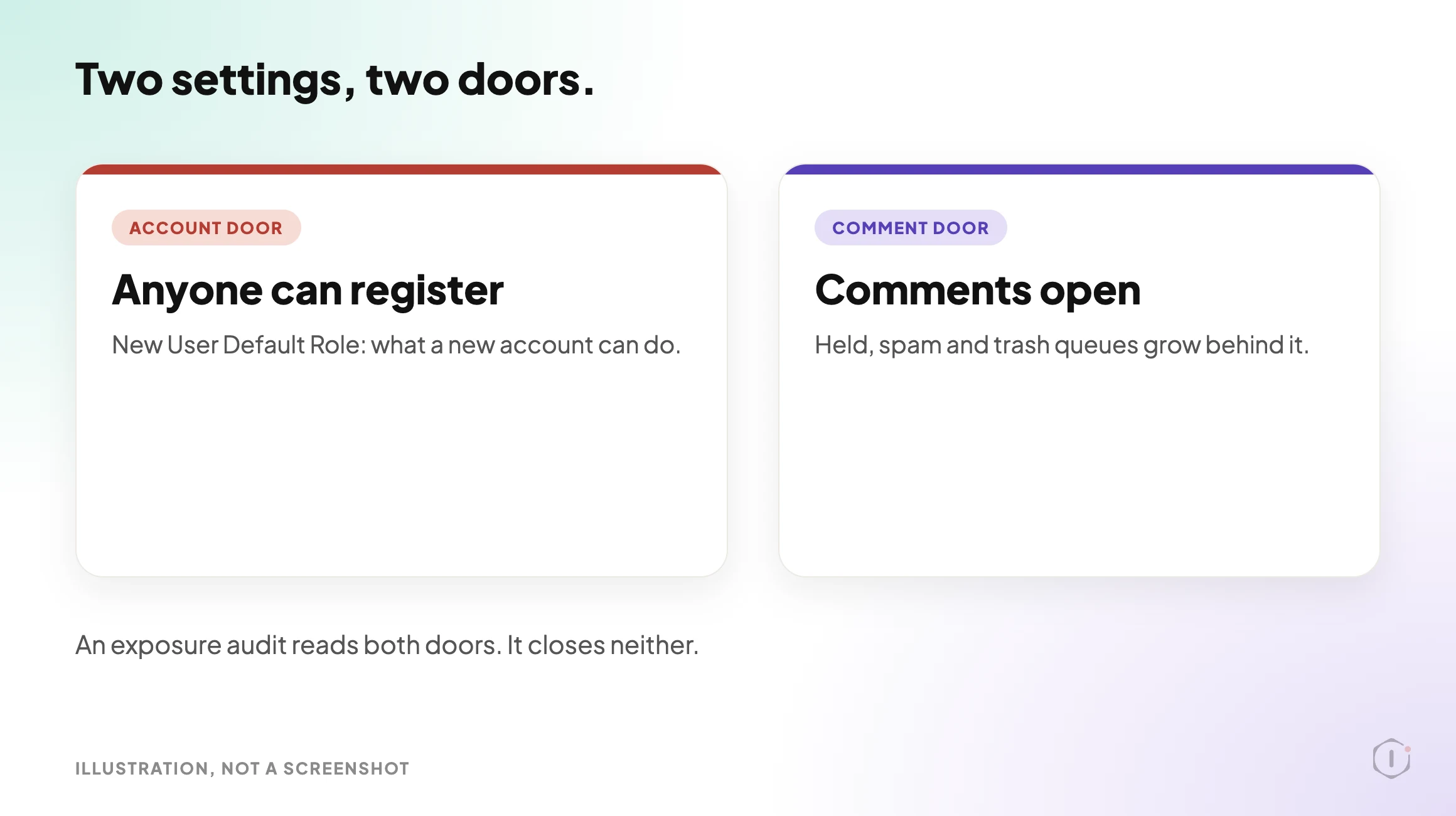
The account door is set in two places on the Settings, General screen. The WordPress documentation for that screen describes the first as “Anyone can register”, a checkbox for when “you want anyone to be able to register an account on your site”. The second is New User Default Role, which “allows you to select the default Role that is assigned to new users”. The valid choices it lists run from Subscriber up to Administrator.
Those two settings work together. Open registration with a Subscriber default is a small risk. Open registration with a higher default role is a different kind of problem, because every stranger who signs up arrives with more power. The user roles post explains what each default role can do.
The comment door is set on the Settings, Discussion screen. The documentation for that screen lists, among others, a checkbox that only lets logged-in, registered users comment, and a setting that closes comments on older posts after a number of days. A site where comments stay open everywhere and anyone can register has two open doors, and the queues behind them can grow without anyone noticing.
An exposure audit reads both doors in one pass. It does not close either.
What An Exposure Audit Looks At
The playbook’s public page says it looks at three things:
- Comment settings and queue sizes. Whether comments and pings are open by default, where they are still open, and how many comments sit in each queue.
- Users by role and recent signups. How many accounts exist in each role, and how many registered in the last 30 days.
- Accounts worth a look. Accounts with a throwaway email domain or a username that looks machine-made.
It then gives an exposure rating and the next steps that apply. The next sections go through how.
The Playbook, Step By Step
The Comment & Signup Spam Exposure Audit playbook has two steps, in a fixed order. In the dashboard it carries a Beta label, sits in the Content group and only reads. The public page files it under Security, says it needs no connector, and says it runs when you start it with no schedule set. This post uses the public page’s category.
Step 1: Read Exposure Signals
Step 1 is read-only. Every call it makes is a GET. It does four things:
- It reads the settings that open the doors: the default comment and ping status for new posts, whether anyone can register, the default role, whether comments are held for moderation, whether commenters must be registered, and whether comments close on old posts.
- It counts the comment queues: held for moderation, spam, trash and approved. It reads them 100 at a time, up to 20 pages, and reports “2000+” when a count hits that limit.
- It looks at where comments are still open on posts, pages and media, reading up to 10 pages of each.
- It counts users by role and how many registered in the last 30 days, using the 500 newest accounts.
From those users it picks out accounts worth a look. That part gets its own section below.
Step 2: Spam Exposure Report
Step 2 makes no calls. It takes the numbers from step 1 and rates exposure as Low, Medium or High from fixed rules, then writes a report with these headings: Comments, Signups, Accounts worth a look, Not readable on this connection, Next steps, and Note.
“Not readable on this connection” matters. If an option cannot be read, the report says so instead of guessing.
How To Read A Rating
| Rating | It is given when any of these is true |
|---|---|
| High | Pending plus spam comments are 500 or more. |
| High | 10 or more accounts are worth a look. |
| High | Comments are open on more than half of posts and 50 or more are pending. |
| High | Registration is open and the default role is above Subscriber (above Customer on a shop). |
| Medium | Pending plus spam comments are 50 or more. |
| Medium | At least one account is worth a look. |
| Medium | New posts are open for comments by default. |
| Medium | Registration is open. |
| Low | None of the above. |
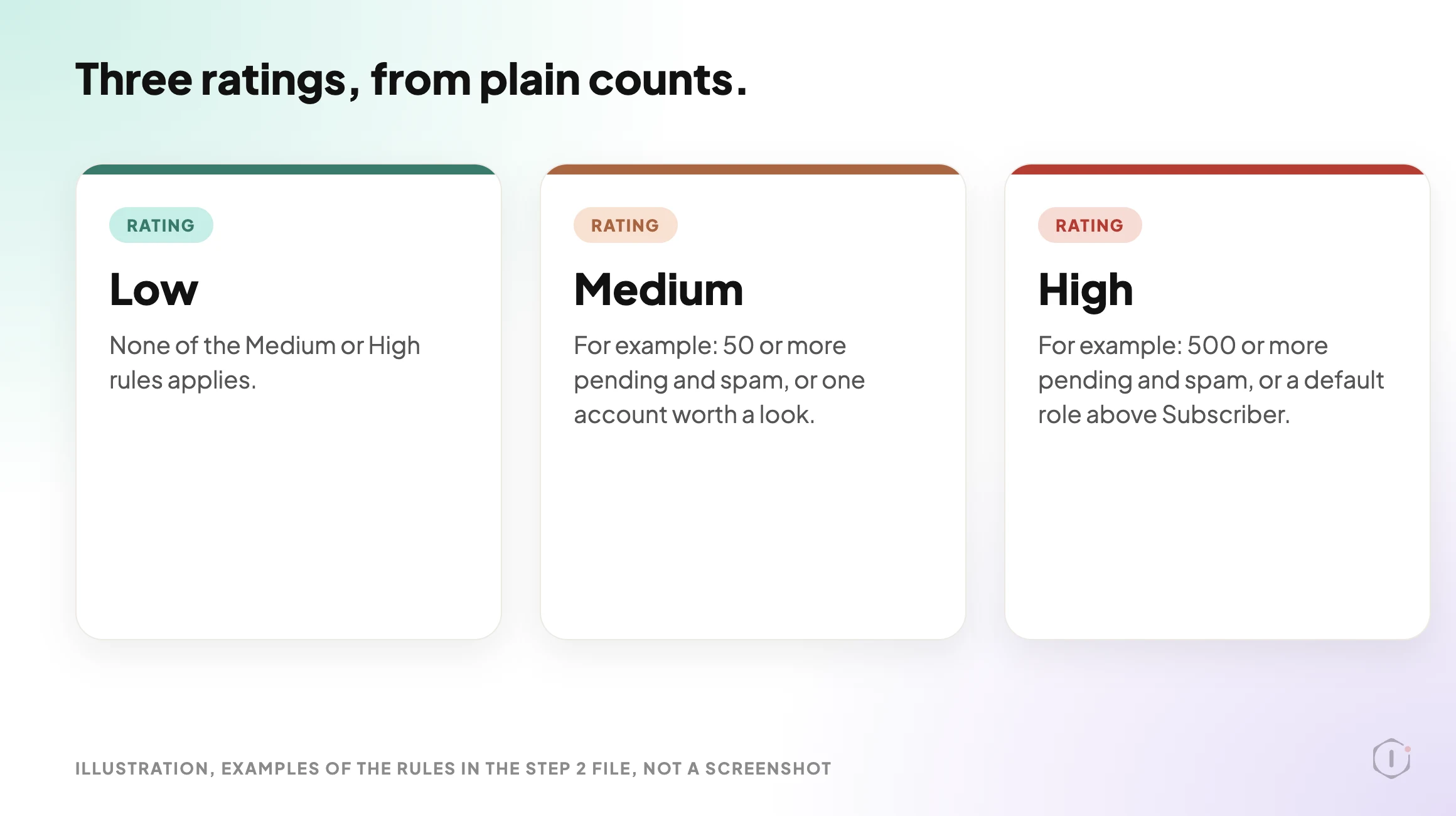
The rules are plain counts, so you can check any rating against the numbers in the report. A Medium rating on a site that simply allows registration is not an alarm. A High rating because the default role is above Subscriber is worth fixing today.
The report’s next steps depend on what it found. They can point to the Spam Comment Deleter playbook when pending plus spam is 50 or more, to the Disable Comments playbook, to a review of the listed accounts in the Users screen “before changing anything”, and to fixing the default role or unticking “Anyone can register”. If something could not be read, it adds a pointer to check Settings, General and Discussion by hand.
What “Worth A Look” Means
This is the part most likely to be misread, so the step file is strict about it.
Only accounts with the Subscriber role, or Customer on a shop, are considered. An account is called worth a look for one of two reasons:
- Its email is on a fixed list of 30 throwaway domains, such as mailinator.com.
- Its username looks machine-made. Two patterns count: a username with no separator that ends in six or more digits, or one of ten or more characters that switches between letters and digits four or more times.
A few rules sit around that:
- The report shows only the username and the email domain, never a full email address.
- It says “worth a look”. It never calls an account fake, a bot, a spam account or malicious.
- It never recommends deleting, banning or removing a user.
The caution is fair. A real person can have a username that ends in digits, and a real person can use a throwaway address for a free download. A flag is a prompt for you to open the account and decide, nothing more. The playbook only reads, so no account changes whichever way you decide.
What The Settings And The Public Page Say
The two sources agree on the substance. Both say the playbook only reads, has two steps and needs no connector, and the public page says no step is set to pause for your approval. The one difference found is the group label: the dashboard says Content, the public page says Security.
The settings panels for both steps, viewed in the dashboard on 27 October, show Automatic backup None and Approval checkpoint Off. For a playbook that changes nothing, that fits: there is nothing to back up and nothing to approve.
What The Playbook Does Not Do
The step files and the public page set clear limits:
- It does not stop anyone registering. There is no blocklist and no email check at signup.
- It does not say how an account got in. It reads signals; it does not trace them.
- Counts stop at 2,000 comments per queue and at the 500 newest users, and the report says when a count hit its limit.
- It flags only Subscriber and Customer accounts. An account with a higher role is not flagged for its email or username.
- It does not approve, trash or delete any comment, and it does not change any user.
- “Worth a look” is not a verdict. A clean report is not proof that nothing is wrong.
A plugin that blocks signups is a separate tool. A read-only audit tells you how exposed you are; it does not close anything.
Two cases deserve their own posts. If spam accounts keep appearing after you close registration, the question changes from exposure to compromise, and WordPress Hacked: The First Hour, In Order covers what to do first. And if you want to know which accounts can be found from outside, the user enumeration post is about the routes that list usernames.
A Careful Version You Can Do By Hand
You can read the same signals yourself. It takes longer as the site count grows.
- Open Settings, General. Note whether “Anyone can register” is ticked and what New User Default Role says. If registration is open and the role is above Subscriber, fix that first.
- Open Settings, Discussion. Note whether commenters must be registered, and whether comments close on older posts.
- Open Comments and read the count beside Pending, Spam and Trash.
- Open Users and click Subscriber. Read the usernames and the email domains on that list. A page of near-identical names is a reason to look closer.
- Write down what you found and the date, so the next check has something to compare with.
- Only then decide what to change. Closing registration and trashing spam are separate decisions, and neither needs to happen the same day.
On one site this is a short job. Across twenty sites it becomes a recurring chore, and the repeatable part is the reading. The judgement stays with you: which accounts to open, and whether a site needs open registration at all.
The two-factor post is the next layer if a flagged account turns out to be a real one with a weak login. It separates turning two-factor on from enforcing it.
Two Outside Views
A hosting company’s video and a forum thread. Both are about neighbouring problems rather than signup spam itself, and neither describes the Protuno playbook. They are here for the habit they share with it: read what is there before you change anything.
Ahosting INC’s “Could Not Create Directory in WordPress: Find the Folder First (2026)“, published 5 October 2026, is about a plugin install error, not about accounts. Its advice is to diagnose first: find the folder path, check disk space and inode limits, and only then look at folder modes.
Check both your space and inode gauges in your control panel or you will end up chasing permission ghosts forever.
Ahosting INC, Could Not Create Directory in WordPress: Find the Folder First (2026), auto-generated English captions, 5 October 2026
It is a hosting company’s explainer that points to its own written guide, and the captions are automatic. The same video is a source in the file permissions post, which covers the error itself.
In an r/Wordpress thread, a poster describes investigating a compromised site. They say an attacker used a valid administrator session, installed a file manager plugin and used it to upload executable PHP files. Their main lesson:
A successful WordPress admin login should be treated as a full application compromise.
u/ThaiHeartly, r/Wordpress, 11 August 2026
The poster says how the administrator session was first obtained is unknown. This is one poster’s account that I could not verify, and some replies asked whether the write-up was machine-written, which the poster denied. My reading, not theirs, is that the playbook would not see a case like this. It flags only Subscriber and Customer accounts, and an account created with a higher role is outside what it flags. The user roles post is the place to look at those.
Where Protuno Fits
The Comment & Signup Spam Exposure Audit playbook is the reading part of this job. It reads the comment and signup settings, counts the queues and the recent signups, lists accounts worth a look, and writes a Low, Medium or High rating with the rule that decided it. It needs no connector, runs when you start it and has no schedule set. It changes nothing.
Two other playbooks cover the writing side, and the report points to them when they apply. Spam Comment Deleter trashes comments confirmed as spam, and Disable Comments stops new comments. Protuno publishes its playbooks as written-out steps you can read first. The playbooks page lists them, and this one has its own page at Comment & Signup Spam Exposure Audit.
The Point
Open registration is a choice, and the default role decides how big a choice it is. The comment queues are a second door. Neither tells you anything until someone reads them.
Read both doors, treat a flag as a question, and keep the decision about each account with a person. A rating on paper is a reading list, not a verdict.
If someone registered on your busiest site tonight, would you know which role they got?
Sources And Further Reading
- Settings General Screen, WordPress Documentation
- Settings Discussion Screen, WordPress Documentation
- WordPress 7.1.3 Maintenance and Security Release, WordPress.org News, 6 October 2026
- WordPress 7.2 Beta 1 is Ready for Download and Testing, WordPress.org News, 20 October 2026
- Could Not Create Directory in WordPress: Find the Folder First (2026), Ahosting INC, YouTube, 5 October 2026
- A WordPress attacker logged in as admin, installed a file manager plugin and uploaded PHP webshells, r/Wordpress, 11 August 2026. Title shortened.
- Comment & Signup Spam Exposure Audit, Protuno playbook page
Comments