WordPress User Roles: Who Really Has The Keys.
WordPress user roles decide who can change your site. List every account, see what each role can do, and learn which Administrators to question first.

Every WordPress site has an account nobody remembers creating.
It might belong to a freelancer from two years ago, a plugin vendor’s support login, or a colleague who has since left. It still works. It is still an Administrator.
The password is only half the problem. The bigger question is how many people can change your site today, and whether you could name every one of them.
Short answer: To audit WordPress user roles, open the Users screen, filter by role, and count the Administrators. Each one can install plugins, edit code and create more users. Any Administrator with no named owner and no clear reason to exist is the first account to question. Then check whether anyone has a role above their job, and whether any login is shared.
What this post is, and is not: A read-only audit of WordPress user roles, for people who look after several WordPress sites. The role descriptions follow how WordPress core documents its default roles. Nothing here is a result from a real client site, and it does not replace a full security audit.
An Administrator is not a job title. It is a list of everything someone can break.
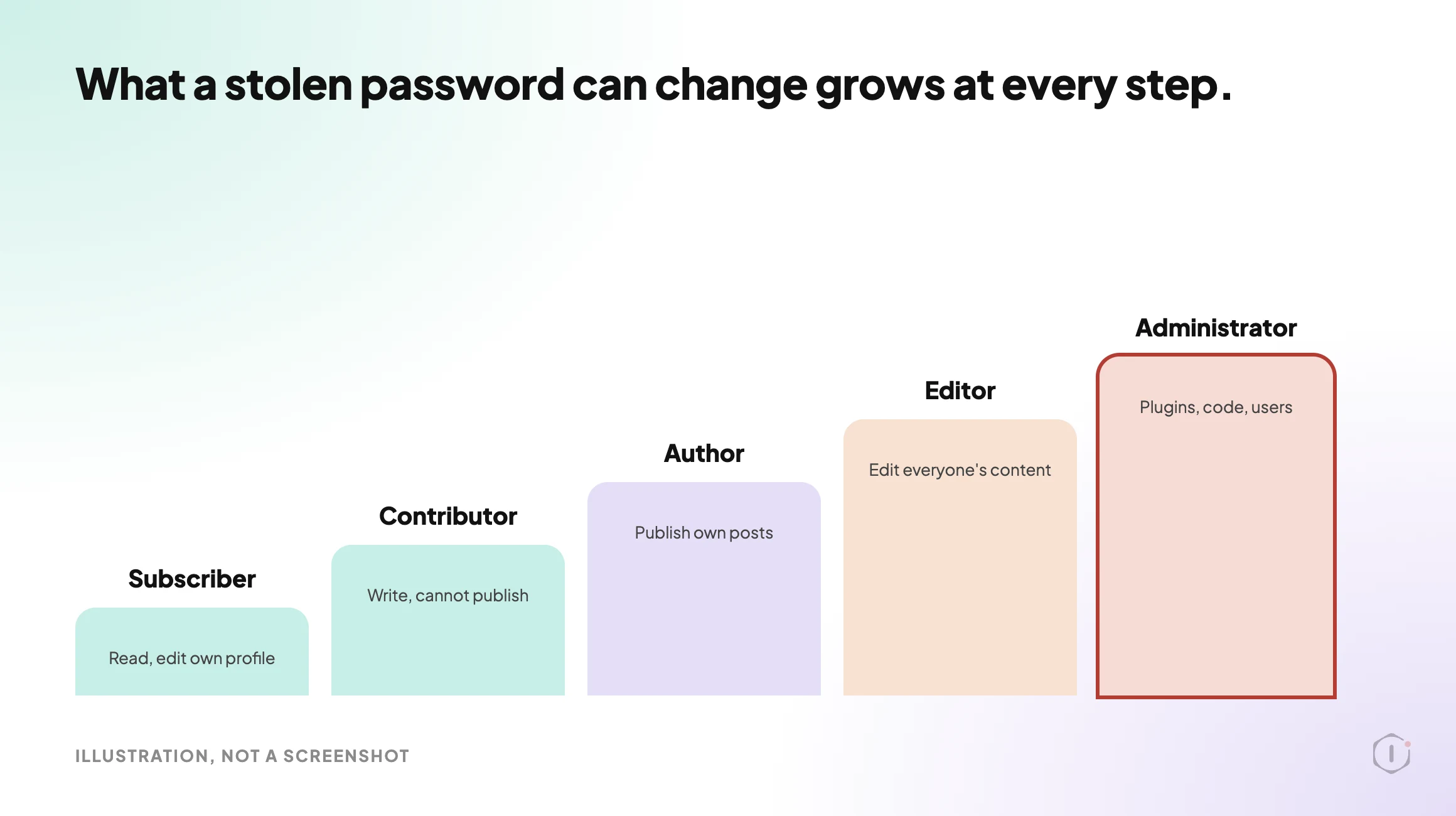
WordPress User Roles: What Each Default Role Can Do
A single WordPress site ships with five roles. They are ordered by how much damage one stolen login can do.
| Role | What it can do | What it should be used for |
|---|---|---|
| Administrator | Everything on the site: install and delete plugins and themes, add and remove users, change any setting, and edit theme and plugin files unless file editing is switched off | The few people who run the site |
| Editor | Publish and edit all posts and pages, including other people’s, and moderate comments. No plugin, theme or user control | Content managers |
| Author | Publish and edit their own posts, and upload files | Regular writers |
| Contributor | Write and edit their own posts, but not publish them or upload files | Guest writers |
| Subscriber | Read, and edit their own profile | Members, customers, commenters |
For a short overview of the defaults, there is a recent video, WordPress User Roles Explained (2026), from VIS Mountain Marketing & Advertising. Its description says it is narrated with an AI voice and shows simplified diagrams, not live screenshots, so use it as a refresher and check the official documentation for detail.
What each WordPress role can really do, which one to give each kind of person, and how to change someone’s role in under a minute.
VIS Mountain Marketing & Advertising, “WordPress User Roles Explained (2026): Which Role to Give Each Person + How to Change It” on YouTube, 6 Oct 2026
Two things change this picture.
First, plugins add roles and change what the default ones can do. A store plugin adds a Shop Manager. A membership plugin adds its own. These roles can carry real power, and they rarely stand out in a quick look at the Users screen.
Second, a multisite network has a Super Administrator above every site. That one account controls the whole network, not a single site.
Of all the WordPress user roles, one matters most for an audit. Administrator decides who can change everything else.
Listing Every Account From Outside And Inside
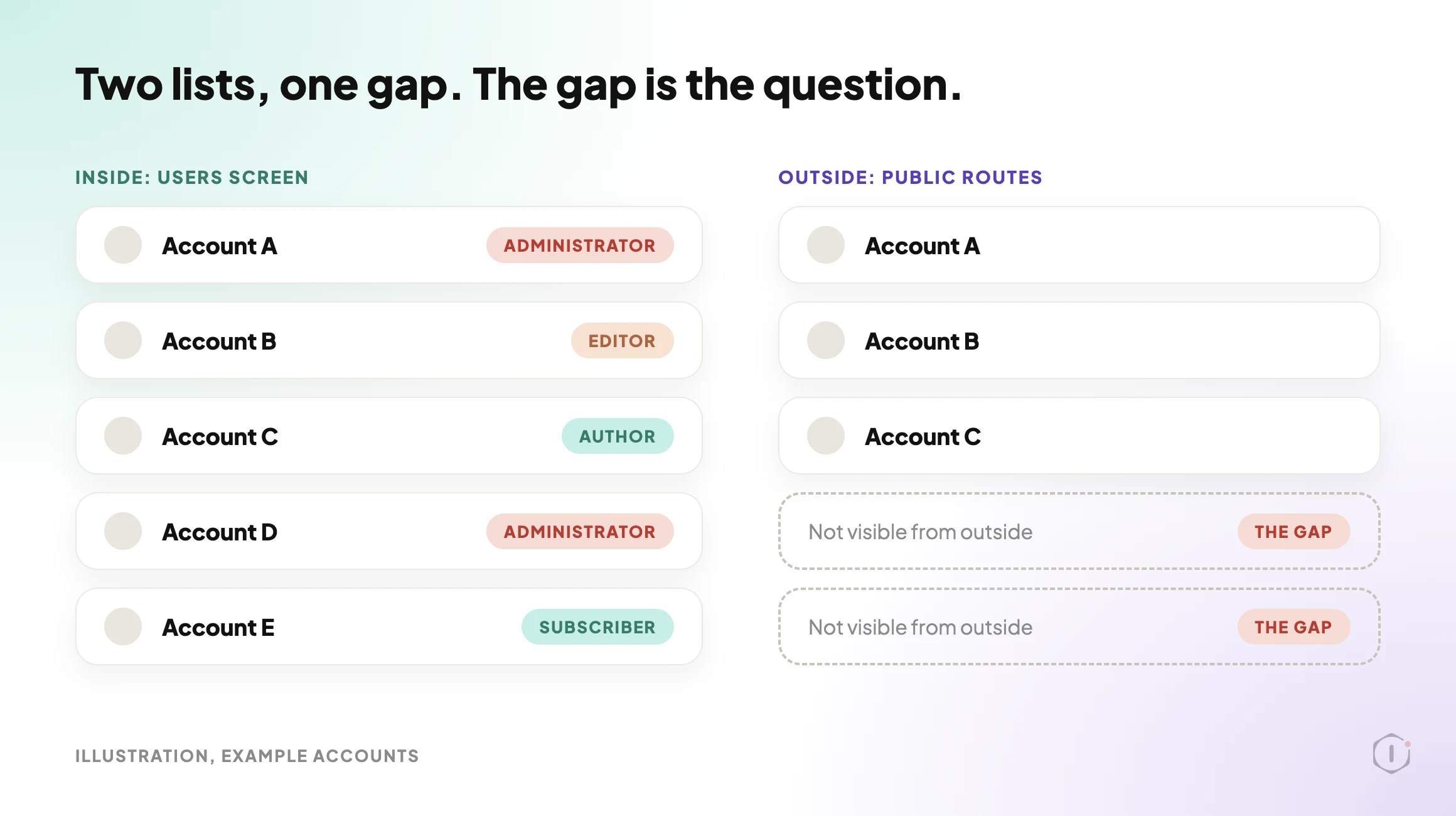
You can see your accounts and their WordPress user roles from two places, and the two lists do not match.
From inside, the Users screen or the command line shows every account, its role and when it registered. From outside, you only see what the site chooses to reveal. By default, a WordPress site can reveal usernames through public routes. We covered all three of them, and how to close them, in WordPress user enumeration is still on by default, so this post does not repeat that.
What matters here is the gap between the two lists.
| View | What it tells you | What it cannot prove alone |
|---|---|---|
| Inside, Users screen | Every account and its role | Whether anyone still uses it |
| Inside, command line | The same list, in a form you can save and compare next month | Who the person behind a login really is |
| Outside, public routes | Which usernames a stranger can find | Which of them are Administrators |
A small audit you can run today:
- Count the accounts in each role on the Users screen.
- Save the Administrator list with name, email and registered date.
- Write an owner and a reason beside every Administrator.
- Mark every account you cannot explain.
With command-line access, these two commands cover the first steps:
wp role list
wp user list --role=administrator --fields=ID,user_login,user_email,user_registered
The registered date is the cheapest clue you have. An old account with no known owner is the first one to question.
One more caution. Code that runs inside WordPress can change what WordPress shows you. The r/Wordpress write-up linked below describes malware that kept a list of administrator accounts to hide, so a Users screen can look clean when it is not. If you suspect a problem, ask the database directly. This query lists every account with the Administrator role, and you should change each wp_ to your own table prefix:
wp db query "SELECT u.ID, u.user_login, u.user_email, u.user_registered FROM wp_users u JOIN wp_usermeta m ON m.user_id = u.ID WHERE m.meta_key = 'wp_capabilities' AND m.meta_value LIKE '%administrator%'"If that list is longer than the Users screen, treat it as an incident and not a tidy-up.
The Three Accounts To Question First
An audit of WordPress user roles does not need to be long. Three kinds of account cover most of the risk.
1. Administrators nobody can name. If no one on your team can say who it belongs to and why it exists, treat it as a finding. A forgotten Administrator is an unlocked door that nobody knows about.
2. Accounts with a role above their job. A writer who publishes their own posts needs Author, not Editor. A client who updates one page needs Editor at most. Ask whether the person could do their job one role lower. Agencies argue about whether a client should get Administrator all the time, and the least-privilege answer is almost always no.
3. Shared logins. One account used by three people cannot be traced to any of them. When something changes, nobody can say who did it. Give each person their own account, then remove the shared one.
One r/Wordpress thread, “Found a WordPress malware using __GA_INJ_START__ and hidden admin accounts — full incident analysis”, is a write-up of a hacked site where the attacker kept hidden administrator accounts. The author describes how the malicious code worked:
“The malicious code maintained a list of administrator accounts that should be hidden.”
r/Wordpress, “Found a WordPress malware using __GA_INJ_START__ and hidden admin accounts — full incident analysis”, August 2026
What Changing A Role Breaks
Removing access is easy to say and harder to do. A role change can stop things that quietly depend on it.
Check these before you demote an account:
- Scheduled work. Does a plugin run jobs as that user?
- Authorship. Posts belong to the account. Deleting the user forces a choice about where the content goes, while demoting does not.
- Integrations. An automation tool or API may sign in with that login.
- Backups and updates. Some tools act as a named Administrator.
The safe order is short. Demote first, and do not delete. Watch the site for a few days. Delete only when nothing has broken.
Take a restore point before changing roles on a real site. If something does break, a rollback is only as good as what it can actually undo, so find that out before you need it.
Checking It On A Schedule
A WordPress user roles audit done once goes stale. People join, leave and change jobs, and plugins add roles.
Keep the software current as well. WordPress 7.1.3 was released on 6 October 2026 as a maintenance and security release, and the announcement recommends updating immediately. A tidy account list says nothing about the code that guards it.
A monthly pass is enough for most sites. Compare this month’s Administrator list with last month’s. Anything new needs an owner and a reason. Anything missing should be a change you expected.
For agencies, this belongs in the client report as one short line: how many Administrators, and whether each one is accounted for. We wrote about what goes into a client report and what stays out. An Administrator list is a good example of a short finding that earns its place.
A role review also fits inside a wider WordPress security audit, next to the basics in WordPress hardening.
What This Does Not Solve
An audit of WordPress user roles is a view of access, and it has limits.
- It does not tell you a password is strong. A well-named account with a weak password is still a weak account.
- It does not show activity. Core WordPress does not record who logged in or what they changed. You need an activity log for that.
- It does not see plugin roles in full. Some plugins grant power through their own settings, not through the role name.
- It does not see an account that hides itself. The Users screen is only as honest as the code running behind it. Compare it with a direct database query when something feels off.
- It does not catch an account that was created and removed. If someone added an Administrator, did their work and deleted it, the list looks clean.
- It does not cover access outside WordPress. Hosting panels, SFTP, database users and DNS each have their own accounts.
- It does not cover access given to software. Connecting an AI tool or an automation is another kind of access and needs its own questions. We listed them in AI agent permissions on WordPress.
A clean list from a check that skipped half these places is worse than an honest “I reviewed WordPress users only.” Say which places you covered.
A Five-Site Audit You Can Do This Week
Pick five sites you look after. For each one, write down:
- The count of accounts in each role.
- Every Administrator, with a name, an owner and a reason.
- Any account that has not logged in for a long time, if you can tell.
- Any account with a role above the person’s job.
- Any shared login.
Then choose one outcome for every account you questioned:
- Keep it, with an owner and a review date.
- Demote it one role.
- Test the change on a copy first, then demote.
- Replace a shared login with named accounts.
- Remove it, after a demotion period with nothing broken.
- Investigate it, if nobody can explain it.
Investigate first. An Administrator nobody can explain decides whether this was a tidy-up or an incident.
Sources And Further Reading
- Roles and Capabilities, WordPress documentation: the official summary of the default roles, including Super Admin.
- Roles and Capabilities, WordPress developer handbook: how roles are stored and how plugins add their own.
- wp user list and wp role list: the two WP-CLI commands used above.
- WordPress 7.1.3 Maintenance And Security Release: the 6 October 2026 security release.
- WordPress User Roles Explained (2026): a short video overview of the default roles, by VIS Mountain Marketing & Advertising.
- Found a WordPress malware using __GA_INJ_START__ and hidden admin accounts — full incident analysis: an r/Wordpress incident write-up that includes hidden administrator accounts.
The Point
WordPress user roles are a list of who can change your site. Most sites hold more of that power than anyone has written down.
You do not need a tool to start. You need an hour and a list.
How many Administrators does your busiest client site have, and could you name every one of them?
Comments