WordPress Hacked: The First Hour, In Order.
WordPress hacked? Here is the first hour in order: write it down, copy the site, lock access, then clean, so the intruder cannot walk back in.

The worst moment of a hacked site is not the discovery. It is the next ten minutes.
You open the dashboard, you start deleting things, you reset one password, you restore a backup. Every one of those moves feels like progress. Several of them destroy the evidence you need, or lock the door while the intruder is still inside.
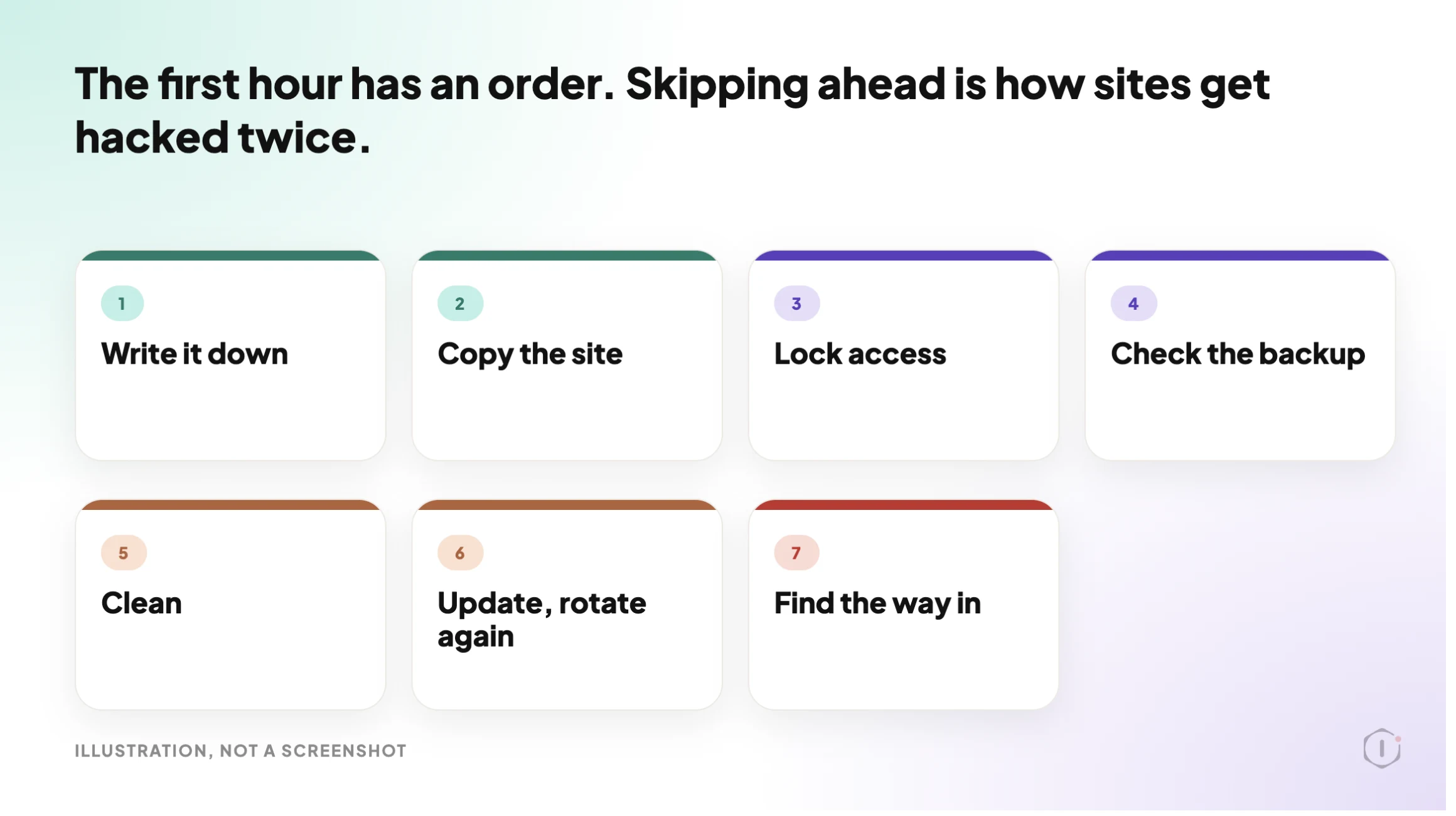
Short answer: When a WordPress hacked site lands on your desk, do the first hour in this order. Write down what you see. Copy the site as it is. Cut off access, including the access that sits above WordPress. Check the backup before you trust it. Clean, update, and rotate passwords again once the site is clean. Only then ask how they got in. The order matters more than any single tool.
What this post is, and is not: A practical response checklist for people who run or look after WordPress sites. It draws on the official WordPress.org guide to a hacked site. The order of the seven moves, and the reasons for it, are ours. It is not a malware removal service, not legal advice, and not a result from a real incident. If the site holds customer payment data or personal data, tell your host and take professional help early.
A scan tells you what is wrong. A response tells you what to do first.
Why Panic Cleaning Makes It Worse
The urge is to fix what you can see. A strange admin user, a defaced page, a spam redirect. You remove it and the symptom goes away.
That tells you very little. A visible symptom is often the last thing an intruder did, not the first. The way in is usually still open, and a copy of the way back in may already be sitting in a file you have not looked at.
The WordPress.org guide opens with a plain instruction: stay calm, then document. It says a hack is an ambiguous word that tells you little about what happened, so the symptoms you can name are the thing to write down first.
Panic cleaning has three common results:
- Evidence is lost. If you delete before you copy, you cannot tell afterwards what was changed.
- The door stays open. Cleaning files without changing access lets the same account or key back in.
- A bad backup gets restored. A copy taken after the break-in can bring the problem straight back.
We looked at the scanning side in WordPress Malware Scan. A scan answers “what is on this site”. This post answers the question that comes before and after it: what do I do, and in what order.
Seven Moves For A WordPress Hacked Site
| # | Move | Why it comes here |
|---|---|---|
| 1 | Write down what you see | It is the only record of what the site looked like before you touched it |
| 2 | Copy the site as it is | You need the evidence, and a safety net if the cleanup goes wrong |
| 3 | Lock access | Stops new changes while you work |
| 4 | Check the backup | A restore is only safe if the copy is older than the break-in |
| 5 | Clean | Remove the cause, not just the symptom |
| 6 | Update and rotate again | Fixes the known weakness and replaces anything the intruder saw |
| 7 | Find how they got in | Without it, the same hole is still there |
Each move gets its own section below.
Move One: Write It Down Before You Touch Anything
Open a note and write four things. It takes five minutes and it is the most useful five minutes of the hour.
- What you are seeing that tells you the site is hacked.
- When you noticed it, with the time zone.
- What changed recently: a new plugin, a theme edit, a new user, a host move.
- Where the site is hosted, and who else has access.
The WordPress.org guide lists the kind of symptoms that count as clear signs: the site is blocked by a search engine, the host has disabled it, it is flagged for distributing malware, visitors report their antivirus is warning them, you hear it is being used to attack other sites, or you see actions nobody authorised, such as new users.
Write down which of those you actually saw. “It looks hacked” is not a symptom. “A new administrator account appeared on Tuesday” is.
Move Two: Copy The Site As It Is
Before you clean, take a full copy of the files and the database. Keep it somewhere that is not the same server.
This copy is not a backup you plan to restore. It is evidence. If the cleanup breaks something, you can go back. If you later need to work out how the intruder got in, you have something to read.
The same WordPress.org guide makes the point that even an infected copy is worth keeping. It recommends one more snapshot of the environment before the cleaning starts.
Ask your host for logs while you are at it. Many hosts keep very little for very long, so ask early. We cannot say what yours keeps. The point is that a log you did not ask for in time is a log you will not have.
Move Three: Lock Access, Including The Part Above WordPress
Locking access means more than changing the admin password.
Think of access in three layers:
| Layer | Examples | Often missed because |
|---|---|---|
| WordPress | Admin and editor accounts, application passwords | It is the layer everyone remembers |
| Hosting | Control panel, SFTP, SSH keys, database user | It sits above WordPress and plugins cannot see it |
| People | Laptops, saved FTP passwords, shared logins | The weak point is a machine, not the site |
For WordPress itself, the official guide suggests forcing a password reset for all users, especially administrators, and changing the secret keys in wp-config.php. Changing the keys logs everyone out, including a session the intruder may still be holding.
For hosting, change the SFTP, control panel and database passwords, and remove any key or user you do not recognise. If you cannot name an account, treat it as a finding.
For people, the guide recommends scanning your own computer too. In many cases the infection starts on a local machine that captured a login.
If you cannot log in at all, the guide describes a way back through the database tools your host provides, by resetting the user record directly. That is a task for someone comfortable in the database.
We looked at how accounts and routes get exposed in WordPress user enumeration. It is a useful read for the question “which names can an outsider see”.
Move Four: Check The Backup Before You Trust It
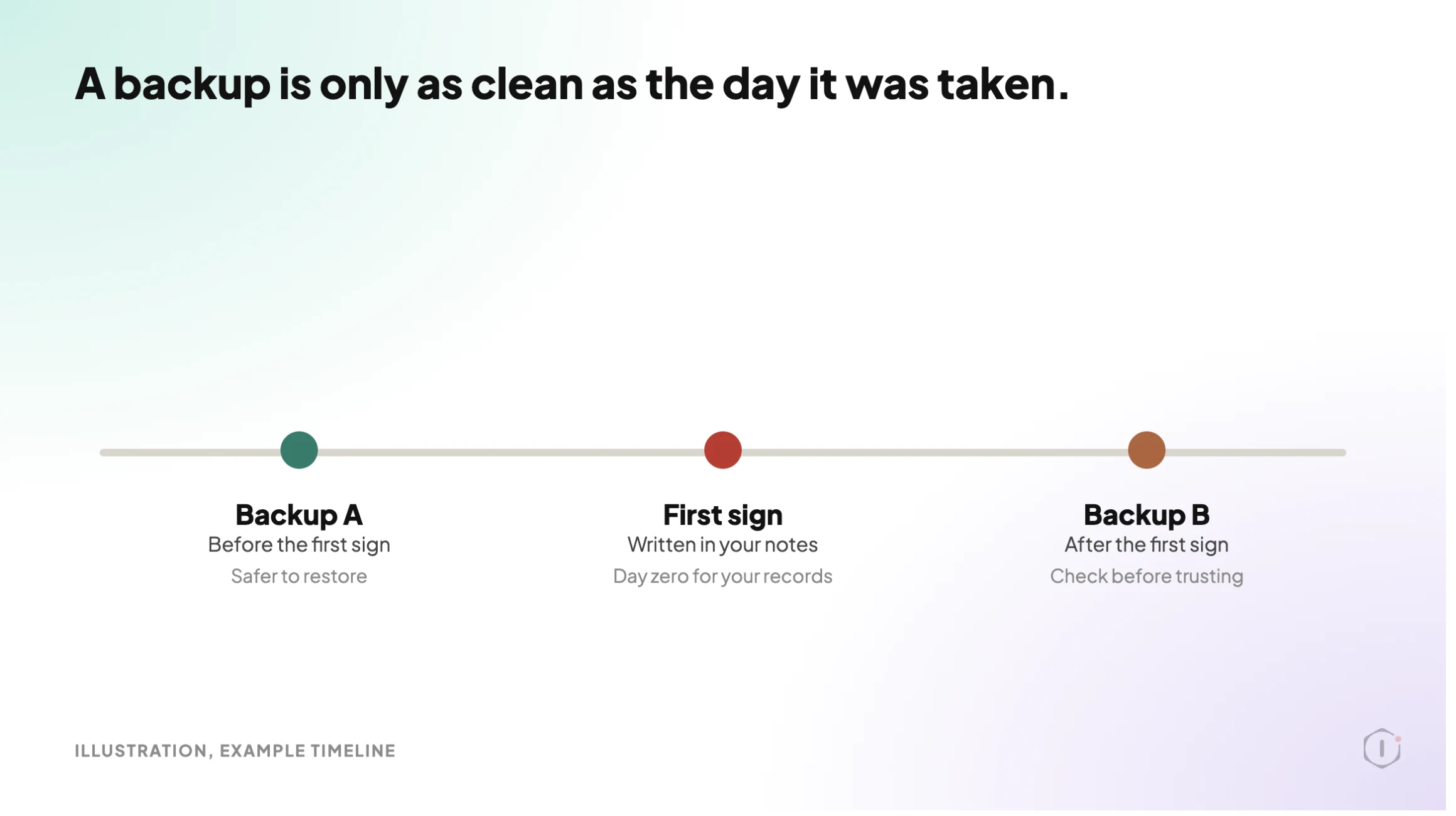
Restoring a backup feels like the safest move. It is only safe if the backup is older than the break-in.
An intruder may have been inside for days before anything visible happened. A backup taken last night can contain exactly what you are trying to remove. The WordPress.org guide notes that you can restore a backup and move straight into the investigation, which is the careful way to read it: restore to look, not to relax.
Three questions to ask of every backup:
- When was it taken, compared with the first sign of trouble? Use your notes from move one.
- Where is it stored? A backup on the same server may have been reached too.
- Has it ever been restored on a test copy? If not, it is a file with a hopeful name. We wrote about that in verifying a WordPress backup.
Move Five: Clean The Cause, Not The Symptom
Cleaning means replacing, not patching. The guide’s approach is practical and worth following closely.
- Core. The folders
wp-adminandwp-includescan be replaced safely with a fresh copy of the same WordPress version. The guide suggests using SFTP to upload them rather than the dashboard reinstall, because the dashboard installer tends to overwrite existing files and intruders add new ones. - Plugins and themes. Reinstall them from their original source. A modified file that looks normal is the whole point of a backdoor.
- The
.htaccessfile. The guide calls it one of the most commonly modified files, whatever the type of infection, and notes it may sit in more than one folder. - Files that load on every request.
index.php,header.php,footer.phpandfunctions.phpare named in the guide because a change there affects every page. - Users and the database. Check administrator accounts and look for anything you did not create.
Deactivating is not removing. A file that runs when someone requests its address does not care whether the plugin around it is switched on. Delete what should not be there.
The official guide calls finding and removing the hack the most daunting part of the whole process, and it gives no single method, because the right steps depend on the symptoms and on your own technical skill. If you are not sure, a professional clean is cheaper than a second hack.
One practical walk-through is Ferdy Korpershoek’s video, WordPress Getting Hacked? Here’s What To Do Now, which shows a real hacked website being scanned and cleaned. The description says it uses the MalCare plugin and discloses an affiliate link, so read it as one practitioner’s method, not as a recommendation from us.
I’ll even show you a REAL hacked website, how malware was detected, and how we removed it in just a few clicks.
Ferdy Korpershoek, “WordPress Getting Hacked? Here’s What To Do Now” on YouTube, 18 May 2026
Move Six: Update, Then Change The Passwords Again
Once the site is clean, update WordPress, plugins and themes to the latest versions. The guide says older versions are more prone to being hacked, and that is where many incidents start.
A timely example. WordPress 7.1.3 was released on 6 October 2026 as a maintenance and security release. The announcement lists seven security fixes and four bug fixes, and says that because it is a security release, updating immediately is recommended. We cannot say whether any particular hack used any of those issues, and this post does not claim that. The practical point is smaller: if your site is behind on core updates, that is the first thing to fix.
Then change the passwords a second time. The guide is explicit about this. If you changed them when you found the hack and the intruder was still inside, the new passwords may have been seen. Change them again after the site is clean, and consider changing the database user and password as well.
Two things are worth turning on at this point: a second factor on logins, and a short list of who has access at all. We looked at what happens when a vulnerable plugin goes unnoticed in WordPress vulnerability scanner design and at forgotten plugins in removed plugins.
Move Seven: Find Out How They Got In
This is the step that gets skipped, because the site looks fine again.
The WordPress.org guide calls it forensics: understanding what happened and how the attacker got in, so it cannot be used again. It admits that is hard for most site owners because of missing data and technical depth.
You can still narrow it down with what you already wrote and copied:
- Compare the date you first saw a problem with the dates of your last plugin and theme changes.
- Look at the accounts that were added, and when.
- Check whether any plugin or theme was out of date, abandoned or removed from the repository.
- Ask whether the PHP version was supported. See the WordPress PHP version problem.
- Ask the host what they saw on their side.
If you cannot find the cause, say so in your notes. “Unknown, access rotated, monitoring added” is an honest record. A made-up cause is worse than none.
A site that comes back dirty is exactly what this step is for. One r/Wordpress thread, “How to fix wordpress hacked website? Can anyone guide step by step.”, starts from a site owner whose developer cleaned the site and saw the files return. Without knowing how the intruder got in, a clean-up can only hope the same door stays shut.
“I got that checked by developee and he cleaned it but everything came back.”
r/Wordpress, “How to fix wordpress hacked website? Can anyone guide step by step.”, October 2026
Blacklists And Search Console Warnings
Search engines and antivirus tools may flag a hacked site. The guide recommends registering the site with the webmaster consoles so you hear about it from them. Google Search Console also has a Manual actions report. If Google has issued a manual action against the site, you fix every affected page and then select Request Review in that report, describing what you fixed. Check the report for the exact wording that applies to your case.
Treat that as a signal, not as proof. Not seeing a warning does not mean the site is clean, and seeing one does not tell you what is wrong. Check the site, then check the report.
What This Does Not Solve
A first-hour order is a way to stop making it worse. It does not make a hack impossible.
- It does not tell you how you were hacked. Move seven narrows it down. It does not prove it.
- It does not guarantee a clean site. Intruders can plant more than one way back in. A single clean scan is not the end.
- It does not replace professional help. Customer data, payment data and legal duties need someone qualified.
- It does not prevent the next one. Prevention is a different job. We measured common hardening advice in WordPress hardening.
- It is not a result from a real incident. Nothing in this post comes from a site we cleaned.
A response checklist is for the day it happens. A monitoring habit is for the days before it. Our write-up of WordPress security monitoring covers the second one.
A Five-Site Check You Can Do This Week
You do not need a hack to practise. Pick five sites you look after and answer these for each:
- Where would you write down what you see, and who gets the note?
- Can you take a full copy of files and database in under an hour?
- Who holds hosting, SFTP and database access, and when were those passwords last changed?
- Has your newest backup ever been restored on a test copy?
- Is the site on the latest WordPress version, with a supported PHP version?
Then pick one outcome per site: fix it now, test it first, hand it to someone who owns it, or accept the gap with an owner and a date.
If a site fails three of the five, start with that one. Our piece on the client report is a useful reminder of how to tell a client what you found, in the order they need it.
Sources And Further Reading
- FAQ: My Site Was Hacked: the official WordPress.org guide this post draws on.
- WordPress 7.1.3 Maintenance And Security Release: the 6 October 2026 security release.
- Hardening WordPress: the official guide to securing a site once it is recovered.
- Manual Actions Report, Search Console Help: how Google reports a manual action and how to request a review.
- WordPress Getting Hacked? Here’s What To Do Now: a video cleanup walk-through by Ferdy Korpershoek.
- How to fix wordpress hacked website? Can anyone guide step by step.: an r/Wordpress thread from a site owner whose cleaned site was reinfected.
The Point
A hacked site is two jobs: stop it, then understand it.
The first hour is about doing them in that order.
Which of your sites has no written answer to “who has access, and when did we last change it”?
Comments