WordPress Application Passwords: The Playbook, Step By Step.
WordPress application passwords keep working after a password reset. See how a read-only playbook lists admins, keys and what changed.

Open any user’s profile in the dashboard and scroll past the password box.
Below it sits a section called Application Passwords, with a name field, a button that says Add New Application Password, and a list of the keys that already exist.
Most people never scroll that far. The keys in that list can outlive the password you changed last week.
Short answer: WordPress application passwords are separate, revocable keys that apps and scripts use to sign in without the account’s normal password. Each one stays valid until someone revokes it, so a site can carry old keys nobody remembers. The New Admin Watch playbook reads every administrator and every application password, flags the recent and never-used ones, and, if you paste in a baseline, shows what changed since the last run. It only reads. It never creates, changes or revokes anything.
What this post is, and is not: A method write-up of one read-only playbook, based on its two step files as shown in the Protuno dashboard and on its public page on 22 October 2026. It is not a result from a real run: no playbook was run for this post, and every username, date and id in it is an illustration with example values.
What WordPress Application Passwords Are
Application passwords arrived in WordPress 5.6. The core team’s integration guide describes them as a way to make authenticated requests to WordPress APIs without using the account’s normal password. Cookie sign-in stays as it was. An application password cannot be used on the login page, because it is meant for programs, not people.
The same guide says how one is stored:
- It is 24 characters of upper-case letters, lower-case letters and numbers.
- It is kept in the user’s meta data, with the name given to the application, the time it was created, and when and from which IP address it was last used.
- Each one also gets its own uuid, so it can be referred to without using its name.
You manage them from the Edit User page, where you can create new ones and view or revoke the ones that exist. The Last Used column is accurate to within 24 hours, because WordPress only writes the date once a day. The guide says that makes it useful for finding passwords that are no longer in use, so they can be revoked.
By default the feature is available on sites served over HTTPS and on local environments, and the developer reference says a filter can change that. The REST API handbook adds that the credentials go to REST requests over HTTPS using Basic Auth.
Latest changes checked on 22 October 2026: WordPress 7.1.3 (6 October) is the current stable release, and 7.2 Beta 1 came out on 20 October. Neither announcement mentions application passwords or administrator accounts. So everything above comes from the 5.6 guide, the developer reference and the REST API handbook, not from release notes.
Why A Key Outlives A Password
A password reset feels like a clean slate. An application password does not care.
A tutorial from SmartWP, covered below, makes the point in plain terms. An application password is a separate credential that you give to one app. You can issue several, and you can revoke one without touching the others. In his demo, changing the account’s normal password does not interrupt the app that holds a key.
That is exactly why they are useful, and exactly why they get forgotten. The key sits in a list, nobody opens that list, and the app that used it may be long gone.
A key also carries the powers of the account it belongs to. A post on WordPress MCP write access makes the point for AI connections: an application password issued to an administrator carries administrator capabilities.
Two Lists To Read Together
The first list is who can act as an administrator. The second is which keys exist for each user, and when each was last used.
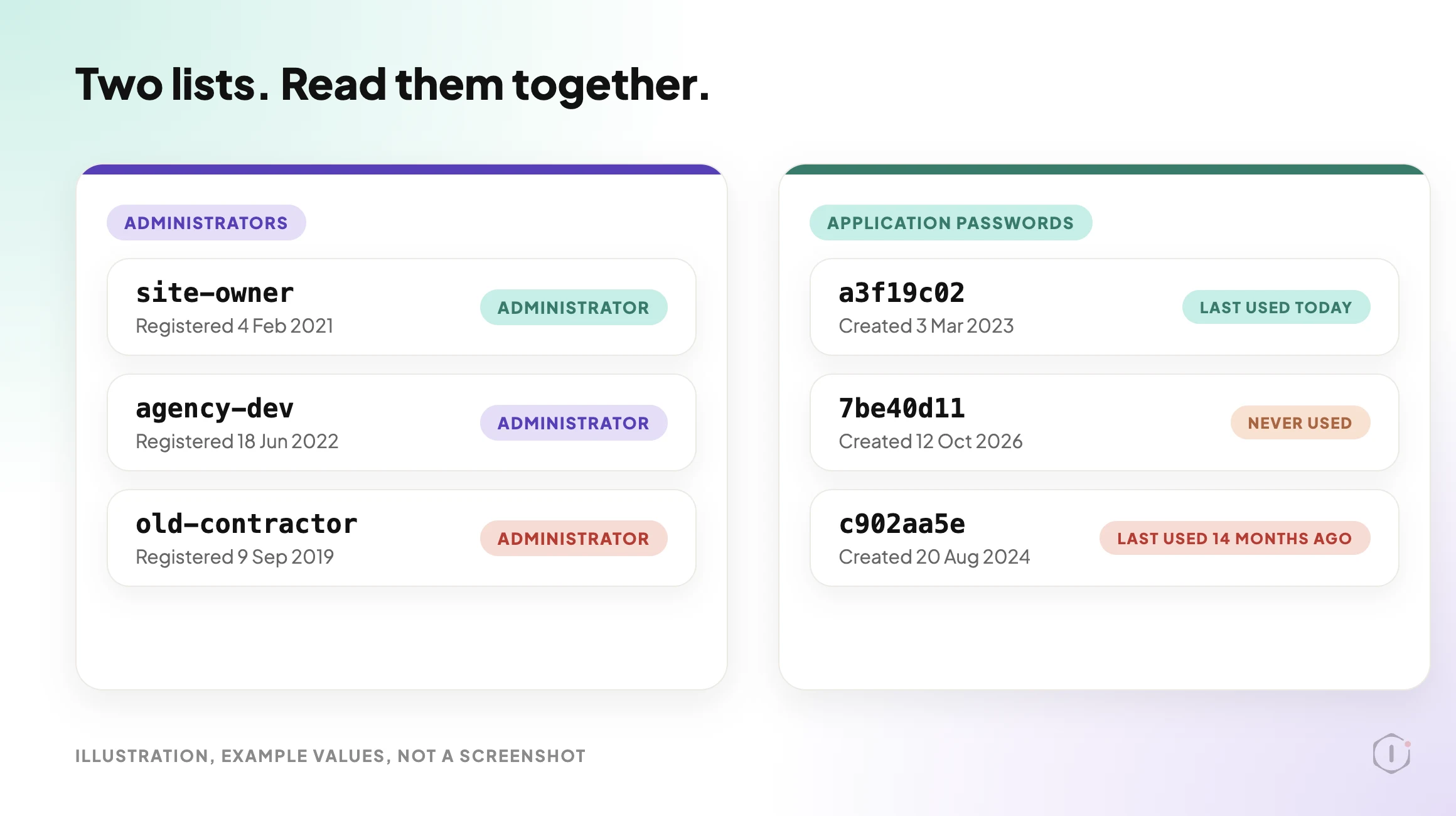
Neither list answers the real question on its own. “Who can get in?” needs both. A post on user roles covers listing every account and the three accounts to question first. This playbook adds the second list and puts both into one report.
The Playbook, Step By Step
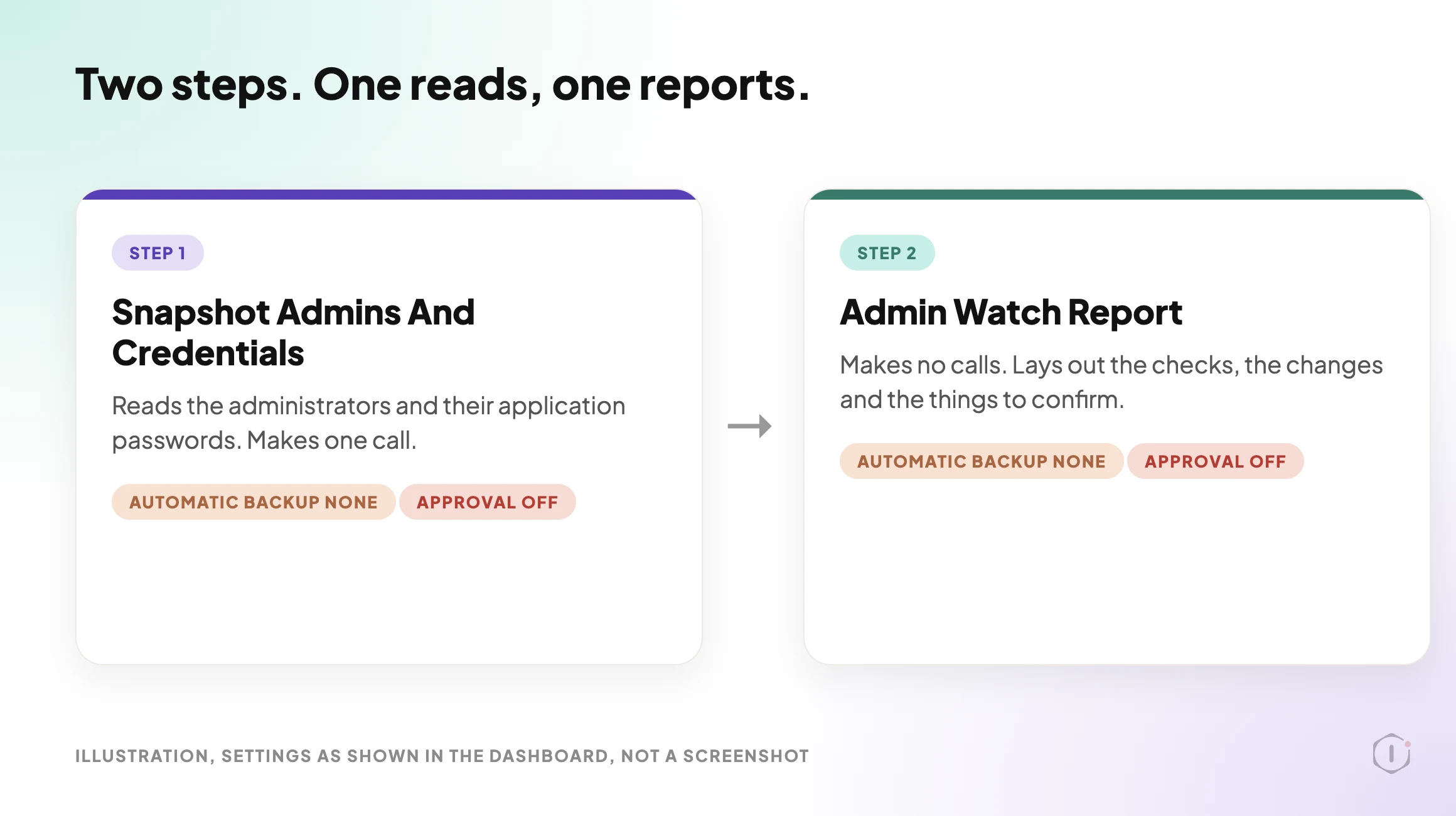
The New Admin Watch playbook has two steps, in a fixed order. In the dashboard it carries a Beta label and only reads. The public page files it under Security and says it needs no connector. It runs when you start it, and no schedule is set.
No step pauses for approval. I opened the settings panel for both steps, and both show Automatic backup None and Approval checkpoint Off, which fits steps that only read.
Step 1: Snapshot Admins And Credentials
Step 1 makes one call to a Protuno read tool. The tool reads the site itself and applies every check in code. The step does not compare, count, judge or sort anything on its own. It copies what the tool returns into one fixed block for step 2.
The step file says the tool applies eight checks, and names what it covers:
- Which application password is this connection’s own, so it is not listed as a stranger.
- Changes since the baseline, if one was pasted.
- Recent accounts and recent passwords.
- The
adminusername. - Passwords that have never been used.
- Extra capabilities on a user.
- Admin-level powers held without the administrator role.
- Administrators through a second role.
If the administrator list cannot be read, the step stops with “Could not read the administrator list.” and fails. In every other case it ends as a pass.
The baseline is optional. It is three lines pasted into the playbook’s Instructions: a line starting BASELINE, then admins: and app-ids:.
Step 2: Admin Watch Report
Step 2 makes no calls and judges nothing. It lays out the block from step 1 in a fixed layout. A header line gives the number of administrators, the number of application passwords and whether a baseline was given, followed by the connection and the users by role. Then come six sections, always in this order:
- Checks.
- Changes since the baseline, as a table.
- Things to confirm, as a table with finding, user, detail, severity and what to do.
- Administrators, as a table with id, username, registered date, email domain and application passwords.
- Not checked.
- Baseline, a new set of three lines to copy.
The findings are exactly the lines the tool returned. Nothing else counts as a finding, and the step may not add, drop, reword or re-rate a row. Two privacy rules apply. An email address is shown as its domain only. An application password is shown by the first 8 characters of its id, never by its name, because two passwords can share a name.
How A Baseline Turns A List Into A Change
Without a baseline, the report says “No baseline given: date-based checks only.” An administrator or an application password created in the last 30 days is flagged as recent. That is a useful nudge, but it cannot tell you what changed.
With a baseline, the next run can say what is different. The dashboard card says the next run also shows new administrators, raised roles and new application passwords. If there is a baseline and nothing moved, the report says “No changes since the baseline.”
The report ends with a new baseline to paste back in next time. To use it, open the playbook page, find “Runs on these sites”, open Instructions for the site, paste the three lines, and save.
That is the whole habit: read, paste, compare later. A list you read once tells you what exists today. A list you compare tells you what moved.
Reading A Finding
The report is strict about words. It must never say the site “is secure”, “is safe”, “was hacked” or “is compromised”. A finding is something to confirm with the site owner, not an accusation.
That matters in practice. A new administrator may be a new hire. A never-used key may be a connection someone set up last week and has not tested yet. The row tells you where to look and who to ask. It does not tell you what happened.
What The Report Does Not Cover
The step files list what stays out of reach:
- Users hidden from the REST API by a plugin or malware. The list comes from the REST API, so it can never be proven complete.
- Changes made directly in the database.
- Powers a custom role grants by itself. Only powers given directly to a user are read.
- Login history and failed logins.
It also never reads a password, and it creates, changes or revokes nothing. If you find a key you do not recognise, the revoking is your decision, made on the Edit User page.
If the REST user list is part of the question for you, a post on WordPress user enumeration looks at how that user list is exposed from outside.
A Careful Version You Can Do By Hand
You can do a rough version of this without any playbook. It follows the same order.
- Open Users, filter to the Administrator role, and write down every username. Mark any you cannot place.
- Open each administrator’s Edit User page and scroll to Application Passwords.
- For every key, write down its name, when it was created and its Last Used value.
- Mark keys that were never used, and keys that have not been used for a long time. Remember Last Used is accurate to within 24 hours.
- For any key you do not recognise, find out who owns it before you revoke it. Revoking cuts off whatever app uses it, and in the SmartWP demo that is the point.
- Save your notes as a plain text file with each username, key name and created date. That file is your baseline.
- Repeat monthly and compare the two files.
Two keys can share a name, so a note by name alone can mislead. That is why the playbook identifies each key by the first 8 characters of its id.
Application passwords are one of the sign-in routes that do not use the login form. A post on two-factor enforcement lists those routes, and a post on the first hour after a hack includes application passwords in the WordPress layer of access to review.
Two Outside Views
A tutorial and a forum thread. Neither is an endorsement, and neither describes the Protuno playbook.
In a November 2024 video, SmartWP explains how to set up and use application passwords safely. He says an application password is like a normal WordPress password but meant for one app, and that sharing it is safer than sharing your real password. He says you can make several and revoke access to a specific application. In the demo he creates one named for Zapier, says it can be pasted into Zapier, and notes that resetting his normal password would not interrupt it. When he is done with Zapier he revokes the key so Zapier can no longer edit the site. The video is older than the releases above, and near the end he mentions a blogging platform he built that supports the feature.
On Reddit, an r/Wordpress thread titled “How many people can log into your sites as Administrator, and do they open links?” starts with a site manager asking a simple question: “How many Administrator accounts are on the sites you look after?” This post does not rely on the opening post’s security claims. It uses the question and one reply, which describes the baseline habit in a few words:
“We have a single administrator account on all the sites we manage, our own. There is a specific list of capabilities we have never given out and our nightly sync will alert us if this somehow changes in a site.”
Reply in the thread, r/Wordpress, 3 October 2026
Another reply in the same thread gives a different answer: “2-3 admin acccounts is the normal number but I only manage a couple dozen WP installations.” A count on its own does not settle much. What matters is whether you can see a change when it happens.
Where Protuno Fits
The New Admin Watch playbook is the repeatable, read-only part of this job. It lists every administrator and their application passwords, flags recent accounts, the default admin username, new or unused keys and extra capabilities, and writes a report with a baseline you can paste back in. It needs no connector, runs when you start it, and has no schedule set.
It sits beside the other security posts rather than replacing them. The Security Audit playbook has its own post. The playbooks page lists the playbooks as Protuno publishes them, and this one has its own page at New Admin Watch.
The Point
A password is something you change. An application password is something you have to find.
Read both lists together, keep a baseline, and treat every unfamiliar row as a question for the site owner. A report that revokes nothing is the safest way to see how many keys your sites are holding.
Which keys on the sites you manage could you name today without looking?
Sources And Further Reading
- Application Passwords: Integration Guide, Make WordPress Core, 5 November 2020
- wp_is_application_passwords_available(), WordPress Developer Resources
- Authentication, REST API Handbook, developer.wordpress.org
- WordPress 7.1.3 Maintenance and Security Release, WordPress.org News, 6 October 2026
- WordPress 7.2 Beta 1 is Ready for Download and Testing, WordPress.org News, 20 October 2026
- WordPress Application Passwords – How to Set Up & Use Them Safely, SmartWP, YouTube, 18 November 2024
- How many people can log into your sites as Administrator, and do they open links?, r/Wordpress, 2 October 2026
- New Admin Watch, Protuno playbook page
Comments