Disable Comments In WordPress: The Playbook, Step By Step.
Want to disable comments WordPress sitewide? One setting only covers new posts. The Protuno playbook closes the rest in two steps, with your approval.

You switched comments off. Your site still takes them.
That is the quiet trap in WordPress. One checkbox sounds like a site-wide switch, and it is not one. If you want to disable comments WordPress-wide, that single setting is not enough.
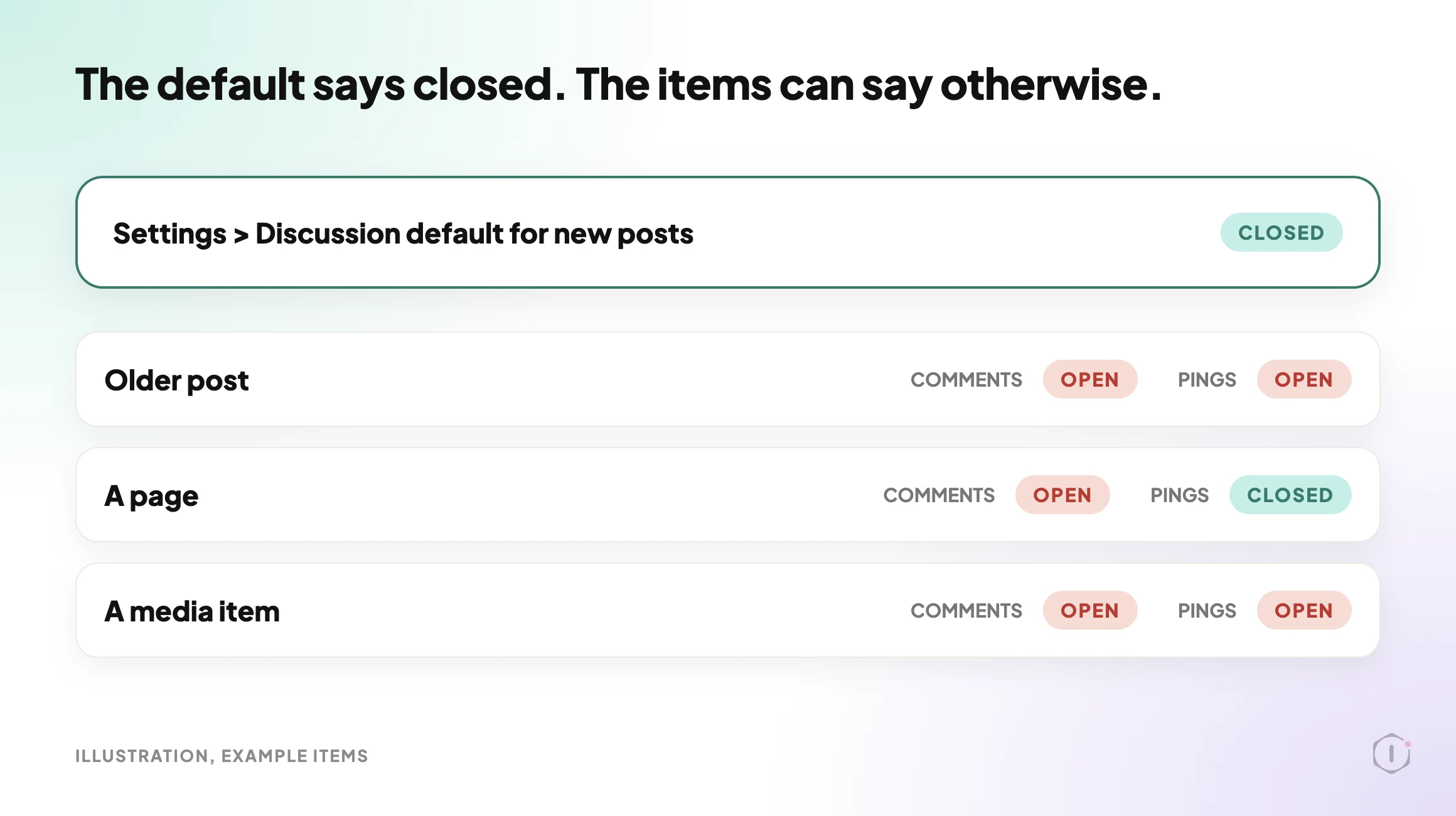
Short answer: the Settings > Discussion checkbox only sets the default for posts you write from now on. Every older post, page and media item keeps its own comment and ping setting. To really close comments, you need to close the defaults and the existing items, and keep the comments you already have untouched. Protuno’s Disable Comments playbook does exactly that in two steps: one read-only step that plans, then one write step that waits for your approval.
What this post is, and is not: it is a practical walkthrough of how a Protuno playbook works and how to do the same check by hand. It is not a measured result from a real site, and it does not promise that a closed item will never receive a spam attempt. It explains what the playbook reads, what it changes, and what it refuses to touch.
A setting is a default. An item is a fact.
Why The Settings Checkbox Falls Short
Open Settings > Discussion in WordPress and you will find the box that says people can post comments on new posts. WordPress’s own documentation words it carefully: it is the setting for new articles, and individual articles can override it.
That wording matters. The box is a template that gets copied onto each new post at creation time. Posts that already exist are not rewritten when you change the template.
So a site that turned comments off two years ago can still have a hundred older posts with comments open. Spam bots do not care which setting you changed last. If you have ever had to clear a flood of junk, you have met the result. We covered the cleanup side in WordPress Spam Comments: The Playbook, Step By Step. This post is about closing the door instead of mopping the floor.
There is a second, easier-to-miss setting. Comments and pings are separate switches. A post can have comments closed and still accept pings, the link notifications other sites send. WordPress’s documentation lists them as two different options. Pings are the same family of traffic as xmlrpc.php, so closing comments but leaving pings open leaves half the door ajar.
Four Ways To Look At The Same Problem
There are four common ways people turn comments off. Each one answers a different question.
| View | What it tells you | What it cannot prove alone |
|---|---|---|
| Settings > Discussion default | New posts will start with comments closed | Whether any existing post is still open |
| Bulk edit in the Posts list | The posts you selected are now closed | Pages, media items, and posts you did not select |
| A plugin that removes comments sitewide | The comment feature is hidden or blocked in the site | Whether the stored setting on each item changed, and how you undo it |
| Auto-close after a number of days | Old posts close on a schedule | Posts newer than the cut-off, and pages and media |
None of these is wrong. They answer different questions, and the mistake is treating the first one as if it answered all of them.
The part people forget is media. WordPress can keep a comment status on attachment pages too, so an old image can be a place where comments are open even when no post looks open. A hand check that only looks at the Posts screen never sees it.
What The Playbook Looks At
Disable Comments is a Protuno playbook in the Content group of the Every Playbook list. It is marked Beta and shown as Can Write, with 2 steps. You will find it in the dashboard’s Every Playbook list, not on the public playbooks page.
It is built around one rule that is worth reading twice. The playbook only closes comments and pings. It changes two Discussion defaults, and each item’s comment status and ping status. It never deletes, approves, unapproves or edits a comment, and it never touches any other field.
That scope is the reason it is safe to describe. A tool that can “manage comments” is a broad promise. A tool that can only flip two switches on a list you approved is a small one.
The Playbook, Step By Step
Disable Comments is a Protuno Content playbook with a fixed sequence of two steps. The first only reads the site. The second changes it, and only after you approve.
| # | Step | What it does |
|---|---|---|
| 1 | Comments Baseline And Snapshot | Reads the two Discussion defaults, counts open and closed posts, pages and media, counts existing comments, and plans up to 25 items to close. Writes nothing. |
| 2 | Apply Comment Closures | After approval, closes the defaults and the planned items, reads every change back, and checks that the comment count has not changed. |
Here is how each step works, based on the step instructions shown in the dashboard.
Step 1: Comments Baseline And Snapshot
This step is 100 percent read-only. It begins with the before-values: whether new posts accept comments, and whether they accept pings.
Then it reads posts, pages and media, newest first, 100 per page, asking only for the id and the two status fields. Drafts, private, pending and scheduled posts are included, not just published ones. The instructions cap the read at 5 pages per type.
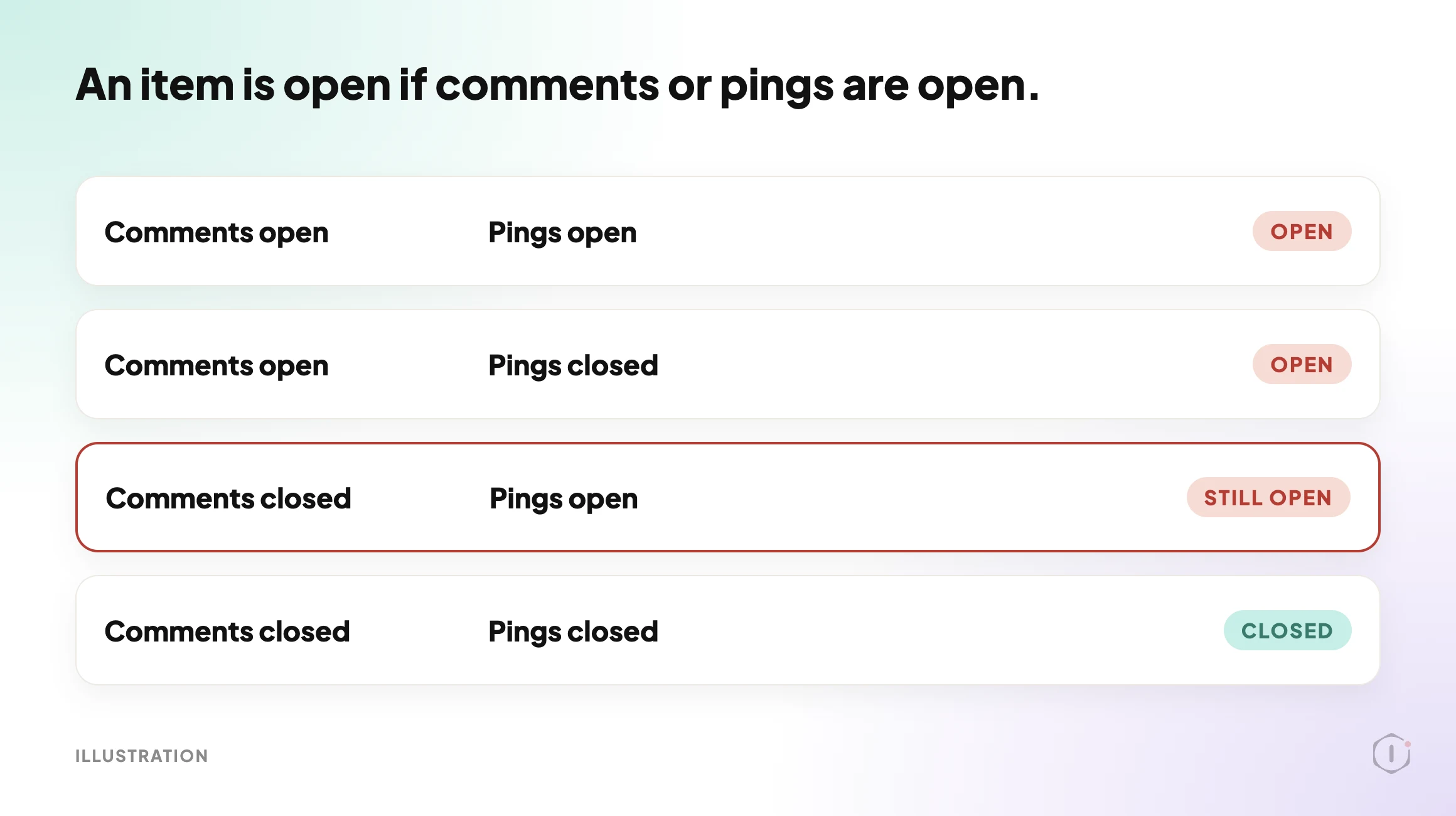
An item counts as open when its comment status is open, or its ping status is open. The instructions call out one case by name: pings open with comments closed is still open. WordPress’s default “Sample Page” is often exactly like that.
It also counts existing comments, page by page, and writes down the number. That count is the control for step 2.
Finally it builds the close list: open items in the order posts, then pages, then media, newest first, at most 25. Each item’s current values are written beside it, so the change can be undone later. The step ends with a plan block that step 2 reads, and nothing else.
Step 2: Apply Comment Closures
The dashboard shows this step with an approval checkpoint turned on, which means the run waits for you. Step 1 has no checkpoint because it only reads.
After you approve, the step does the following, in this order:
- If either default is open, it closes both defaults. Nothing else is sent in that settings call.
- It re-checks the planned items. An item that is already closed or missing is skipped, not rewritten.
- It closes each remaining item, changing only the comment status and the ping status. Each item’s previous values are recorded.
- It reads everything back. An item only counts as closed when the read-back shows both comments and pings closed.
- It counts comments again and compares with step 1. The count must match, or the step fails.
The order is the point. The re-check protects against a plan that went stale while you were reading it. The read-back protects against a write that quietly did not stick. The comment recount is the proof that nothing was deleted along the way.
The report ends with three honest tables: the defaults with before and after values, the items closed, and anything skipped or failed. It says plainly that the Discussion defaults are not covered by rollback, so it tells you the before-values to set them back by hand. The items are covered by rollback, and the report says so.
The clip above is an illustration of the two steps and their order, built from the playbook’s real step names. It is not a recording of a run and it shows no results.
What Disable Comments Does Not Solve
A two-switch playbook has edges. Here they are, so nobody is surprised.
- It does not delete or moderate comments. Existing comments stay as they are. If you want spam cleared, that is a different job, covered in WordPress Spam Comments.
- It closes up to 25 items per run. A site with a few hundred open items needs several runs. The plan says how many remain open after each one.
- It reads a limited window. Step 1 reads at most 5 pages of 100 per type, newest first. On a very large site, treat the first runs as a start, not a full census.
- It does not remove the comment form from your theme. A closed item stops accepting new comments. How your theme displays a closed notice is a theme matter.
- It does not stop spam signups or other abuse. If bots register accounts, that lives elsewhere. See WordPress User Roles for the access side.
- The defaults are not rolled back by Rollback. Only the item changes are. The report gives you the before-values.
- It has no automatic backup of its own. The dashboard shows Automatic backup as None for both steps. The safety net is the recorded before-values and Rollback for items. Take your own restore point first if the site matters.
A Small Test You Can Run Today
You do not need Protuno to see the problem. WordPress exposes each public post’s comment and ping status in its REST API. Try this on your own site:
# Replace example.com with your domain
curl -s "https://example.com/wp-json/wp/v2/posts?per_page=100&_fields=id,comment_status,ping_status"
curl -s "https://example.com/wp-json/wp/v2/pages?per_page=100&_fields=id,comment_status,ping_status"
curl -s "https://example.com/wp-json/wp/v2/media?per_page=100&_fields=id,comment_status,ping_status"
Write down, for each type:
- how many items returned
"comment_status":"open" - how many returned
"ping_status":"open"with comments closed - how many are closed on both
Then compare with Settings > Discussion. If the setting says closed and your list still shows open items, you have just seen the gap this playbook exists for.
Three cautions. This only sees what the public API shows, so private and draft items are missing from it. Each call returns at most 100 items, so if you get exactly 100 back, there are more. And counting open items tells you what exists, not whether anyone is using it.
Questions To Ask Your Current Tooling
If you already use a plugin or a bulk action to turn comments off, ask it plainly:
- Does it change the stored setting on each existing item, or only hide the form?
- Does it cover pages and media, or only posts?
- Does it close pings as well as comments?
- Can you see the before-values, and can you undo item changes?
- Does it prove that your existing comments are untouched afterwards?
- Does it wait for you before it writes?
A good answer to the last two matters most. A write that cannot be undone and cannot show what it did is the kind of write you should not run on a client site.
Which Check Are You Actually Running?
| If you need to know | Evidence | Next action |
|---|---|---|
| Will new posts accept comments? | Settings > Discussion | Close the default |
| Are existing posts open? | Each item’s comment status | Close items, with a way back |
| Are pings still open? | Each item’s ping status | Close pings with comments |
| Did anything get deleted? | Comment count before and after | Compare the two numbers |
| Did the change actually stick? | A read-back after the write | Only trust the read-back |
Fixing Findings In The Right Order
If your check finds open items, here is a sensible order.
| Priority | Finding | Why |
|---|---|---|
| 1 | Open defaults | Every new post inherits them, so the problem grows |
| 2 | Open posts with the most traffic | They are the likeliest spam targets |
| 3 | Pages that accept comments | Often forgotten, rarely meant to be open |
| 4 | Media items with comments open | Invisible from the Posts screen |
| 5 | Pings open with comments closed | Same family of traffic, easy to miss |
Two practical rules apply whatever tool you use:
- Take a restore point first. The playbook records before-values, but a backup of the database is still the cleanest way back. See WordPress Rollback After An Update for what a rollback can and cannot undo.
- Re-check after the change. Run the same count again and compare. If the numbers did not move, the write did not land.
A Five-Site Audit You Can Do This Week
Pick five sites you look after. For each one, record:
- the Discussion default for comments and for pings
- the count of open posts, pages and media
- the count of existing comments
- whether comments are actually wanted on this site
Then decide for each site:
- Fix now: comments are not wanted and items are open.
- Test first: comments are used on some posts, so list which and close only the rest.
- Replace: a plugin hides the form but items stay open underneath.
- Remove: a comment plugin you no longer need.
- Accept with owner and date: comments stay open on purpose, with a named person and a review date.
- Investigate: the numbers do not match what the owner expects.
The decision that is easy to skip is the last one. “Open on purpose, owned by someone, reviewed on a date” is a perfectly good answer. “Open because nobody noticed” is not.
Why Comment Settings Go Stale
Comment settings drift for ordinary reasons. A new plugin imports old posts with comments open. A theme change adds a feature that re-enables them. A migration copies content but not the default. A team member publishes a page from a template that was built years ago.
None of it is dramatic. It is just that a setting you checked in March says nothing about the post you published in June.
That is why it helps to treat this as a check you repeat, not a task you finish. The Settings screen answers one question once. The items answer it again every time something new is created.
Two outside references show how this looks in practice. A YouTube tutorial covers turning off comments on WordPress posts, and an r/Wordpress thread asks whether comments should stay in core at all.
A short tutorial on turning off comments on WordPress posts.
Entrepreneurs Skool, “Disable Comments On WordPress Posts” on YouTube, 28 Aug 2026
“There is no single “turn off comments” switch. It’s a dance of around 7 setting hooks, last time I checked.”
r/Wordpress, “Move Comments to a plugin in 8.0”, September 2026
The video title promises an easy fix. The Reddit reply explains why that is only half true: the setting is spread across several places, which is the gap the two steps above are built to cover.
Where Protuno Fits
Protuno is a set of Super Agents for WordPress, each running playbooks against your connected sites. Disable Comments is one of the playbooks in the Content group, available in the dashboard. Other playbooks are listed at protuno.com/playbooks, and the agents are at protuno.com/agents.
This one changes the site, so it needs the Protuno plugin connected. It plans first, you approve, and it writes only the two comment fields. A human decides every change, and the playbook reports what it did in plain tables.
If you also care about the other side of tidy access, see WordPress Security Audit for the wider read-only picture.
The Point
Closing comments is not one click. It is a default, a list of items, and a proof that nothing was deleted.
The only honest report is the one that shows the before, the after, and a read-back in between.
When did you last count how many of your old posts still take comments?
Comments