Why Is My WordPress Site Slow? How to Find the Cause First.
Fewer than half of WordPress sites pass Core Web Vitals on mobile. Find out whether your slow site is the server or the page, then fix the part that is slow.

A WordPress site is slow either because the server takes too long to answer, or because the page it sends is too heavy to load quickly. Find out which before you install anything. Fewer than half of WordPress sites pass Google’s Core Web Vitals on mobile, so you are not alone, but the fix depends on which half of the problem you have.
The short version
- Measure first: PageSpeed Insights shows real-visitor data for your site if it has enough traffic, and a lab test either way.
- Slow first byte (the server is slow to start answering): page caching, hosting, PHP version, a heavy plugin.
- Fast first byte, slow page: images, too many scripts, outside scripts such as chat or fonts.
- Slow only when logged in? That is a different problem. See our slow admin guide.
How slow is WordPress, really?
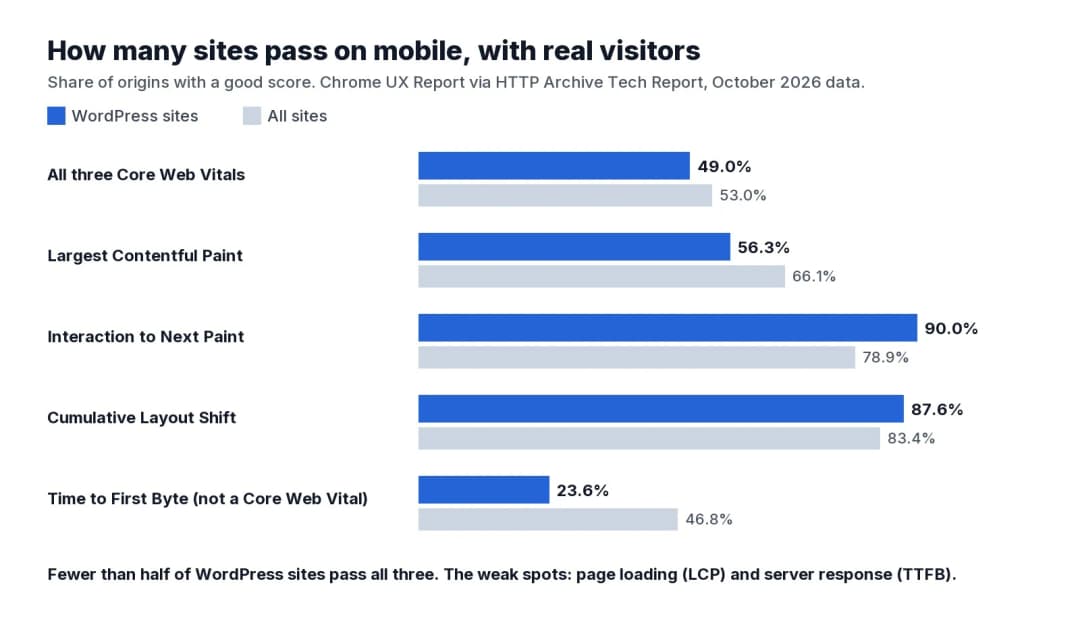
We read the Chrome UX Report data for WordPress from the HTTP Archive Tech Report on 25 November 2026. In the latest month, October 2026, 49.0% of WordPress sites with enough Chrome traffic to have real-visitor data passed all three Core Web Vitals on mobile, against 53.0% of all sites. WordPress sites did better than average on interaction (INP) and layout shift (CLS), and worse on loading (LCP) and especially server response: only 23.6% had a good time to first byte, against 46.8% of all sites. A year earlier the WordPress pass rate was 46.1%.
What Counts As Slow?
Google’s Core Web Vitals are the most widely used yardstick. Per web.dev, a good experience means:
- Largest Contentful Paint (LCP): the main content shows within 2.5 seconds.
- Interaction to Next Paint (INP): the page responds to a tap or click in 200 milliseconds or less.
- Cumulative Layout Shift (CLS): 0.1 or less, so the page does not jump while loading.
They are judged at the 75th percentile of page loads, so three in four visits need to meet them, on mobile and desktop separately.
Measure First: Three Questions
1. Is it the server or the page?
Run your home page through PageSpeed Insights, or open your browser’s developer tools, Network tab, and reload. Look at Time to First Byte, how long the server takes before it sends anything. If that alone is over about a second, the server side is your problem. If the first byte is quick but the page takes long to finish, the page is too heavy. Our TTFB guide explains the number in detail.
2. Is it real visitors, or just your test?
PageSpeed Insights shows two kinds of data. Field data comes from real Chrome users of your site over the last 28 days, and only appears when your site has enough traffic. Lab data is one simulated load. Lab data is useful for finding causes, but field data is what your visitors actually feel.
3. Is it every page, or one?
Test the home page, a post, and your heaviest page, such as a shop or a gallery. If only one page is slow, look at what is on that page: a huge image, a slider, an embedded video or a map.
The Usual Causes, In Order Of Impact
1. No page cache
Without a page cache, WordPress builds every page from scratch on every visit: PHP runs, the database is queried, plugins do their work. A page cache saves the finished page and serves it to the next visitor almost instantly. Many hosts include one. Check whether yours is working with our page cache header guide. Shops need care, because carts and checkouts must not be cached. See WooCommerce cart caching.
2. Slow hosting or an old PHP version
If the first byte is slow even with caching, the server may be underpowered or overloaded. A newer PHP version is usually faster for the same code. Our PHP version guide shows how to check and switch safely.
3. One heavy plugin
One plugin doing heavy work on every request can be the whole problem. On our test site, a single demo plugin made every admin page take 1,765 ms. With it switched off, the same page took 153 ms. That was the admin, but the same thing happens on the front end. Switch plugins off one at a time on staging and measure after each.
4. Large images
Photos uploaded straight from a camera or phone are often several megabytes. Resize them to the size they are shown at, use a modern format such as WebP or AVIF, and let WordPress lazy-load images below the fold, which it does by default. The biggest image near the top of the page is often what decides your LCP.
5. Too many scripts and styles
Themes and plugins often load their scripts and styles on every page, even where they are not used. Look at the Network tab for files from plugins you do not need on that page. Removing a plugin you do not use is better than leaving it active.
6. Outside scripts
Chat widgets, ad scripts, analytics, social embeds and web fonts all load from other servers, and you cannot speed those servers up. Load fewer of them, load them later, or host fonts yourself.
7. Database clutter, last
A cluttered database is often blamed first and rarely the main cause on smaller sites. On our test site, a database clean-up removed 38 rows, and the admin page time went from 230 ms to 227 ms: no real gain, because the database was only about 1.8 MB. Clean up when the database is actually large. Our database guide covers when it helps.
When It Is Not WordPress
- Slow only for you. Your network, browser extensions or a VPN. Try another network or device.
- Slow only in one region. Your server is far from those visitors. A CDN serves copies from closer locations.
- Slow to start loading at all. DNS can add delay before the server is even reached. Your DNS provider’s settings decide that.
Where A Super Agent Fits
Protuno is Super Agents for WordPress: six AI agents you use from Claude, Claude Code, Codex or Cursor, each working from written playbooks and a Brain for each site. To be plain: Protuno does not add page caching, a CDN or image compression. Where it helps is finding the cause:
- Wren’s WP Doctor found and switched off the slow plugin in our admin test, after taking a backup. It fixes only safe WordPress-level causes and hands server causes back to you.
- Dash’s Database Optimisation cleans the database after a backup, and reports honestly when that did not change speed, as in our test.
- Dash’s Unused and Duplicate Media Report lists large and unused media files. It only reads.
What a job may change depends on the agent’s mode on that site. Read only: no changes run. Approval mode: a run starts only when you press Approve in Protuno. Auto mode: runs start on their own, with no approval. More about Dash and all six Super Agents for WordPress.
Common Questions
Why is my WordPress site slow only for me?
Often your own network, browser extensions or a VPN, or you are logged in, which skips the page cache. Test in a private window on another network, and check PageSpeed Insights field data for what real visitors see.
Why is my WordPress site slow when logged in?
Logged-in pages skip the page cache and run every plugin’s admin code. One heavy plugin is the usual cause. See our slow admin guide, where one plugin took the admin from 153 ms to 1,765 ms.
Will a caching plugin fix a slow WordPress site?
It fixes a slow server response for visitors who are not logged in, which is often the biggest win. It does not fix heavy images, too many scripts or slow outside scripts.
Do too many plugins slow down WordPress?
It is what they load and do, not how many there are. One heavy plugin can slow a site more than twenty light ones. Measure with plugins switched off one at a time on staging.
How fast should a WordPress site be?
Aim for Google’s Core Web Vitals: main content within 2.5 seconds, a response to taps within 200 milliseconds, and layout shift of 0.1 or less, for three in four visits.
Related Reading
- Slow WordPress admin? 9 causes, measured
- WordPress TTFB explained
- Is your page cache working?
- WordPress database clean-up
Comments