Slow WordPress Admin? 9 Causes and How to Fix Each (We Measured It).
Why wp-admin is slow when the site is fast, and 9 causes to check in order. On a real test site we found the one culprit: 1,765 ms down to 153 ms.

A slow WordPress admin with a fast front end almost always means code running on every admin page, most often one plugin, because logged-in pages skip the page cache. Measure it, find that one cause, and fix only that.
The short version
- wp-admin is slow while the site is fast because logged-in pages skip the page cache and run every plugin’s admin code.
- The usual cause is one plugin doing heavy work on every admin page.
- Measure first, find the one culprit, fix that.
- A database clean-up helps only when the database is actually large.
We Measured It On A Real WordPress Site
We added a demo plugin to a test site that makes every admin page wait 1.5 seconds and leaves 300 expired transients behind. Then we found it and fixed it, and timed the admin at each stage. Real run on a test site with a deliberately slow demo plugin:

| /wp-admin/ | /wp-admin/edit.php | |
|---|---|---|
| Before the demo plugin | 200 ms | 213 ms |
| With the slow plugin | 1,765 ms | 1,725 ms |
| After the culprit was switched off | 153 ms | 165 ms |
| After a database clean-up as well | 230 ms | 227 ms (no gain: the database was not the cause) |
Why Is My WordPress Admin Slow When The Site Is Fast?
Visitors usually get a cached copy of each page, built once and served many times. When you are logged in, there is no page cache. Every admin page is built fresh, and every active plugin gets to run its admin code first: settings checks, license calls, update checks, notices. One plugin doing something heavy there slows every admin page, while the front end stays fast. That is why caching tips rarely help with this problem.
First, Measure It
Before you change anything, write down a number. Open your browser’s developer tools, go to the Network tab, tick “Disable cache”, reload /wp-admin/ a few times and note the time of the main document request. Use the same page and the same method after every change, so you can tell a real gain from noise. We loaded each page 5 times and took the middle value.
Two habits keep the measurement honest. Measure the same admin page every time, because the editor, the plugins list and the dashboard all load different code. And measure while logged in, because the logged-out home page tells you nothing about wp-admin.
9 Causes Of A Slow WordPress Admin, And How To Fix Each
Check them in this order. The first one is the usual answer.
1. One Plugin Doing Heavy Work On Every Admin Page
This is the usual culprit, and it was the one in our test. To find it by hand, work on a staging copy: deactivate half your plugins, measure, then narrow down the half that made the difference until one plugin is left. A profiling plugin that shows the time each plugin takes on a page gets you there faster.
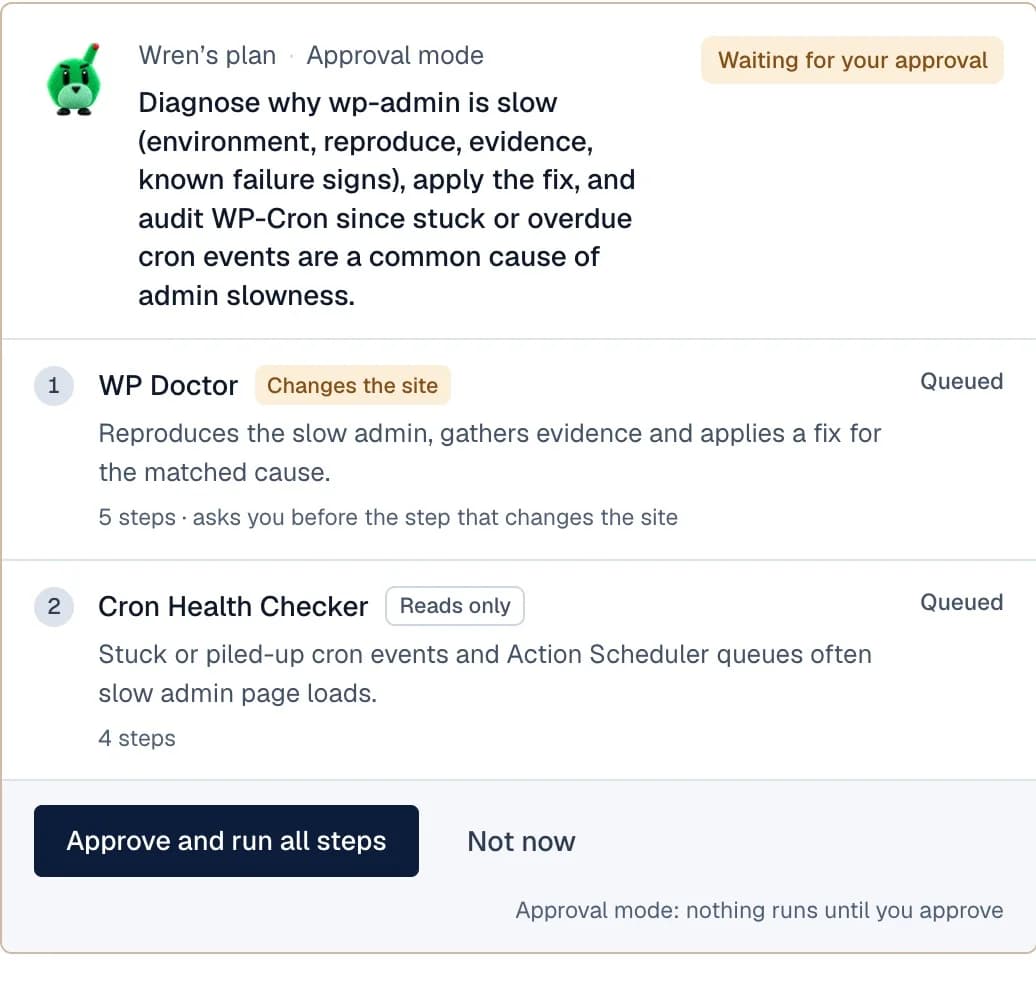
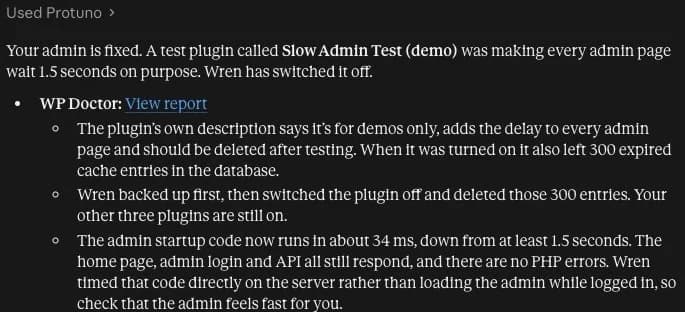
What happened in our run. We asked Wren, Protuno’s Care agent, in Claude: “Wren, run WP Doctor: wp-admin is slow on every page.” Wren was in Approval mode, so the plan waited in Protuno until we pressed Approve. WP Doctor reproduced the slow load, named the demo plugin as the cause, took a backup, switched the plugin off and deleted its 300 expired transients. Its own measurement of the admin start-up code went from 1.5 seconds to 34 ms, and our logged-in timing went from 1,765 ms to 153 ms.

2. admin-ajax.php And The Heartbeat API
While you have the admin open, WordPress sends background requests to admin-ajax.php through the Heartbeat API at a regular interval, more often while you edit a post. Plugins add their own. On a busy shared server these pile up. A plugin or a small code snippet can slow the Heartbeat down or turn it off on screens where you do not need it. Keep it on the editor, where it handles autosaves and post locking.
To see it, filter the Network tab for admin-ajax.php while you leave the dashboard open, and watch how often requests appear and how long each takes. To slow the Heartbeat down on every screen, a snippet in a small custom plugin does it:
add_filter( 'heartbeat_settings', function ( $settings ) {
	$settings['interval'] = 60; // seconds
	return $settings;
} );
3. Expired Transients Piling Up
Transients are cached values stored in the database. Expired ones should be cleaned up, but a plugin can leave thousands behind. In our test, the demo plugin left 300. WP-CLI’s wp transient delete --expired clears them, or a database clean-up does.
4. Post Revisions And Database Clutter
Revisions, auto-drafts, trashed posts and spam comments grow over the years. On a large site this can slow queries the admin runs. On a small site it changes nothing, and our run showed it.
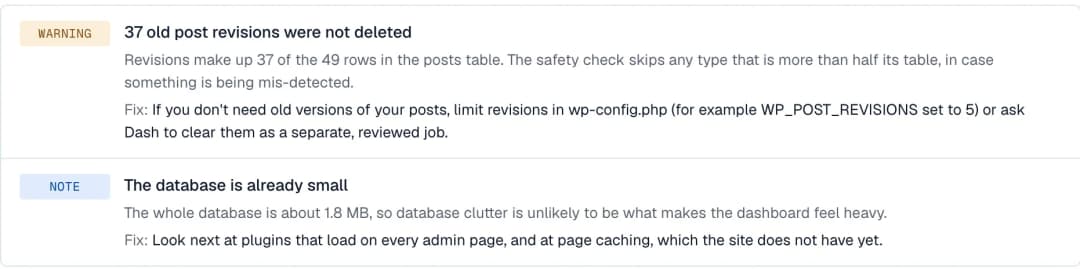
We asked Dash, Protuno’s Performance agent, to run Database Optimisation after the culprit was fixed. It backed up the database and checked the backup, then removed 38 rows of clutter, including 33 transients, 1 auto-draft and 2 deleted posts. Its safety guard held back 37 revisions for review, because revisions made up more than half the posts table. Its own conclusion: “The whole database is about 1.8 MB, so database clutter is unlikely to be what makes the dashboard feel heavy.” Admin load afterwards was 230 ms and 227 ms. No gain. Clean the database when it is big, not as a reflex.

5. Too Much Autoloaded Data In wp_options
WordPress loads every option marked “autoload” on every request, admin included. Plugins sometimes store large blobs there and never clean them up. Since WordPress 6.6, Site Health shows a critical issue, “Autoloaded options could affect performance”, when they pass 800 KB. On our test site they were small, 124 options and about 50 KB. Fixing a large autoload set means turning autoload off for the options a plugin no longer needs. That is a careful manual job, or one for your developer.
To see the total yourself, run this in your database tool (change the wp_ prefix if yours differs):
SELECT SUM(LENGTH(option_value)) AS autoload_bytes
FROM wp_options
WHERE autoload IN ('yes', 'on', 'auto-on', 'auto');
6. An Old PHP Version Or A Low Memory Limit
Open Tools, Site Health, Info and check the PHP version and the memory limit. An old PHP version is slower for everything. The admin can use a higher memory limit (WP_MAX_MEMORY_LIMIT) than the front end. Your host can change both.
7. WP-Cron Running On Page Loads
By default, WordPress checks for scheduled tasks on page loads, and a heavy task can land on your admin request. Set define( 'DISABLE_WP_CRON', true ); in wp-config.php and ask your host to run wp-cron.php from a real server cron every few minutes. In our run, Wren’s Cron Health Checker found 14 scheduled tasks and none stuck, so cron was not the cause there.
8. Dashboard Widgets And Admin Bloat From Plugins
Some plugins add dashboard widgets, notices and admin pages that call outside services on every load. Hide the widgets you do not use under Screen Options, and remove plugins you no longer need rather than leaving them active.
9. Hosting Limits: CPU, Memory, No Object Cache
Check this last, not first. If one admin page is slow even with every plugin off on staging, the server may be short on CPU or memory. A persistent object cache keeps database results in memory between requests, and Site Health recommends one when your host offers it. Our test site had none, and the admin was still fast once the culprit was gone.
The Checklist In One Table
| Cause | How to check | Fix |
|---|---|---|
| One heavy plugin | Deactivate plugins in halves on staging, or use a profiling plugin | Replace it, configure it, or remove it |
| admin-ajax and Heartbeat | Network tab, filter admin-ajax.php | Slow the Heartbeat outside the editor |
| Expired transients | Count them in the options table | wp transient delete –expired |
| Revisions and clutter | Database size in Site Health | Clean up only if the database is large |
| Autoloaded options | Site Health, or the query above | Turn autoload off for unused options |
| Old PHP, low memory | Site Health, Info | Ask your host |
| WP-Cron on page loads | A cron health check | Real server cron |
| Widgets and admin bloat | Screen Options, plugin list | Hide or remove |
| Hosting limits | Slow with all plugins off on staging | Object cache, more resources |
What Not To Do
- Do not install another speed plugin first. Most target the front end, and every extra plugin adds admin code.
- Do not delete revisions or database rows as a reflex. A delete is permanent. Back up, and do it only when the database is actually large. Our database guide covers the safe order.
- Do not change three things at once. Change one, measure, then the next. Otherwise you will never know which one helped.
Why Caching Does Not Fix A Slow Admin
Page caching serves visitors who are not logged in. Admin pages are personal and change with every action, so they are not page-cached. A caching plugin can make your front end fly and leave wp-admin exactly as slow as before. Clearing the cache will not help either. Find the code that runs on admin pages instead.
When It Is Not WordPress At All
Before you blame a plugin, rule these out. None of them is fixed inside WordPress.
- Slow only for you. If a colleague on another network gets a fast admin, look at your browser extensions, your connection or a VPN. Try a private window with extensions off.
- Slow only at certain times. If the admin crawls at the same hour every day, a host backup, a malware scan or a heavy scheduled task may be running then. Ask your host what runs at that time.
- Every page slow, front end too, even cached. Then the server itself is short of resources or overloaded. That is a hosting question, not an admin one.
Find The Culprit With A Super Agent (What We Did)
Protuno is Super Agents for WordPress: six AI agents you use from Claude, Claude Code, Codex or Cursor, each working from written playbooks and reading a Brain for each site. Here is the run above, step by step:
- The ask in Claude: “Wren, run WP Doctor: wp-admin is slow on every page.”
- Wren was in Approval mode, so the plan waited in Protuno until we pressed Approve. In Auto mode, runs start on their own, with no approval.
- WP Doctor reproduced the problem, matched it to a cause, took a backup, switched the plugin off and checked the site again.
- The report named the plugin. Our timing went from 1,765 ms to 153 ms.
The job above is the WP Doctor playbook, run by Wren, the Care agent. The clean-up was Database Optimisation, run by Dash, the Performance agent, and the cron check was Wren’s Cron Health Checker.
WP Doctor fixes only safe WordPress-level causes, after saving a copy of what it will touch, and restores that copy if site health gets worse. Server, CDN and uncertain causes it hands back to you with exact steps, and changes nothing.
Common Questions
Why is my WordPress dashboard slow but the site is fast?
Visitors get cached pages and you do not. The admin runs every plugin’s admin code on each load, so one heavy plugin slows every admin page.
Why is my WordPress admin not loading at all?
That is usually a fatal error or a timeout, not slowness. Check the Recovery Mode email WordPress sends to the admin address, and the debug log.
Can too many plugins slow down wp-admin?
What each plugin does on admin pages matters more than the count. One heavy plugin is the usual cause.
Does cleaning the database speed up wp-admin?
Only when the database is large. On our 1.8 MB test database it made no difference.
How do I clear the cache in WP admin?
Admin pages are not page-cached, so there is nothing to clear for them. Clear your caching plugin or host cache only for changes you want visitors to see.
Related Reading
- Optimize the WordPress database safely
- Automated WordPress optimization: the measurement is the hard part
- WordPress site down after a plugin update
- How to connect Claude to WordPress
Comments