WordPress Security Monitoring: The Playbook, Step By Step.
A vulnerability feed tells you what is vulnerable. Security monitoring starts with what each site actually runs, then checks what it exposes.

A vulnerability feed can tell you what is vulnerable. It cannot tell you which of your WordPress sites actually runs it.
That sounds obvious. It changes the order a useful security check should happen in.
Short answer: start with the site. Read its WordPress version, installed plugins, themes, and relevant exposure points. Match that inventory against known vulnerability information. Then validate whether the finding applies before asking anyone to act.
Security monitoring becomes useful when it answers a question a site owner can do something with: what is running here, what needs attention, and why?
What this post is, and is not: this is a practical monitoring playbook, not a claim that every visible endpoint is a vulnerability or that a vulnerability record proves a site is compromised. The checks below establish evidence, then give a human the context to decide what to do next.
Why The Feed Comes Second
Most vulnerability monitoring begins with a feed.
A vulnerability is published. A scanner finds a matching plugin name or version. An alert arrives. That is useful as far as it goes.
But there is a question that comes before it:
What is actually running on this site?
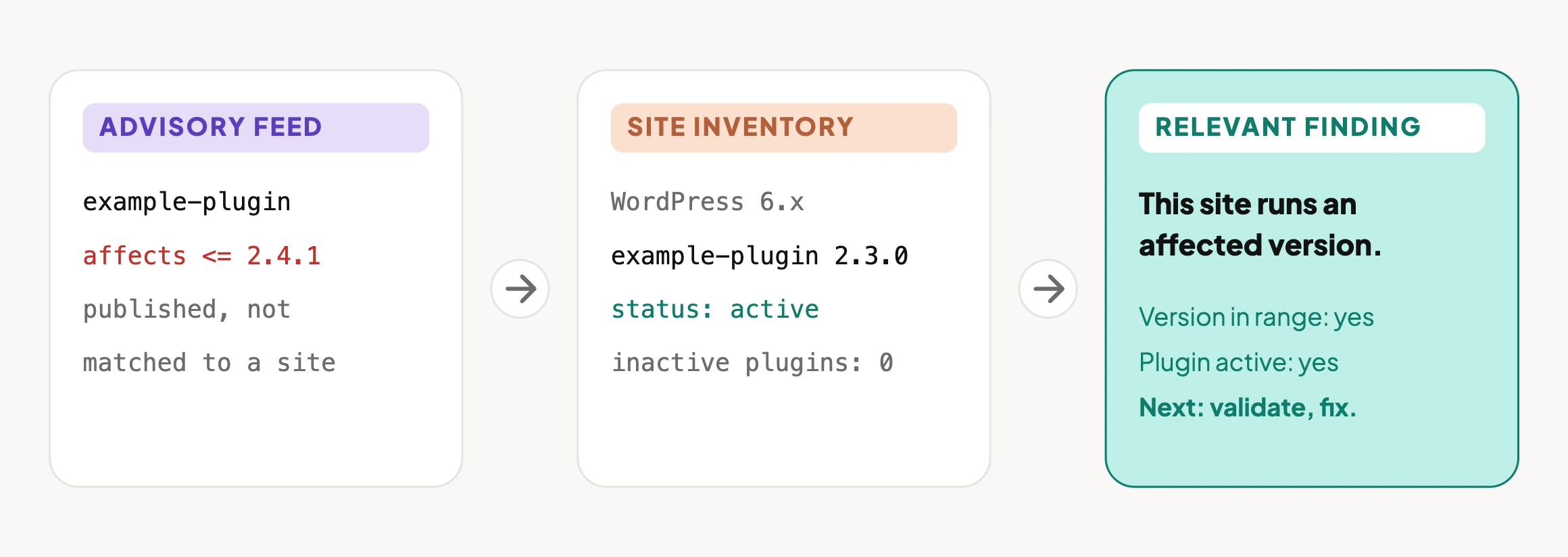
A client portfolio is rarely uniform. One site has an active plugin at one version; another has the same plugin inactive; a third has removed it. Themes differ. Core versions differ. A vulnerability can also depend on a feature, role, configuration, or route being available.
If a tool starts with the advisory alone, it can create a queue of alerts that are technically related and operationally vague. If it starts with the site, the finding can be specific: this site is running this affected version, and this is why it needs investigation.
That is the difference between an alert and work someone can complete. The scanner-design side of this argument is covered in WordPress Vulnerability Scanner Design: Start From The Site; this post is the wider monitoring routine around it.
Three Ways To Look For The Same Problem
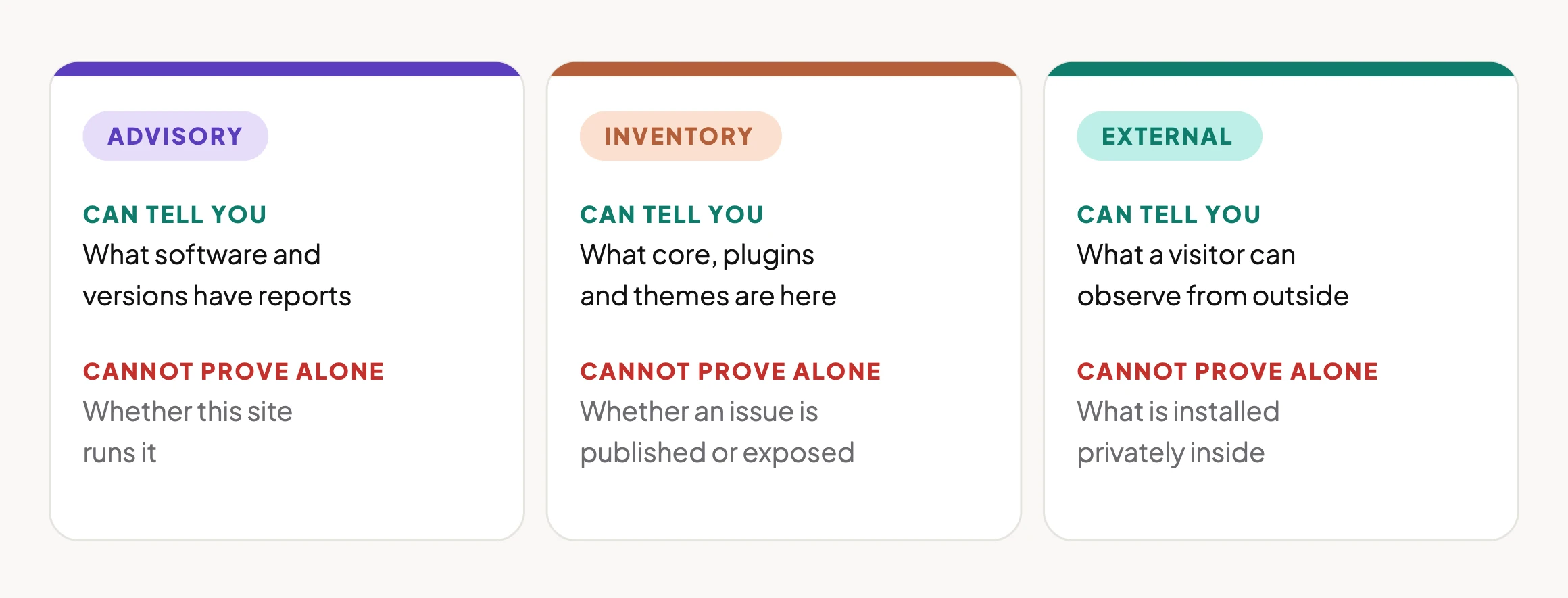
There are three useful views of WordPress security. They overlap, but they do not answer the same question.
| View | What it can tell you | What it cannot prove on its own |
|---|---|---|
| Advisory information | What software and versions have publicly reported issues | Whether a particular site has that software installed or is affected in practice |
| Installed inventory | What WordPress core, plugins, and themes the site has installed | Whether a known issue has been published for them, or whether they are externally exposed |
| External checks | What a visitor can observe from outside the site | What is installed privately inside the WordPress site |
The monitoring job is to connect the three. Each catches a blind spot left by the others.
A Small Test You Can Run Today
Pick one staging site or a site you are authorised to manage. Make a simple record of:
- WordPress core version
- Active plugins and their versions
- Installed plugins that are inactive but still present
- Active and installed themes
- Administrator and editor access that needs review
- Relevant exposure points, such as REST API routes, XML-RPC, security headers, and version disclosure
Now compare the installed versions with the vulnerability information you rely on.
The useful result is not:
“Plugin X has a vulnerability.”
It is:
“This site is running the affected version of Plugin X. Here is the advisory, the affected version range, and the next action to validate or remediate it.”
That language makes the difference clear. It separates an industry fact from a site-specific finding.
The Playbook, Step By Step
Vulnerability Watch is a Protuno security playbook, currently in beta: a fixed sequence written down before it runs, so it asks the same questions every time. It only reads the site. Here is the sequence, as it appears in the dashboard.
| # | Step | What it does |
|---|---|---|
| 1 | Inventory Installed Software | Reads WordPress core, plugins and themes, their versions and whether each is active, and flags software that is not on wordpress.org |
| 2 | Load Vulnerability Feed | Pulls the public advisory data to check the inventory against |
| 3 | Match Versions Against Ranges | Compares each installed version with the affected version range in the advisory |
| 4 | Vulnerability Report | Reports what matched, and states what it could not check |
The order matters. An advisory match without the inventory is a broad warning. An inventory without advisory context is a software list. The report is only useful if it says what it could not assess as clearly as what it found.
What It Found On A Real Site
The video below shows the playbook running on a real WordPress site. The run was on 24 September 2026, took 1 minute 57 seconds, and completed all four steps with none failed or skipped.
- Inventory: WordPress core, four plugins (all active, none inactive) and two themes (one active, one installed).
- Off-repository software: three plugins that are not on wordpress.org, so public feeds do not cover them. The report marks them as needing verification with the vendor.
- Result: 0 vulnerable, 0 high or critical. Four of seven items were assessed; three were not.
- A feed that could not be reached: the report notes when one advisory source was unavailable and that the scan fell back to another, rather than hiding it.
That last point is the useful one. A clean result from a check that quietly skipped half its inputs is worse than an honest “assessed four of seven”.
What A Vulnerability Check Does Not Solve
A vulnerability check is important. It is not a complete security programme.
It cannot, by itself, tell you whether:
- a core or plugin file has changed unexpectedly;
- an installed plugin has been abandoned or removed from its source;
- too much user information is publicly exposed;
- XML-RPC is unnecessarily available for the site’s needs;
- response headers are missing protections the site expects;
- a configuration change left a route open; or
- the site has already been compromised.
Those are different questions, so they need focused checks. Treating every signal as one giant “security score” makes it easier to miss what the signal actually means.
This is why Protuno keeps security work in separate playbooks rather than one generic scan. Seventeen are planned and four are built today, because vulnerability matching, integrity checks, hardening and malware response each rely on different evidence and different safe actions.
Questions To Ask Your Current Monitoring
Before changing tools, test the monitoring you already have. On a site you control, work through these questions:
- Can it identify the exact plugin and version installed on the site?
- Does it distinguish active software from inactive software that is still installed?
- Does it link a finding to the affected version range and advisory details?
- Does it tell you which findings need validation before an update, replacement, or mitigation?
- Does it test anything outside the vulnerability database?
- Can you show a client the evidence without translating a generic severity label first?
If the answer to the first three is no, the system may be reading the feed more reliably than it is reading the site.
External Exposure: Test The Site, Not The Assumption
External checks matter because the public site may reveal things that an installed-software inventory cannot.
For example, on an authorised test or staging site, inspect whether the following routes respond and what they disclose:
/wp-json/wp/v2/users
/?author=1
/wp-sitemap-users-1.xml
The outcome can vary by WordPress configuration, user permissions, theme behaviour, and security controls. A response is not automatically a vulnerability. It is evidence to review: are usernames disclosed in a way that creates a meaningful risk for this site, and is the exposure needed?
Related checks are worth running in the same pass: an exposed debug log and an exposed wp-config.php neighbour. The same principle applies to version disclosure. Removing one generator tag does not prove the version is no longer visible; version references can appear elsewhere, including asset URLs. The right check verifies the observable result after a change.
Which Check Are You Actually Running?
| If you need to know… | Check the evidence that answers it | Typical next action |
|---|---|---|
| Is this site running known-vulnerable software? | Installed inventory plus advisory matching | Update, replace, mitigate, or investigate the match |
| Have files changed unexpectedly? | Core and extension integrity checks | Investigate the change before treating it as harmless |
| Is an installed extension no longer maintained? | Plugin lifecycle and source-availability review | Assess replacement and removal risk |
| Are usernames or other data unnecessarily visible? | External enumeration and exposure checks | Reduce exposure where it is not needed |
| Is XML-RPC appropriate for this site? | XML-RPC reachability and use-case review | Restrict it only after checking integrations that depend on it |
| Are key security headers present? | HTTP response-header checks | Add or correct headers, then verify the response |
| Has the site been hardened safely? | Targeted hardening checks plus functional verification | Confirm the security control and the site’s normal behaviour |
The table is deliberately unglamorous. It is also how a team avoids “we ran security” becoming a phrase that means nothing when a client asks what was checked.
Fixing Findings In The Right Order
Not every security finding needs the same response. Start with the issues most likely to leave a site exposed, then preserve evidence and verify each change.
| Priority | What to address | Why it comes here |
|---|---|---|
| 1 | Known-vulnerable software that is confirmed on the site | It has a documented issue and a site-specific match |
| 2 | Unexpected file changes or signs of compromise | Updating first can overwrite evidence or conceal what happened |
| 3 | Abandoned or pulled software | It may not receive fixes and needs a replacement or removal plan |
| 4 | Meaningful public exposure | Reduce unnecessary information or routes after checking legitimate dependencies |
| 5 | Hardening improvements | Apply carefully, then prove the intended protection and normal site behaviour |
Two practical rules make this safer:
- Take a restore point before changes that can affect the site.
- Re-check the finding after the change. “The update was clicked” is not the same as “the vulnerable version is no longer installed and the site still works.”
A Five-Site Audit You Can Do This Week
Pick five sites you are responsible for. For each one, make a short, comparable record:
- WordPress version
- Installed and active plugin versions
- Installed themes and the active theme
- Relevant known-vulnerability matches
- Plugins that are abandoned, removed, or no longer needed
- File-integrity status
- Public REST API and user-enumeration exposure
- XML-RPC status and whether a real integration needs it
- Security-header status
- The owner, next action, and date the finding was re-checked
You will learn two useful things quickly: which sites have the largest gap, and whether your monitoring is giving you enough evidence to prioritise work without opening every dashboard by hand.
For the most important sites, do not stop at an alert. Record the remediation decision: update now, test first, replace, remove, accept temporarily with an owner and review date, or investigate. A finding without a decision is just a better-organised inbox.
Why A Security Check Goes Stale
A security audit is a snapshot. The site changes after it.
Plugins update. New advisories appear. A theme changes. A new user gets a role. A client installs an integration. A route that was restricted becomes public again after a configuration change.
So the useful question is not:
“Did we check this site?”
It is:
“When did we last check what this site is actually running and exposing?”
That is where continuous security monitoring earns its place: it makes the next relevant change visible before it becomes the thing a client finds first.
Where Protuno Fits
Protuno’s Rook Security agent (see the playbook list) reads what a WordPress site actually has installed, watches relevant advisory information against that inventory, and reports focused security signals in plain language. Its security playbooks are kept separate for the same reason: each part of a site’s posture needs its own evidence.
Rook is designed to report what it found and what should happen next. It should not be treated as permission to make broad changes blindly: security improvements are strongest when the evidence, site context, and remediation decision stay connected.
The Point
Security monitoring does not become more useful because it produces more alerts.
It becomes more useful when every alert is connected to what the site actually runs, what the public site actually exposes, and the next action a person can take with confidence.
So before asking “What vulnerabilities exist?”, ask:
“What is this WordPress site actually running right now?”
Comments