How to Connect Claude to WordPress, and What It Can Manage Safely.
Connect Claude to your WordPress sites once, then ask Super Agents to update plugins, fix broken links or check email, with a Brain that remembers each site.

Yes, Claude can work on a WordPress site. WordPress now has the plumbing for it: the Abilities API lets a site list what it can do, and WordPress MCP lets an AI app such as Claude call those abilities. Connect the two and Claude has hands on your site.
Hands are not the whole job. A bare connection gives Claude no memory of the site and no fixed method, so every job starts from zero, and with ten sites you set it up ten times. This guide covers both halves: how to connect Claude to WordPress, and how to let it manage the site safely, with written steps, a memory for each site and a clear rule for when anything changes.
It uses Protuno, Super Agents for WordPress: six AI agents that look after your sites from Claude, Claude Code, Codex or Cursor. Protuno extends WordPress MCP. It gives each site a Brain, gives the agents written playbooks, and you connect Claude to it once for every site you look after.
What You Need
- A Claude account. Custom connectors work on every Claude plan, Free included. The Free plan allows one custom connector (Claude Help Center, checked 17 November 2026).
- A self-hosted WordPress site where you can install plugins, and an administrator login.
- A Protuno account. Free covers up to 3 sites, with all six agents and all 27 playbooks.
- A few minutes. Nothing to install on your computer.
Step 1: Connect Your WordPress Site To Protuno
In Protuno, press Add a site. There are two ways in.
- Install it for me. Enter the site address and a WordPress admin username and password. Protuno uses the password once to install its plugin, then signs out. On our test site it installed the Protuno plugin, asked before adding Agent Connector for WP (the free plugin that gives the site its MCP server), created a key named “Protuno – AI Super Agent” and signed out.
- Upload it yourself. Download the Protuno plugin, upload it under Plugins, Add New, Upload Plugin, and paste the username and application password it shows you into Protuno.
Either way, the connection is one plugin and a WordPress application password. There is no SSH and no FTP, and you can revoke the password from your own profile at any time (Users, Profile, Application Passwords). A live site starts in Read only: Protuno can look, and nothing on the site can change until you switch it to Execute yourself.
Protuno then reads the site into its Brain. On our test site it wrote its first notes from inside the site (pages, plugins, menus, forms, users and the store) and left three for the AI app to add later: what the business offers, who it is for and its brand voice.
Step 2: Add Protuno To Claude
- In Claude on the web or desktop, open Customize, then Connectors.
- Choose Add, then Add custom connector. Some Claude versions show this as Custom, then Web.
- Name it Protuno and paste
https://protuno.com/api/mcp. - Choose Connect, sign in to Protuno in the window that opens, and press Allow. There is no API key to copy.
- Optional: on the Protuno connector page in Claude, set Read-only tools and Change something with a connected service to Always allow, so Claude does not ask twice. This only removes Claude’s own extra prompt. Protuno’s rules still apply on every site.
- Start a new chat and ask something like “Check my sites with Protuno”.
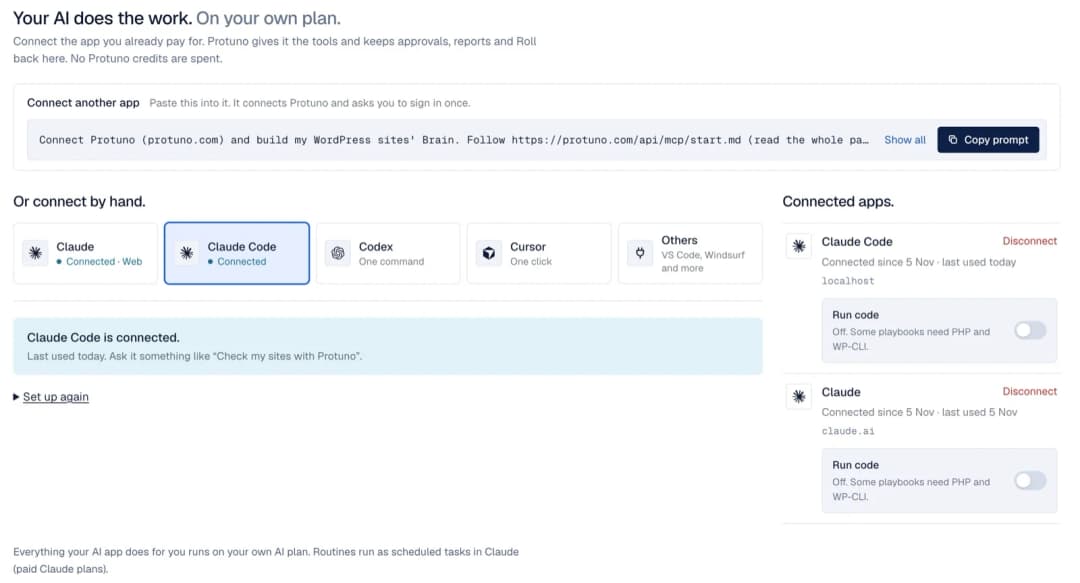
Prefer not to click through? In Protuno, open AI apps and press Copy prompt, then paste it into Claude. The prompt tells Claude how to walk you through the connection. If you work in the terminal, Claude Code, Codex and Cursor connect with one command; Connect your AI app has every step.
You do this once. One connection reaches every WordPress site you add to Protuno, so the eleventh site needs no new setup in Claude.
Here is what it looks like in a real claude.ai chat with Protuno connected (17 November 2026). Asked “Check my WordPress sites with Protuno. Which one needs attention first?”, Claude used Protuno’s read-only tools (the site list, uptime and each site’s issues) and changed nothing. For our test site it reported a health score of 71 out of 100 and 22 issues, and named the missing backup plugin as the main thing to fix.


Step 3: Ask For A Job
Ask in plain words. You do not have to pick an agent: Protuno routes the job to the right one, reads that site’s Brain and returns the playbooks that fit. Three real jobs from our test site (real run on a test site, 16 November 2026, asked from Claude Code through the same Protuno connection):
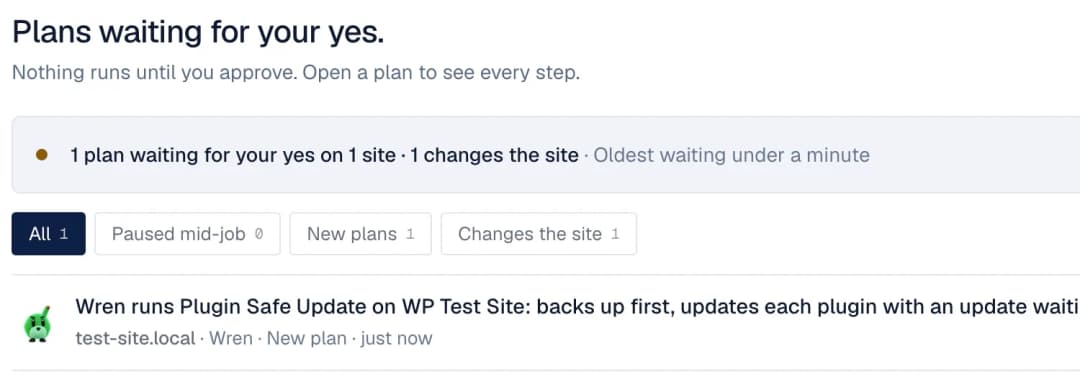
- “Update my plugins safely.” Wren, the Care agent, was in Approval mode on that site, so its plan waited in Protuno under Approvals. Nothing ran until Approve and run all steps was pressed. Then it backed up 1026 files and all 15 database tables, checked the backup, updated the one plugin with an update waiting (5.7 to 5.7.2) and loaded three pages to check the site afterwards.
- “Run a technical SEO audit.” Iris, the SEO agent, crawled 5 of 5 pages and reported that none had a meta description, none had structured data and the homepage had no canonical tag. It only read the site.
- “Are contact form emails arriving?” Echo found the site could not send email at all: no mail transport was set up, and the SPF and DMARC records were missing.
Can Claude Manage A WordPress Site? What It Can And Cannot Do
Through Protuno, Claude can run 27 ready-made playbooks across six areas. 17 of them only read a site, and 10 can change it:
- Wren looks after updates, uptime, cron and certificates.
- Rook looks after security.
- Dash looks after speed, the database and media.
- Iris looks after SEO.
- Till looks after WooCommerce.
- Echo looks after email, forms and comments.
You can also write your own playbook. On a site’s agents tab, choose Create a playbook and describe the job, and your AI app writes the steps for that site. On our test site, “Meta Description Check” came out as a 3-step playbook that only reads, and its first run found that 2 of 2 published items had no meta description.
What Claude cannot do through Protuno:
- Approve its own plan. In Approval mode, only you can start the run, by pressing Approve in Protuno. Claude can check a plan or decline it, never approve it.
- Change a site in Read only. Only the owner switches a site to Execute, in Protuno. Claude can set a site to Read only, never to Execute.
- Run code on a site (PHP or WP-CLI) unless you turn on Run code for that AI app, and then only on sites in Execute.
- Buy or change your plan.
Each agent has a mode on each site, and the mode decides when a run starts. Read only: no changes run. Approval mode: a run starts only when you press Approve in Protuno, once per job. Auto mode: runs start on their own, with no approval. A yes in a chat or a Slack thread never authorizes a run; it only answers your AI app’s own question. A playbook that changes a site takes a backup first, and a fix can be undone from its run report.
Why A Brain Matters When Claude Works On Many Sites
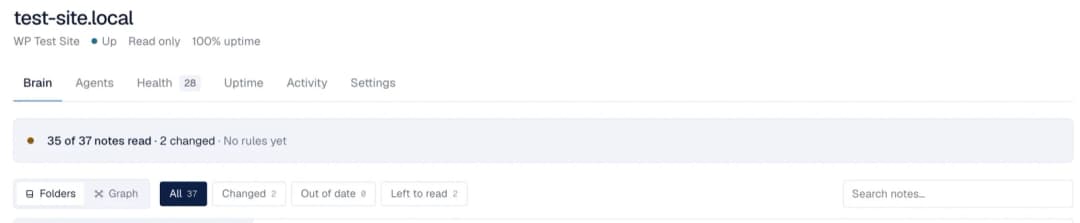
Claude forgets between chats. Your sites should not have to. Every site in Protuno has its own Brain: the rules you set, such as “no updates on Fridays”, lessons from past runs, patterns seen across your sites, and facts measured on the site, such as its PHP version and plugins. An agent reads the Brain before it plans, so a job on the fortieth site starts from what is true about that site.
On our test site, after Claude filled the notes Protuno could not read on its own, the Brain read 35 of 37 notes. Text that comes from a website is treated as information, never as an instruction.
Self-Hosted WordPress And WordPress.com
Protuno works with self-hosted WordPress through its plugin and an application password, so you need a site where you can install plugins.
Run this as a playbook. Connect Claude once, then ask any of the six Super Agents for a job. See the six agents and their playbooks, or start with Plugin Safe Update.
Common Questions
Can Claude manage my WordPress site?
Yes, through WordPress MCP. With Protuno, Super Agents for WordPress, it works from written playbooks and reads a Brain for each site. When a run starts depends on the agent’s mode: in Approval mode, only after you press Approve in Protuno.
Is it safe to connect Claude to WordPress?
A live site starts in Read only, and changes need the site switched to Execute by the owner in Protuno. In Approval mode each job waits for your Approve in Protuno. The application password can be revoked from your WordPress profile at any time.
Do I need Claude Code, or does the Claude app work?
Both work. The Claude app connects as a custom connector. Claude Code, Codex and Cursor connect with one command.
Does it cost extra AI credits?
No. Claude runs on your own Claude plan, and Protuno sells no AI credits. Protuno is free for up to 3 sites.
Comments