WooCommerce Order Status Problems: The Health Review Guide.
Check every WooCommerce order status that can quietly stall a store: stuck pending and on-hold orders, gateways in test mode, empty stock, disabled webhooks.

A store owner opens WooCommerce, clicks Orders, and sees a column of grey “Pending payment” labels going back three weeks. Nobody noticed, because the store never went down. The home page loaded, products showed, the checkout page opened. The orders just stopped turning into money.
Most WooCommerce problems look like that. Nothing breaks loudly. A payment gateway gets left in test mode after a developer finishes, a webhook to the warehouse gets switched off, a product runs into negative stock, and each one sits there quietly until a customer complains. This post goes through what each WooCommerce order status means, which ones signal trouble when orders pile up in them, and the other quiet failures worth checking, using the WooCommerce Health Review playbook as the outline.
What Each WooCommerce Order Status Means
WooCommerce gives every order a status, and the WooCommerce documentation defines each one. The ones that matter for health are:
- Pending payment: the order was received, but no payment has been made. It is usually waiting for the customer.
- On hold: the order is waiting for payment confirmation. Stock has been reduced, but someone needs to confirm the money arrived. Offline methods such as bank transfer land here.
- Processing: payment has been received and stock reduced. The order is waiting to be fulfilled, and someone needs to ship it and mark it Completed.
- Failed: the payment failed or was declined.
- Completed, Cancelled and Refunded: finished states that need no action.
A handful of orders in pending, on hold or processing is normal. They are statuses that wait for something. The problem is an order that has waited much longer than it should, because that usually means a step in the store has stopped working.
Why Stuck Orders Are A Warning, Not Clutter
An order stuck in Pending payment for days often means the customer reached the gateway and something went wrong on the way back: a payment notification that never arrived, a gateway setting that changed, or a checkout that is quietly failing. Our checkout monitoring post covers how to catch that from outside the store.
An order stuck On hold means someone was supposed to confirm a payment and did not. An order stuck in Processing for two weeks means a paid customer is still waiting for their goods. Each one is a person who paid, or tried to, and is now waiting on the store.
A rising number of Failed orders is its own signal. A few declines are normal. A jump is often a gateway problem, which is why our failed orders post treats the failed-to-completed ratio as an early warning.
What The WooCommerce Health Review Playbook Is
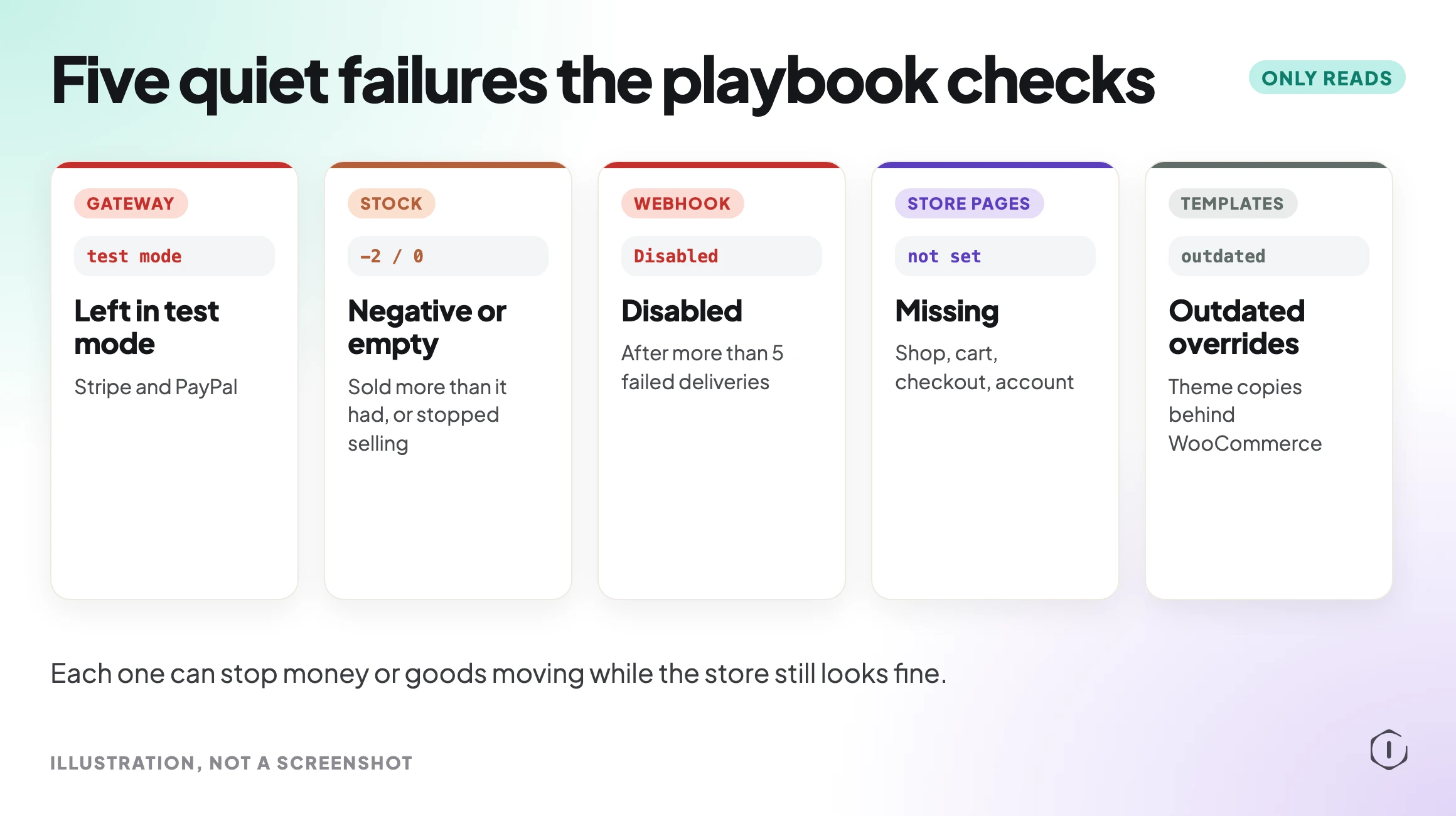
WooCommerce Health Review is a Protuno playbook run by Till, the eCommerce Super Agent. It checks stuck and failed orders, payment gateways left in test mode, negative or empty stock, webhooks WooCommerce switched off, missing store pages and outdated templates, and reports what it finds by severity.
It only reads. It has 2 steps, needs no connector, and does not change any order, product, setting, gateway or webhook. If WooCommerce is not active, the run stops and reports that.
Step 1: Store Scan
The first step reads the store status, counts stuck and failed orders, checks each payment gateway’s mode, and finds empty stock and switched-off webhooks.
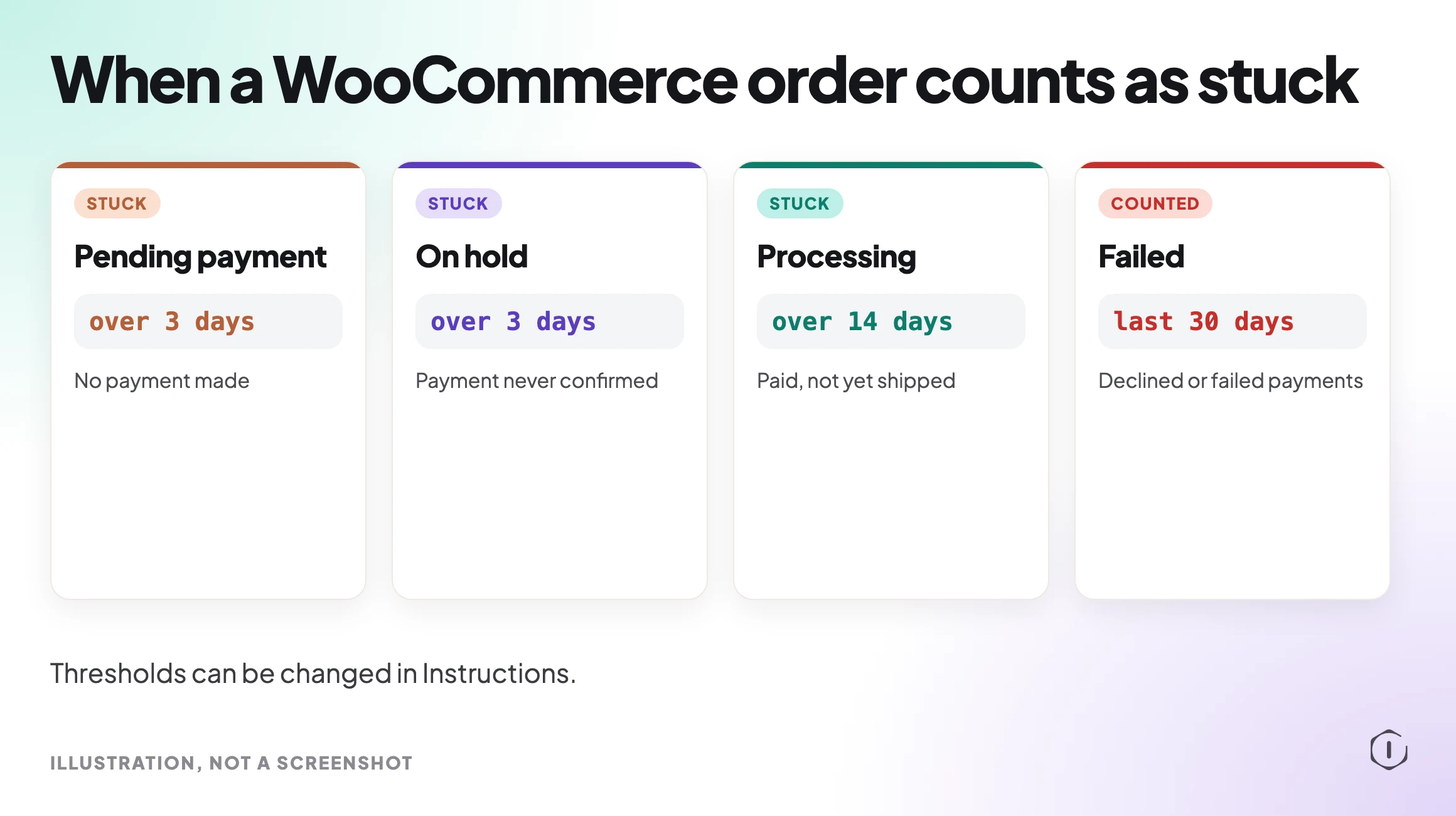
“Stuck” has a fixed meaning here, so the count is not a judgement call:
- Pending payment for more than 3 days.
- On hold for more than 3 days.
- Processing for more than 14 days.
Failed orders are counted over the last 30 days. You can change the three thresholds in Instructions, which matters for a store that ships made-to-order goods and expects processing to take longer than two weeks.
Step 2: Store Health Report
The second step writes a Markdown report with each finding ranked High, Medium or Low, with counts and the order or product IDs, so you can open the exact orders rather than search for them. It also says what was not checked.
Payment Gateways Left In Test Mode
This is the quietest failure on the list and one of the most expensive. Stripe and PayPal both have a test or sandbox mode for trying out checkout without real money. It gets switched on during setup, during a redesign or while a developer debugs a payment problem, and then the work ends and nobody switches it back.
In test mode, checkout can look normal. Customers can still go through the steps. The difference is where the money goes, and on a live store the answer is nowhere.
The playbook reads the test mode setting for Stripe and PayPal. Any other gateway is reported as unchecked rather than assumed fine. Our payment gateway monitoring post covers the other ways a gateway can stop taking money without the site going down.
Stock, Webhooks And Store Pages
Stock. A product with negative stock means more units were sold than the store thought it had. A product at zero that should be in stock means sales have stopped for it. Either one is worth a look before a customer finds it.
Webhooks. WooCommerce webhooks send order and product events to other systems: a warehouse, an accounting tool, an email platform. According to the WooCommerce documentation, WooCommerce automatically disables a webhook after more than five consecutive delivery failures, where a failure is any response other than a 2xx, 301 or 302. That is sensible behaviour, but it is silent. The receiving system was down for an afternoon, six deliveries failed, and from then on new orders stop reaching the warehouse until someone notices the status says Disabled.
Store pages and templates. WooCommerce needs its shop, cart, checkout and account pages to exist. A theme can also override WooCommerce template files, and when WooCommerce updates those templates, the theme’s copies can fall behind. The WooCommerce System Status report notes outdated overrides in its Templates section. An outdated checkout template is a common cause of checkout bugs after an update. Our cart caching post covers another way the cart and checkout pages break without an error.
Reading The Report By Severity
The report ranks findings High, Medium or Low. The useful habit is to read it in that order and act on the top before the store’s next busy period.
A gateway in test mode on a live store, a large count of stuck orders or a disabled webhook to the warehouse all stop money or goods from moving, so they belong at the top. Negative stock and outdated templates are real, but slower to hurt. Every finding comes with counts and IDs, and the report says what it could not check, such as a gateway other than Stripe or PayPal.
What The Playbook Does Not Do
It does not change anything. No order status is moved, no gateway is switched to live mode, no webhook is re-enabled. Those are decisions for someone who knows the store.
It does not test whether a payment actually goes through. It reads settings and counts orders. A gateway can be in live mode and still decline every card because of an expired key or a webhook secret that changed. Our checkout probe post covers checking checkout from the outside.
It does not check gateways other than Stripe and PayPal for test mode. It reports them as unchecked.
It does not run on its own unless you set that up. It runs when you ask for it in your AI app; on Pro and Agency you can also put it on a routine.
A Careful Version You Can Do By Hand
You can make the same checks yourself in about fifteen minutes:
- In WooCommerce, open Orders and filter by Pending payment. Sort by date. Note anything older than 3 days.
- Do the same for On hold (older than 3 days) and Processing (older than 14 days).
- Filter by Failed and count the last 30 days. Compare it with the month before.
- Open WooCommerce, Settings, Payments. Open Stripe and PayPal and check that test mode or sandbox is off. For any other gateway, read its settings.
- In Products, sort by stock and look for negative numbers and products at zero that should be on sale.
- Open WooCommerce, Settings, Advanced, Webhooks. Look for any webhook with the status Disabled.
- Open WooCommerce, Status. Check the store pages are set and read the Templates section for outdated overrides.
- Write down what you found with the order and product IDs, so the next check can compare.
For stuck pending orders, also check that scheduled tasks run. When the Hold Stock setting is on, WooCommerce cancels eligible unpaid pending orders after the time limit, and that depends on WordPress cron. Our cron post shows how to tell when cron has stopped. Before changing any setting, take a backup you have checked; our backup verification post explains why.
Two Outside Views
“when an order is first placed it is marked as pending so this is before it’s been sent to a gateway for payments such as stripe paypal”
Neil Matthews, Understanding WooCommerce Order Status, YouTube, 2022, from the video transcript
That is why a pile of old pending orders matters: each one is a customer who got as far as the gateway, or was about to, and never came back as a paid order.
“For future. Stripe offers sand box environment, and test credit cards so you can test complete payment cycle before getting actually paid orders”
u/Juggerrnaught, I’m having an issue with orders being cancelled, but payments going through, r/woocommerce, 2022
The poster had set up Stripe on a live store with the developer keys still in place. Test mode is the right place to try a checkout. The mistake is leaving a live store in it, or with its keys, after the testing ends.
Where Protuno Fits
WooCommerce Health Review makes the checks above in one read-only run: stuck orders by status against fixed thresholds, failed orders over 30 days, test mode on Stripe and PayPal, empty and negative stock, disabled webhooks, store pages and outdated templates. It writes them up by severity with counts and IDs, and changes nothing.
Two related playbooks sit next to it. WP Doctor diagnoses a problem you report and matches it to a known cause. Cron Health Checker finds scheduled events that are overdue or stuck, which is where an unpaid order that never gets cancelled often starts. Each one has its steps written out on the playbooks page before anything runs, and this one has its own page at WooCommerce Health Review.
The Point
A WooCommerce store rarely fails all at once. It fails one quiet setting at a time: a gateway left in test mode, a webhook switched off, orders waiting in a status nobody checks. Know what each order status means, decide how long an order may wait in each one, and look at the stuck ones, the gateways, the stock and the webhooks on a schedule. The store does not have to go down to stop making money.
Sources And Further Reading
- WooCommerce Documentation, Order Statuses
- WooCommerce Documentation, Webhooks
- WooCommerce Documentation, Understanding the WooCommerce System Status Report
- Neil Matthews, Understanding WooCommerce Order Status (YouTube, 2022)
- r/woocommerce, I’m having an issue with orders being cancelled, but payments going through (2022)
Comments