WooCommerce Shipping Zones: Regions That Cannot Check Out.
WooCommerce shipping zones decide who can check out. Find the regions that match no method, then test them on a staging copy before customers do.

A payment gateway failure makes noise. The order fails, a customer emails, and somebody notices within the day.
A shipping zone gap makes almost none.
A customer in an uncovered region fills a cart, enters an address, and gets a sentence. On the cart it reads “No shipping options were found for” and then the address. At checkout it reads “There are no shipping options available. Please ensure that your address has been entered correctly, or contact us if you need any help.” Many customers take that as a typo, retype the address once, and leave.
From the store’s side, nothing failed. No order was placed, so nothing sits in the orders list. The store owner’s week looks normal.
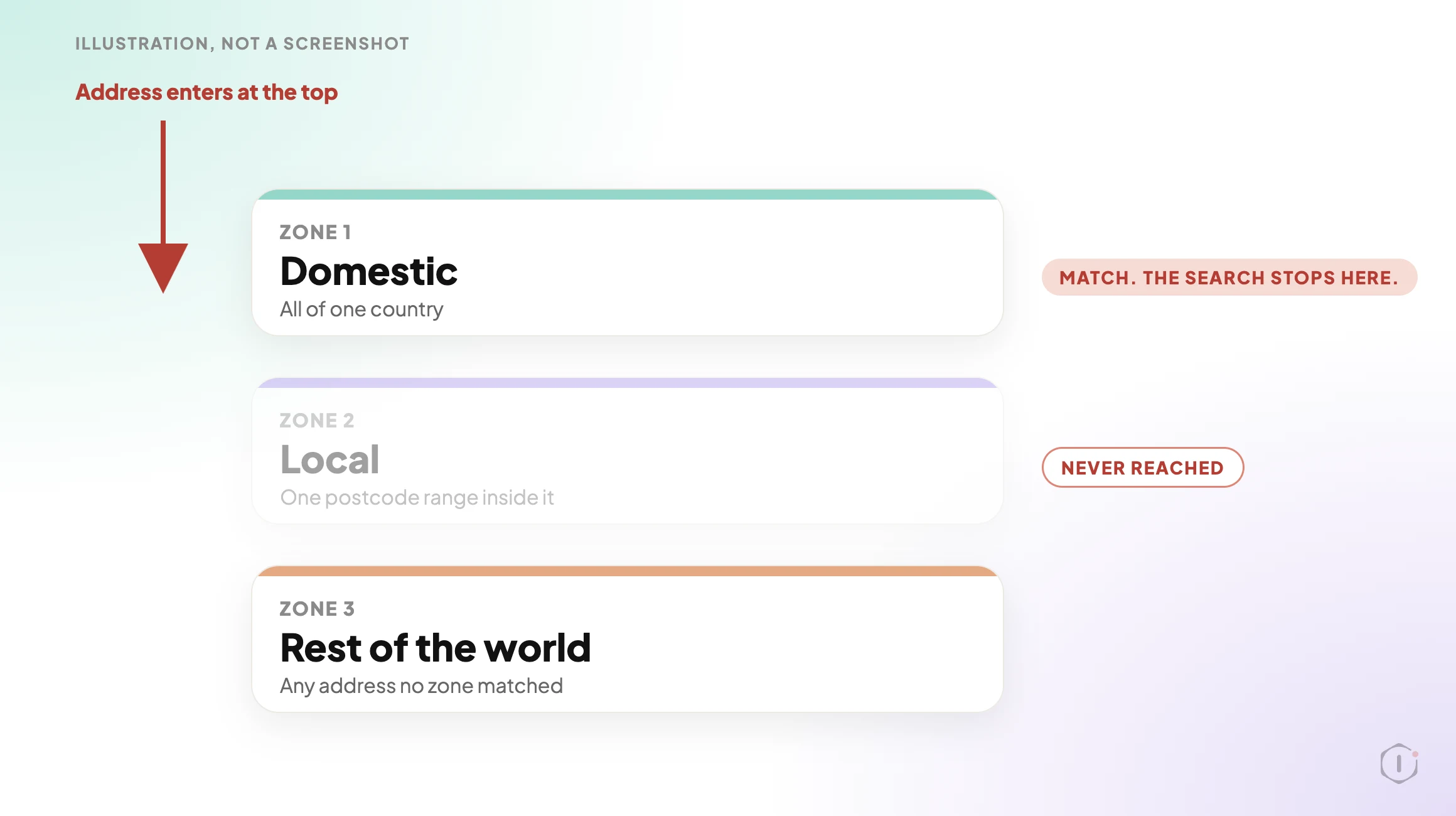
Short answer: a WooCommerce shipping zone only serves the regions listed in it, and a customer is matched to the first zone, from the top of the list, whose regions fit their address. If that zone has no method available for their cart, they get the “no shipping options” message and the search stops there. Find the gaps by listing your zones in order against where your orders and traffic come from, then test an address from each suspect region on a staging copy.
What this post is, and is not: this is a mapping exercise and a test you can run on a staging copy of a store, using your own zone settings and your own order history. It does not tell you what to ship, where, or at what price. It tells you which regions currently resolve to no usable method, which is a different and more answerable question.
How The Matching Actually Works
Zones feel like a list of places you ship to. They behave like a routing table.
WooCommerce’s documentation says it plainly: a customer is assigned the first zone they match, and each customer matches only one zone. They are offered only the methods inside that zone, not the methods from every zone that could have fitted. The matching code agrees: it sorts zones by their saved order and takes the first match.
Three consequences follow, and each produces a real gap.
- Order matters. A broad zone placed above a narrow one swallows it. A zone for a whole country sitting above a zone for one postcode range inside that country means the narrow zone’s rates are never offered. The list is drag-sorted, so it can drift whenever somebody adds a zone in the wrong place.
- A match with nothing usable is still a match. If the winning zone has no method, or only methods that are switched off or not yet earned, the customer is not passed down to the next zone. They are matched and then offered nothing.
- The bottom zone is where everyone else lands. WooCommerce keeps a default zone called Rest of the world for any address no other zone matched. Adding methods to it is optional, so on a store that never added one, every unlisted region gets the same message.
An empty zone is not always a mistake. The documentation describes it as the way to exclude a region when you use Rest of the world: add a zone for the region with no methods, and customers there are told no shipping is available. So the question is not “is there an empty result”. It is “was each empty result a decision”.
The Conditions That Hide Inside A Zone
A zone can look right in the admin and still hand the customer nothing, because a method can exist and not be available for a given cart.
| What is set | What the customer sees | Where to look |
|---|---|---|
| A method switched off in the matched zone | The zone looks populated in the list, and the customer gets nothing from it | The Enabled toggle on each method inside the zone |
| Free Shipping set to need a minimum order amount | Under the threshold, Free Shipping is not offered | The “Free Shipping requires” setting on the method |
| Free Shipping set to need a coupon | Nobody without the coupon sees it | The same setting, plus the coupon’s own free shipping option |
| A zone limited by postcode | An address just outside a range or wildcard falls through to a lower zone | The zone’s postcode list, which takes ranges and wildcards, one entry per line |
| A shipping extension with its own rules | Rates that depend on conditions the core settings do not show | The extension’s settings, after the core ones look right |
| No address entered yet | The line “Enter your address to view shipping options” in the shipping section. Normal, not a gap | The Shipping options setting named “Hide shipping costs until an address is entered” |
If Free Shipping is the only method in a zone, a cart under its threshold has no method at all, which looks identical to a missing zone. Every row except the last ends at the same empty section, and nobody can tell the causes apart without the cart and address that reproduce it.
One more setting sits upstream. The General settings page has a Shipping location(s) option, and the zone documentation says to check it before building zones. If it is wrong, no zone edit will fix what customers see.
Mapping Zones Against Where Orders Come From
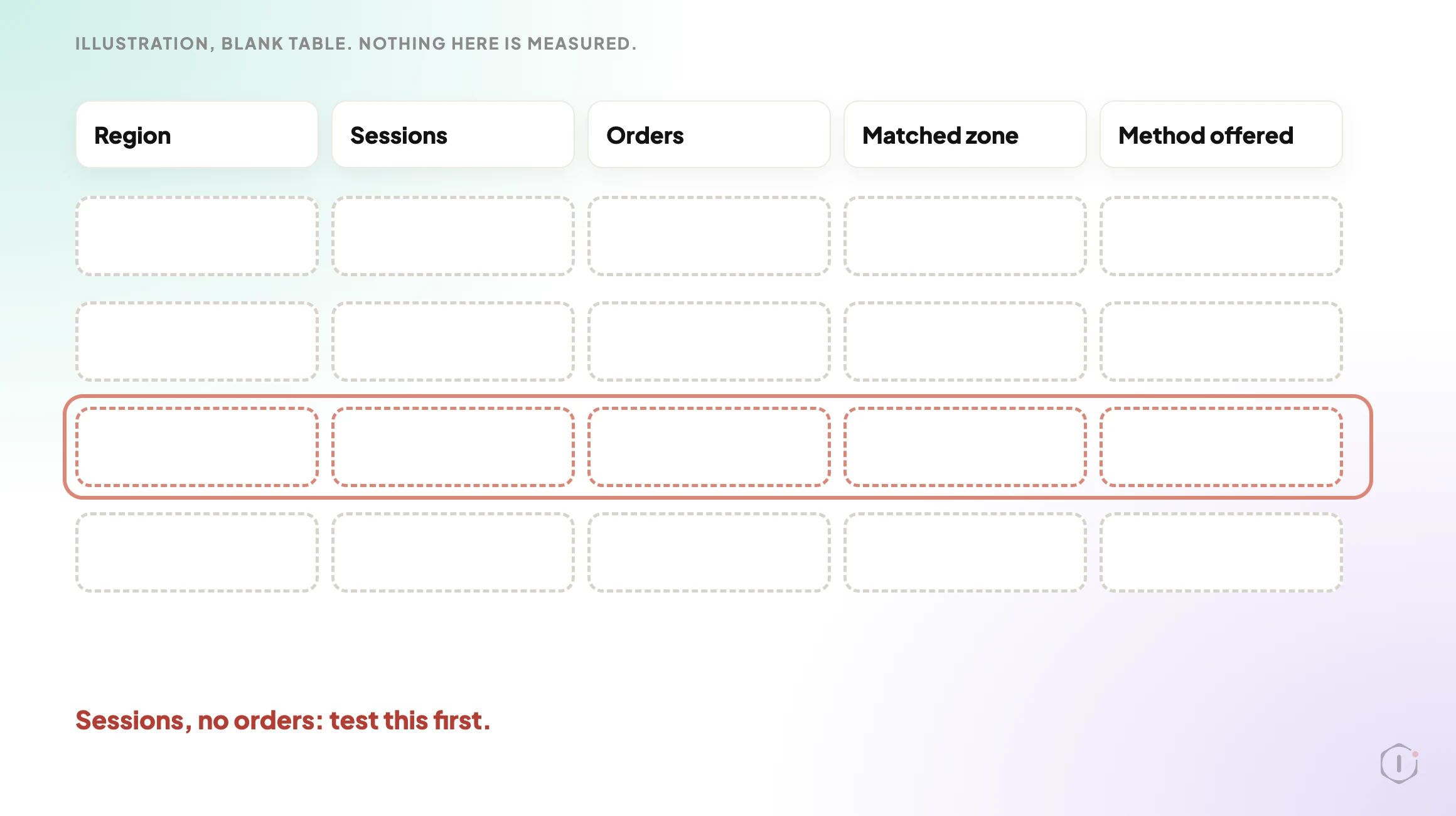
A gap only matters where there is demand. A store that does not ship to a country nobody orders from has no problem. A store that cannot serve a region with steady traffic has an expensive one. Build one table with a row per region.
- Export your orders. Pull the last twelve months and count them by country, and by region for your largest countries. This demand map is biased on purpose: it only contains people who could finish an order, so the regions missing from it are the suspects.
- List your zones in their saved order. Write down each zone, its regions and postcode limits, and every method inside it, including methods switched off or carrying a condition from the table above.
- Pull sessions by region. A region with real sessions and no orders at all is the strongest signal you have.
- Mark each region as served by a zone with a method that works for a normal cart, served only by a conditional method, or falling to Rest of the world.
The output you want is not this:
“We have seven shipping zones configured.”
It is this:
“These regions produced sessions last quarter and no orders, and each falls through to a zone with no available method. Here is the address that reproduces it.”
The second names the regions and the cause and comes with a reproduction. That is a bug report. The first is an inventory.
Testing An Uncovered Region On Purpose
Mapping gives you suspects. A test gives you proof.
Use a staging copy that carries the live zone settings. A test on a stripped-down site with different zones tells you nothing, and a copy keeps abandoned carts and test customers out of the store’s real data.
- Pick one address per suspect region, in a real format for that region. An invalid postcode produces a validation error that looks like a zone gap and is not.
- Add a product that needs shipping to the cart, enter the address, and write down exactly what the shipping section shows.
- Repeat with a second cart at a different value, to catch a Free Shipping threshold.
- Repeat with a product from a different shipping class. Classes group products so a method such as Flat Rate can charge them differently, so a class is a variable worth varying.
- Repeat on a cart with only a virtual product, which should not ask for shipping at all.
- If you use a shipping extension, repeat with a heavy or bulky product.
- Record each combination: region, cart, zone matched, methods offered.
WooCommerce has a switch that helps. Under the Shipping options settings there is a debug mode which, in the setting’s own words, shows matching shipping zones and bypasses the shipping rate cache. Rates are cached, so a retest can show yesterday’s answer without it. Turn it off afterwards. A walkthrough published on 20 October 2026 notes that the matched-zone notice appears on the classic Cart page and not in the Cart or Checkout blocks, so its absence is not a failed test.
Six to eight combinations per suspect region takes an afternoon and leaves you exact addresses and carts that reproduce each failure. That list makes a fix verifiable.
A checkout walk you can safely repeat is worth building once, and building a WooCommerce checkout probe safe to run daily covers how. That post is candid about its own limit: the probe will not catch a shipping method failing for one country, which is the gap here. Why an uptime ping cannot do this job is covered in an uptime check cannot see this. If you look after stores you did not build, detecting WooCommerce from the outside tells you which ones to test first.
Fixing It Without Promising Delivery You Cannot Make
The fix is not always “add a shipping method”. Sometimes the right answer is that you do not ship there, and the job is to say so sooner.
| Situation | Reasonable fix |
|---|---|
| You do ship there and the region was simply missing | Add the region to a zone, or create one with a method and a rate |
| A broad zone above is intercepting a narrower one | Reorder the zones so the narrower one is matched first |
| You ship there only above a value, on purpose | Keep the threshold, and make sure the customer is told about it somewhere other than an empty section |
| You do not ship there at all | Leave the empty zone in place on purpose, and consider a notice that says so before the customer fills the form |
| The method exists but is switched off | Switch it on, then repeat the exact test that failed |
The fourth row is the one stores resist and customers appreciate. An explicit “we do not currently deliver to this region” beats a message that sounds like a typo, and a deliberate zone is something you can find later.
Whatever you change, re-run the exact address and cart that failed. “The zone was updated” is not the same as “this address now sees a method and can complete an order”.
What Changed Recently
WordPress 7.1.3 shipped on 6 October 2026 and 7.2 Beta 1 followed on 20 October. Neither announcement mentions shipping. WooCommerce 11.2.1, released on 9 October 2026, lists two fixes: how classic checkout sends order review and coupon requests, and acceptance of older four-digit Argentine postcodes in the Checkout block. The postcode fix is about validation, not zone matching, so nothing above depends on a recent change.
What This Does Not Solve
This finds regions that cannot check out. It does not find most other ways a checkout quietly stops working.
- It is a configuration check, not monitoring. It is true on the day you run it. A plugin update or an edit by someone else can reopen a gap next week.
- It cannot see demand that never arrived. A region with no sessions because the store was never marketed there shows nothing. No traffic is not the same as no market.
- Tax and address validation are separate. A region can have a working method and still fail on a tax setting or an address field rule. Different symptom, different check.
- It says nothing about payment. A customer who sees a method and then cannot pay has hit a different wall, covered in payment gateway monitoring.
- It does not catch orders that start and then fail. Those are visible, and worth watching separately, which is the subject of WooCommerce failed orders.
- Caching can make a result lie. A cached page that serves one customer’s cart state to another can hide what real customers get. That failure has its own article: one URL, two customers.
Two Outside Views
A video that turns the same idea into six checks. Cobalt Branch Labs’ “WooCommerce Shipping Methods Missing at Checkout? Check These 6 Things“, published 20 October 2026, runs about five minutes. Its order is: reproduce the failure with the exact address and cart, check which zone matches including zone order and postcode rules, confirm the method is enabled inside the matched zone, check the Free Shipping requirement, check that the cart holds products that need shipping, and retest on staging after every change. Its staging example shows the first-match point: with a broad domestic zone above a local one, the same address matched the broad zone first, and the expected local method went missing until the zones were reordered. The description is upfront that the settings panels are illustrative and the outcomes were checked through WP-CLI and cart calculations, not recorded storefront sessions. It is a small channel, so treat it as a checklist.
A thread from people living with it. In an r/woocommerce thread titled “WooCommerce delivery methods/rates not appearing, even on new checkout shortcode page”, the author reports that the zones and methods are all set up and the checkout still shows no delivery rates:
WooCommerce shipping zones and delivery methods are set up, products are physical/not virtual, and shipping is enabled. The checkout is built with Elementor/JetWooBuilder. The order review shows product, total and payment, but no Standard/Express delivery methods or delivery rates appear.
u/SoloUncharted, r/woocommerce, 9 July 2026
That is a useful counterweight. The author says the zones and methods are set up and suspects a page-builder checkout is overriding WooCommerce’s own, so a clean zone check does not end the hunt. It is why the video above puts themes and checkout customisations last. The replies suggest looking for a checkout template in the Elementor theme builder, and checking the zone, caches and other plugins. The author answered with thanks only, so the thread does not confirm a fix.
Sources And Further Reading
- Setting up Shipping Zones, WooCommerce documentation.
- Free Shipping, WooCommerce documentation.
- Product Shipping Classes, WooCommerce documentation.
- cart-shipping.php, the WooCommerce template that holds the two “no shipping options” messages, read on the main branch on 22 October 2026.
- WooCommerce plugin page, WordPress.org, version 11.2.1 and its changelog.
- WordPress 7.1.3 Maintenance and Security Release, WordPress.org News, 6 October 2026.
- WordPress 7.2 Beta 1 is Ready for Download and Testing, WordPress.org News, 20 October 2026.
- WooCommerce Shipping Methods Missing at Checkout? Check These 6 Things, Cobalt Branch Labs, YouTube, 20 October 2026.
- WooCommerce delivery methods/rates not appearing, even on new checkout shortcode page, r/woocommerce, 9 July 2026.
The Point
A payment failure announces itself. A shipping zone gap is the opposite: the customer reads one sentence, assumes it was their typo, and goes.
So the question is not how many zones you have. It is simpler and less comfortable: which regions send you visitors and no orders, and has anyone ever entered an address from one of them and read what the checkout said?
Comments