“Not Secure” Warning on WordPress? How to Fix SSL and Mixed Content.
Why WordPress says “Not secure”, even with SSL: no certificate, http:// addresses in settings, no redirect, or mixed content. 6 fixes, tested on a real site.

WordPress shows “Not secure” in the address bar when a page loads over plain HTTP, or when an HTTPS page still loads something over HTTP, which is called mixed content. The fix is a valid SSL certificate, https:// in both WordPress address settings, a redirect from HTTP to HTTPS, and no http:// links left inside your pages.
The short version
- Click the icon left of the address. If it says the connection is not secure, the page itself is on HTTP or the certificate has a problem. Fix the certificate first.
- If you have a padlock on some pages but “Not secure” on others, that is usually mixed content: an image, script or style still loading from an http:// address.
- Set Settings, General, WordPress Address and Site Address to https://, redirect all HTTP to HTTPS, then replace old http:// links in the database after a backup.
- The browser’s developer tools name every insecure item on the page.
We checked a real WordPress site
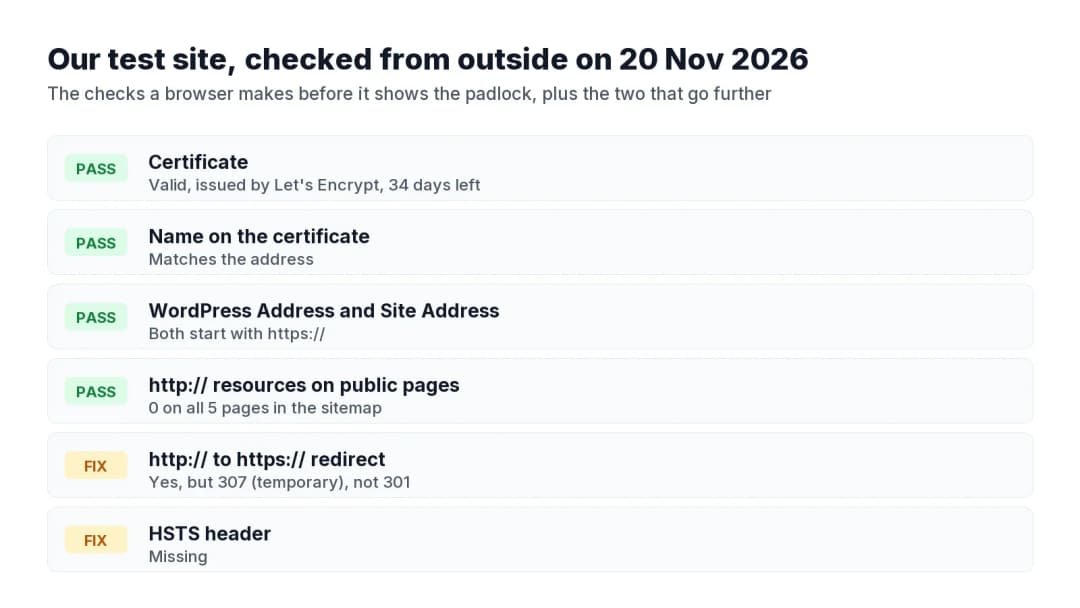
On 20 November 2026 we checked our test site from outside, the way a browser does. The certificate was valid with 34 days left, the name matched, both WordPress addresses used https://, and all 5 public pages in its sitemap loaded 0 http:// resources. Two things still needed work: the HTTP to HTTPS redirect was temporary (307) rather than permanent (301), and the site sent no HSTS header. Tested on WordPress 7.1.4.
Why Does My WordPress Site Say Not Secure?
Browsers show “Not secure” for one of two reasons. Either the page was loaded over HTTP, with no encryption at all, or it was loaded over HTTPS but pulled in something over HTTP. WordPress’s own HTTPS guide puts the first case plainly: the label appears when the browser wants you to know a site is not using HTTPS.
To tell which case you have, click the icon to the left of the address:
- “Connection is not secure” on every page: the site is on HTTP, or the certificate is missing, expired or for another name. Start with fix 1.
- A padlock on most pages, but “Not secure” or a warning on some: mixed content. Go to fix 4.
- A full-page warning such as “Your connection is not private”: the certificate is invalid or expired. Fix 1, and do not tell visitors to click through.
How To Fix The Not Secure Warning In WordPress (6 Fixes)
1. Make Sure The Site Has A Valid SSL Certificate
Most hosts include a free certificate, often from Let’s Encrypt, and renew it on their own. Check three things:
- In your hosting panel, find the SSL or TLS section and check a certificate is issued for your domain, with and without www if you use both.
- Open the site with https:// in front. Click the padlock, then the certificate details, and check the expiry date.
- If there is no certificate, turn on the host’s free option or ask support to issue one. Free certificates are short-lived and are meant to renew automatically, so check renewal is on.
A certificate that expired is one of the few causes that breaks the whole site at once. Our SSL expiry monitoring guide shows how to get warned in time.
2. Change Both WordPress Addresses To https://
- Go to Settings, General.
- Change WordPress Address (URL) and Site Address (URL) from http:// to https://.
- Press Save Changes. You will be logged out and asked to log in again over HTTPS.
Check that HTTPS works first, by opening the https:// address yourself. If the fields are greyed out, they are set in wp-config.php with WP_HOME and WP_SITEURL, so change them there. Site Health (Tools, Site Health) also reports when a site is not using HTTPS, and on many sites offers a button to switch it.
3. Redirect All HTTP Traffic To HTTPS
Visitors and old links will still arrive on http://. Send them to https:// with a permanent (301) redirect. Most hosts have a “Force HTTPS” switch. On Apache you can add this above the WordPress block in .htaccess:
RewriteEngine On
RewriteCond %{HTTPS} off
RewriteRule ^(.*)$ https://%{HTTP_HOST}/$1 [R=301,L]
Use a 301, not a 302 or 307. A permanent redirect tells browsers and search engines that the https:// address is the real one. Our test site redirected with a 307, which works for visitors but says the move is temporary.
For the admin, WordPress offers a constant in wp-config.php that forces logins and admin sessions onto HTTPS: define( 'FORCE_SSL_ADMIN', true );. If the site sits behind a proxy or CDN that handles SSL, read the reverse proxy note in WordPress’s HTTPS guide first, or you can create a redirect loop.
4. Find The Mixed Content On The Page
Mixed content is the usual answer when a site “has SSL” and still says not secure. Images, video and audio are passive mixed content. Scripts, stylesheets and iframes are active mixed content, and most browsers block them, which can also break how the page looks or works.
- Open the page that shows the warning.
- Open developer tools (F12, or right-click and Inspect) and look at the Console and Issues tabs.
- Each insecure item is listed with its http:// address. Note where it comes from: the post content, the theme, a widget or a plugin setting.
- Repeat on the template types your site uses: home page, a post, a page, a product, an archive.
In some cases Chrome tries to load hard-coded http:// images over HTTPS by itself, and skips them if that fails. So a missing image can also be a sign of mixed content.
We tested both kinds. On 20 November 2026 we added one image and one script with http:// addresses to a page on our https:// test site, opened it in Chrome, then removed both.
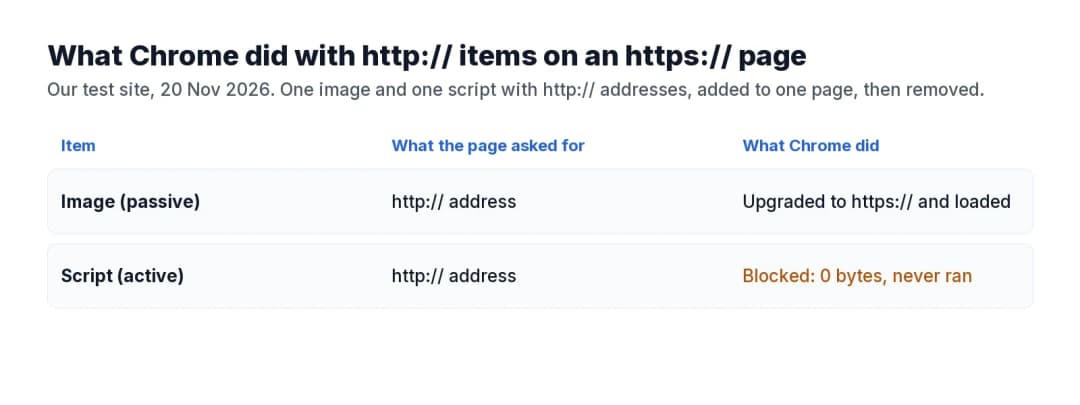
- The image (passive mixed content) was upgraded to https:// by Chrome and loaded, because the same file also exists on https://. The page source still said http://, so this kind can hide until a file is not available over https://.
- The script (active mixed content) was blocked. It never loaded, 0 bytes, so whatever it does on the page silently stops working.
Fix both kinds the same way: change the address to https://, or remove the item.
5. Replace Old http:// Links In The Database
Old posts often hold image and link addresses with http:// from before the site moved to HTTPS. Replace them across the database, and take a backup first, because this changes every matching row.
wp search-replace 'http://example.com' 'https://example.com' --all-tables --dry-run
wp search-replace 'http://example.com' 'https://example.com' --all-tables
Run the first line to see how many rows would change, then the second to make the change. WP-CLI handles serialised data correctly, which a plain SQL replace does not. If you do not use WP-CLI, a search-and-replace plugin does the same. Then clear any page cache and check the page again.
Links to other sites that only work on http:// cannot be fixed this way. Use the site’s https:// address if it has one, host the file yourself, or remove it.
6. Check Your CDN Or Proxy SSL Setting
If a CDN or proxy sits in front of the site, it has its own SSL setting. A “flexible” mode encrypts only between the visitor and the CDN, and can cause redirect loops or mixed content once WordPress also forces HTTPS. Use the full or strict mode, with a valid certificate on your own server too.
Add HSTS Once Everything Works
HSTS (HTTP Strict Transport Security) is a response header that tells browsers to use HTTPS for your site every time, even when someone types http://. Our test site did not send it, and Protuno’s security agent, Rook, flagged it in the site’s health scan.

Strict-Transport-Security: max-age=31536000Add it only after every page and subdomain works on HTTPS, because browsers will refuse HTTP for the whole max-age period. Start with a short max-age, check nothing breaks, then raise it. Your host or security plugin may have a switch for it.
When It Is Not Your Site
- Only one visitor sees the warning. A wrong clock on their computer, an old browser, a security program that inspects HTTPS, or a hotel or airport wifi login page can all cause it. Ask them to try another network or device.
- The warning is on the login page of a host or tool you use. That is their certificate, not yours.
- The browser warns that the site is dangerous or deceptive. That is not an SSL problem. It can mean the site was flagged for malware or phishing. Check Search Console’s Security issues and run a malware scan.
Check SSL And Mixed Content With A Super Agent
Protuno is Super Agents for WordPress: six AI agents you use from Claude, Claude Code, Codex or Cursor, each working from written playbooks and a Brain for each site. Two playbooks cover this post:
- SSL And Domain Expiry Monitor, run by Wren, the Care agent, reads the certificate the site actually serves, how many days are left and whether it is trusted. It only reads.
- Broken Link Checker, run by Iris, the SEO agent, has a mixed content step that finds http:// images, scripts and other resources on your https:// pages. It can also fix some broken links, so it follows the agent’s mode below.
You can also just ask. In a real claude.ai chat about our test site, Claude used Protuno to read the site’s findings and named the missing HSTS header among the things to fix.

What a job may change depends on the agent’s mode on that site. Read only: no changes run. Approval mode: a run starts only when you press Approve in Protuno. Auto mode: runs start on their own, with no approval. More about all six Super Agents.
Common Questions
Why does my WordPress site say not secure even with SSL?
Usually mixed content: the page loads over HTTPS but an image, script or stylesheet still loads from an http:// address. Open developer tools, read the Console, and replace each http:// address with https:// or remove it.
How do I make my WordPress site secure in the browser?
Install a valid SSL certificate, set both WordPress addresses in Settings, General to https://, redirect HTTP to HTTPS with a 301, and replace old http:// links in the database after a backup. Then add HSTS once everything works.
Is a free SSL certificate good enough?
For the padlock, yes. Browsers treat a valid free certificate the same as a paid one. Paid certificates add things like longer validity, warranties or organisation details, not stronger encryption for visitors.
Will moving to HTTPS hurt my SEO?
Not if you redirect every http:// address to its https:// match with a 301 and update your sitemap. Search engines treat HTTPS as a positive signal. Check Search Console for crawl errors in the weeks after the switch.
Why do I get “Your connection is not private” on my own site?
The certificate is invalid, expired or issued for another name, such as without www. Check the certificate details in the browser, then reissue or renew it in your hosting panel. Do not ask visitors to click past the warning.
Related Reading
- SSL certificate expiry monitoring
- Redirect loops and chains
- WordPress malware scan
- WordPress site not showing on Google
Comments